

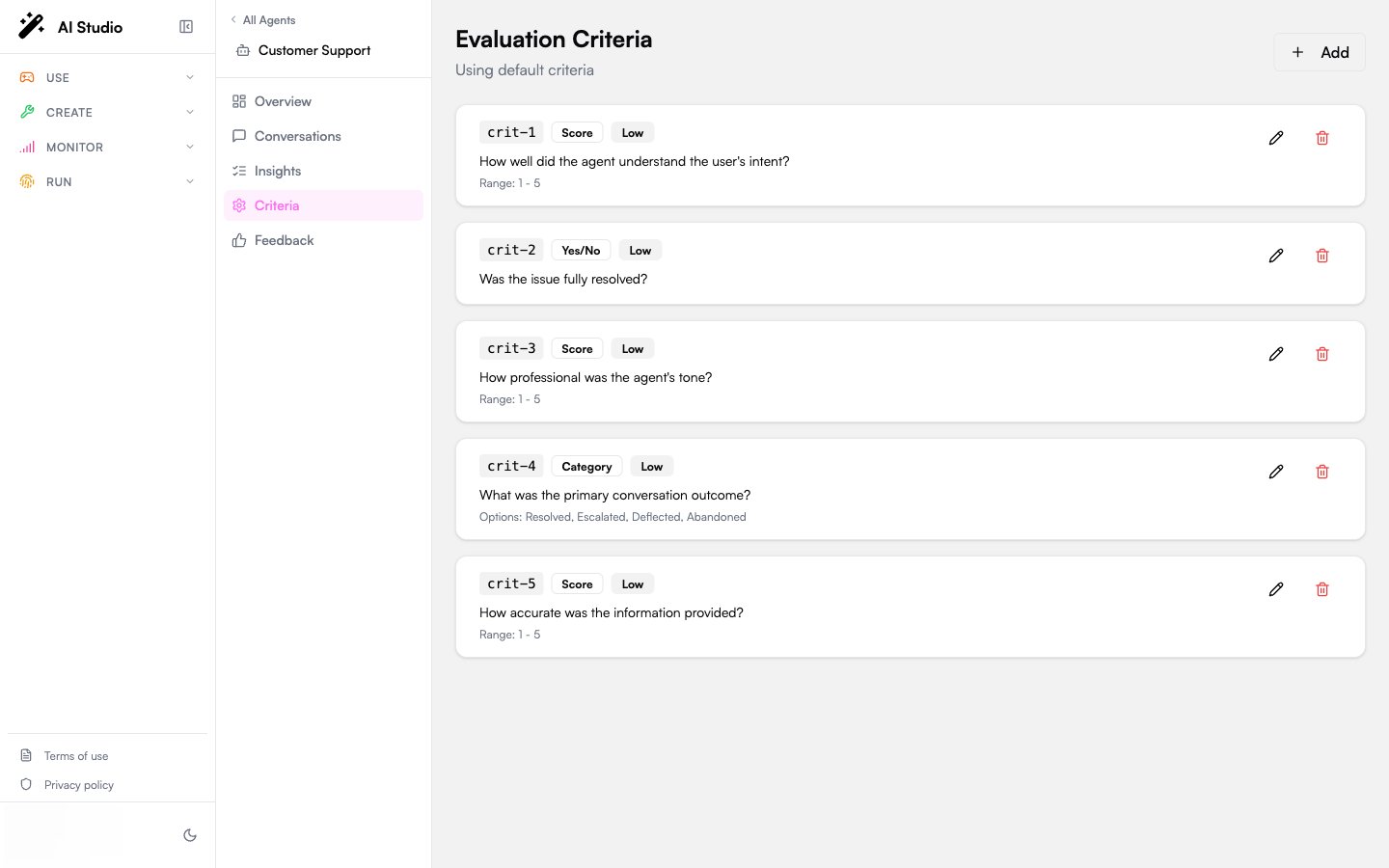
The default criteria
Until you customize them, every analyzed conversation is judged against these four criteria:
The page header shows Using default criteria when these apply, or Custom criteria for this agent once you’ve saved your own.
The three criterion types
- Yes/No
- Score
- Category
A boolean question. The LLM answers Yes or No with a brief reasoning string. Best for compliance gates and pass/fail checks.Example: “Did the agent ask for verification before sharing account details?”
Weights
Each criterion has a weight that determines its contribution to the overall evaluation score (0-100) shown across Insights.
Weights are relative: the contribution of each criterion is its raw answer normalized into [0, 1] times its weight, divided by the sum of all weights. A “Critical” weight criterion that fails won’t tank the score on its own; it just pulls the average harder than a “Low” one.
Add a criterion
1
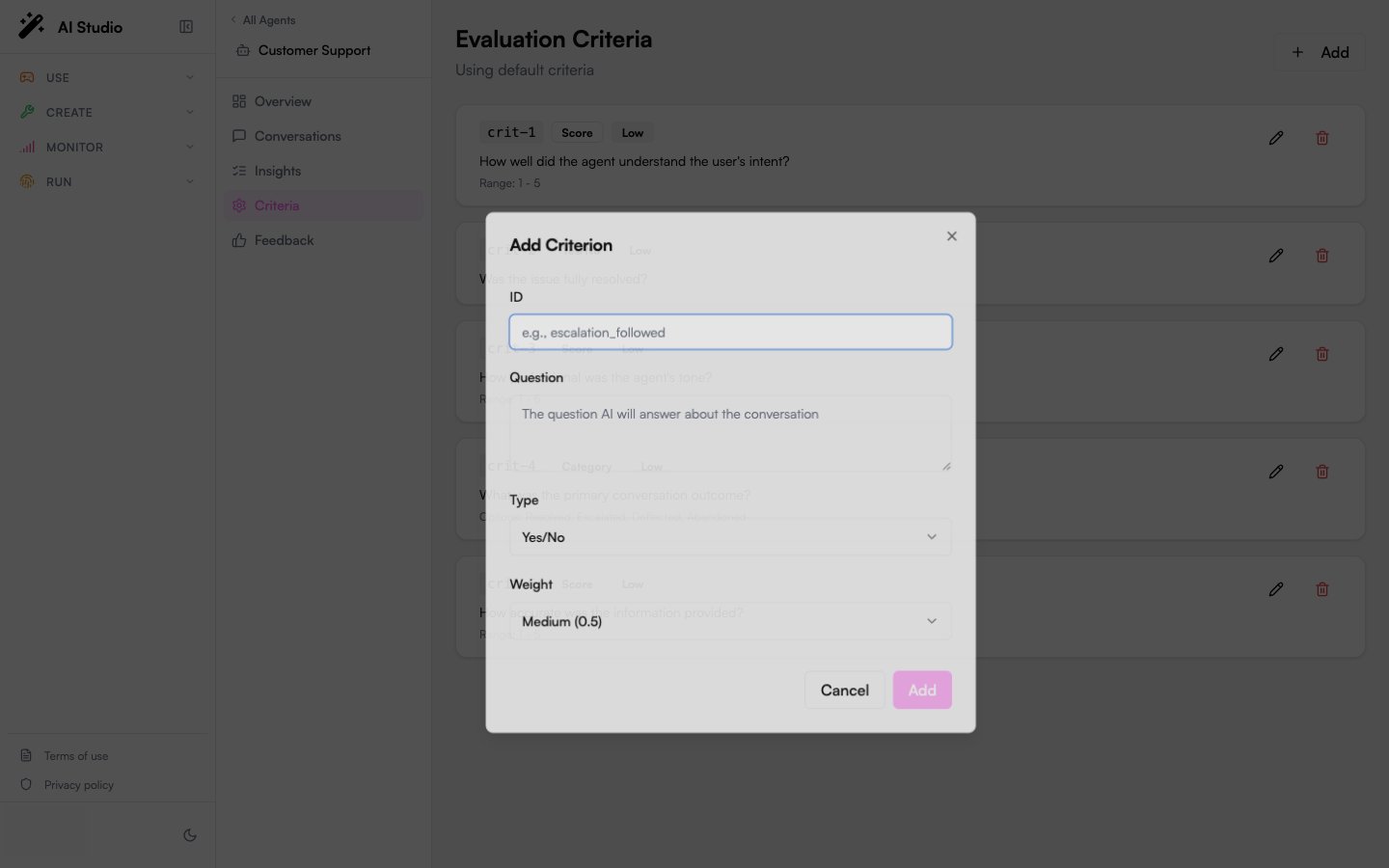
Click Add
The dialog opens with empty fields.
2
Set the ID
A short snake_case identifier, for example
escalation_followed. The ID is what shows up under Evaluations on each insight detail.The ID is immutable once saved; you can’t edit it later.3
Write the question
Plain natural language describing what the LLM should evaluate. Be specific about what counts as a “yes”, a high score, or a particular category. The clearer the question, the more consistent the answers.
4
Pick the type
Yes/No, Score, or Category. For Score, set the Min and Max. For Category, list the options comma-separated.
5
Pick a weight
Low, Medium, High, or Critical. Default is Medium.
6
Save the criterion
The new criterion appears in the list. The form shows Save Changes; your edits are local until you save.
7
Save your changes
Click Save Changes in the top-right to persist the criteria for the agent. Until you do, the dashboard banner reminds you that you have unsaved changes.
Edit or delete a criterion
Each row has a pencil (edit) and trash (delete) icon. Edits open the same dialog with fields prefilled. The ID field is disabled; editing in place would invalidate historical insights, so the product treats it as immutable. Deleting a criterion removes it from future analysis passes. Existing insights keep their old criterion answers; they’re not retroactively recomputed. To re-evaluate against the new schema, see Re-analyze on the Conversations page.Best practices
- Keep questions outcome-oriented. “Did the agent confirm the user’s identity before sharing PII?” beats “Was the agent secure?”
- Use Yes/No for gates, Score for quality, Category for taxonomies. Mixing types lets the dashboard show pass-rates, distributions, and breakdowns side by side.
- Limit to ~5-8 criteria. More than that, and the LLM-as-judge tends to phone in shorter reasoning. Better to have a tight schema with high-quality answers.
- Use stable IDs. Once you have a few weeks of insights, renaming or deleting a criterion makes historical comparison harder.
- Preview with a single conversation. After defining new criteria, open a representative conversation and click Re-analyze to see how the LLM answers them before you let the batch pass apply them at scale.
How criteria show up downstream
- On the Insights detail panel: under Evaluations, each criterion ID, the answer, and the LLM’s reasoning string.
- On the Agent overview: folded into the Average Score and (for
resolution) the Resolution Rate. - On the Organization dashboard: folded into the Average Score rolled across the fleet.
- In CSV exports: the standard columns (score, resolved, sentiment, topics, summary). Custom criterion answers are visible in the UI but not currently part of the CSV; see Exporting data.
Where to go next
Read insights
See your criterion answers in the per-conversation detail.
Re-analyze conversations
Apply changed criteria to past conversations.