

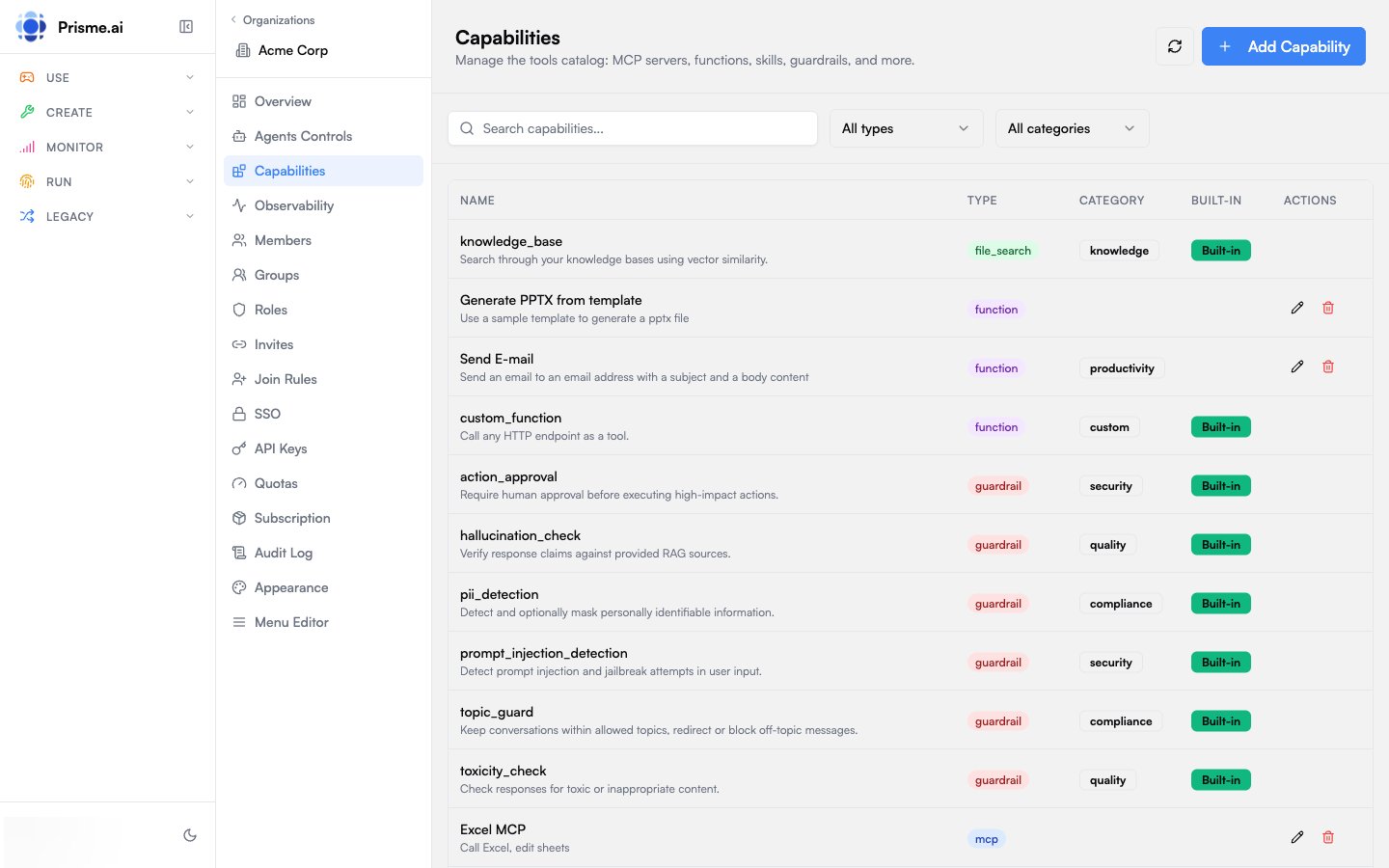
Capability Types
Importing and exporting capabilities
The Capabilities tab reads and writes capabilities as JSON. Select the ones you want with the multiselect and Export them to a file, or Import a file to add them to the organization. It is the same mechanism as on Join Rules and Agents Controls: a catalog assembled and tested in one organization or environment can be replayed in another rather than rebuilt by hand.Categories
Organize capabilities into functional categories:MCP Servers
Model Context Protocol (MCP) servers expose tools to AI agents through a standardized interface.Adding an MCP Server
- Go to Capabilities in the sidebar
- Click Add Capability
- Select type MCP
- Configure:
- Click Create
Example Configuration
Per-user authentication
Add anauth block to the capability so the platform handles connect / disconnect / status checks per end user. Two patterns are supported:
Required auth fields
The capability hosts these three endpoints itself (typically as a Builder workspace alongside the MCP server). The platform never stores the credential in agent-factory or in the agent, only inside the capability’s own workspace.
Example: MCP server with JSON auth
config_schema defines the fields the Agent Builder fills in when adding the capability to an agent in the Agent Creator product (server URL, tool name, scope…). config_schema is not for end users; never use it for credentials.
Implementing the three webhooks
Eachauth.*_url points at one webhook automation in the capability’s own workspace. Here is the minimum each must do, mirroring the SharePoint MCP reference implementation:
status_url: am I connected?
Triggered by Chat per turn whenever the agent might call the tool. Reads the current end user’s stored credential and returns whether it’s still valid.
{ "connected": true | false }. Add anything else you want to surface to the UI (expiresAt, email, etc.); Chat ignores unknown fields safely.
connect_url: start the flow
For OAuth, generate PKCE + state and redirect to the provider. For JSON auth, render or redirect to a small form that collects the credential.
oauthCallback) exchanges the auth code for tokens and stores them via the secrets module with scope: user:
disconnect_url: revoke
Deletes the per-user secret and any state stored in user scope:
sharepoint-mcp workspace template.
Where credentials live
End-user credentials never leave the capability’s own workspace. Two layers exist, depending on whose credential it is:Per-user credentials (the user’s OAuth token, personal API key)
- Stored via the
secretsmodule withscope: user: encrypted at rest, isolated per user, only readable from inside the capability’s own workspace. - The MCP server’s tool implementations are the only code allowed to read these secrets. They retrieve the calling user’s token at call time, attach it to the outbound API request, and discard it.
- The agent never sees the user’s token or credential. It only sees the tool’s response (or the structured error if
connected: false). Likewise, agent-factory, secure-chat, and the LLM gateway have no read access; they only know whether the user is connected, never what the credential is.
Infrastructure credentials (the OAuth client secret, upstream API keys, webhook signing keys)
These are not user-specific: they belong to the capability itself (e.g. the OAuthclient_secret issued by Microsoft for your SharePoint app, the static API token your MCP uses to talk to its upstream).
- Pulled from the platform’s infrastructure secret store: Azure Key Vault, AWS Secrets Manager, Google Secret Manager, or HashiCorp Vault, depending on your deployment.
- Referenced inside automations as
{{secrets.YOUR_SECRET_NAME}}and rotated centrally by infra. - Same containment rule: only the capability’s own workspace can resolve them. They never appear in agent context, prompts, or logs.
This matters when picking which provider gets a per-user MCP: you trust the capability workspace’s code, not the agent or the LLM, with the credential.
Limiting what the agent can do: service accounts
Per-user authentication controls the third party side (which user the MCP acts as). To limit the platform side (what the agent itself can do across Prisme.ai workspaces), each agent runs under its own service account with a role.- Every agent gets a service account on first call, slug
agentfactory_{agent_id}. - The role defaults to
agent-standard. Org admins can set a different default in Agent Creator’sdefaultAgentSARoleSlugconfig, or the Agent Builder can override per-agent. - The service account’s permissions decide which workspaces and actions the agent can reach, so an agent with a “read-only” SA cannot mutate other workspaces’ data, even if its own MCP could.
The two layers compose: an agent with a “read-only” SA can still write to a third-party API if the user’s OAuth token has write scopes, and vice versa.
What happens next
- Agent Builder (in the Agent Creator product) picks the capability from the catalog and configures the
config_schemafields. They never see end-user credentials. → see Agent Capabilities. - End User runs the agent through the Store or through Chat, where every agent is harmonized into one secure experience. They are prompted to connect their personal account: proactively from the agent home view, or just-in-time when the agent calls the tool. The connect button opens the provider’s flow (or the JSON form), then the agent resumes automatically. → see MCP Connections & OAuth.
Functions
Functions are custom HTTP endpoints that agents can call as tools.Adding a Function
- Click Add Capability
- Select type Function
- Configure:
Example Configuration
File Search
Connect vector stores for knowledge base search.Adding File Search
- Click Add Capability
- Select type File Search
- Configure:
File search integrates with Knowledges vector stores.
Skills
Skills are reusable instruction sets that modify agent behavior.Adding a Skill
- Click Add Capability
- Select type Skill
- Configure:
Example Skill
Name:summarize
Purpose: Summarize long documents into key points
Instructions:
Guardrails
Guardrails validate inputs, outputs, or actions to ensure safety and compliance.Guardrail Types
Adding a Guardrail
- Click Add Capability
- Select type Guardrail
- Configure:
Example Guardrail
Memory Providers
Memory providers store conversation history and long-term context.Adding Memory
- Click Add Capability
- Select type Memory
- Configure:
Sub-Agents
Sub-agents are other agents that can be invoked as tools, enabling agent composition.Adding a Sub-Agent
- Click Add Capability
- Select type Sub-Agent
- Configure:
Built-in vs Custom
Capabilities are marked as:- Built-in: Provided by the platform, cannot be edited or deleted
- Custom: Created by your organization, fully editable
Filtering & Search
Use the toolbar to find capabilities:- Search: Filter by name or description
- Type: Filter by capability type (MCP, Function, etc.)
- Category: Filter by functional category
Best Practices
Descriptive Names
Use clear, action-oriented names for tools
Secure Authentication
Store credentials in secrets, reference as
{{secrets.KEY}}Document Parameters
Provide detailed descriptions in JSON Schema
Test Before Deploy
Verify capabilities work before enabling for all agents
Next Steps
Model Governance
Control which models agents can use
Observability
Monitor capability usage and errors