

Two ways to attach a source
Available providers
Any capability in your catalog that exposes an MCP server can become a connector, provided that server publishes a Knowledge profile — a small declaration describing how its content is browsed, versioned and access-checked. When a capability is saved, Knowledges probes its MCP server and records whether it is compatible. Only compatible capabilities appear on the Connectors page.The Connectors page
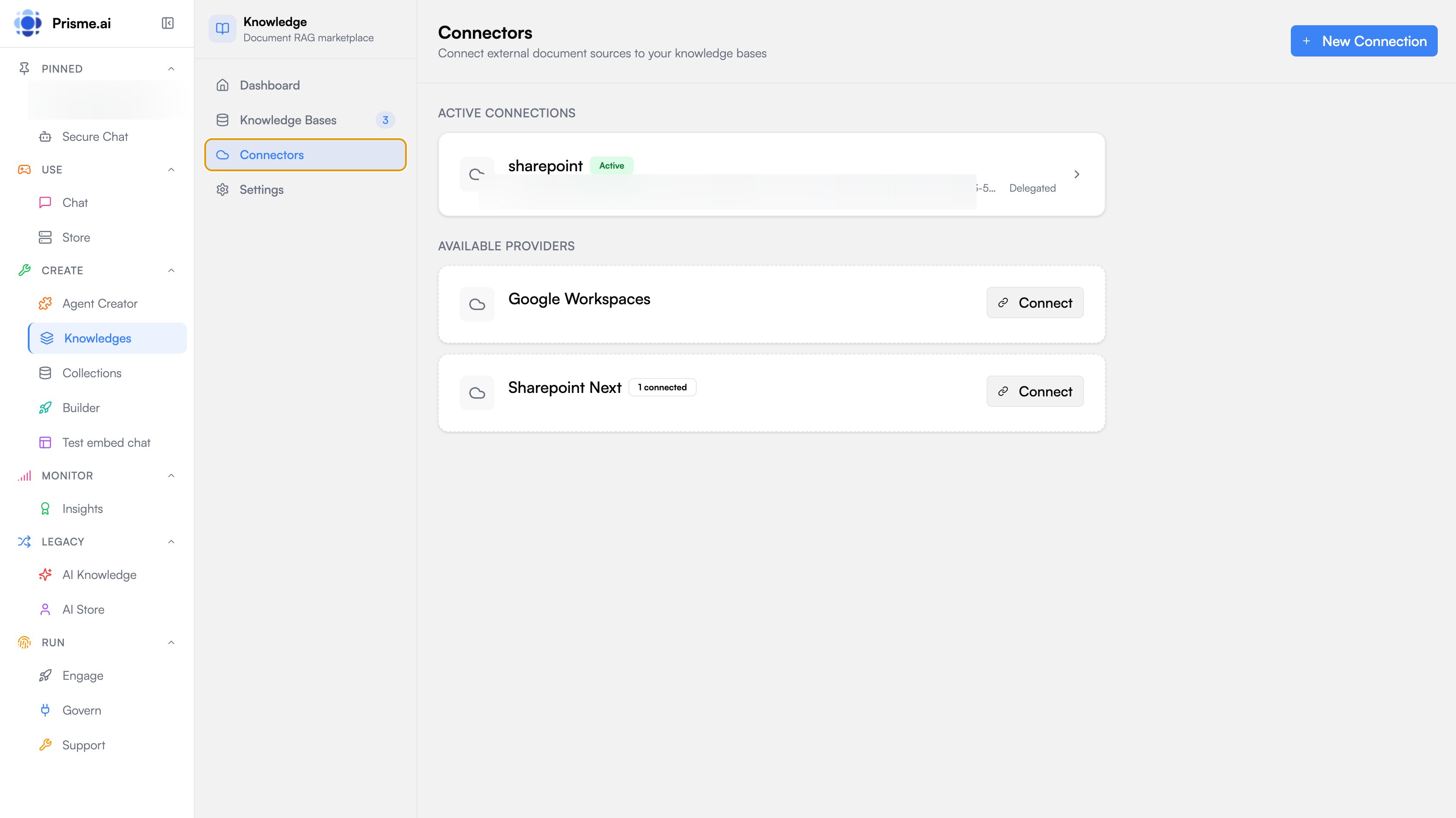
Open Knowledges and go to Connectors to see:- Active Connections — currently configured syncs, with their status and what each one feeds
- Available Providers — compatible capabilities you can set up, plus Your own MCP server
Setting up a catalog connector
The wizard has five steps — Name, Authentication, Source, Access, Knowledge base — and skips the ones a connector does not need: no access step, for instance, for a connector that cannot check readers individually.1. Choose a provider
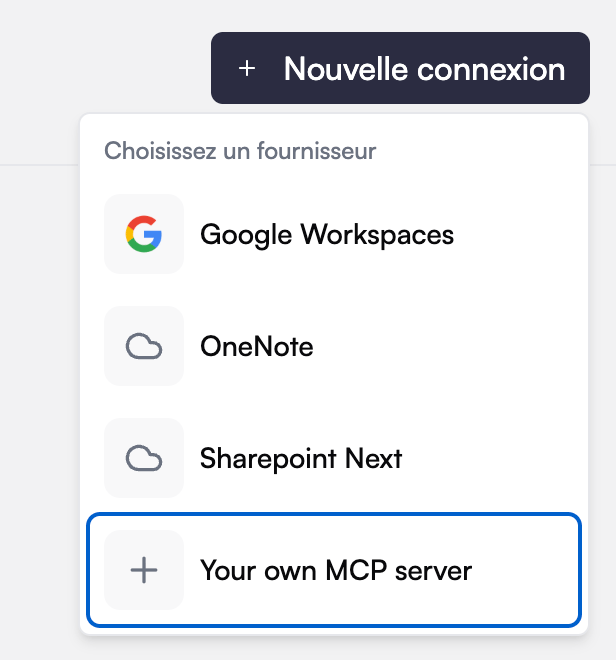
- Go to Connectors
- Click New Connection
- Pick the provider under Choose a provider
2. Authenticate
A catalog connector published for personal sign-in asks you to sign in with your own account. The step shows Sign in required and a button; a window opens, you authenticate, you grant the requested permissions, and you come back. The wizard moves on by itself as soon as the credential lands. There is nothing to choose here, and no second mode behind a setting: the account you sign in with is the account the base will be fed from.3. Select the source
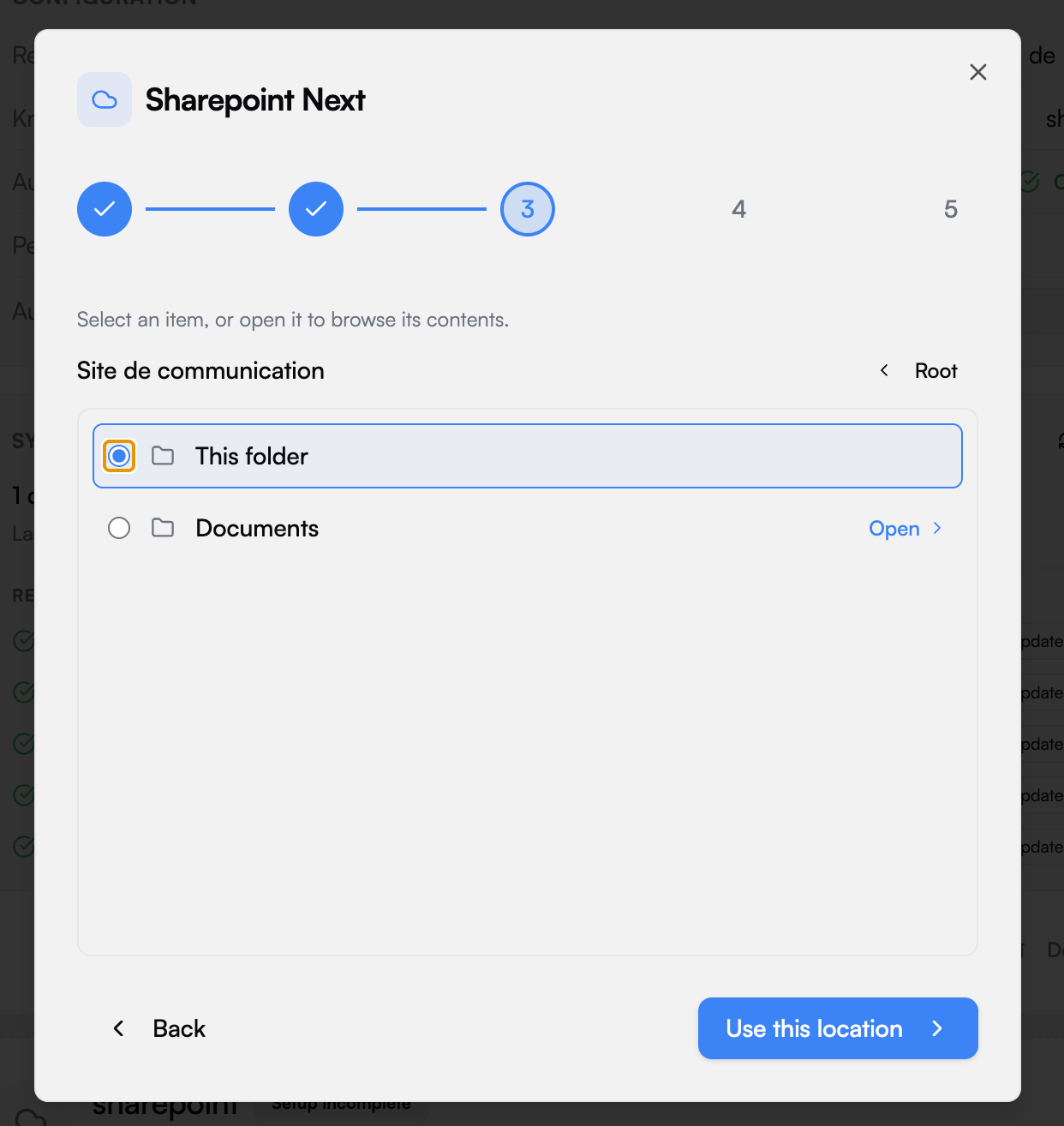
Browsing walks one level at a time, from the connector’s own top level down. Each screen lists what is directly inside the current container:- This folder picks the container you are standing in as the sync root
- Open descends into a child
- The breadcrumb, up to Root, walks back up
- Load more appears on containers with more children than one page holds
4. Pick the destination
Choose an existing knowledge base, or create one from the same step.5. Configure the connection
Once created, the connection unfolds a Configuration panel:6. Start the sync
Click Sync Now to begin the initial synchronization. Large sources are spread over several runs — the panel says how many documents are left for the next ones.Connecting your own MCP server
A connection does not have to name a catalog entry. It can carry its own MCP endpoint, pasted as a URL. This exists for a precise reason. The catalog knows two visibilities, built-in and organization — nothing narrower. Publishing a personal connector there would offer it, and whatever credential it holds, to every colleague. A connection that carries its own server is private by construction: connections are already scoped to their owner, so nothing new had to be invented, and nothing is added to the shared catalog.Attaching one
Open the picker
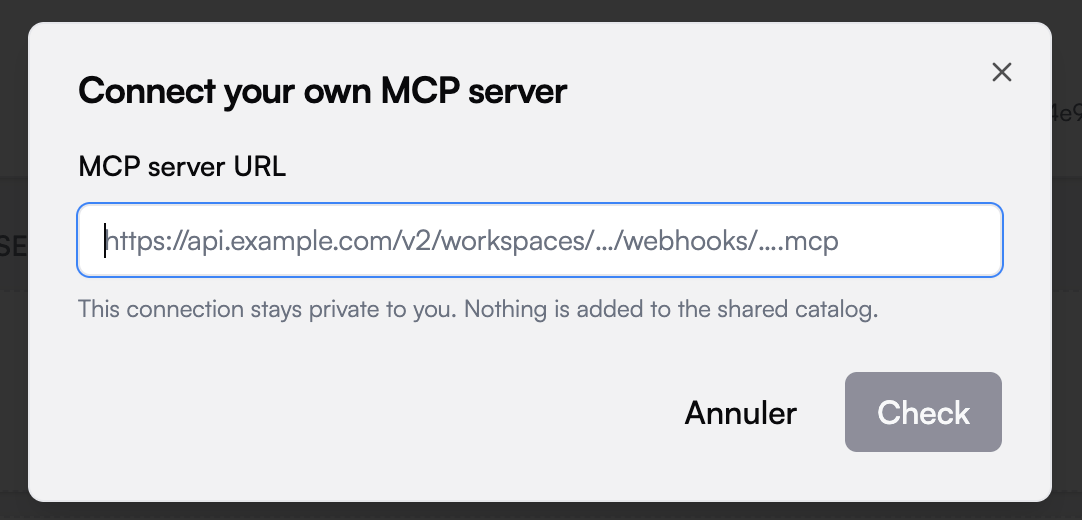
Paste the MCP endpoint and click Check
Read the verdict
folder › file for WebDAV. Click Continue.Continue like any other connection
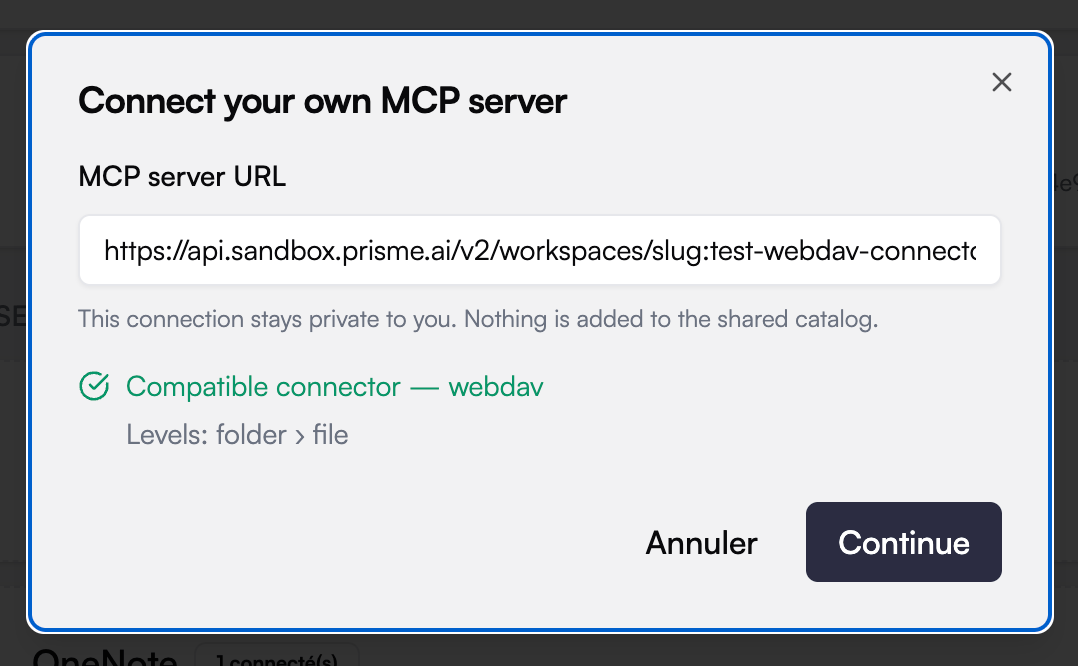
What the check actually answers
Two different questions, answered separately, because they are fixed by two different people:What is different about a self-carried connection
- No sign-in step. There is no OAuth dance to run: authorization is your role on the workspace that holds the connector’s configuration, checked when you attach it and again every time you browse.
- Nothing is published. The endpoint is not listed as a provider, and no colleague sees the connection.
- The verdict is frozen at creation and re-checked on every call. A connection whose server stopped being compatible fails closed rather than reaching an MCP server with an empty profile.
- You cannot name both. A connection points at a catalog entry or carries a server. Supplying both is refused rather than silently resolved — two answers to “where do I call” is how a base ends up syncing against a server you thought you had replaced.
Walkthrough: sync a WebDAV account from your own workspace
This is the complete path for a source nobody published for you — a Nextcloud, an ownCloud, a bare WebDAV server. You install the connector in your workspace, give it your credentials, and attach it to a knowledge base by URL. Nothing is shared with the organization, and no platform administrator is involved.- A workspace you administer. The connector answers to that workspace’s members and to nobody else.
- A reachable WebDAV base URL. On Nextcloud/ownCloud it is
https://cloud.example.com/remote.php/dav/files/<username>— the folder the account lands in, not the server root. - A credential for that account: a username + app password, or a bearer token.
Install the WebDAV app in your workspace
webdavPassword and webdavToken — ready to be filled.Open the configuration app
Fill in the credentials
Test the connection
Copy the MCP endpoint
Attach it in Knowledges
folder › file.Click Continue, browse to the folder you want, pick or create the destination
knowledge base, and confirm.Sync, then verify
webdav://files/….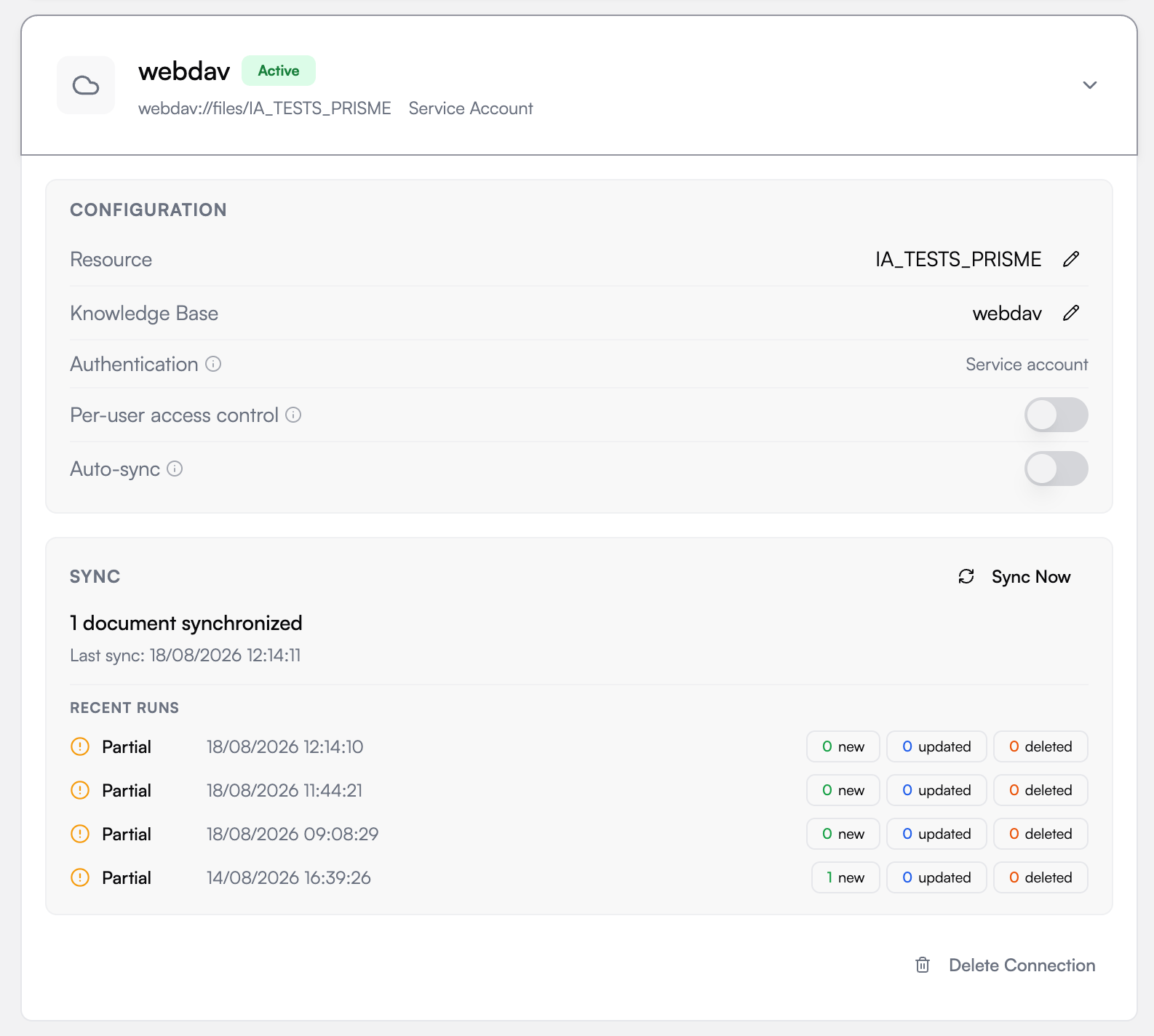
What the WebDAV connector does and does not do
The path is the document's identity
The path is the document's identity
File types are inferred from the name
File types are inferred from the name
application/octet-stream for
everything. The connector infers the type from the file extension instead, because the
platform filters on it — without that inference, an entire library would be silently
ignored.Give files their real extensions.Large files are reported, not truncated
Large files are reported, not truncated
Deletions are detected by absence
Deletions are detected by absence
Who may call it
Who may call it
Managing connections
Viewing status
Each connection shows how much the knowledge base holds in total, then what each run changed. The two are deliberately separate: a run that changes nothing on a base of four hundred documents is a healthy run, not an empty base. Every run reports three figures: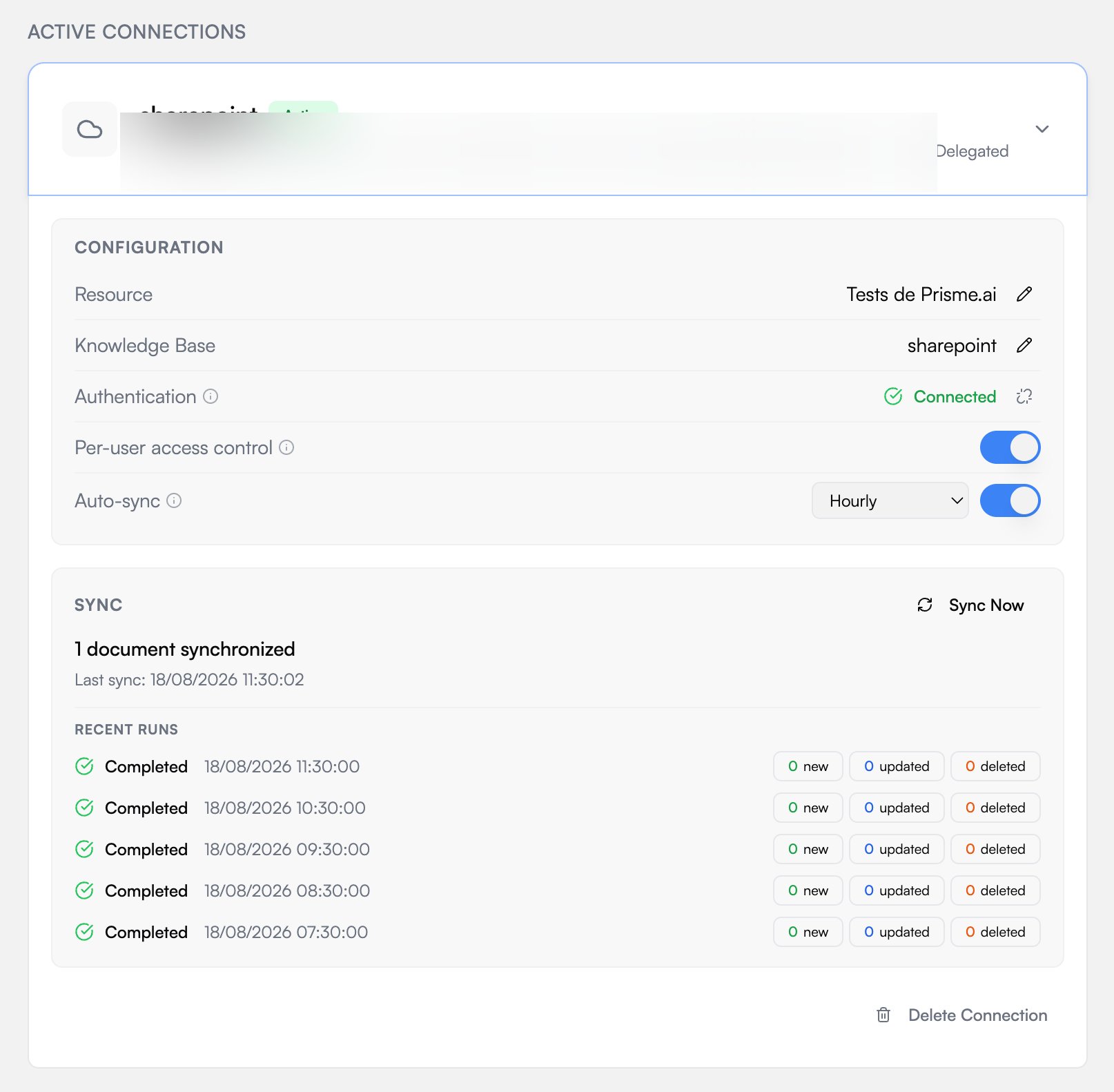
Reading a run’s status
Triggering a manual sync
- Find the connection
- Click Sync Now
- Wait for completion
Updating the configuration
- Click the connection
- Modify the selection or the settings
- Save
- Run a sync to apply the change
Deleting a connection
- Click the connection
- Click Delete Connection, at the bottom of the panel
- Confirm
SharePoint connector
Browse sites, then their document libraries, then any folder inside them. SharePoint pages and lists are not synced.Permissions required
Reading site and file content through Microsoft Graph requires permissions your admin may have to approve in Microsoft Entra. The exact scopes depend on how the connector’s OAuth client is configured — an organization can register its own and narrow them.Configuring SharePoint
- Connect with your Microsoft account
- Browse to a site, then a document library
- Open folders to narrow the selection, and confirm with Use this location
Handling large libraries
- Select a folder rather than a whole library
- Consider multiple connections for different topics
- The first sync is spread over several runs; let the schedule finish the job
Google Drive connector
Browse shared drives and My Drive, then any folder inside them. Google-native documents (Docs, Sheets, Slides) are exported to an indexable format on the way in; files already in a standard format are taken as they are.Configuring Google Drive
- Connect with your Google account
- Browse to a drive, then a folder
- Confirm with Use this location
How connectors work
Everything specific to SharePoint, Google Drive or WebDAV lives in an MCP server. The synchronization side knows how to browse resources, compare revisions and hand content to a knowledge base; it never learns what a site, a shared drive or a WebDAV collection is.resources/list, fetching a document
is resources/read, and the access check is a single MCP tool call. A connector that
already exists as an agent tool becomes a knowledge connector by declaring one extra
resource — not by being rewritten.
The Knowledge profile
Compatibility is declared, not hard-coded. A connector publishes a small JSON document at a fixed address,<scheme>://profile/knowledge, stating:
- the hierarchy it exposes —
site,drive,folder… — and which of those levels can be picked as a sync root; - how a revision is identified, so a run can tell a document that changed from one that did not;
- how content comes back: inline text, or a link to download the bytes;
- its pagination limits, and whether it supports incremental listing;
- the tool to call to check one user’s access to one resource.
Compatibility probing
Discovery opens the MCP server and reads that profile:initialize — does this server
serve resources at all? — then resources/templates/list to find the profile, then
resources/read.
It runs in two places, through the same implementation:
- when a capability is created or saved in the catalog, and the verdict is recorded on the entry, so the Connectors page lists nothing but entries that passed;
- when you check a URL for a self-carried connection, and the verdict is frozen onto the connection.
What a sync run does
- Traverse the selection with
resources/list, starting from the selected roots and descending into every container below them. - Filter on MIME type against the platform’s supported list. This filter lives on the Knowledge Sync side and is the authoritative one — connectors describe their content, they do not decide what is indexable.
- Diff each file’s revision tag against what the base already holds. Unchanged files are never re-read and never re-indexed.
- Index the new and changed files, then wait for the knowledge base to confirm indexing before recording the new revision. A document is only considered synced once it is actually searchable.
- Delete documents that disappeared from the source — but only after a complete traversal. A listing that failed halfway deletes nothing.
Two credentials, two moments
The same connector is used twice, on behalf of two different people, and this is the part worth remembering:Building a compatible connector
Any MCP server can become a knowledge connector, including one you write yourself or one a vendor already ships. There is no Prisme.ai SDK to adopt and no interface to implement: you serve standard MCP methods, plus one extra resource that describes how your source behaves.Announce the resources capability
initialize response must include resources in capabilities. This is the
single bit discovery keys on — a server that only announces tools is never examined
further.Publish the Knowledge profile
<scheme>://profile/knowledge, with
mimeType: application/json, in your resources/templates/list response. Serve it
from resources/read as JSON text. See the full descriptor below.Both must answer anonymously, and before anything looks at credentials — that is
what lets discovery read them.Browse with resources/list
Serve content with resources/read
Answer the access question (optional)
The profile descriptor
Listing resources
A root listing arrives with nouri parameter at all: that is how the host asks
“what are your top-level resources?” before anything has been picked. Treat a missing
parent as the root, not as an empty match — filtering parent == params.uri against a
missing value is the single most common reason a wizard opens on an empty screen.
Each item in resources carries:
_meta.kind is a container level, or whose
mimeType is inode/directory. A kind you invent is not traversed — the engine has
no way to guess that it holds children. Paginate with nextCursor at the top level of
result; the host hands your cursor back verbatim and never interprets it.
Serving content
Bytes first. Inline text only when there are none to go and fetch — the case it exists for is a source with no pre-signed link, such as a Google-native document exported on the fly, or a WebDAV server that requires anAuthorization header on every byte. If bytes
exist but are unreachable, say so in _meta.unfetchable_reason rather than staying
silent. _meta.webUrl is used as the document’s citation link.
Revisions
The version marker is read fromrevision at the top level of a listed resource, falling
back to _meta.revision, _meta.cTag, then _meta.eTag. Any of them works; what matters
is that the value changes when the content changes, and only then. A marker that never
changes leaves a base permanently stale; one that changes on every listing re-indexes the
whole source on every run.
The access check
If your profile names an access tool, it is called with the reader’s id and a batch of canonical URIs, and its answer is taken as final:structuredContent:
resourceUris asks about the
credential alone: reply requires_oauth: true with a connect_url when that reader has
no usable token, and the host raises a connection card instead of failing the search.
-32001 carrying
data.requiresOAuth: true. The host turns that into “reconnect your account” rather than
into a generic sync failure — the difference between a user who knows what to do and a
run that looks broken.Making it reachable
Two ways, and they are not equivalent:Checklist before publishing
Checklist before publishing
initializeannouncesresources.resources/templates/listdeclares<scheme>://profile/knowledgeasapplication/json, anonymously.resources/readon that URI returns the descriptor as JSON text, withknowledge_compatible: true, anonymously, and before any credential is resolved.- A root
resources/list— nouri— returns your top-level containers. - Containers use
_meta.kindfrom your declared hierarchy, orinode/directory. - Files carry a
revisionthat changes with content. resources/readreturns a download URL or inline text, never both.- The access action is handled before generic tool routing.
- Notifications (
notifications/initialized) answer HTTP202with no body. - The server is publicly reachable over HTTPS.
Start from an existing connector
Start from an existing connector
Authorization header. If your source resembles one of them, copy that one.Sync behavior
Incremental sync
After the initial sync, connectors only process changed files:- New files are added
- Modified files are updated
- Deleted files are removed
Handling deletions
When a file is deleted from the source, it is removed from the knowledge base on the next synchronization. This is not optional: a base that keeps serving a document its source has deleted is a base nobody can trust.Access control at query time
When a connection has per-user access control enabled, synced documents are not readable by everyone who can talk to the agent. Every search re-checks, document by document, what the person asking is allowed to see in the source system — a file you lost access to in SharePoint stops appearing in answers, without waiting for the next sync. That check needs to know who is asking, which means the reader has to have connected their own account — for connectors that can tell readers apart. A connector holding one service credential answers the same for everyone, and asks for nothing.The connection card in chat
The first time an agent reads a base backed by a per-user connector in a conversation, it asks the reader to connect their account — before running any search, so the request never depends on what was asked. Declining does not block anything: the search runs over the documents that are not restricted. Readers manage those accounts from the chat itself. See Connected accounts for what they see and how the credential differs from the one feeding the base.Troubleshooting
The agent finds nothing in a connector-backed base
Check whether you connected your account when the agent asked. Without it, only unrestricted documents are searched. Start a new conversation to get the card again, or connect the account from the Connectors page.No connector appears in the list
The Connectors page only lists capabilities whose MCP server was probed and found compatible. A capability saved before probing existed has never been probed, so it stays invisible. Open the capability and save it again — the probe runs on every save. If it still does not appear, its MCP server does not publish a Knowledge profile and cannot be used as a connector. If the connector is yours and personal, you do not need the catalog at all: attach it with Your own MCP server.A URL is refused
A browsing column says the source could not be listed
That is a failure, not an empty folder — the two used to look identical. The connector answered with an error: its credentials are wrong or missing, or you lost access to that level. Open the connector’s configuration and test the connection there.Connection errors
Sync errors
Stuck syncs
A run that dies mid-flight leaves the connection marked as syncing. It unblocks itself: after an hour, the run is treated as abandoned and Sync now works again, as does the schedule. There is nothing to cancel by hand.Best practices
Narrow at the source, not at the selection
Narrow at the source, not at the selection
Don't sync everything
Don't sync everything
Organize by topic
Organize by topic
Monitor sync health
Monitor sync health
Match frequency to change rate
Match frequency to change rate
Use a revocable credential
Use a revocable credential