Documentation Index
Fetch the complete documentation index at: https://docs.prisme.ai/llms.txt
Use this file to discover all available pages before exploring further.

How metrics are collected
Metrics are computed on demand from raw platform events. When you open the dashboard, the backend either returns a cached summary (if recent enough) or runs a single Elasticsearch aggregation across the requested period and caches the result for the next viewer.| Source event | What it captures |
|---|---|
runtime.automations.executed | Every automation execution — duration, automation slug, app instance, trigger type |
runtime.interactions.triggered | Every top-level user request — used for unique-user counts |
error + runtime.fetch.failed | All error events — error code, automation, correlation ID, originating app instance |
analytics.llm.completion | Every LLM API call — tokens, cost, model, provider, carbon |
Granularity & cache TTL
Granularity is picked from the period length, with a couple of admissible overrides for power users (drag-to-select on a chart can lift the resolution).| Period | Default granularity | Cache TTL | Allowed overrides |
|---|---|---|---|
| 1h | 5-minute buckets | 5 min | hourly |
| 24h | hourly | 15 min | — |
| 7d | hourly | 15 min | daily |
| 30d | daily | 1 h | — |
| Custom ≤ 2h | 5-minute buckets | 5 min (intervals only) | hourly |
| Custom ≤ 7d | hourly | 15 min (intervals only) | daily |
| Custom > 7d | daily | 1 h (intervals only) | — |
- Per-bucket intervals — populated by every read, preset or custom. Custom ranges produce buckets aligned to the same granularity boundaries a preset run would, so reads of overlapping windows reuse them.
- Summary — populated by preset reads only (the cache key encodes the period name; arbitrary
start/endpairs have no canonical key). Custom ranges always recompute the summary live; only the intervals are shared.
Dashboard tabs
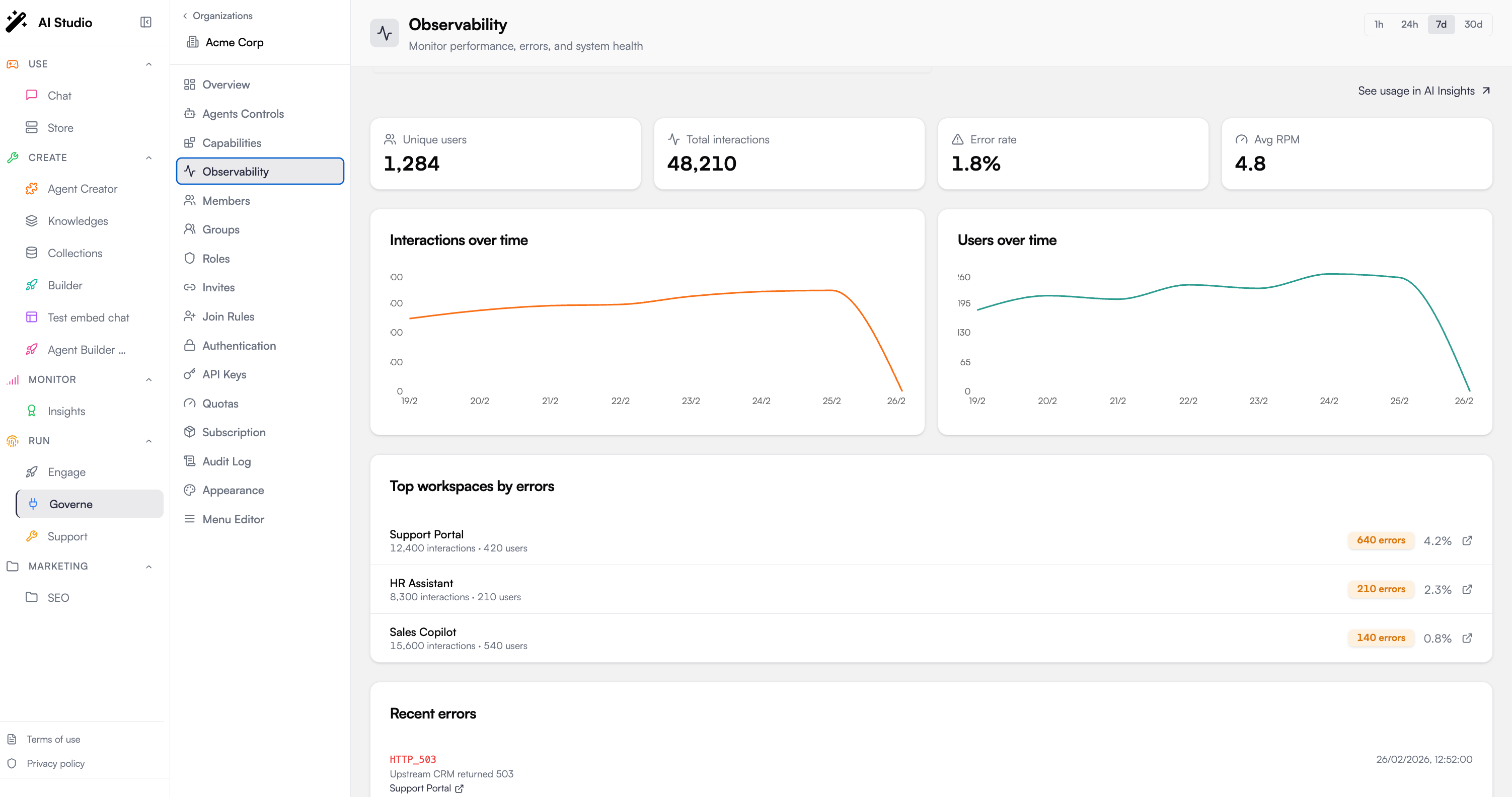
The dashboard is split across seven tabs (the LLM Costs tab is hidden when the workspace doesn’t emit LLM events).Overview
At-a-glance snapshot of the workspace’s health.- Health gauge — composite 0–100 score with a status (Healthy / Degraded / Warning / Critical / Idle). See Health score for the formula.
- Quick stats — Total Interactions, Error Rate, P95 Latency, Average RPM.
- Latency distribution — single card with four horizontal bars (P50, P90, P95, P99), each color-coded against the warning/danger thresholds. Bars are normalized against P99, so a tight workload shows four nearly-equal bars and a long-tail one shows P50 as a sliver with P99 maxed out.
- Recent Errors — automations with the highest error count in the period, each row linking to the workspace activity feed pre-filtered to the matching error events. Opening that feed requires access to the source workspace (see access disclaimer).
- Top Automations — automations ranked by execution count, with their P95 latency.
Metrics
- Latency percentile cards — P50, P90, P95, P99 over the whole period.
- Slowest Automations — top 20 automations ranked by P95 latency. The execution-count cell on each row is a deep-link to the Feed tab pre-scoped to the slowest 10 correlation IDs of that automation, so you can jump straight to the actual slow calls.
- Latency Timeline — per-bucket P95 line chart with interaction volume overlaid as a second line on a right-hand axis (distinct color). Lets you tell apart load-driven latency spikes from genuine regressions at a glance. Drag-to-select on the chart to zoom into a custom range.
Errors
- Headline cards — Total Interactions, Error Rate, Total Errors.
- Error Timeline — error-event count per bucket.
- Errors by Type — error codes (from
payload.error || payload.code || type) bucketed alongside the app instance that emitted them. The same error code surfacing from two distinct app instances shows as two distinct rows (e.g.FetchError · OpenAI.AWSvsFetchError · OpenAI.GoogleVertex). Each row’s badge deep-links to the activity feed withsource.appInstanceFullSlug+ a matchingsource.appInstanceDepth, so the activity page lands on the right nesting depth instead of defaulting to depth 0. - Errors by Automation — automations sorted by error count, with computed error rate. Same activity-feed deep-link with the right app/depth filters.
The deep-link badges on both error tables navigate to the source workspace’s activity feed — opening it requires access to that workspace (workspace share or superadmin). See the access disclaimer under Cross-tab deep links.
Usage
- Headline cards — Unique Users, Total Interactions, Average per Day, Average RPM, Peak RPM.
- Top Entrypoints — entry-point automations (HTTP webhooks + event listeners) ranked by call count.
- Activity Timeline — per-bucket interactions and executions on a dual-axis chart. Drag-to-select supported.
- Unique Users Timeline — distinct users per bucket.
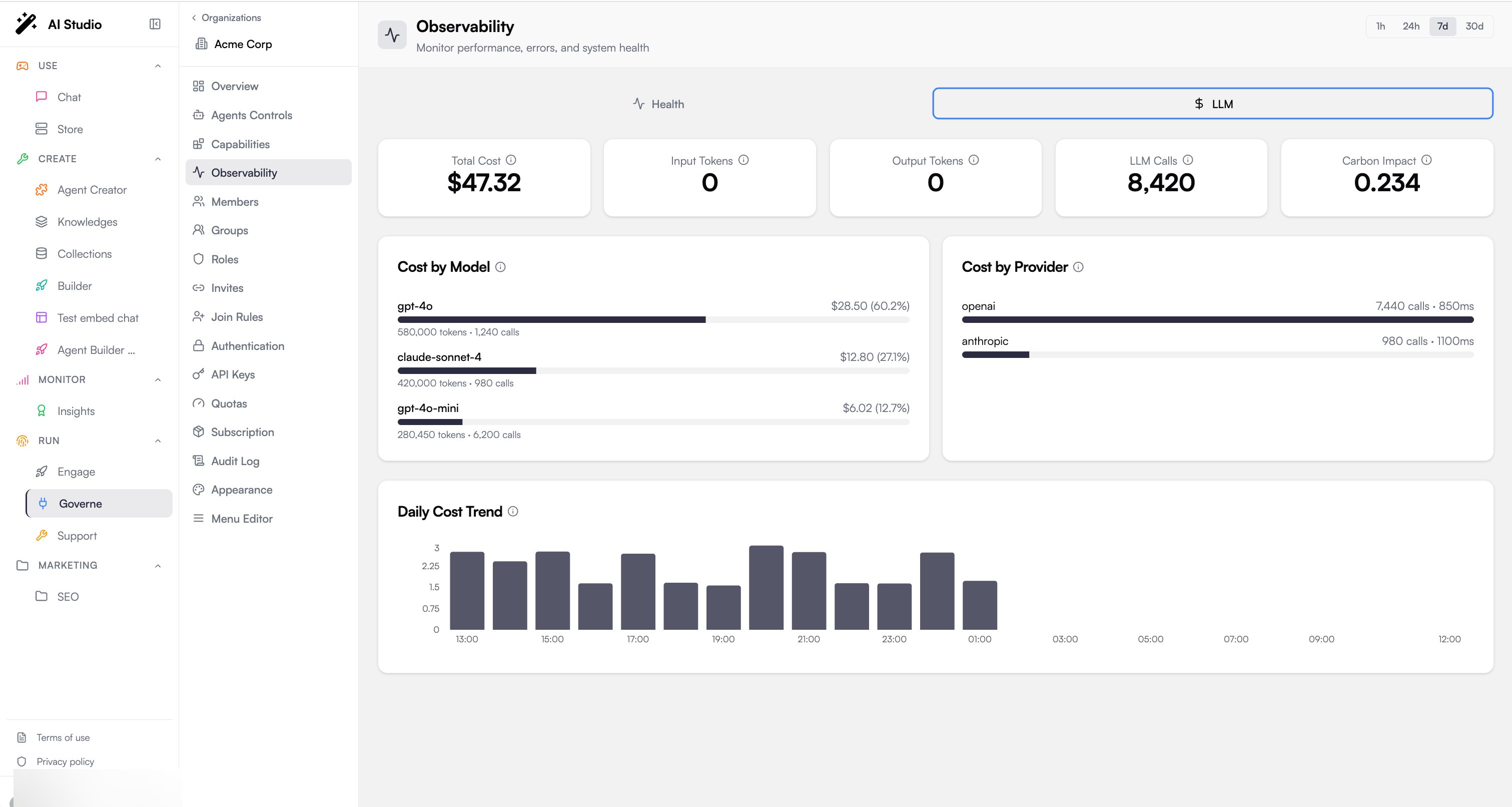
LLM Costs
Sourced fromanalytics.llm.completion events emitted by the llm-gateway workspace. Hidden when the selected workspace has no LLM activity in the period.
- Headline cards — Total Cost, Input Tokens, Output Tokens, LLM Calls, Carbon (kg CO₂eq).
- Cost by Model — per-model breakdown with cost share, token count and call count.
- Cost by Provider — call count and average latency per provider.
- Cost Timeline — per-bucket cost trend.
Dependencies
Visualises how the workspace’s own automations call installed app instances during the period. Scope is intentionally narrow:- Edges are filtered to direct workspace → app calls (
source.appInstanceDepth = 1). Nested app → app sub-calls (depth ≥ 2) are excluded — they don’t fit the workspace-vs-app matrix shape. - Caller must be a workspace automation (
payload.trigger.type = automation) calling an app-instance automation (source.appInstanceFullSlugset). Pure workspace → workspace internal calls are not graphed here, and app → workspace calls don’t exist on the platform.
- Summary cards — Total Nodes, Total Edges, Automations (distinct workspace callers), Apps (distinct app instances called).
- Adjacency Matrix — caller × callee matrix capped at 20×20 cells.
- Rows = workspace automations that called an app
- Columns = app-instance automations that were called (e.g.
OpenAI.chat-completion,models.find) - Cell color intensity scales with call count; hover shows the exact pair and count
- Intra-app calls (one automation in app X calling another in the same app X via dotted slug) are pruned client-side
Feed
A near-real-time event feed for debugging and live monitoring. Bypasses the platform_metrics cache — every refresh queries Elasticsearch directly. Filter row:- Search — debounced free-text search forwarded to ES
simple_query_string. - Scopes — multi-select between
interactions,errors,failed_fetches. Defaults to all three. Theinteractionsscope surfaces top-level executions (runtime.automations.executedfiltered to entry-point trigger types) so each row carries duration metadata. - Min / Max duration (ms) — restrict to executions in a duration band. Events without
payload.duration(e.g. plain errors) won’t match when set. - User — typeahead combobox to filter on
source.userId. - Correlation IDs chip — appears when the URL carries a
correlationIds=query (set by the Slowest Automations deep-link). Click to clear and broaden the view.
dd/mm/yy) + time, type badge, automation/trigger slug, optional resolved user name, optional duration pill, and a clickable arrow that opens the workspace activity feed pre-filtered to that event’s correlation ID. The trace arrow leaves the Governance scope and lands on the source workspace’s UI — it requires workspace access (share or superadmin), see the access disclaimer.
Health score
A composite 0–100 metric with a status (Healthy / Degraded / Warning / Critical / Idle). Workspaces with no interactions in the period returnnull and the status Idle.
Status thresholds
| Status | Score range | Meaning |
|---|---|---|
| Healthy | 90–100 | All good |
| Degraded | 70–89 | Some friction |
| Warning | 50–69 | Significant issues |
| Critical | 0–49 | Major problems |
| Idle | n/a | No interactions in the period — health undefined |
Formula
errorScore is a linear function of error rate. latencyScore is flat at 100 below latency_floor_ms (any P95 ≤ floor is treated as perfect — no penalty), then declines linearly to 0 at latency_cap_ms.
Defaults: error 70% / latency 30%, floor 500ms, cap 5000ms, error saturation 500. All four are tunable globally via config.health_score.*.
Per-workspace overrides
Some workspaces are legitimately slow — the LLM gateway baseline is around 10s because LLM completions are inherently slow. Setting a 500ms floor on it would peg the score at 0 on every read. Per-workspace overrides live underconfig.health_score.workspace_overrides.<slug> and may set latency_floor_ms and/or latency_cap_ms independently:
(i) tooltip next to the health gauge surfaces the active baseline.
Example: 100 interactions, 2 failed (2% error rate), 800ms P95 — default workspace
- errorRate = 0.02 → errorScore =
100 - 0.02 × 500 = 90 - excess =
max(0, 800 - 500) = 300→ latencyScore =100 × (1 - 300 / 4500) = 93 - score =
round(90 × 0.7 + 93 × 0.3) = 91→ Healthy
Example: 100 interactions, 0 failed, 8 000ms P95 — llm-gateway
- errorRate = 0 → errorScore = 100
- 8 000ms ≤ floor (10 000ms) → latencyScore = 100
- score = 100 → Healthy
Error rate calculation
Error rate is interaction-based, not raw-event-based. This matters because a single user request can fan out into many automation executions:- total_interactions —
value_countofruntime.interactions.triggeredevents - failed_interactions — distinct count of
source.correlationIdacrosserrorandruntime.fetch.failedevents (one interaction with multiple errors counts once)
Latency percentiles
Two scopes coexist on purpose, and each tooltip in the UI makes it explicit so you don’t compare apples and oranges.| Scope | Source | Where it shows |
|---|---|---|
| Interaction-level | runtime.automations.executed filtered to entry-point trigger types (endpoint, event) | Overview headline + Latency Distribution, Metrics percentile cards, Health Score |
| Per-automation | All runtime.automations.executed events including sub-helpers and internal automations | Top Automations, Slowest Automations |
Cross-tab deep links
The dashboard is wired together by clickable shortcuts that pre-scope other tabs to the row you came from.| From | Click target | Lands on |
|---|---|---|
| Recent Errors row | ”N errors” link | Workspace activity feed, filtered to error + runtime.fetch.failed events for that automation (with the right source.appInstanceDepth for app-instance automations) |
| Errors by Type badge | ”N (x.y%)” link | Same activity feed, filtered to that error code (text search) and originating app instance |
| Errors by Automation badge | Same as Recent Errors | — |
| Slowest Automations “calls” cell | The number itself | Feed tab pre-scoped to the slowest 10 correlation IDs of that automation, opens in a new tab |
| Feed event row | Whole row | Activity feed pre-filtered to that event’s source.correlationId |
source.appInstanceFullSlug and a matching source.appInstanceDepth so app-instance events (e.g. OpenAI.AWS.fetchAPI) land at the right nesting depth — the activity feed defaults to depth 0 (workspace-only events) when no override is supplied.
Time range & filters
Top-of-page filters apply to every tab.- Workspace picker — server-side searchable combobox, defaulting to the top-active workspaces ranking (refreshed daily).
- Time range select — 1h, 24h, 7d, 30d.
- Custom date range — explicit
from / towith hour/minute precision (overrides the preset). Drag-to-select on any timeline chart fills the picker for you. - Live badge — shown when the current open interval is included.
- Recalculate metrics — overflow menu action to force re-aggregation of the whole period (bypasses the cache for one read).
?period=, ?start=, ?end=, ?wsId=, ?tab=), so dashboard URLs are shareable.
The first user opening a workspace’s dashboard for a given period pays the cost of the Elasticsearch aggregation (~1–3s typically). Subsequent users within the cache TTL get an instant response — typically tens of ms.
Best practices
Tune the health baseline
If a workspace is legitimately slow (LLM gateway, batch indexer, etc.) override
latency_floor_ms so the score reflects reality instead of pegging at 0.Use Slowest → Feed
From the Metrics tab, click the calls count on a slow automation to land in the Feed already scoped to its 10 slowest calls — no manual correlation ID copy-paste.
Track LLM cost weekly
Review the LLM Costs tab over a 7d window using the by-Model breakdown to spot expensive routings.
Open errors in Activity
Use the deep-links on every error widget to land on the full event timeline (with the right app-instance depth) instead of grepping the activity feed by hand.
Troubleshooting
- High latency
- Inspect a specific interaction
- High error rate
- Cost spikes
- Health score is 0 or low and shouldn't be
- Metrics seem inconsistent
- Check Slowest Automations for bottlenecks
- Click the calls cell to land on the feed scoped to the slowest correlation IDs
- Open one of those rows in the workspace activity feed and switch to the Timeline or Distribution view (see the dedicated troubleshooting tab below) to see where the time was actually spent inside the interaction
- Check external API response times via the By Provider breakdown on the LLM Costs tab
Next steps
Model Governance
Control model access and costs
Audit Logs
Track administrative changes