


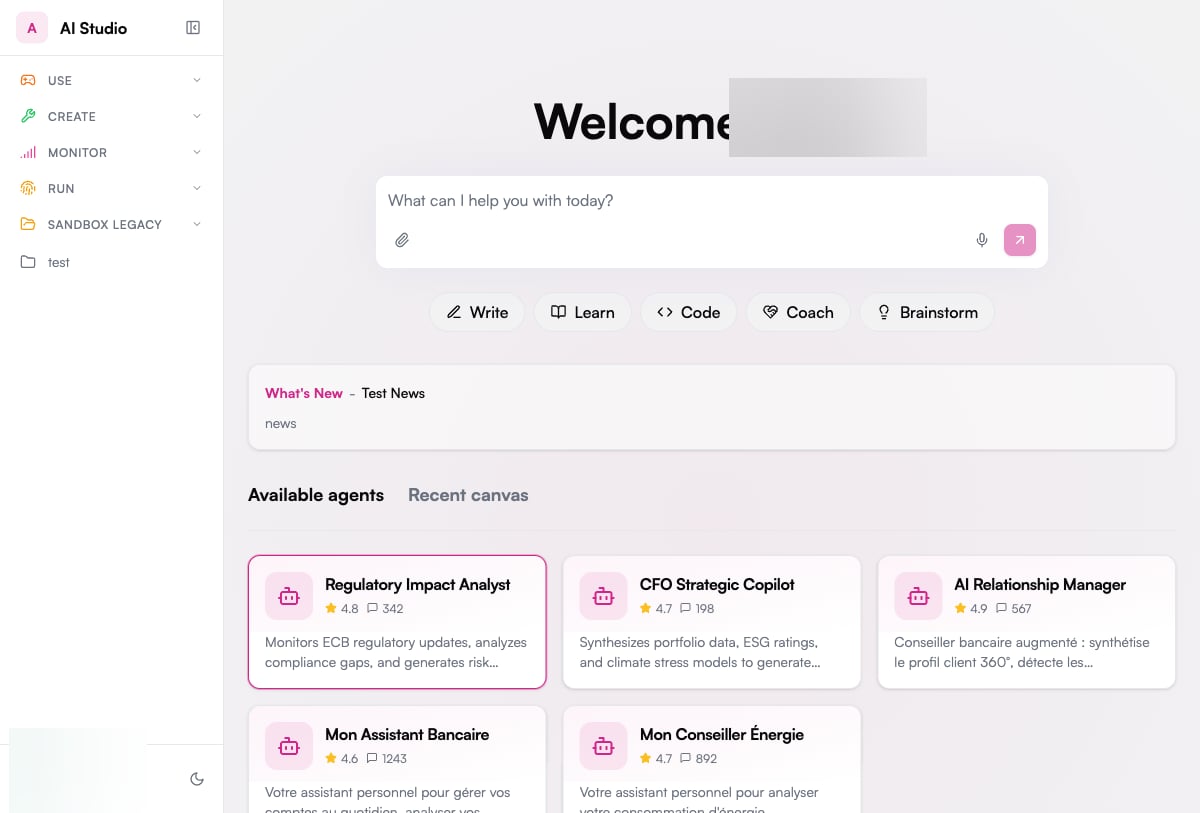
- Chat - Your home for starting conversations, attaching files, and reopening recent Canvas work
- Agents Space - Discover, browse, pin, and start conversations with agents available in your organization
Key Features
Multi-LLM Support
Connect to multiple language models from leading providers or use your own models
Document Processing
Attach files to a conversation so agents can summarize, compare, and answer questions from the content
Canvas Collaboration
Collaborative content creation workspace with AI assistance
Multimodal Capabilities
Process and analyze images and audio when using compatible LLMs
Conversation History
Securely save and retrieve past conversations
Enterprise Security
End-to-end encryption, access controls, and compliance features
Knowledge Integration
Connect to knowledge bases for organization-specific information
Prompt Library
Browse curated prompt templates by category to get started faster
Custom Tools
Run agent tools, Canvas, web search, and code interpreter capabilities when enabled by your workspace
Who Uses Chat?
Chat is designed for all users within an organization, from executives to front-line employees. No technical expertise is required to start getting value from the platform.- Knowledge Workers
- Customer-Facing Teams
- Technical Teams
- Leadership
Knowledge workers use Chat to:
- Draft and refine documents, emails, and presentations
- Research information from internal and external sources
- Summarize lengthy documents and extract key insights
- Collaborate on content creation using Canvas
Core Capabilities
Conversational Interface
Chat provides a familiar interface where users can ask questions, choose an agent, pick an available model, and continue previous conversations.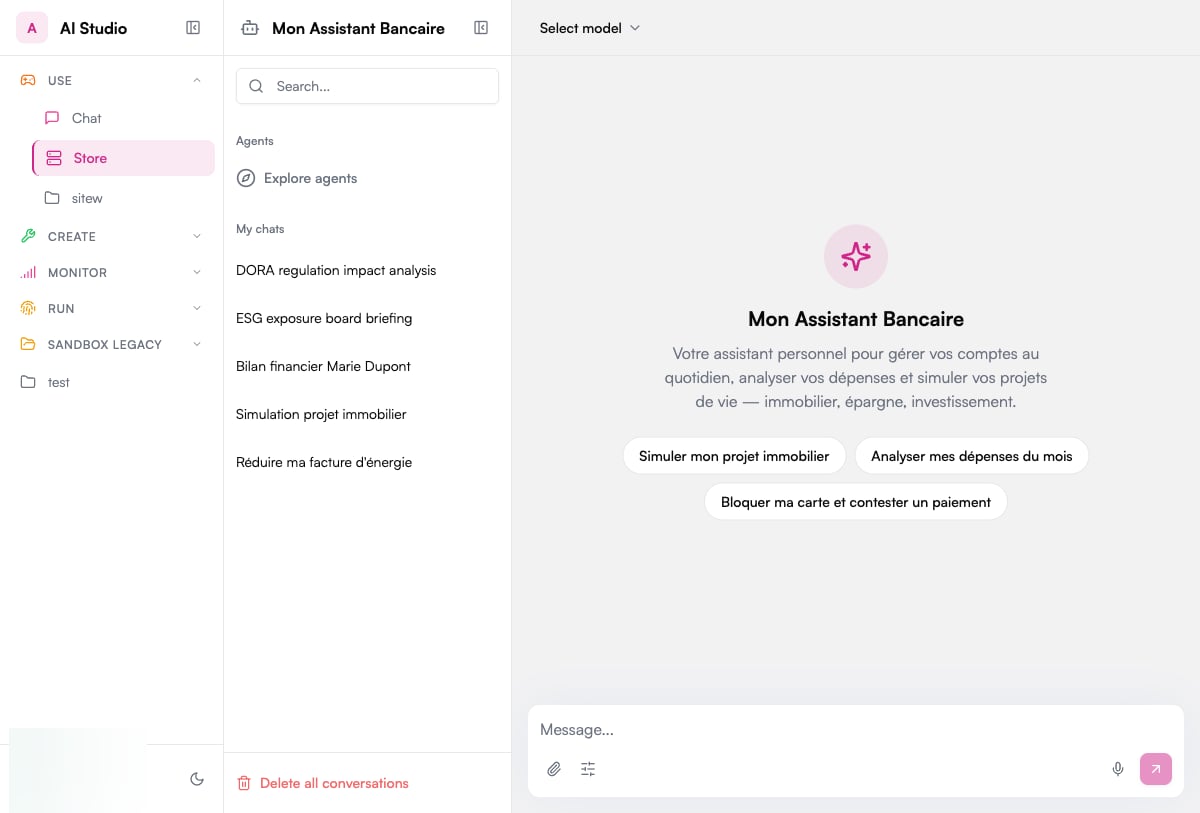
- Real-time streaming responses
- Rich text formatting
- Code highlighting and code interpreter support when enabled
- Multi-turn conversations with context retention
- Conversation search, recent history, sharing, and cleanup controls
- Suggested prompts from each agent to help users start with the right context
Document Processing
Upload and analyze documents directly within conversations: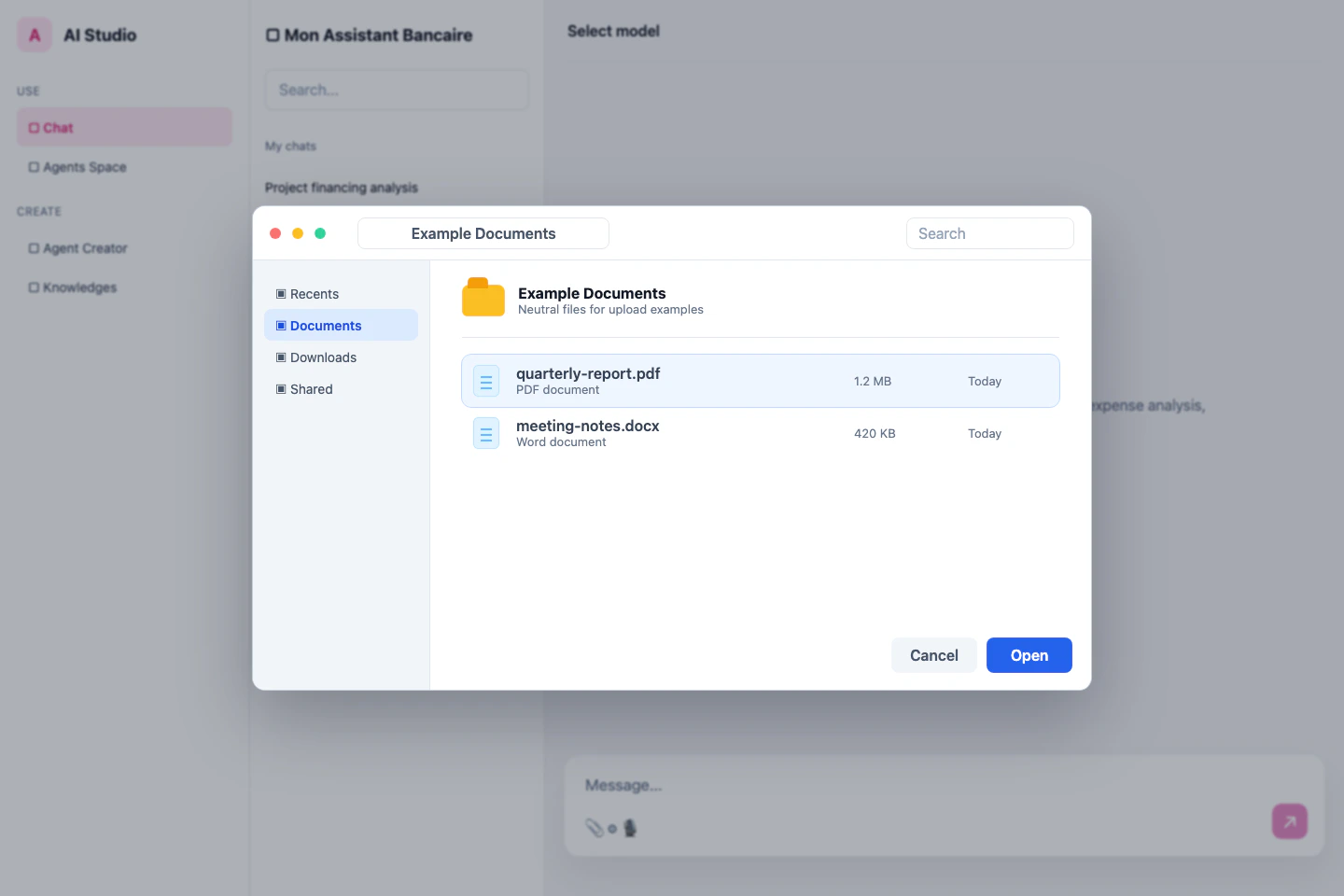
- The Attach file button is available in the composer
- Support for common business formats such as PDF, Word, Excel, PowerPoint, and images
- Text extraction and OCR capabilities
- Document summarization and analysis
- Question answering based on document content
- Table, chart, and structured content analysis when supported by the selected model and tools
Canvas Collaboration
Canvas opens beside the conversation when an agent creates or updates an artifact such as a document, report, code file, dashboard, or generated webpage: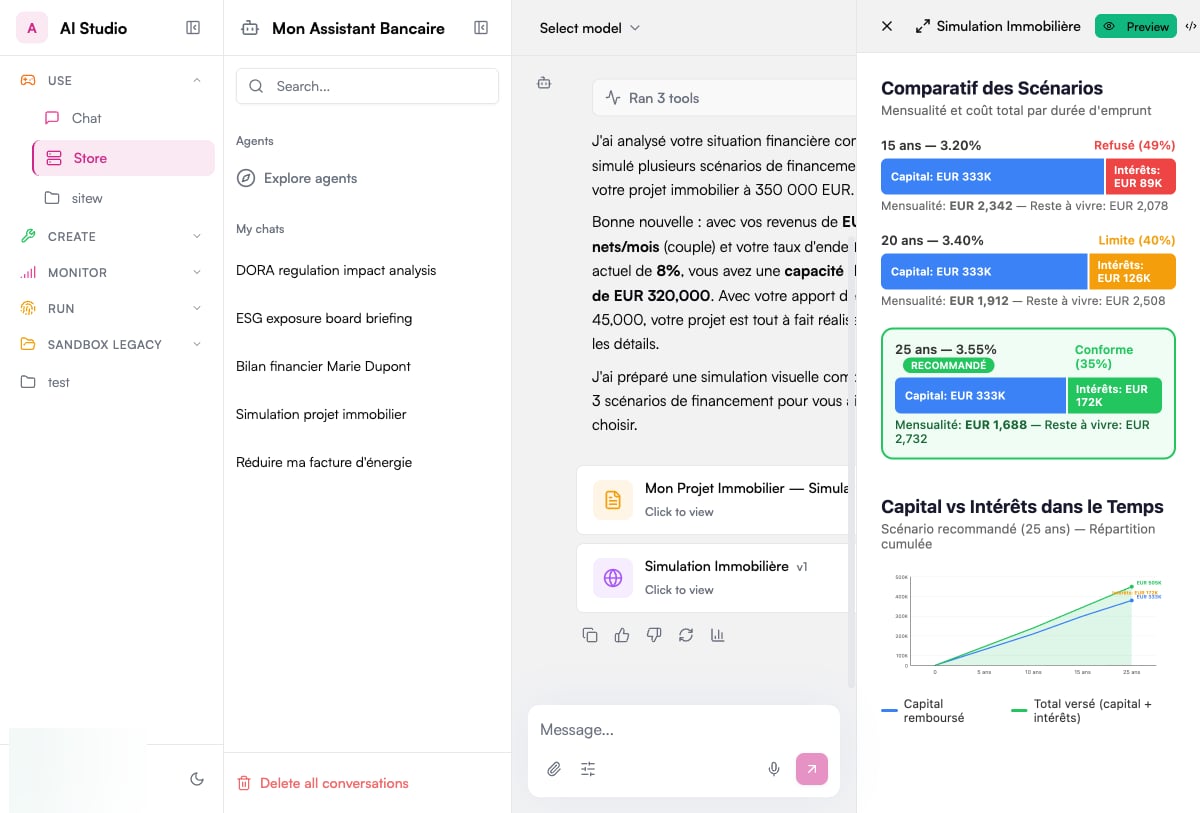
For Non-Technical Users
- Rich content editor with intuitive interface
- Intelligent context menu for generating responses, translations, and text refinement
- Preview and edit modes for generated artifacts
- Export controls for supported artifact types
For Technical Users
- Advanced code editor with syntax highlighting
- Specialized context menu for code-related operations
- Real-time preview for web content
- Direct export or download of generated code and files
Multimodal Capabilities
When using compatible LLMs, Chat can process and analyze visual content: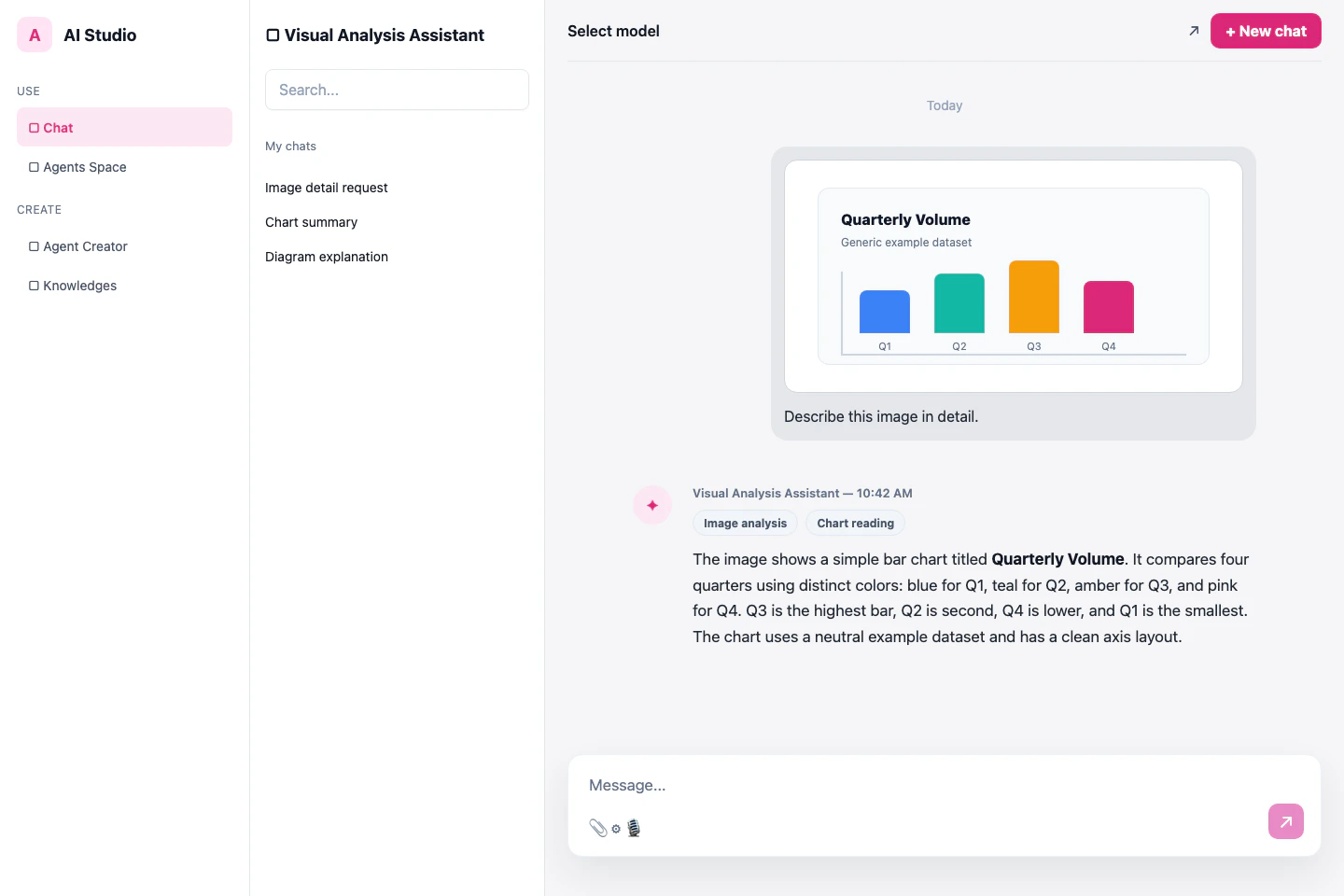
- Image analysis and description
- Visual question answering
- Chart and diagram interpretation
- Document layout analysis
- Audio, image, and file processing when enabled by the selected model and workspace tools
Agent Tools
Agents can expose specialized tools that run from the conversation, such as business system lookups, project simulators, web search, or code execution. When a tool is available, Chat shows it in the conversation context and in the Tools control near the composer.- Use the agent’s suggested prompts to start with a supported workflow
- Check which tools ran below the agent response
- Open generated reports, dashboards, and files in Canvas
- Change the model when your workspace exposes multiple model options
Security and Privacy
Chat is built with enterprise security and privacy requirements in mind:End-to-End Encryption
All conversations and data are encrypted in transit and at rest
Access Controls
Fine-grained permissions for users and groups
Data Residency
Control where your data is stored and processed
Audit Logging
Comprehensive logs of all system activities
PII Protection
Automatic detection and handling of sensitive information
Compliance Support
Features to support regulatory requirements
Integration with Other Prisme.ai Products
Chat works seamlessly with other Prisme.ai products:- Agent Creator - Create and configure agents that appear in Agents Space
- Knowledges - Access organization-specific knowledge bases through agents
- Builder - Connect structured data workflows to agents and chat experiences
- Governe - Apply security policies and access controls
- Insights - Track usage patterns and effectiveness
Getting Started
1
Access Chat
Log in to your Prisme.ai instance. In the sidebar, find the Use menu and click Chat.
2
Start from the home screen
The Chat home screen shows the prompt box, quick prompt categories, available agents, and recent Canvas work. You can:
- Start typing in the input box to chat with the default agent
- Click an agent card to start a conversation with a specific agent
- Open Recent canvas to continue work on an existing artifact
- Go to Agents Space to browse all available agents
3
Upload documents
Click the Attach file button to analyze specific files.
4
Use Canvas for content creation
During a conversation, Canvas opens automatically when creating documents or code. Canvas provides specialized tools for both text and code creation.
Next Steps
Explore more detailed guides for Chat features:Getting Started
Detailed first steps for new users
Agents Space
Discover, browse, pin, and start conversations with agents
Document Handling
Learn how to work with documents effectively
Conversation Management
Organizing and managing your chat history
Canvas
Master the collaborative content creation workspace
Multimodal
Working with images and visual content
Prompt Management
Use ready-made prompt templates to get started faster