

Overview

Models Configuration
Everything in this section is set in Agents Controls > Models and applies to your organization. Changes take effect when you click Save.Allowed Models
By default, organizations can use all models enabled by the platform administrator. You can restrict this to a specific list.- Go to Agents Controls > Models
- In the Allowed Models card, check the models to allow under Available models (Select all / Deselect all act on the models matching the provider filter)
- Drag the selected models to reorder them: this order drives the model picker everywhere users select a model
- Click Save
Default Models
Set the default models used when agents don’t specify one, in the Default Models card:
Default Image Generation Model can be left on Platform Default. The File Parsing Models card, below, overrides the models used to parse images (Image Parsing, requires vision), audio (Audio Parsing) and documents (Document Parsing) uploaded to vector stores; leave them on Platform Default to use the platform defaults.
The tab shows a warning when a default, mapping or routing target is not in the allowed models list.
Transcription model for dictation
Chat dictation and the transcription endpoint turn speech into text with a model of typetranscription. Without one, users dictate with their browser’s own speech service in desktop Chrome and Edge, which sends the audio to the browser vendor (Google for Chrome, Microsoft for Edge), and do not see the microphone button in other browsers.
- Model type. In Govern → Models, a platform superadmin declares transcription models with the type Transcription (speech-to-text), for example
gpt-4o-transcribe,gpt-4o-mini-transcribeorwhisper. Transcription goes through OpenAI, Azure OpenAI, and OpenAI-compatible providers; Vertex and Bedrock models cannot be used for it. - Platform default. In Govern → Models → Providers, the Defaults card has a Transcription (dictation) field (Transcription (dictée) in the French interface). This model is used when a request names no model. On the Prisme.ai SaaS platform, the default is
gpt-4o-transcribeon Azure OpenAI, in the EU Data Zone, so audio is processed in the EU. - Test. Open the model and select Test: the gateway sends a fraction of a second of silent audio to the model and reports whether it answered. The test is not counted as usage.
- Allowed models. If your organization restricts its Allowed Models, include a transcription model in the list. Otherwise members of the organization dictate with their browser’s speech service in desktop Chrome and Edge, get no microphone button elsewhere, and API calls are refused. Under a Soft Downgrade policy, a transcription model outside the list is replaced by the default transcription model.
- Permission. Using transcription requires the Use Audio Transcriptions permission in the role editor. The system Member, Agent Maker and Builder roles grant it by default. Custom roles, and system roles your organization has already edited, do not get it automatically: add it to those whose holders should dictate. When the platform or the organization has a transcription model, holders without it cannot dictate at all, in any browser: removing it from a role turns dictation off for its holders. The permission is not checked when there is no transcription model at all. See Roles & Permissions.
- Browser dictation fallback. When there is no transcription model at all, or the organization’s allowed models leave it out, desktop Chrome and Edge dictate with the browser’s own speech service (Google or Microsoft). A role without Use Audio Transcriptions never gets this fallback when a model exists. A platform superadmin can turn it off for the whole platform with Browser dictation fallback in Govern → Models → Providers → Defaults, and an organization administrator for the organization with Allow browser dictation fallback in Agents Controls → Models. Both are on by default; with either off, users without a usable transcription model get no microphone. The organization can only turn it off, never back on over the platform. Changes apply when users reload the chat.
- Analytics. Each transcription is recorded with the organization, user, model, provider, audio size and provider usage. The audio itself is never stored.
Via the API
- Transcription is served by
POST /v1/audio/transcriptions. - A transcription model outside the organization’s allowed models is refused with
403 MODEL_NOT_ALLOWED(unless the policy is Soft Downgrade, see above). - The permission is
llm-gateway:models:audio-transcriptions. - The browser dictation switches are
defaults.browser_dictationin the LLM Gateway workspace config (platform) andallow_browser_dictationin the organization’ssettings.llm; onlyfalseturns the fallback off.GET /v1/defaultsreports the outcome for the caller astranscription.browser_fallback. - Each transcription emits an
analytics.llm.transcriptionevent carrying the organization, user, model, provider, audio size and provider usage.
Quota Policy
Configure what happens when quota limits are reached, in the Quota Policy card:Downgrade Mapping
When using soft downgrade, configure which models to substitute. The Downgrade Mappings card appears once Soft Downgrade is selected: click Add Mapping, then pick the source and target models (both are chosen among the allowed models). For example:Failover Mapping
Configure automatic failover when a model is unavailable, in the Failover Mappings card: click Add Mapping, then pick the source and target models among the allowed models. For example:- 5xx errors: switches to the failover model from the mapping, or falls back to the default completion model (with linear backoff 1s, 2s, 3s…)
- 429 rate limits: retries the same model after a 5s backoff
- Other 4xx errors: returned immediately without retry
- Up to 3 attempts (configurable, hard cap of 10)
- Failover models are validated against governance access controls before use
- Failover only applies to non-streaming requests
Via the API
The Models tab reads and writes the organization’ssettings.llm object: allowed_models (ordered), default_completion_model, default_embedding_model, default_image_generation_model, file_parsing, quota_policy (hard_block or soft_downgrade), downgrade_mapping and failover_mapping (objects mapping a source model id to a target model id), and routing_config (see Model Routing). It saves them with PATCH /v2/orgs/{orgSlug} on the settings object.
The ⋮ toolbar of the tab exports and imports this configuration as JSON (Export JSON / Import JSON). An import replaces the configuration in the editor; review it, then save to apply.
Model Routing
The LLM Gateway supports intelligent model routing: selecting the best model for a request based on configurable strategies. Requests opt into routing by asking for the modelauto (see Using auto below).
Pick the strategy in Agents Controls > Models, Routing Strategy card, then click Save.
Routing Strategies
Each strategy shows its own settings under the cards:
- Rules and Hybrid: Routing Rules, see below.
- LLM Classifier and Hybrid: Classifier Model (the cheap model used to classify), Categories, and Category → Model Mapping. With Hybrid, Classifier Fallback classifies with an LLM when no rule matches.
- Capabilities and Cost Optimized: Required Tags. Cost Optimized adds Allowed Cost Tiers (Low, Medium, High).
Rule-Based Routing
Define conditions to route requests to different models: under Routing Rules, click Add Rule, then set Messages count, an operator, a threshold and the target model. For example, send short conversations (fewer than 5 messages) toclaude-3-haiku and longer ones to claude-3-sonnet.
The only supported condition type is the messages count (messages_count), with operators <, >, <=, >=, =. If the selected model is blocked by governance, routing falls back to the default.
For load testing, the gateway also exposes built-in fake models that return instant responses without calling a provider. They bypass the routing, quota and failover logic described above — see Mock Models.
Via the API
Routing configuration
The strategy is stored in the organization’ssettings.llm.routing_config (see Models Configuration → Via the API). A rule-based configuration:
required_tags, and Cost Optimized also allowed_tiers.
Using auto
Once a routing strategy is configured for your organization, send model: "auto" in the request body and the LLM Gateway selects the model for you. This is the supported way to consume routing today: through the REST API and through MCP tools that call the gateway.
auto against the strategy defined in Agents Controls, enforces the governance allowlists, and returns the completion from the model it selected. If routing cannot resolve a model, it falls back to the organization’s default completion model. The response reports the model that actually served the request, so you can confirm which one was chosen. See Create a chat completion.
auto is currently an API and MCP capability. Selecting auto from the chat model picker, or from an agent’s model dropdown in the interface, is being rolled out progressively and is not yet a supported end user path. Do not add auto manually to the organization’s Models list to expose it in chat: a streamed chat request routed this way may stay in a loading state. Until interface support ships, keep a concrete model (for example Haiku 4.5) selected in chat, and use auto through the API or MCP.Usage Monitoring
The Usage tab shows consumption against your subscription quotas.Tracked Metrics
Understanding Quotas
Quotas are defined in your subscription:- Rate limits reset after the time window (minute, hour, day)
- Cumulative limits accumulate until the billing period resets
Usage Display
Each metric shows:- Current value vs. limit
- Percentage consumed
- Visual progress bar (orange from 70%, red above 90%)
Model pricing
Every cost figure the platform shows you — Total Cost and Cost by Model in Observability → LLM, the Cost ($) series in Insights → Consumption, thellm.cost.monthly quota metric above — is computed from prices you enter in the model catalog. The platform ships no price list and reads no provider invoice.
How a cost is calculated
On every call, the LLM Gateway multiplies the tokens actually consumed by the model’s catalog prices. Without prompt caching:0 means free). Left empty, they are a ratio of the input price chosen from the model id: reads at 10% (50% for ids containing gpt-4o, 25% for gpt-4.1, o3 and o4), writes at 125% for ids containing claude and 100% otherwise.
The result is rounded to 6 decimals and emitted on the analytics.llm.completion event, which is what every dashboard aggregates.
There is no multiplier and no margin anywhere in the chain beyond those provider cache ratios. A displayed cost is tokens × your catalog price, and nothing else. If a dashboard total is off by a factor, the prices in the catalog are off by that same factor — that is the only place the discrepancy can come from.
Prices are environment data, not a platform default
Prices are configuration, like credentials or quotas: each environment carries its own, and a platform administrator enters them. The providers’ public list prices are a reasonable starting point. If you buy through a negotiated contract, a reseller, or committed-use discounts, enter your contractual prices instead — otherwise the dashboards report list price while you are billed something else.Costs are never recalculated
A cost is frozen at the moment of the call and stored on the event. Correcting a price changes future calls only — history keeps whatever it was computed with. There is no backfill, so a period priced wrongly stays wrong in the dashboards. Fix the price as soon as you notice it, and treat the affected window as known-bad rather than waiting for it to correct itself.Currency
Dashboards label costs$. The platform performs no conversion: whatever number you enter is the number displayed. If your contract is in euros, entering euro prices makes every dashboard read euros under a $ sign — pick one currency per environment and stay with it.
Setting prices in Govern
Reserved to platform superadmins.- Go to Govern → Models and open the Models tab.
- Click the model to open it.
- In the Pricing block (Tarification in the French interface), fill Input (per 1M tokens) and Output (per 1M tokens). On completion models, Cached input (per 1M tokens) and Cache write (per 1M tokens) are optional (see How a cost is calculated).
- Save.
2.5 and 10.
The new price applies to the next call.
cost_tier is a label, not a price
Do not confuse pricing with the Cost Tier field (low / medium / high) in the model’s Metrics block. The tier drives the Cost Optimized routing strategy and the soft-downgrade policy, and it is what end users see in the model picker. It never enters the cost calculation.
The two are independent in the data but must stay consistent in practice: a model priced at the top of your catalog and tagged low will be picked first by cost-optimized routing and read as cheap by everyone choosing a model. Set the tier from the prices, and revisit it whenever prices change. See Available Models → Cost tiers.
Checklist after adding or importing models
- Every enabled
completionmodel has both prices set. - Prices are per 1M tokens, in a single currency across the environment.
- Every embedding model has its input price set.
- Each
cost_tieris consistent with the model’s actual prices. - Run one test call per model, then confirm a non-zero cost for it in Observability → LLM. A model sitting at 0 after a real call has no price.
Via the API
Set prices withPATCH /v1/models/{model_id}:
cache_read_per_1m_tokens and cache_write_per_1m_tokens (0 = free; a negative or null value is ignored). The model cache is flushed automatically, so the new price applies to the next call.
The PATCH replaces the whole
pricing object — it does not merge field by field. Always send both keys, even when changing one (and the cache prices you want to keep): sending only output_per_1m_tokens drops the input price, and the model silently falls back to a cost of 0.PUT /v1/models, with the same wholesale-replacement behavior: every model absent from the body is deleted.
Reference catalogue (recommended metrics)
The LLM Gateway ships a reference catalogue: Prisme.ai’s recommended values for the Metrics block of each known model. It covers completion and embedding models, and is maintained with the platform: it changes only when the LLM Gateway workspace is updated. For each model, the catalogue recommends an eco score, a cost tier, an energy per token and a PUE profile (completion models only), gives an indicative provider list price, and describes the model: type, context window, maximum response tokens, end-of-life date, capabilities, embedding dimensions, and the request parameters to exclude or rename.energy_per_token follows the method described in Carbon Footprint; eco_score and cost_tier are tiers derived from energy and from the reference price. The reference price is never written to your models: see Prices are environment data.
Reading the catalogue changes nothing in your environment.
Using the catalogue in Govern
Reserved to platform superadmins, in Govern → Models. In the model form. Open a model, or add one:- The Catalogue model select (Modèle catalogue in the French interface), at the top of the form, links the model to a catalogue entry. When it is empty, it is pre-selected by matching the model id, and re-matched as you type the id, until you pick an entry yourself. Choose None to unlink the model.
- Next to each metric (Eco Score, Cost Tier, Energy/Token, PUE Profile), the training date and the context window, a Prisme.ai suggestion badge shows the recommended value when yours differs. Apply copies it into the field. A suggestion bar does the same for capabilities, listing only the flags that differ.
- On a new model, the fields you have not touched are pre-filled from the linked entry, including the End of life date and the parameters to exclude or rename (see Per-model exclusions and renames).
- An info icon on the Pricing heading shows the entry’s reference price. It is indicative only and is never copied into your prices.
- To update runs the sync as a dry run and lists, per model, each metric that differs, as old value → recommended value, along with the models about to be linked to an entry. Apply on a row applies that model only; Apply all applies every row.
- Kept values lists what the sync deliberately does not overwrite: values set on your models that differ from the catalogue, such as excluded or renamed parameters or the forced tool choice flag, which can depend on the host serving the model. Apply replaces them with the catalogue value, model by model.
- Add models lists the model ids declared but not registered. Pick the catalogue entry for each (one is pre-selected by matching) and add the model in one click: it is created with the entry’s spec and recommended metrics. Set its prices afterwards — they are not filled in (see Model pricing).
Via the API
The response also states its
methodology_version, source and verified_at date.
In Update from catalogue, the To update tab is the sync’s dry run, per-row Apply is the sync with model_ids and dry_run: false, Apply all is the sync with dry_run: false, and Kept values are applied by a model PATCH (the divergent entries of the sync, below).
Linking a model to the catalogue: catalog_id
Each model can carry a catalog_id, the key of its catalogue entry. Model ids differ from one environment to the next (az-gpt-4o, vertex-claude-sonnet-4-6…), so the link is resolved once by name and then stored. From then on, everything joins on catalog_id without re-matching names.
In Govern, it is the Catalogue model select of the model form.
Via the API
Setcatalog_id when creating or editing a model (POST /v1/models, PATCH /v1/models/{model_id}): a string of at most 128 characters. Send null to unlink the model.
Aligning an environment with the catalogue
The sync brings the environment’s models in line with the catalogue. In Govern, it is what the To update tab of Update from catalogue runs (see Using the catalogue in Govern): run as a dry run when the window opens, then applied by Apply or Apply all. Per model:- Back-fill
catalog_idwhen the model has none. The model id is matched against catalogue keys and aliases, ignoring case and separators (-,.,_,:, spaces), then again after stripping common deployment prefixes (az-,azure-,vertex-,gcp-,bedrock-,aws-,openai-,oai-,ovh-). An exact match always wins over a looser one. - Apply the recommended metrics of the entry found by
catalog_id. Only the selectedmetricsfields are updated; pricing and every other field are left as they are. Embedding entries carry no recommended metrics, so embedding models only get theircatalog_idand the spec fields of step 4. - Uncheck Accepts forced tool choice on completion models that the catalogue measured as refusing a forced
tool_choice, when the model has no value yet. This setsprovider_config.supports_forced_tool_choicetofalseand keeps the rest of the Provider Config. A model left unset already accepts forced tool choice, so models the catalogue measured as accepting are not changed. A value already set on the model is never overwritten. If it differs from the catalogue, the model is listed under Kept values (divergent). - Apply the spec fields.
end_of_life,limits.max_response_tokensand the Capabilities follow the catalogue: they are updated whenever the catalogue differs (providers move their retirement dates; the maximum and what the model accepts are facts about the model). For capabilities, the sync sets the flags the catalogue defines (text,vision,image,audio,file.enabled); a flag missing on the model counts as unchecked. A file size limit you set (file.max_sizeabove 0) is kept, otherwise the catalogue’s is taken once files are enabled. Other keys ofcapabilitiesare left as they are. A deployment that does not accept one of them (for instance no file input) must be left out withfieldsormodel_ids, or unchecked afterwards.limits.context(Context window),provider_config.exclude_paramsandprovider_config.rename_paramsare only filled when the model has none: a value you set is kept, and listed under Kept values (divergent) when it differs from the catalogue.provider_config.apiis never changed: a model already served works with the API it has. Response Tokens (limits.response_tokens) is never synced: it is your environment’s default output per call — themax_tokensthe gateway sends when the caller sets none, and the share of the context window agents without their own limit keep for the answer. - Release carbon regions that change nothing. On every model, with or without a catalogue entry: a stored carbon region equal to what its provider entry gives (or to World when the provider gives none), or not one of the six regions, is cleared so the model follows its provider again. Earlier versions required a region and filled it once from the provider, so such a value was rarely a deliberate choice. A region that differs from the provider is an override and is kept.
Via the API
POST /v1/models/catalog/sync runs the sync:
The response lists what was (or would be) done:
match tells how the back-fill resolved the id: exact, alias, strong (after prefix stripping) or strong_alias. A model listed in unmatched has no catalogue entry; set its metrics by hand. An entry of divergent ({model_id, catalog_id, field, current, catalog}) is a model whose forced tool choice flag, context window, exclude_params or rename_params differs from the catalogue. The sync leaves it alone. A context window is kept because a host can serve less than the publisher (a smaller window on a cloud deployment, a long context reserved to a beta header): correct it by hand when the value set is wrong. before and after only carry the fields that change; for capabilities, only the flags that change ({"vision": false, "file.enabled": false}). Run the Test button probe on that model to decide which value is right for your environment. A model your environment serves differently from the provider’s own API may accept forced tool choice even though the catalogue says it refuses it: if the dry run proposes supports_forced_tool_choice for such a model, leave it out with model_ids or fields.
The sync requires write access to models.
Models declared but not registered
A model id can be declared in the gateway’s provider configuration without being registered as a model in your environment; it is not usable until it is registered. The Add models tab of Update from catalogue lists those ids, each with its provider, and registers them in one click (see Using the catalogue in Govern).Via the API
GET /v1/models/unregistered lists the model ids declared in the gateway’s provider configuration that are not yet registered as models in your environment, each with its provider (openai, azure, openailike, anthropic, vertex, bedrock). It feeds the Add models tab of Update from catalogue. Only the ids are returned, never the provider credentials. It requires write access to models.
Adding models from a provider
In Govern → Models → Providers, each provider entry has an Add models button next to its list of models (deployments for Azure OpenAI). It lists the models the provider itself exposes for that entry, so you can declare them in one click instead of typing their ids:
Models already declared in the entry, directly or through an alias, are marked Configured. For the others, each row (Provider model) takes two optional choices before you click Add:
- Alias (optional): the public id to declare instead of the provider’s own id (Vertex resource paths, Bedrock ids…). It is added to the entry’s list and mapped to the provider id in Model Aliases (
model_aliases); agents and API callers use the alias. - Catalogue model: the model is also registered, pre-filled from that catalogue entry. Its carbon region comes from the provider entry (see Setting the region).
Via the API
type is a key of the providers configuration (openai, azure_openai, openailike, anthropic, vertex, bedrock) and index the entry’s position (0 for openai and anthropic). Each model keeps the fields returned by the provider, plus id (the value to declare), declared and registered. A provider error comes back as a 502 (code: PROVIDER_LIST_FAILED) with its message; the provider’s raw details go to an error event (ProviderListModelsFailed), not to the caller. An unknown entry returns a 404 (PROVIDER_NOT_FOUND). The credentials need the listing permission on the provider side, for instance bedrock:ListFoundationModels and bedrock:ListInferenceProfiles on AWS.
On Save, the interface saves the providers configuration first, then creates each queued model with POST /v1/models.
Prompt caching
Prompt caching is on by default for conversations: requests that carry ananalytics_context.context_id or a prompt_cache_key. Repeated context —
system prompt, tools, conversation history and tool results — is re-read at
a discount instead of being billed again. One-shot calls, which carry
neither, are not cached: on Anthropic and Bedrock a cache write costs 1.25×
the input and would never be read back.
On Claude models, the mark after the system messages lets a new conversation
re-read tools and system prompt cached by an earlier one, as long as both are
byte-identical — typically every conversation of the same agent. System
messages sent mid-conversation come after that mark, so they don’t invalidate
it. Keep per-user content (memories, user name, dates) out of the leading
system messages, or each user gets their own cache entry.
Per model, override the default in Govern → Models: open the model, and in the Advanced step, Provider Config block, edit Prompt Cache (JSON) (stored as
provider_config.prompt_cache), for example { "enabled": false }.
Set enabled: false for a model without caching support, or enabled: true
to force it on a model outside the provider’s supported list once its
support is proven — on Bedrock this lifts the model allow-list above (also
needed for an application inference profile ARN, which does not name the
model family); on
Azure GPT and Mistral it lifts the cache-key host allow-list (direct OpenAI
always receives the key).
The prices of cache reads and writes are set in the model’s Pricing block (see How a cost is calculated).
Via the API
Per request, setprompt_cache in the /chat/completions body:
false turns caching off for a conversation call that will never be
re-read, true turns it on for a call without a conversation — for example
a batch of calls sharing the same system prompt. The automatic caching of
OpenAI, Azure GPT and Gemini cannot be turned off; before GPT-5.6 it has no
write cost.
Per model, override the default in the model’s provider_config.prompt_cache:
provider_config: send its other keys (such
as additional_body) along with prompt_cache.
Cache reads and writes appear in the API response as
usage.cache_read_input_tokens / usage.cache_write_input_tokens, and in
analytics as tokens.cache_read / tokens.cache_write on the
analytics.llm.completion event.
Per-Agent Model Restrictions
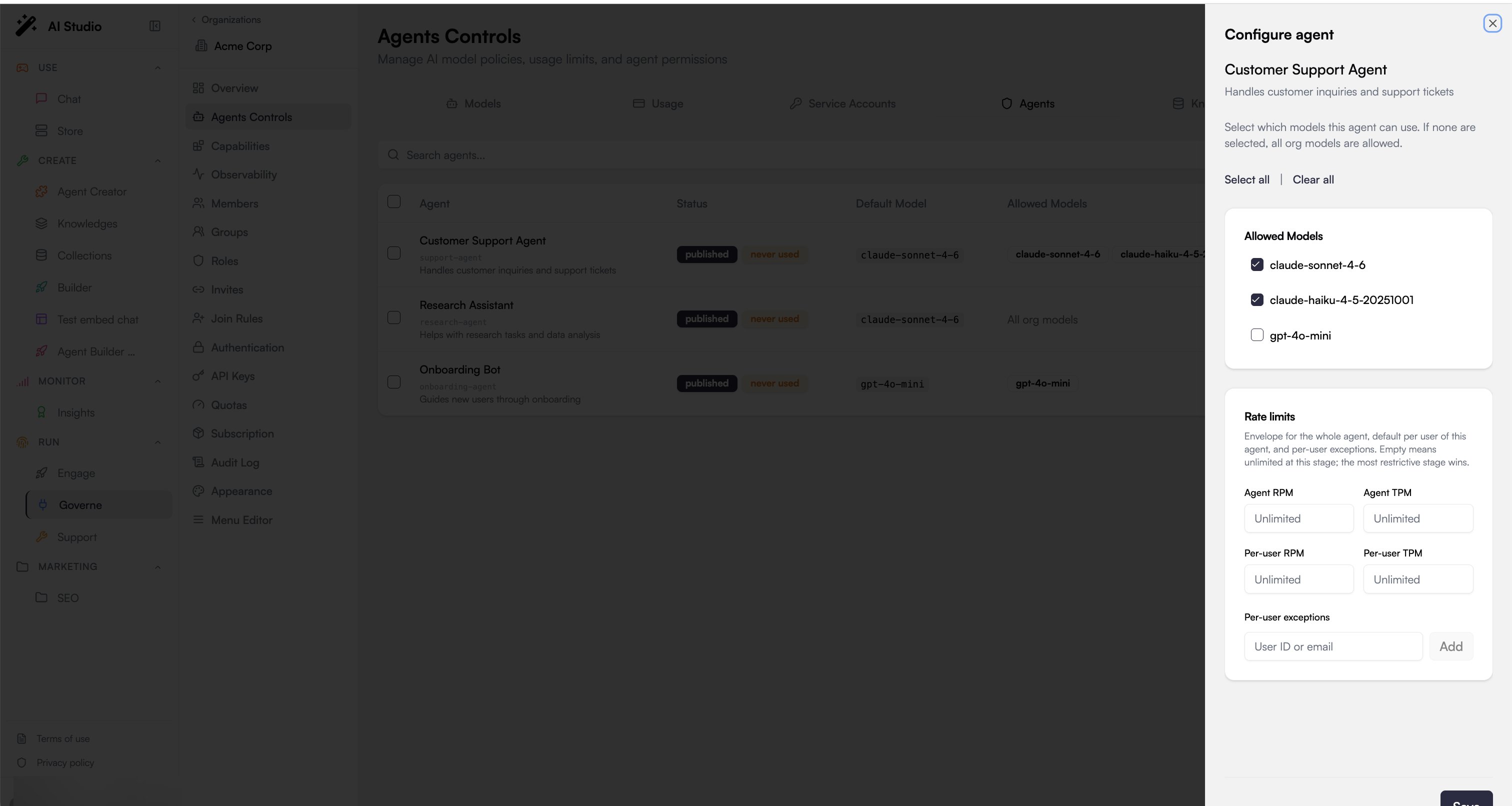
Why Restrict Agents?
- Cost control: Limit expensive model usage to specific agents
- Compliance: Ensure sensitive agents only use approved models
- Testing: Restrict test agents to cheaper models
Configuring Agent Models
- Go to Agents Controls > Agents
- Find the agent to configure (search by name if needed)
- Click the agent row to open its configuration (Configure agent)
- Select allowed models (or leave empty for org defaults: if none are selected, all org models are allowed). You can also set per-agent and per-user rate limits here, under Rate limits: Agent RPM, Agent TPM, Per-user RPM, Per-user TPM, and Per-user exceptions. An empty field means unlimited at that stage; the most restrictive stage wins.
- Save changes
Agent hygiene and cleanup
The tab helps you find and retire agents that are no longer useful. A status filter narrows the list to a hygiene category:
Rows carry badges (for example never used or dormant draft) so stale agents stand out. Select one or more agents and use Delete selected to remove them in bulk. Deletion is permanent (it also removes the agents’ conversations) and requires typing a confirmation keyword before it proceeds.
Knowledges
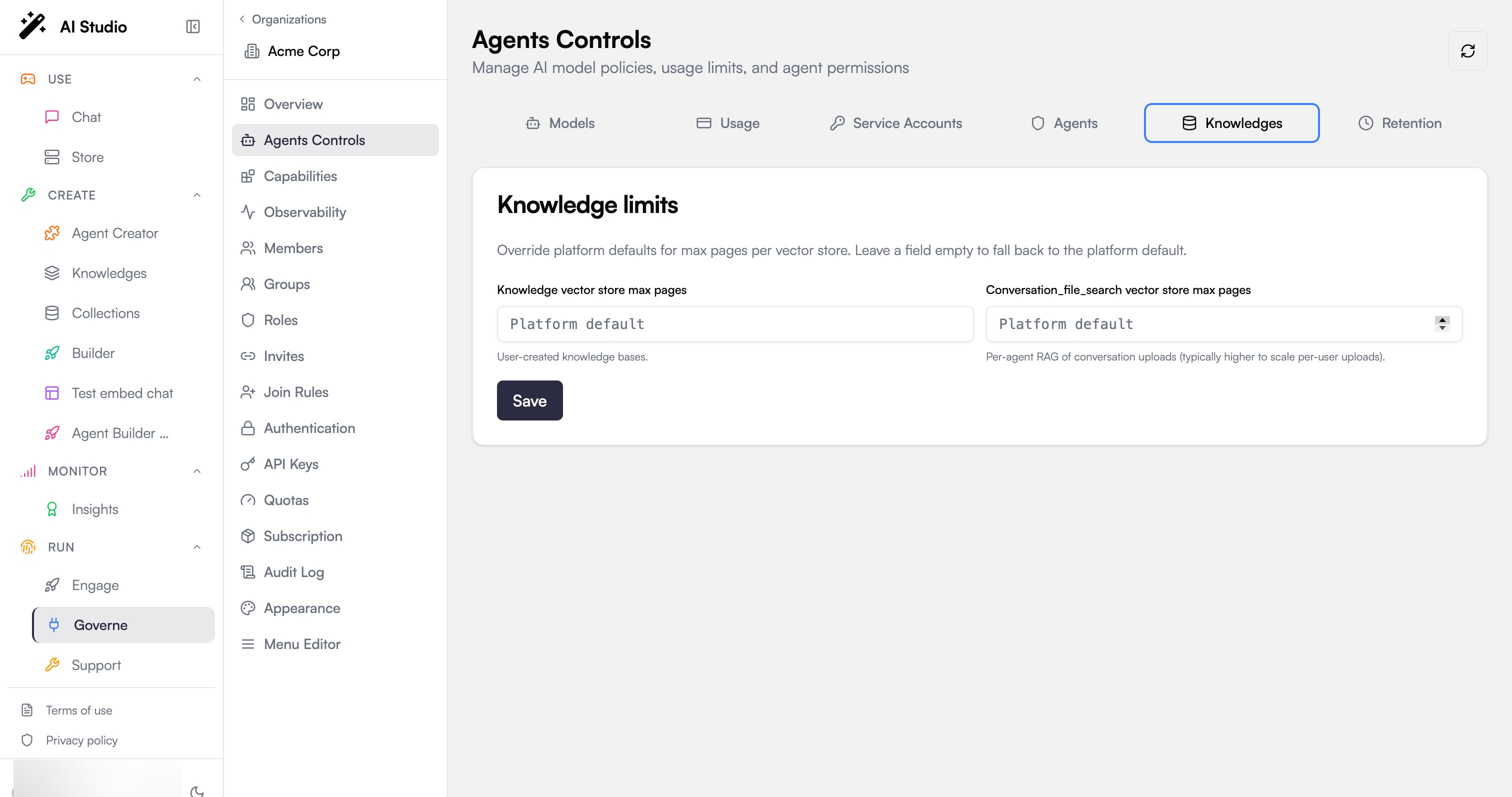
Leave a field empty to fall back to the platform default for that store. Enter a value to override it for your organization, then click Save.
Per-user access control
Enforce per-user access control on every connector knowledge source makes the check mandatory for the whole organization. Through an agent — its file search and Knowledge Explorer alike — each reader then only gets the synced documents they can open themselves in the source, whatever the connection’s own setting, and connection owners can no longer turn it off. A connector that cannot check a reader’s rights serves nothing through an agent while the setting is on.Retention
The Retention tab sets your organization’s data-retention policy: how long conversations, documents, tasks, and artifacts are kept before purging, within your subscription plan’s cap. Because retention resolves across three stages (platform default, then org, then per-agent override) and interacts with the plan cap, it has its own page. See Data Retention.Service Accounts
Service accounts provide machine-to-machine authentication. See Identity & Access for details. In the context of Model Governance:- Link service accounts to specific agents
- Track which service accounts consume LLM resources
- Control model access per service account
Response length: default and maximum
Two model fields bound the length of an answer. Both are in Govern → Models, in the Limits block of the model form’s Advanced step (models other than embeddings), and each has an (i) hint:
When a maximum is set, the Response Tokens hint states it, and a default above it is flagged and cannot be saved. Leave the maximum empty for no cap.
An agent’s own Max Response Tokens (Agent Creator) always wins over the model default, and is capped by the maximum like any other call. The default stays small on purpose: setting it to the model’s maximum would make every agent without its own limit reserve that much of its context window, and shorten the conversation history it keeps.
Callers can set the limit as
max_tokens or as max_completion_tokens (OpenAI’s newer name). The gateway forwards a single max_tokens, at the lower value when both are sent, because OpenAI and Azure refuse the pair and some OpenAI-compatible providers refuse the newer name. A model that requires max_completion_tokens (OpenAI reasoning and GPT-5 models) gets it back through its rename_params (pre-filled from the catalogue, see Per-model exclusions and renames) or the provider’s parameterAliases. A provider entry that excludes max_tokens without such a rename sends no limit (see excludeParameters).
Via the API
Response Tokens islimits.response_tokens and Max response tokens (max) is limits.max_response_tokens on the model (PATCH /v1/models/{model_id}). The catalogue sync updates limits.max_response_tokens and never touches limits.response_tokens (see Aligning an environment with the catalogue).
Model identity and display
Changing a model id
A model’s id cannot be edited. It is the reference stored by agents, organization defaults and allowlists, failover chains and the usage and cost history: renaming it would break those references silently and split the history in two. To move to another id — typically theeu. id of a Bedrock cross-region inference profile — clone the model (row ⋮ → Clone Model). The copy keeps the whole configuration, and its id is editable until it is created; the form proposes the other known ids of the same catalogue entry (Other known IDs). Then point your agents and defaults to the new model, and disable the old one.
Brand logo
The model picker shows the logo of the model’s brand (Brand field: Anthropic, OpenAI, Google, Mistral, Meta, Amazon, DeepSeek, Qwen). The logos ship with the platform, so they also display on environments without internet access. Set Icon URL only to override it; an unknown brand shows its initial.End-of-life date
The End of life field of the model form (Advanced step, Metrics block, next to Training Date) records the date a provider announced it will retire the model. The model picker and the Models list show an orange End of life on badge with the date, red (End of life since) once the date has passed. It is informational: the gateway keeps routing the model until you disable it, and the provider’s own shutdown is what makes calls fail. The date is pre-filled from the reference catalogue and kept up to date by the catalogue sync; you can also set it yourself, for instance for a deployment that expires before the model.Via the API
Model Lifecycle: Hidden vs Disabled
A platform administrator can manage a model’s availability at three levels of severity. Each level has a different effect on what the LLM Gateway accepts, what surfaces in UI pickers, and whether the model is auto-pruned from organization allowlists.”LLM Gateway” designates the product responsible for llm calls execution and authorization, whether through API calls or chat front-end. In Govern → Models, the model form’s General step has an Enabled checkbox and a Hidden checkbox; Delete Model is in the row’s ⋮ menu.
State matrix
Why hidden is not the same as disabled
Thehidden flag exists specifically to deprecate a model from UI selection without breaking direct API usage or existing agents that already point to it. Saving the organization’s Allowed models panel without a hidden model would effectively forbid it, so hidden models are left in the list, only filtered out of agent-level dropdowns. An agent that had selected a model before it became hidden keeps using it, and API consumers calling /chat/completions with that model_id keep working.
If a model truly must be retired, use Disabled (or delete it from the catalog) to prevent any agent from using it.
Warnings surfaced in the Agent Creator
When you open an agent whose currently-configured model is no longer fully usable, the model picker surfaces one of two messages:- 🔴 Error (model unusable): the model has been deleted, disabled at platform level, or removed from the org / agent allowlist. The agent will fail to process any request until you select another model.
- 🟡 Warning (model hidden): the model has only been hidden at platform level. The agent still works for now, but you’re no longer expected to pick this model; please switch to another one.
Via the API
Hide or disable a model by settingdisplay.hidden or enabled with PATCH /v1/models/{model_id}; delete it with DELETE /v1/models/{model_id}.
Model Access Control
When a request arrives, the LLM Gateway validates the requested model against three sequential allowlists:- Org allowlist: Is the model in the organization’s allowed models? (if the list exists and has entries) — set in Agents Controls > Models, Allowed Models
- Agent allowlist: Is the model in the agent’s allowed models? (passed by agent-factory) — set in Agents Controls > Agents, Configuring Agent Models
- API key scopes: Is the model allowed by the API key’s scopes?
- Soft Downgrade: silently swaps to the default completion model
- Hard Block (default): returns a
403error withMODEL_NOT_ALLOWED
Carbon Footprint Tracking
Every LLM call carries an estimated environmental impact. The calculation considers GPU energy per token, server overhead, datacenter PUE (Power Usage Effectiveness), and regional emission factors. Results include uncertainty margins (+/- 20%). Per model, set the PUE Profile and Energy/Token in the Metrics block of the model form (Govern → Models, Advanced step):
The region comes from the provider entry by default. In Govern → Models → Providers, each entry has an optional carbon region: empty means World (default), except Bedrock and Vertex entries, which derive it From the region / location. In the model form, the Carbon region field (Advanced step) first offers From the provider (…); pick another region only for a model that runs elsewhere. The form then tells whether the override differs from the provider or is the same, in which case Use the provider removes it. See Setting the region.
Carbon data is included in analytics events and powers the observability dashboards.
Via the API
The estimate is returned in every LLM call’s response:region field; the provider entry’s is carbon_region.
Supported Providers
The LLM Gateway abstracts multiple providers behind a unified API. Providers are configured by platform superadmins in Govern → Models → Providers, which saves them to the LLM Gateway workspace configuration.
All providers are normalized to the OpenAI API format for chat completions and streaming (SSE).
Provider Options
Every provider block in the LLM Gateway config exposes a uniformoptions object that lets you reshape the request just before it hits the upstream endpoint, without changing application code. Three options are supported, all consumed by the same path inside fetchLLM:
The same three options are also exposed in Govern → Models → Providers for every provider type: each entry has an
options.excludeParameters list (add parameter), an options.parameterAliases editor (Add alias) and an options.headers editor (Add header). Click Save to write them to the gateway configuration. Backwards-compatible: any option you omit is a no-op.
Provider options are configured per-provider in the workspace that owns the provider config: LLM Gateway (
providers.<provider>.options.*) for the current LLM Gateway architecture, or AI Knowledge (llm.<provider>.options.*) for the legacy AI Knowledge stack. The OpenAI app instance is a pass-through and is not the configuration surface; editing it directly there has no effect on traffic that flows through the gateway.parameterAliases
Each entry is a { from, to } pair. When a key matching from is present in the request body, it is renamed to to (the value is preserved, the old key is dropped). If the body already carries to, that explicit value wins: from is dropped without overwriting it. Typical use: a provider exposes the OpenAI Chat Completions surface but renamed max_tokens to max_completion_tokens.
excludeParameters
Each entry is a body key name to delete before the request is sent. Typical use: a model rejects top_p or presence_penalty and you want to keep your app code provider-agnostic instead of conditionally stripping.
max_tokens sends no output limit to that entry’s models. For models that need the newer name (OpenAI reasoning and GPT-5 models), rename it instead (parameterAliases here, or the model’s rename_params) so the limit is kept as max_completion_tokens. The catalogue update lists the models whose entry excludes max_tokens with nothing renaming it.
Excluding stream is a special case: it doesn’t only drop the key from the body, it forces the provider into non-streaming mode. Use it when an upstream endpoint advertises SSE but doesn’t handle it reliably. The gateway then issues a plain request and returns the full completion at once, while the calling agent keeps its usual response shape.
Per-model exclusions and renames
Provider options apply to every model of the provider. When only some of its models reject a parameter —temperature on a reasoning model, max_tokens replaced by max_completion_tokens on recent OpenAI models — set it on the model instead: in Govern → Models, open the model, and in the Advanced step, Provider Config block, fill Excluded parameters and Renamed parameters.
Both are applied together with the provider’s options, the model’s entries first. They are pre-filled from the reference catalogue for known models. They apply to chat completions, including the Models page Test button.
Via the API
GET /v1/models/{model_id} reports the combined exclusions as excluded_params.
headers
A map of name → value HTTP header pairs attached to every upstream request. Typical uses: tenant-aware gateways (e.g. Azure API Management in front of Bedrock / Anthropic / Vertex), custom auth schemes, request tagging for cost attribution, or correlating upstream provider logs with Prisme.ai audit trails.
In Govern → Models → Providers, set them on a provider entry with its options.headers editor: Add header, then a header name and a value per row. The reference below applies to both the interface and the configuration file.
Static values are sent verbatim:
Runtime placeholders inject context from the calling Prisme.ai request. The value of the header must be exactly one of the patterns below:
Resolution rules for
{user.<path>}:
- If the path doesn’t exist on the user object, the header value resolves to an empty string.
- If the resolved value is not a string (object, array, number), it is JSON-stringified before being sent.
openailike): typical case of routing through a custom gateway:
- Custom headers are merged on top of the provider’s default headers (auth + content-type + provider-specific headers like
anthropic-version). Reusing a default header name will override it, useful forAuthorizationonopenailikewhen the upstream requires a non-Bearer scheme, or forx-api-keyonanthropicwhen fronting Anthropic with an API Management gateway whose key differs from the upstream key. - For multipart endpoints (image edits,
openailikeonly), theContent-Typeis dropped automatically so the runtime can set the multipart boundary. - On Bedrock and Vertex, the standard provider auth (AWS Signature v4 / Google service account token) is always added by the gateway, regardless of
options.headers; you cannot disable it through this option.
Requiring identity headers — header_policy
Configuring an identity header is not the same as receiving one. An unresolvable {user.<path>}
resolves to an empty string rather than dropping the header, so a call whose user context lost
its email reaches the provider with x-user-email: empty. A placeholder no version of the gateway
recognises is worse: it is forwarded literally, so the provider receives the header with the
value {apiKeyId} — non-empty, and therefore indistinguishable from a correct value. In both
cases the call succeeds and nothing anywhere records that the identity was lost.
header_policy turns that into a control. Per caller class, it either refuses the call before
the provider is contacted, or lets it through and records the finding.
Where it is set. On the organization, under settings.llm, next to allowed_models,
default_completion_model and quota_policy. There is no dedicated panel in Agents Controls yet,
so it is set with PATCH /v2/orgs/{orgSlug} on the settings object.
x-user-email of a machine-to-machine call would refuse every one
of them:
workspace is the one class an organization policy may not reach. It is only selected when no
user is in context at all, and on such a call the organization usually is not resolved either — the
gateway then sees no organization settings and falls back to its own default, reporting
policySource: gateway. Cover workspace-to-workspace traffic with the gateway-wide default rather
than with a per-organization policy — see Gateway-wide settings below.mode is mandatory as soon as a class key exists:
An enforcing mode (
block, report_only) must declare a non-empty headers array; disabled does
not need one. A class that is not declared is disabled — so the policy above checks nothing for
workspace callers.
The organization value replaces the gateway-wide default wholesale, not merged key by key, so an
organization’s policy reads in one place — the same way default_completion_model overrides the
gateway’s defaults.completions. An organization opts out of a gateway default entirely with
header_policy: {}.
What counts as a missing header. Three situations, all of which mean the identity will not
reach the provider:
Header names are matched case-insensitively (RFC 7230 §3.2),
and the check runs at the last point common to every provider family — so it behaves identically on
OpenAI, Azure, OpenAI-like, Anthropic, Bedrock and Vertex. It covers chat completions, embeddings,
images, image edits, rerank, and the gateway’s own model-routing classifier. The one exception is
/v1/test, the connectivity probe behind the Models tab’s test button: it reaches the provider
without going through the policy.
In block, the caller receives:
/v1/rerank is the exception to that shape: it wraps any inner completion failure, so a refusal
arrives as error: "RERANK_FAILED" with code: "HEADER_POLICY_VIOLATION", still 403, and without
the missing list. Match on code as well as error if you handle refusals programmatically.
What is recorded. Both modes emit a governance.headers.missing event, visible in the activity
feed and available to AI Insights dashboards:
The user’s email address is never included — only a
userEmailPresent boolean, since the missing
identity case is exactly the one where the value is untrusted.
Count requests, not events. The check runs once per provider call, and one API request is not
one provider call: a failover chain tries each candidate,
/v1/embeddings splits large inputs into
batches, and model: auto runs a routing classifier that can be refused on its own. Counting
distinct correlationId gives you requests; a raw event count gives you attempts. block is
tighter than report_only here — it stops at the first refusal on a batched embedding — but it is
not guaranteed to be one event per request either.In report_only the finding also appears twice in the activity feed, under the app-prefixed name
and under governance.headers.missing. Filter on the exact event type rather than a prefix.mode, or an enforcing mode with no headers makes that entry invalid. The gateway then emits an
error event with code HeaderPolicyInvalid naming each faulty key and its reason, skips the
faulty keys, applies whatever is still valid, and lets the call through:
So a typo in one class does not disable a correct one, and a mistyped policy never costs an
organization its LLM traffic. The condition stays loud — the event repeats on every call until the
policy is fixed — it is simply not fatal.
Gateway-wide settings. Two keys live in the LLM Gateway workspace’s own configuration, under
config.value. They are the platform-level half of the control; the organization settings above are
the per-customer half.
config.value, not under an llm key. Everything else is identical — same caller classes,
same modes, same validation, so a malformed entry emits HeaderPolicyInvalid with source: gateway
and the valid entries still apply. The release ships header_policy: {}, so no default is in force
until you set one.
A gateway default is not a safe place to start enforcing: it reaches every organization that has not
overridden it. Set block here only once the organizations have been through report_only
individually, as in the rollout note below.
header_policy_enforcement is an operator control, not an organization one: an organization cannot
re-enable a policy the platform turned off. An unrecognised value falls back to enabled and emits
HeaderPolicyEnforcementInvalid, so a typo cannot silently switch a compliance control off.
Deploying them. Edit index.yml in the repository the gateway is pulled from, then run a
platform pull — it rewrites the workspace configuration from index.yml. The exception is a
repository that lists index in its
pull.exclude: there the stored
configuration is deliberately kept and your change never lands, so use the API below instead.
To change either key live, without a release, use PATCH /v2/workspaces/{workspaceId}/config. That
endpoint replaces the whole value object, so send the complete configuration, providers
included, or you wipe the gateway’s configuration.
Roll it out on one organization first rather than gateway-wide. Start in
report_only, watch
governance.headers.missing to find which provider entries are missing the header, add the missing
options.headers lines, then flip that organization to block and extend to the others.Custom Endpoint (Anthropic)
The native Anthropic provider supports an optionalendpoint field. When set, it is used verbatim as the request URL instead of the default https://api.anthropic.com/v1/messages. This lets the Anthropic provider target any Anthropic-compatible host: self-hosted Claude deployments, Anthropic-compatible gateways, or Azure AI Foundry endpoints whose URL doesn’t fit the standard {resource}.{domain}/anthropic/v1/messages scheme.
In Govern → Models → Providers, the Anthropic card has endpoint, auth_scheme, api_key and anthropic_version fields. The auth_scheme select offers native (the default, which sends the key in x-api-key), bearer and api-key. Click Save to write them to the gateway configuration.
Like the provider options above, this is configured in the workspace that owns the provider config: LLM Gateway (
config.value.providers.anthropic.endpoint). The OpenAI app instance is a pass-through and is not the configuration surface.Configuration reference
Example LLM Gateway config (workspaces/llm-gateway/index.yml, under config.value.providers.anthropic):
- Additive: omit
endpointand the provider behaves exactly as before, callinghttps://api.anthropic.com/v1/messages. - Selectable auth scheme: set
auth_schemeto control how the key is sent:x-api-key(default, the standard Anthropic header;nativein the interface, which leavesauth_schemeunset),api-key, orbearer(sendsAuthorization: Bearer <api_key>and omitsx-api-key). The key or token always goes inapi_key. Omitauth_schemeto keep the defaultx-api-keybehavior. For richer needs (multiple auth headers, gateway subscription keys, request tagging), useoptions.headers; it overrides anything set byauth_scheme. - Include the full path: the value is taken as-is; append
/v1/messages(or whatever path the host exposes). - vs Azure OpenAI
format: anthropic: if the URL fitshttps://{resource}.{domain}/anthropic/v1/messages, configure it as anazure_openai.resourcesentry withformat: anthropic(you get URL forging and can co-locate GPT + Claude on one resource). Useanthropic.endpointwhen the URL does not fit that scheme.
Best Practices
Start Restrictive
Begin with a limited model list and expand based on need
Use Soft Downgrade
Prefer soft downgrade to maintain service during quota limits
Monitor Usage
Set alerts before hitting quota limits
Configure Failover
Ensure critical workflows have failover models
Common Scenarios
- Cost Control
- Compliance
- High Availability
To minimize costs while maintaining quality:
- Enable Soft Downgrade policy
- Configure downgrade mapping:
claude-3-opus→claude-3-sonnetgpt-4→gpt-3.5-turbo
- Set conservative monthly token limits
- Use rule-based routing to prefer cheaper models for simple requests
Next Steps
Capabilities
Manage tools, MCP servers, and guardrails
Observability
Monitor model costs and performance
Data Retention
Set how long agent data is kept