Introduction

This documentation provides an overview of workspaces, detailing configuration, secrets management, version control, events, custom domains, and JSON schema forms. It is designed for advanced technical users looking to effectively manage and utilize workspaces.

Workspace Configuration

Basic Configuration

The workspace config provides centralized settings and parameters for your entire workspace.
name: MyConfiguredWorkspace
slug: test
config:
  value:
    API_URL: https://api.mycompany.com
    LOGIN_URL: "{{config.API_URL}}/login"
    headers:
      apiKey: someAPIKey
The config.value field is exposed as a config variable inside your automations, making these settings accessible throughout your workspace.
You can reference other config values within your configuration using the {{config.PROPERTY}} syntax, as shown in the LOGIN_URL example above.

Using Secrets in Configuration

For sensitive configuration values, use secrets:
config:
  value:
    API_URL: https://api.mycompany.com
    headers:
      apiKey: "{{secret.apiKey}}"
Secrets provide a secure way to store and use sensitive information like API keys, passwords, and tokens without exposing them in your code.
Secrets with names starting with prismeai_* are reserved for super admins to configure system settings by workspace.

Environment Variables

You can also inject configuration values from environment variables:
WORKSPACE_CONFIG_test_API_URL=https://api.mycompany.com
This environment variable would set config.API_URL for a workspace with the slug “test”. Workspace config takes precedence over environment variables.

Configuration Schema

For more controlled configuration, especially for Apps, you can define a schema for your config:
config:
  schema:
    type: object
    properties:
      API_URL:
        type: string
        title: API URL
        description: Base URL for the API
      maxRetries:
        type: number
        title: Maximum Retries
        default: 3
  value:
    API_URL: https://api.mycompany.com
    maxRetries: 5
This schema defines the structure, types, and defaults for your configuration, providing better validation and documentation.

Workspace Secrets

What Are Secrets?

Secrets provide a secure way to store sensitive information like API keys, passwords, and access tokens.

Managing Secrets

Workspaces can have secrets provided through:
  • The web interface
  • API calls
  • CI pipeline integration with an external secrets manager
By default, only workspace owners can access these secrets.
You can manage secrets programmatically using the /workspaces/:workspaceId/security/secrets API.

Declaring and Using Secrets

To use a secret in your workspace, declare it in your workspace configuration schema:

secrets:
  schema:
    apiKey:
      title: API Key
      description: The application Client Id
      type: string
      ui:widget: password
      required: true
UI Display of Secret Field Example: How a secret field (apiKey) appears in the workspace configuration UI. The value is masked for security. Reference the secret in your workspace configuration:
config:
  value:
    API_URL: https://api.mycompany.com
    headers:
      apiKey: '{{secret.apiKey}}'
Secrets can be used in automations and configuration. The actual value is only visible in the configuration tab and is never displayed in automation execution logs. Secrets can be used from automations
slug: Demo
name: Demo
do:
  - set:
      name: Demo
      value: '{{config.apiKey}}'
  # OR
  - set:
    name: Demo
    value: '{{config}}' ## Access the whole config.
output: '{{Demo}}'
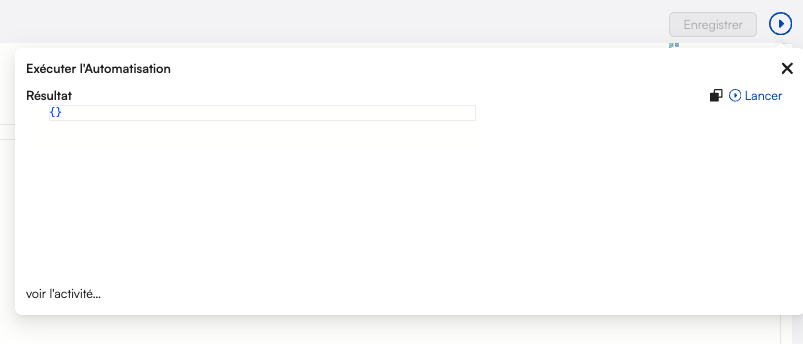
Automation Run Result Example: When running an automation that uses a secret, the value is not exposed in the output.

Secret Redaction in Logs

When secrets are used, their values are automatically redacted (or hidden if access directly) in logs and activity views when acessing the whole config.:
{
  "slug": "test",
  "payload": {},
  "output": {
    "API_URL": "https://api.mycompany.com",
    "headers": {
      "apiKey": "REDACTED"
    }
  },
  "duration": 0,
  "startedAt": "2025-12-30T19:33:17.562Z",
  "trigger": {
    "type": "automation",
    "value": "test"
  },
  "break": false
}
This ensures that secret values are never exposed, maintaining security.

Using Secrets in Other Contexts

Secrets can also be used in repository configurations:
repositories:
  github:
    name: My Repository
    type: git
    mode: read-write
    config:
      url: https://github.com/YourUser/your-repository.git
      branch: main
      auth:
        user: 'your git user'
        password: '{{secret.gitPassword}}'
Secrets beginning with prismeai_* are reserved for super admins to configure system settings.

Version Control

Prisme.ai workspaces can be synchronized with external Git repositories, enabling collaborative workflows between the platform and standard Git tooling. Changes made on either side are merged transparently using Git’s built-in merge capabilities.

Repository Configuration

Configure version control in your workspace source code:
repositories:
  github:
    name: My GitHub Repository
    type: git
    mode: read-write
    config:
      url: https://github.com/YourUser/your-repository.git
      branch: main
      auth:
        user: 'your git user'
        password: '{{secret.gitPassword}}'
Different authentication methods are supported:
  • Username/Password: For basic authentication
  • Personal Access Tokens: For services like GitHub which forbid user password usage from CLI, instead they let you generate a Personal Access Token you will use exactly like a password
  • SSH Keys: For secure key-based authentication, see below example.
You can configure multiple repositories with different access modes:
  • read-write (default): Both push and pull operations
  • read-only: Only pull operations
  • write-only: Only push operations

Sub-directory (dirpath)

By default, workspace files are stored at the root of the Git repository. Use the dirpath option to store them in a sub-directory instead:
repositories:
  github:
    name: My GitHub Repository
    type: git
    mode: read-write
    config:
      url: https://github.com/YourUser/your-repository.git
      branch: main
      dirpath: "workspaces/myapp"
      auth:
        user: 'your git user'
        password: '{{secret.gitPassword}}'
This is useful when a single Git repository hosts multiple workspaces or includes non-workspace files alongside workspace content.

Platform-wide Repositories

Administrators can configure shared repositories available to all workspaces through environment variables, without requiring each workspace to configure its own credentials. Each workspace’s files are stored in a sub-directory named after its slug. Platform repositories can also configure a custom DIRPATH to store workspace directories under a specific base path within the repository. In that case, each workspace’s files are stored under {dirpath}/{workspaceSlug}. See the self-hosting environment variables documentation for configuration details.

Using Secrets in Version Control

You can use secrets inside the repository config section:
config:
  auth:
    password: '{{secret.gitPassword}}'

Typical Collaboration Workflow

When working with an external Git repository, the platform uses an intermediate branch (named prismeai/{workspaceSlug}/{targetBranch}) to manage synchronization. This branch acts as a buffer zone where merges happen before affecting either side. A typical workflow looks like this:
  1. Developers A work on the platform — editing automations, pages, and configuration through the UI
  2. Other team members work in Git — editing YAML files directly in their IDE, committing to the target branch
  3. Pull — imports remote Git changes into the workspace. The platform first saves its own state (edited by developers A) to the intermediate branch, then merges the target branch in. If there are no conflicts, the merge result is imported transparently
  4. Push — exports the workspace state to Git. The platform commits to the intermediate branch, then merges it into the target branch
Because both sides’ changes are saved to Git before merging, Git can detect conflicts and perform automatic merges when changes don’t overlap.
The intermediate branch (prismeai/{workspaceSlug}/{branch}) is managed automatically by the platform. Never modify it manually unless you are resolving a merge conflict (see below).

Push and Pull Operations

Once a repository is configured:
  • Push: Save the current workspace state to the repository
  • Pull: Update the workspace from the repository
A native repository named “Prismeai” is always available for saving versions to the platform’s storage. However, these versions are lost if the workspace is deleted, unlike with external Git repositories.
Versioning saves the workspace’s static configuration, including security roles, automations, pages, blocks, and apps, but not dynamic data like events, collections, or uploaded files.

Automatic Platform State Save on Pull

When you pull, the platform automatically saves the current workspace state to the intermediate Git branch before merging remote changes. This ensures that any local modifications made through the UI are preserved in Git history and can be detected as conflicts if they overlap with remote changes. This automatic save is skipped in two cases:
  • Discard local changes: when you explicitly choose to discard local changes (available as a UI option), the pull overwrites the workspace entirely with the remote content
  • After a merge conflict resolution: when a previous pull resulted in a merge conflict (which is resolved manually in Git), the next pull skips saving to avoid overwriting the resolution

Push Requires an Up-to-date Workspace

Before pushing, the platform checks whether the workspace is synchronized with the remote branch. If there are remote commits that haven’t been pulled yet, the push is rejected with a message asking you to pull first. This prevents accidentally overwriting remote changes that haven’t been reviewed.

Dirty Tracking

The platform tracks whether a workspace has unsaved changes relative to its Git repository. Two fields are maintained on each workspace:
  • dirty: Set to true whenever workspace content is updated (automations, pages, config, etc.), and reset to false after a successful push to a Git repository.
  • lastPush: Records details of the last successful push, including createdAt (timestamp), createdBy (user ID), version (version name), and repositoryId.
These fields are returned in the GET /workspaces API response. You can also filter workspaces by their dirty state using the dirty query parameter:
GET /v2/workspaces?dirty=true
This returns only workspaces that have unpushed changes, which is useful for identifying workspaces that need to be synchronized with their Git repository.

Merge Conflicts

When a pull detects conflicting changes between the platform state and the remote branch, the operation stops and the workspace is locked with a merge_conflict reason. This lock does not expire and prevents any further versioning operations until the conflict is resolved. To resolve a merge conflict:
  1. In your Git client, checkout the intermediate branch, merge the target branch, and resolve the conflicts:
    git checkout main
    git pull
    git checkout prismeai/myapp/main
    git pull
    git merge --no-ff main
    # Resolve conflicts in your editor
    git commit
    git push
    
  2. Back on the platform, pull again. The platform detects that a merge conflict was previously active, skips saving local state (to not overwrite your resolution), and imports the resolved content.
Alternatively, if you want to discard the conflicting state entirely, you can clear the lock via the API (see Write Lock below) and pull with “discard local changes” enabled.

Write Lock

Versioning operations (pull, push, import) acquire an exclusive write lock on the workspace to prevent concurrent operations from corrupting data. The lock is automatically released when the operation completes. If an operation fails or takes too long, the lock expires after 30 minutes (configurable via WORKSPACE_WRITE_LOCK_TIMEOUT_MINUTES). Exception: merge conflict locks never expire and require explicit resolution through API or pull. You can manage the lock manually through the API:
  • Set a lock: POST /v2/workspaces/{workspaceId}/writeLock with an optional reason field
  • Clear a lock: DELETE /v2/workspaces/{workspaceId}/writeLock
Both endpoints require the ManageSecurity permission on the workspace. Clearing a lock is useful to recover from stuck operations or to dismiss a merge conflict without resolving it in Git.

Progress Notifications

During pull and push operations, the platform emits real-time progress events (workspaces.versions.progress) that are displayed as notifications in the UI. These notifications show the current step of the operation (checkout, pull, write, merge, push, import) along with a live timer for long-running steps. If an operation fails, an error notification is displayed. Progress events are also available in the workspace event stream for programmatic monitoring.

Excluding Files from Import

When pulling from a repository, you can exclude specific parts of your workspace from being overwritten:
repositories:
  github:
    name: My GitHub Repository
    type: git
    mode: read-write
    config:
      url: https://github.com/YourUser/your-repository.git
      branch: main
    pull:
      exclude:
        - path: 'index'  # Don't override workspace config
        - path: 'security'  # Don't override security files
        - path: 'pages/custom'  # Don't override 'custom' page
This is useful for preserving local customizations while still getting updates from the shared repository.

Import Results

After each archive import or repository pull, a workspaces.imported event is emitted with details:
{
 "files": [
  "index",
  "security",
  "pages/test.yml"
 ],
 "deleted": [
  "automations/removedAutomation.yml"
 ],
 "version": {
  "name": "latest",
  "repository": {
   "id": "yourRepositoryId"
  }
 },
 "errors": [
  {
   "msg": "Could not rename workspace slug from {oldSlug} to {newSlug} as it is already used by workspaceId zlkpbRF",
   "err": "SlugAlreadyInUse",
   "conflictingWorkspaceId": "..."
  }
 ]
}
This event provides a complete record of what changed during the import.

Self-Signed TLS

When trying to authenticate using user/password method against a repository with a self-signed HTTPS certificate, you can receive the following error:
  SSL certificate problem: self-signed certificate in certificate chain
This is an infrastructure issue which needs to be solved within prismeai-workspaces deployment, by mounting a copy of the /etc/ssl/certs/ca-certificates.crt file at the same address and adding the git server certificate to it.

Workspace Events

What Are Events?

Each workspace maintains a continuous real-time stream of events that describe activities and interactions.

Event Types

Workspaces work with two main types of events:
  • Native Events: Automatically generated by the platform (updates, webhooks, errors, automation executions, etc.)
  • Custom Events: Emitted by your automations or installed apps
Events are stored for up to 3 years and can be viewed/searched from the Activity view of the workspace.
Events from workspaces inactive for longer than 15 days and with fewer than 100 events are regularly deleted. Events from deleted workspaces are kept for up to 6 months after deletion.

Event Structure

Every event includes a type, payload and source fields. These contain important information:
  • type: Type of the given event (can also represent the name of the event)
  • payload: Payload of the event, contains useful data specific to the event type
  • source.userId: Authenticated user ID (only set for user-emitted events)
  • source.sessionId: Session ID shared by all events related to a user session
  • source.correlationId: Unique ID shared by events related to the same initial trigger
  • source.automationSlug: Automation that emitted the event
  • source.appInstanceFullSlug: Source app instance slug (if applicable)
  • source.http: Source HTTP request details (if applicable)
This information helps track the origin and context of each event.

Working with Events

Events serve several key purposes in workspaces:
  • Recording Activity: Maintaining an audit trail of system and user actions
  • Triggering Automations: Events can start automation workflows
  • Inter-Component Communication: Components can communicate via events
  • Monitoring and Analytics: Events provide insights into system usage
For security reasons, events emitted from a nested app (an app installed within another app) will not be visible in the root workspace events feed.

Activity View

The Activity view provides a real-time window into your workspace events:
  • Filter Events: Narrow down by event type, source, or time range
  • Inspect Details: View complete event data including payload and source
  • Track Correlations: Follow chains of related events
  • Debug Issues: Identify problems by examining event flows
This view is invaluable for monitoring, debugging, and understanding your workspace’s behavior.

Event Retention Policy

Events from workspaces inactive for longer than 15 days and with fewer than 100 events are regularly deleted. Events from deleted workspaces are kept for up to 6 months after deletion.

Custom Domains

Step-by-Step Guide

You can attach a custom domain to your workspace to display pages under your own domain name.
1

Add DNS Record

Add a CNAME entry to your domain pointing to pages.prisme.aiFor root domains, use an ALIAS record instead of a CNAME.
2

Configure Workspace

Add the domain to your workspace configuration:
customDomains:
  - www.example.com
3

Activate Custom Domain

For Enterprise version, contact support to complete the setup.Contact Support

JSON Schema Form

Basic Schema Form

Workspace configuration often uses JSON Schema Form, a standard for creating declarative complex forms. This is particularly important for app configuration. A schema form starts with a single field, typically of type “object”:
type: 'object'
properties:
  firstname:
    type: string
  lastname:
    type: string
This creates a form with two fields, producing an object with “firstname” and “lastname” properties.

Field Types

Fields can have various types:
  • string: Text input
  • localized:string: Translatable text
  • number: Numeric input
  • localized:number: Translatable numbers
  • boolean: Switch button
  • localized:boolean: Translatable booleans
  • object: Nested object with properties
  • array: List of items
Additional attributes include:
  • title: Field label
  • description: Help text
  • default: Default value
  • enum: List of allowed values
  • enumNames: Display labels for enum values
  • required: Whether the field is required
  • pattern: Validation regex
  • hidden: Whether to hide the field

Advanced Features

Schema forms support advanced features: Custom Widgets
properties:
  description:
    type: string
    ui:widget: textarea
  birthdate:
    type: string
    ui:widget: date
  color:
    type: string
    ui:widget: color
Conditional Fields (oneOf)
properties:
  paymentType:
    oneOf:
      - title: Credit Card
        value: creditCard
        properties:
          cardNumber:
            type: string
            title: Card Number
      - title: Bank Transfer
        value: bankTransfer
        properties:
          accountNumber:
            type: string
            title: Account Number
Arrays and Objects
properties:
  contacts:
    type: array
    title: Contacts
    items:
      type: object
      properties:
        name:
          type: string
        email:
          type: string

Form Validation

Schema forms include validation rules. Each rule can just have a true value to display default message with default behavior but can also be an object with value and message. A field can have many validators. The list of validators is:
  • required: the value is required
  • min: the value as number must be greater than validator value
  • max: the value as number must be lower than validator value
  • email: the value must be a valid email address
  • tel: the value must be a valid phone number
  • date: the value must be a valid Date
  • minLength: the value as string must have a greater length than validator value
  • maxLength: the value as string must have a lower length than validator value
  • pattern: the value must match the regular expression set in validator value.
The following example shows some implementations of validators:
properties:
  foo:
    type: string
    validators:
      required: true
  bar:
    type: string
    validators:
      required:
        message:
          en: Value is mandatory. Please fill it.
          fr: La valeur est obligatoire. Merci de la renseigner.
      value: true
  email:
    type: string
    validators:
    email: true
  password:
    type: string
    title: Password
    ui:widget: password
    validators:
      required: true
      minLength:
        value: 8
        message: Password must be at least 8 characters

Complete Example

Here’s a more complete schema form example:
type: object
title: My Cool Form
description: This is an example of form
properties:
  firstName:
    type: string
    title: Firstname
  lastName:
    type: string
    title: Lastname
  birthdate:
    type: string
    ui:widget: date
    title: Birthdate
  genre:
    type: string
    title: Genre
    enum:
      - 1
      - 2
      - 3
    enumNames:
      - Man
      - Woman
      - Other
  address:
    type: string
    ui:widget: textarea
  hobbies:
    type: object
    title: Your hobbies
    properties:
      favoriteMusic:
        type: array
        title: Favorite music
        items:
          type: string
          title: Type an artist name
This form collects personal information with various field types and widgets.

Next Steps