

Creating Agents in AI Store
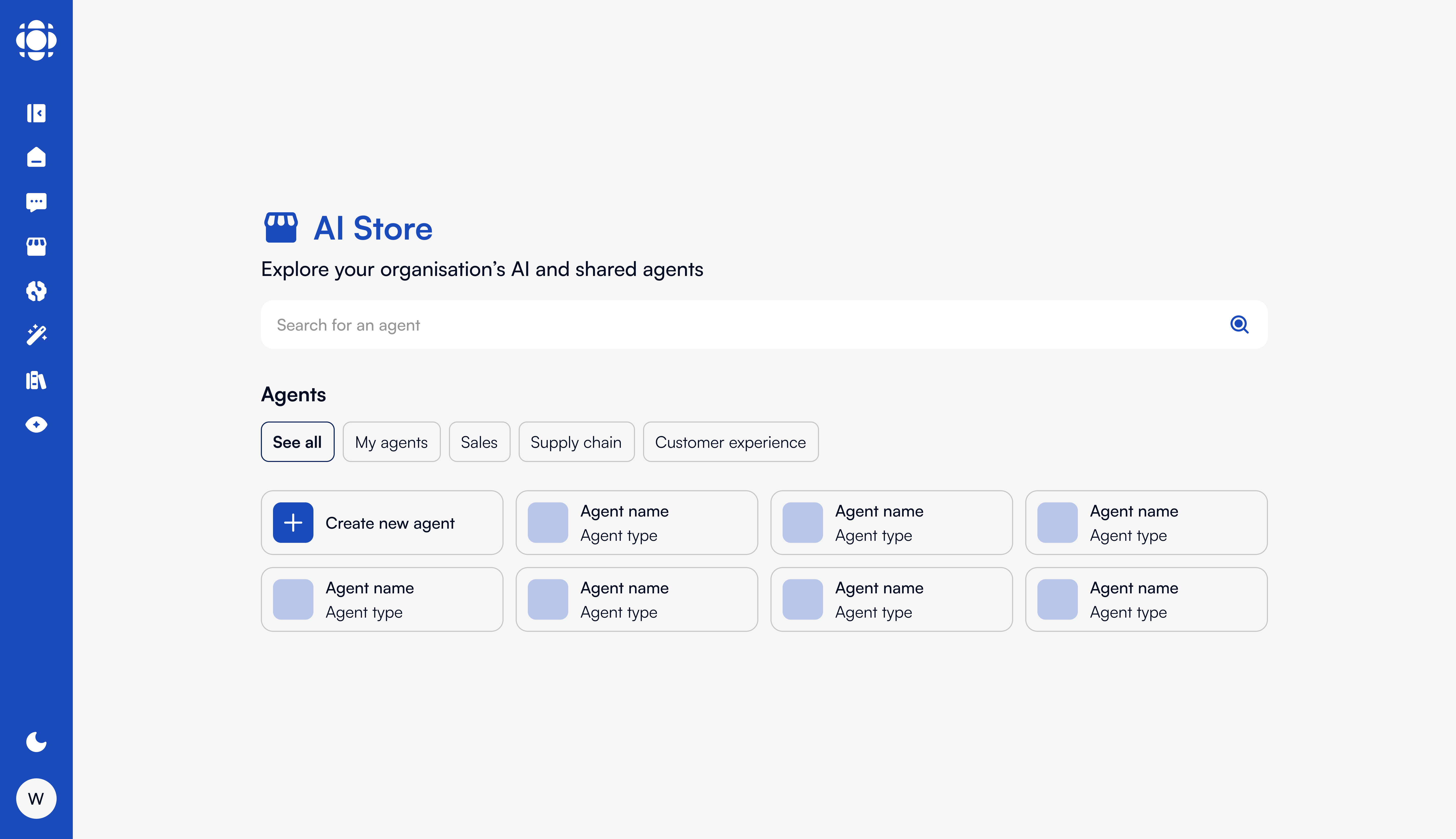
Agent Creation Overview
Creating an agent involves several key steps:Starting the Agent Creation Process
Agent Configuration Interface
The agent configuration interface consists of several tabs where you can define different aspects of your agent:- Basic Information
- Instructions & Knowledge
- Model & Parameters
- Tools & Capabilities
- Safeguards
In this tab, you’ll define the fundamental details of your agent:
- Agent Name: Clear, descriptive name for your agent
- Description: Detailed explanation of the agent’s purpose and capabilities
- Category: Primary classification for your agent
- Tags: Additional keywords to help with discovery
- Icon/Image: Visual identifier for your agent
- Visibility: Whether the agent will be listed publicly in the store
Defining Basic Information
Name your agent
Create a clear, descriptive name that indicates the agent’s purpose.Best practices for agent names:
- Be specific (e.g., “Sales Proposal Generator” vs. just “Sales Helper”)
- Keep it concise (ideally under 30 characters)
- Avoid acronyms unless they’re widely understood
- Consider including the function or domain (e.g., “HR Policy Assistant”)
Write a description
Create a comprehensive description that explains what the agent does and how to use it.
Effective descriptions include:
- The agent’s primary purpose
- Key capabilities and features
- Ideal use cases
- Any specialized knowledge or tools it uses
- Tips for getting the best results
Select a category
Choose the primary category that best represents your agent’s function.
Categories help users discover your agent when browsing or filtering the AI Store.
Add tags
Include relevant tags to improve discoverability.
Effective tags include:
- Related business functions
- Specific tasks the agent performs
- Industries or domains it specializes in
- Technologies or methodologies it uses
Choose an icon
Select or upload a visual identifier for your agent.
You can:
- Select from the library of pre-designed icons
- Upload a custom image (recommended size: 256x256 pixels)
- Use the AI to generate an icon based on your description
Configuring Instructions & Knowledge
The Instructions & Knowledge section is where you define your agent’s behavior and information sources:Write system instructions
Create detailed instructions that guide how the agent behaves and responds.Effective system instructions include:
- The agent’s role and perspective
- Response style and format guidelines
- Domains of expertise and limitations
- How to handle uncertainty or out-of-scope queries
- Specific protocols for specialized tasks
Example System Instruction
Example System Instruction
Connect knowledge bases
Link relevant knowledge bases to your agent.You can:
- Select from existing organizational knowledge bases
- Create a new knowledge base specifically for this agent
- Configure how the agent prioritizes and uses different knowledge sources
- Set knowledge base query parameters
Add pre-loaded context
Provide information that should always be available to the agent.Pre-loaded context can include:
- Key facts and reference information
- Guidelines and policies
- Templates or examples
- Frequently used data or terminology
Selecting Model & Parameters
The model settings determine the underlying AI capabilities and behavior:Model Selection
Model Selection
Choose the appropriate LLM for your agent:Considerations include:
- Capability requirements (e.g., code generation, multimodal)
- Response quality needs
- Processing speed
- Token costs
- Specialized abilities
Temperature Setting
Temperature Setting
Control the creativity and determinism of responses:
- Lower temperature (0.0-0.3): More focused, deterministic responses
- Moderate temperature (0.3-0.7): Balanced creativity and consistency
- Higher temperature (0.7-1.0): More creative, varied responses
- Factual knowledge agents: Lower temperature
- Creative content agents: Higher temperature
- General assistance: Moderate temperature
Context Window
Context Window
Define how much conversation history the agent retains:Options typically range from 2K to 32K tokens, depending on the model.Consider:
- Longer contexts allow for more detailed, contextual responses
- Shorter contexts reduce token usage and costs
- Complex tasks may require larger context windows
- Simple, independent queries work well with smaller contexts
Advanced Parameters
Advanced Parameters
Fine-tune model behavior with additional settings:Parameters may include:
- Top-p (nucleus sampling)
- Top-k
- Frequency penalty
- Presence penalty
- Stop sequences
- Maximum response length
Enabling Tools & Capabilities
Enhance your agent with specialized tools:- Canvas
- Document Handling
- Multimodal Features
- Custom Tools
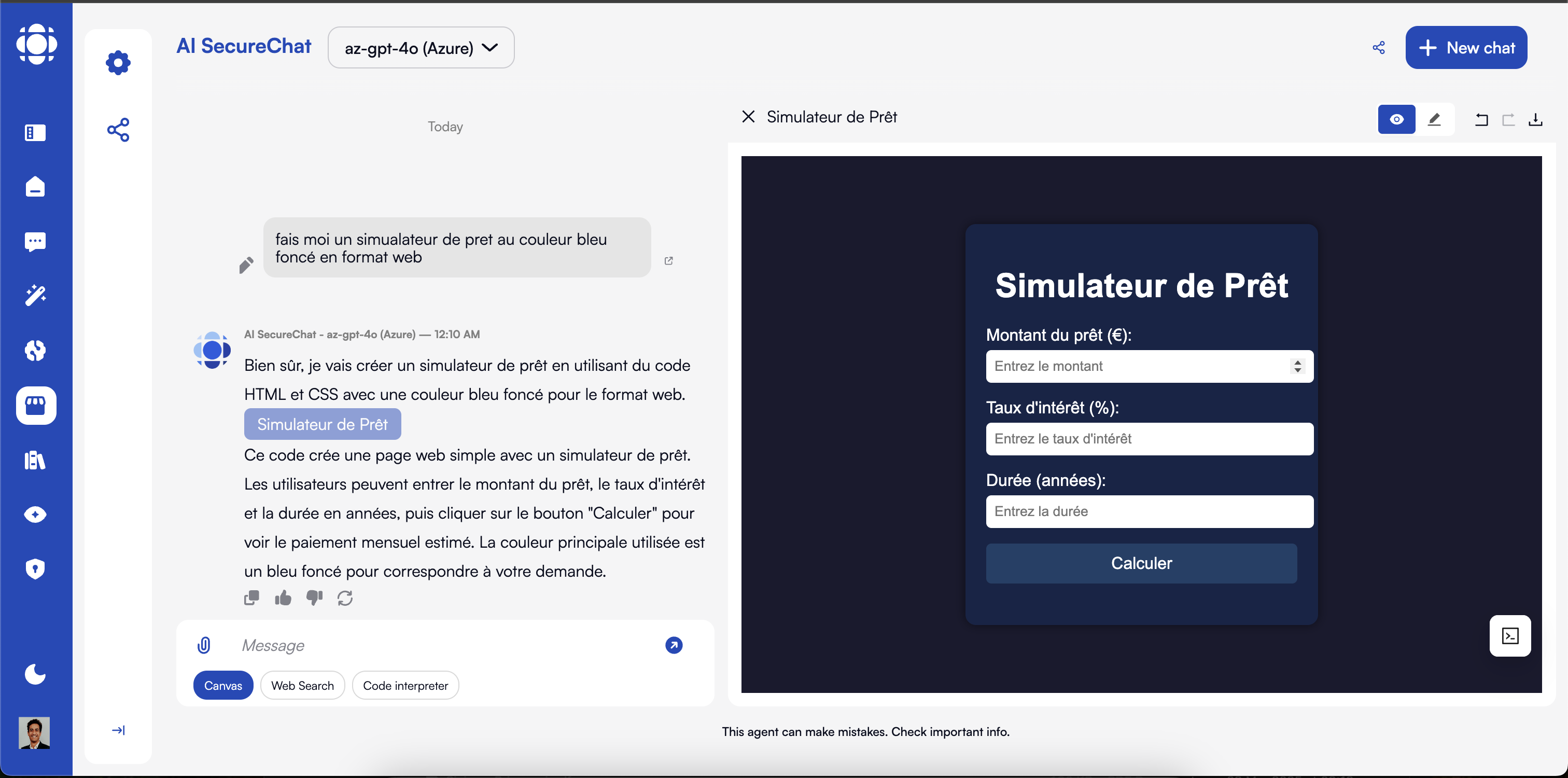
- Toggle Canvas availability
- Set default Canvas type (document, code, etc.)
- Configure Canvas templates
- Set export options
- Define collaboration settings
Setting Safeguards
Establish appropriate guardrails for your agent:Configure content filtering
Using prompt, set appropriate boundaries for content generation.Options include:
- Content category restrictions
- Language and tone guidelines
- Industry-specific compliance settings
- Custom prohibited content rules
Create fallback responses
Define how your agent responds when it encounters queries outside its scope.Effective fallbacks:
- Clearly explain the limitation
- Suggest alternative approaches
- Direct users to appropriate resources
- Maintain a helpful tone
Example Fallback Response
Example Fallback Response
Define warning messages
Create appropriate cautions for sensitive topics or uncertain information.Warnings can be configured for:
- Speculative or uncertain information
- Potentially sensitive topics
- Legal, medical, or financial advice
- Experimental features
- High-stakes decision areas
Example Warning Message
Example Warning Message
Testing Your Agent
Before publishing, thoroughly test your agent to ensure it performs as expected:Enter test mode
Click the “Chat” button in the agent configuration interface.Test mode provides a preview environment where you can interact with your agent before publishing.
Try diverse queries
Test a variety of inputs to verify the agent’s behavior.Be sure to test:
- Core capabilities and primary use cases
- Edge cases and unusual requests
- Different phrasings and question types
- Complex, multi-part queries
- Inputs that should trigger safeguards
Verify tool functionality
If your agent uses tools, test that they work correctly.For each enabled tool:
- Verify that it’s invoked appropriately
- Check that results are presented clearly
- Test error handling and fallbacks
- Confirm integration with the agent’s responses
Publishing Your Agent
Once you’re satisfied with your agent’s performance, you can publish it to the AI Store:Review agent details
Double-check all configurations before publishing.
The pre-publish review shows a summary of all agent settings and configurations.
Configure availability
Determine who can access your agent.Options include:
- Public: Available to all users on your Prisme.ai instance
- Limited: Available to specific users or groups
- Private: Available only to you
- Organizational: Available across your entire organization
Managing Agent Versions
If the agent is created using AI Builder, Prisme.ai supports versioning to help you manage agent updates:Version Control
Version Control
Key versioning features:
- Track changes between versions
- Maintain version history
- Roll back to previous versions if needed
- Clone versions to create variants
- Add version notes and change logs
Creating Updates
Creating Updates
When updating your agent:
- Create a new draft version from the current published version
- Make and test your changes
- Publish the update when ready
- Optionally include release notes
- Control whether to automatically migrate existing users
Advanced Configuration with DSUL
For technical users, Prisme.ai supports advanced configuration using DSUL (Digital Service Universal Language):Using DSUL for Agent Creation
Using DSUL for Agent Creation
DSUL provides a powerful way to define agents using YAML syntax:
- Access the DSUL editor from the advanced options menu
- Define all agent aspects in a single configuration file
- Import and export DSUL configurations
- Use meta-programming capabilities for complex agents
- Create agent templates using DSUL
Best Practices for Agent Creation
Define Clear Purpose
Create agents with specific, well-defined functions rather than general-purpose assistants.
Provide Detailed Instructions
Be comprehensive in your system instructions to guide the agent’s behavior effectively.
Connect Relevant Knowledge
Link to appropriate knowledge bases to enhance the agent’s expertise in its domain.
Choose Appropriate Models
Select the right LLM based on your agent’s specific requirements and use cases.
Test Thoroughly
Explore a wide range of inputs and scenarios to ensure your agent handles them appropriately.
Establish Clear Guardrails
Define proper safeguards to ensure responsible and appropriate agent behavior.
Optimize for Performance
Balance capabilities with efficiency to create responsive, effective agents.
Consider User Experience
Design with the end user in mind, focusing on accessibility and usability.
Troubleshooting Common Issues
Agent not using knowledge base properly
Agent not using knowledge base properly
If your agent isn’t accessing or using connected knowledge effectively:
- Verify the knowledge base connections are properly configured
- Check that the system instructions explicitly mention using the knowledge
- Test with specific queries that should trigger knowledge retrieval
- Ensure the knowledge base content is properly formatted and indexed
- Adjust knowledge retrieval parameters in advanced settings
Tools not being invoked
Tools not being invoked
If your agent isn’t using tools as expected:
- Check that tools are properly enabled and configured
- Verify the agent has permission to use the tools
- Update system instructions to explicitly mention tool usage
- Test with clear queries that should trigger specific tools
- Check tool API endpoints and connections
Response quality issues
Response quality issues
If your agent’s responses aren’t meeting quality expectations:
- Adjust the model and temperature settings
- Enhance system instructions with specific quality guidelines
- Provide more examples in the preloaded context
- Connect additional relevant knowledge sources
- Test with different prompt formulations
Publishing errors
Publishing errors
If you encounter errors when trying to publish your agent:
- Check for missing required fields in the configuration
- Verify that all connected resources (knowledge bases, tools) are accessible
- Ensure the agent name is unique within your instance
- Check your permissions for publishing agents
- Try publishing with more limited visibility settings first
Next Steps
Now that you know how to create agents in the AI Store, you might want to explore:Customizing Agents
Learn how to modify existing agents
Sharing Agents
Share your agents with colleagues
Managing Agents
Maintain and update your agents