

What You’ll Build
A complete API and webhook integration with:- A webhook endpoint to receive external data
- Custom code processing for data transformation
- AI-powered text summarization using an Agent Creator agent (called via the Agent Factory App)
- Seamless event-driven communication between components
This solution demonstrates how Prisme.ai can transform simple API integrations into intelligent data processing systems using generative AI to extract insights from incoming data.
Prerequisites
Before starting this tutorial, make sure you have:- An active Prisme.ai account
- The Agent Factory App installed in your workspace (search for “Agent Factory App” in the marketplace; its automation namespace is
Agents) - An Agent Factory API key generated in Agent Creator (open any agent → Settings → API Keys) and pasted into the Agent Factory App’s configuration field
apiKeyafter installing it. This is required for the webhook to call the agent from an unauthenticated request; without it,Agents.sendMessagereturns401 UNAUTHORIZED. - The Custom Code app installed in your workspace
- An agent created in the Agent Creator product, configured with the system instructions you want for the summary task
Step 1: Creating Your Workspace
Let’s start by setting up a dedicated workspace for our webhook integrations:1
Open Builder
Log in to AI Studio and open the Builder product. Your workspaces list lives at
/builder.2
Create a New Workspace
Click ”+ Create new workspace”, then on step 1 choose “From Scratch”.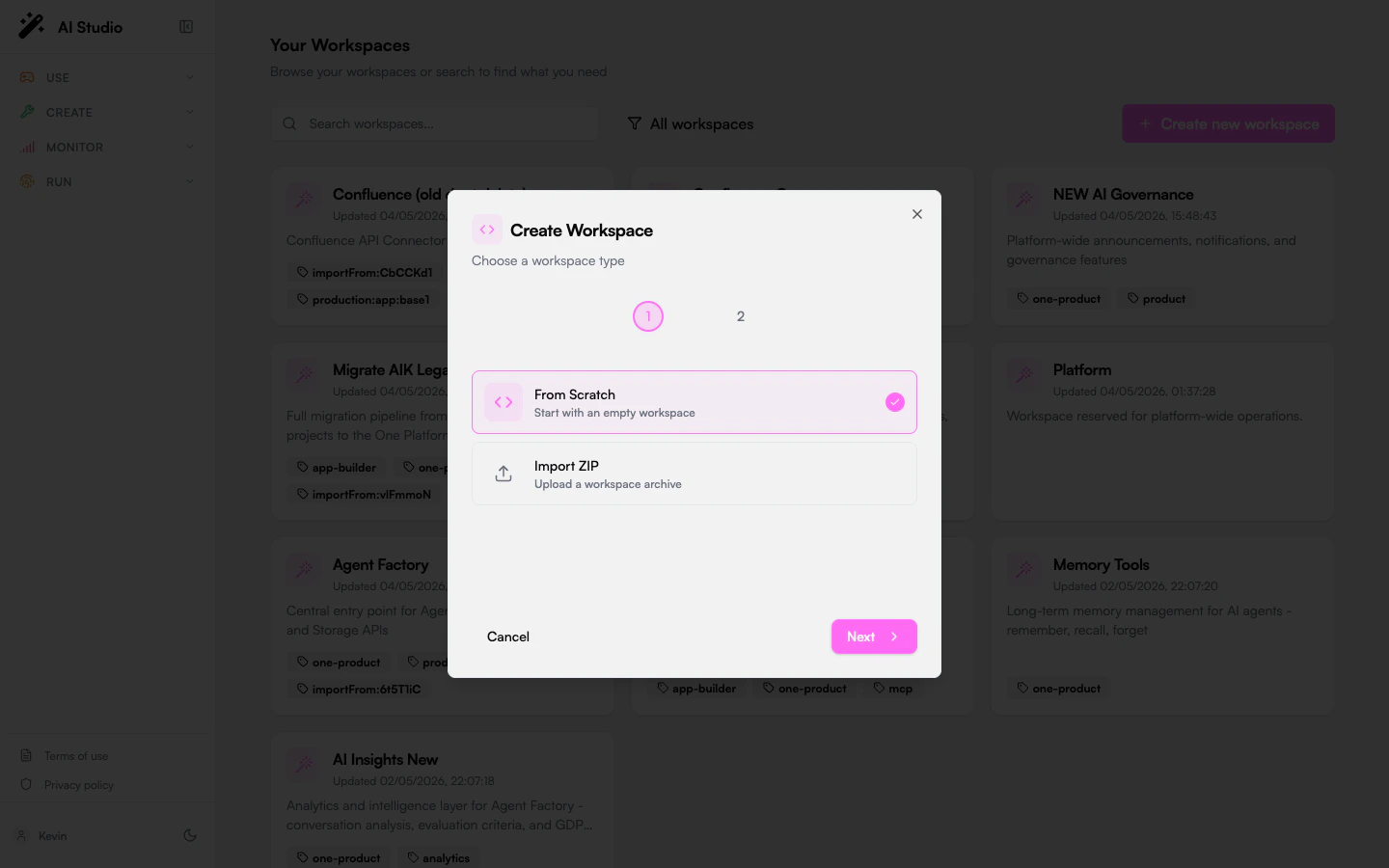
3
Configure Workspace Settings
On step 2, fill in:
- Name: “AI API Integrator” (or a name of your choice)
- Description: a short summary of the workspace purpose
Step 2: Creating the Summary Generation Automation
First, let’s create the automation that will use AI to generate summaries from JSON data. The actual summarization prompt lives on the agent itself in Agent Creator; this automation only forwards the user message.1
Navigate to Automations
In your workspace, go to the Automations section.
2
Create a New Automation
Create a new automation with:
- Name: “Generate Summary”
- Slug: “generate-summary”
3
Configure the Automation
Use the following YAML configuration:
4
Save the Automation
Save the automation.
We parse the JSON object as a string using the
json() utility function because language models expect text input, not structured JSON.Agents.sendMessage returns an A2A task object. The model’s reply is at agentResponse.task.output.messages[0].parts[0].text; that’s the path used in the output: line above. The full task object also contains usage (tokens, cost), task.id, and task.contextId (useful if you want to continue the conversation by passing it back as context_id on the next call). Inspect the activity log to see the complete shape.Step 3: Creating the Webhook Automation
Now, let’s create the webhook automation that will receive data and trigger the summary generation:1
Create Another Automation
Back in the Automations section, create another automation.
2
Configure the Webhook Automation
Use the following settings:
- Name: “Webhook”
- Slug: “webhook”
- Trigger: Enable “Endpoint” to make it accessible via URL
3
Set Up the Automation Logic
Configure the automation with this YAML:
4
Save the Webhook Automation
Save the automation.
5
Get Your Webhook URL
- Open the “Triggered when” section of your automation
- Click “Get the link”
- Copy the displayed URL, which will look like:
https://api.studio.prisme.ai/v2/workspaces/YOUR-WorkspaceID/webhooks/webhook
Step 4: Configuring Custom Code
Now, let’s set up the Custom Code app to process our incoming data:1
Access Custom Code App
Open the Imports section in your workspace sidebar and open the Custom Code app.
2
Create the CleanData Function
Configure the Custom Code app with the following YAML:
3
Save the Custom Code Configuration
Save your Custom Code settings.
The Custom Code function includes a default value for testing purposes. In a real-world scenario, you would likely perform more complex data transformation operations here.
Step 5: Testing Your Webhook Integration
Let’s test our webhook and see the AI summary generation in action:1
Prepare a Test Request
You can test your webhook by making an HTTP request to your webhook URL with query parameters, for example:
https://api.studio.prisme.ai/v2/workspaces/YOUR-WorkspaceID/webhooks/webhook?city=Toulouse&country=France2
Send the Request
Use a tool like curl, Postman, or simply enter the URL in your browser to trigger the webhook.
3
Check the Response
The webhook should return a message containing the clean data.
4
Verify Summary Generation
Check your activity logs to confirm that the Expand the
summary-event was triggered and that an Agents.sendMessage call was made to your agent with payload data such as:Agents.sendMessage event in the activity log to see the full agent response captured in agentResponse.
Understanding HTTP Variables in Webhooks
When working with webhooks in Prisme.ai, several HTTP variables are automatically available at the root level inside your endpoint automation:- query: Contains query parameters from the URL
- body: Contains the request body (for POST/PUT requests)
- headers: Contains the HTTP request headers
- method: Contains the HTTP method used (GET, POST, etc.)
In our webhook example, we’re passing the
query variable to our Custom Code function and including both headers and body in the payload that triggers the summary-event.Version Control and Deployment
To manage your webhook integrations effectively:1
Save Your Current State
Use the Push button in your workspace to create a new version.
2
Create Additional Versions
As you make changes and improvements, create new versions to maintain a history of your work.
3
Deploy Specific Versions
Select which version to deploy in your workspace settings.
Monitoring and Logs
Keep track of your webhook activity and performance:1
Access Activity Logs
Open the Activity section from the Builder workspace sidebar to view detailed records of webhook calls, automation triggers, and AI operations.
2
Set Up Alerts
Configure alerts for critical events or errors in your automations.
3
Analyze Performance
Use logs to identify patterns, bottlenecks, or areas for improvement.
Extending Your Webhook Integration
Your base webhook system is powerful, but consider these enhancements:- Authentication: Add API key validation or OAuth to secure your webhooks
- Enhanced Processing: Implement more complex data transformations in your Custom Code
- Multiple Endpoints: Create different webhook endpoints for various data sources or purposes
- Error Handling: Add comprehensive error handling and retry mechanisms
- Integration: Connect your webhooks to other systems like databases, messaging platforms, or CRMs
Next Steps
Document Classification System
Build an AI-powered document management system
AI Contact Routing
Create intelligent contact form routing with AI analysis
Create a RAG Agent
Build a knowledge base agent using your own data
Custom Apps Development
Learn to build more complex applications with Builder