> ## Documentation Index
> Fetch the complete documentation index at: https://docs.prisme.ai/llms.txt
> Use this file to discover all available pages before exploring further.
# Store
> Discover and browse AI agents available in your organization
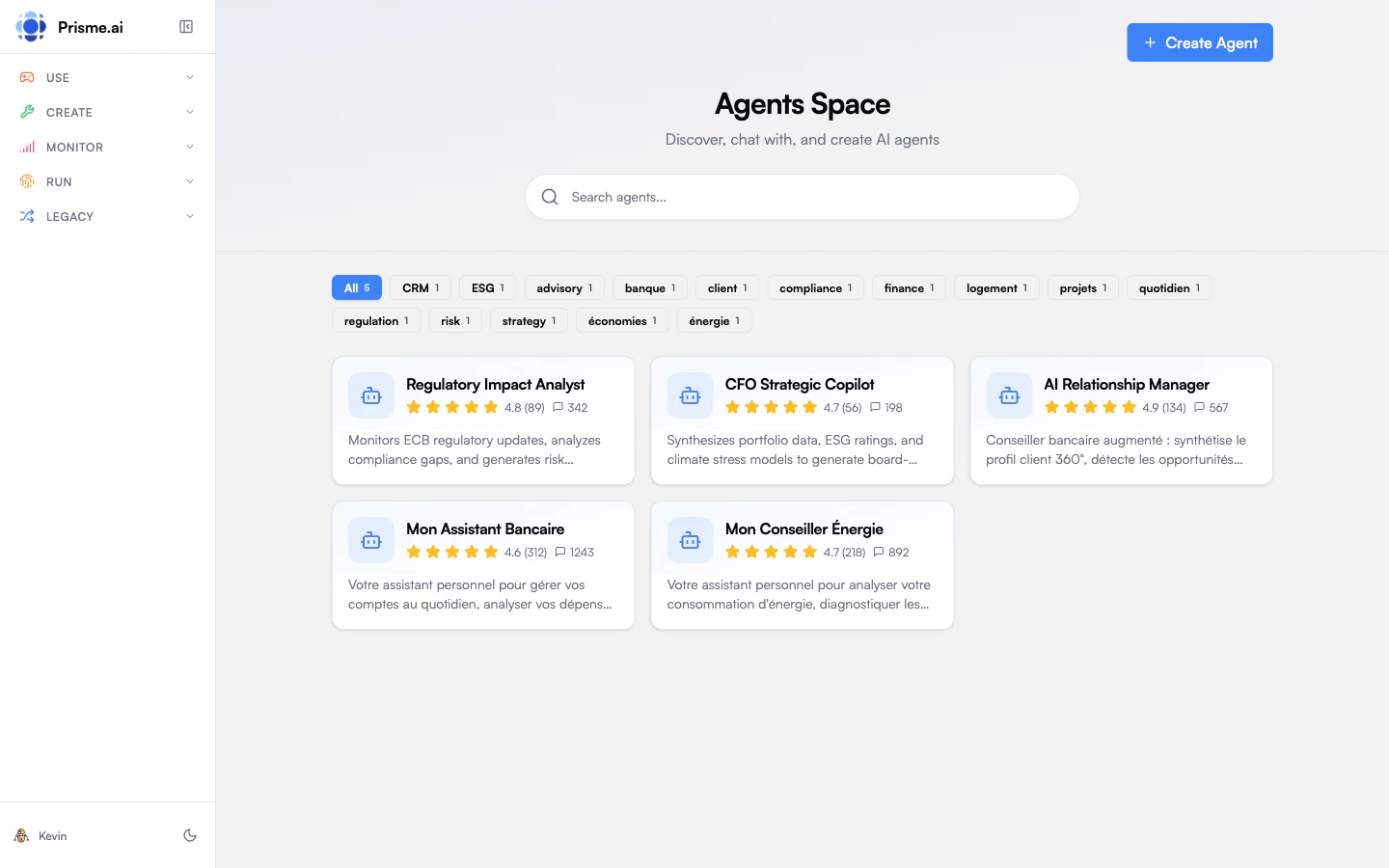 The Store is your gateway to discovering AI agents. Access it from the **Use** menu in the sidebar by clicking **Store**.
## Agents Space
The Store displays all agents available to you in a searchable gallery called **Agents Space**.
### Finding Agents
**Search**: Use the search bar to find agents by name or description.
**Categories**: Filter agents by category tags. Each tag shows the number of agents in that category.
**Ratings**: Agent cards display star ratings and conversation counts to help you identify popular, well-reviewed agents.
### Agent Cards
Each agent card shows:
| Element | Description |
| ----------------- | ------------------------------------------ |
| **Icon** | Visual identifier for the agent |
| **Name** | Agent name |
| **Rating** | Average star rating with number of reviews |
| **Conversations** | Total conversations with this agent |
| **Description** | Brief description of what the agent does |
| **Pin button** | Pin the agent to your favorites |
### Agent Details
Click an agent card to see more details:
* **Full description** of the agent's purpose
* **Capabilities** - Tools and skills available
* **Model** - Which AI model powers the agent
* **Tags** - Category labels
* **Suggested prompts** - Example questions to get started
* **Start Chat** button to begin a conversation
## Starting a Conversation
From the Store, you can start chatting with any agent:
1. Click an agent card to open details
2. Review the agent's capabilities and suggested prompts
3. Click **Start Chat**
4. You'll be taken to the Chat interface with that agent selected
Alternatively, click a suggested prompt to start with that question.
## Pinning Agents
Pin your favorite agents for quick access:
1. Hover over an agent card
2. Click the **Pin** button (bookmark icon)
3. Pinned agents appear first in your list
Pinned agents also appear on the Chat home screen under "Available agents".
## Creating Agents
If you have permissions, you can create new agents directly from the Store:
1. Click **Create Agent** in the top right
2. This opens the Agent Creator wizard
3. Follow the steps to configure your agent
The Create Agent button is only visible if you have agent creation permissions. Contact your administrator if you need access.
## Store vs Chat Home
Both the Store and Chat home show agents, but they serve different purposes:
| Store | Chat Home |
| ------------------- | -------------------------- |
| Full agent gallery | Quick access to favorites |
| Search and filter | Recent conversations |
| Detailed agent info | Start chatting immediately |
| Create new agents | Recent canvas work |
Use the **Store** when you want to explore and discover agents. Use **Chat** when you know which agent you want and want to start quickly.
## Next Steps
Learn how to have conversations with agents
Build your own custom agent
The Store is your gateway to discovering AI agents. Access it from the **Use** menu in the sidebar by clicking **Store**.
## Agents Space
The Store displays all agents available to you in a searchable gallery called **Agents Space**.
### Finding Agents
**Search**: Use the search bar to find agents by name or description.
**Categories**: Filter agents by category tags. Each tag shows the number of agents in that category.
**Ratings**: Agent cards display star ratings and conversation counts to help you identify popular, well-reviewed agents.
### Agent Cards
Each agent card shows:
| Element | Description |
| ----------------- | ------------------------------------------ |
| **Icon** | Visual identifier for the agent |
| **Name** | Agent name |
| **Rating** | Average star rating with number of reviews |
| **Conversations** | Total conversations with this agent |
| **Description** | Brief description of what the agent does |
| **Pin button** | Pin the agent to your favorites |
### Agent Details
Click an agent card to see more details:
* **Full description** of the agent's purpose
* **Capabilities** - Tools and skills available
* **Model** - Which AI model powers the agent
* **Tags** - Category labels
* **Suggested prompts** - Example questions to get started
* **Start Chat** button to begin a conversation
## Starting a Conversation
From the Store, you can start chatting with any agent:
1. Click an agent card to open details
2. Review the agent's capabilities and suggested prompts
3. Click **Start Chat**
4. You'll be taken to the Chat interface with that agent selected
Alternatively, click a suggested prompt to start with that question.
## Pinning Agents
Pin your favorite agents for quick access:
1. Hover over an agent card
2. Click the **Pin** button (bookmark icon)
3. Pinned agents appear first in your list
Pinned agents also appear on the Chat home screen under "Available agents".
## Creating Agents
If you have permissions, you can create new agents directly from the Store:
1. Click **Create Agent** in the top right
2. This opens the Agent Creator wizard
3. Follow the steps to configure your agent
The Create Agent button is only visible if you have agent creation permissions. Contact your administrator if you need access.
## Store vs Chat Home
Both the Store and Chat home show agents, but they serve different purposes:
| Store | Chat Home |
| ------------------- | -------------------------- |
| Full agent gallery | Quick access to favorites |
| Search and filter | Recent conversations |
| Detailed agent info | Start chatting immediately |
| Create new agents | Recent canvas work |
Use the **Store** when you want to explore and discover agents. Use **Chat** when you know which agent you want and want to start quickly.
## Next Steps
Learn how to have conversations with agents
Build your own custom agent