> ## Documentation Index
> Fetch the complete documentation index at: https://docs.prisme.ai/llms.txt
> Use this file to discover all available pages before exploring further.
# Prompt Management
> Use the built-in Prompt Library to quickly start conversations with ready-made, expert-crafted prompts — and customize them per organization or per agent.
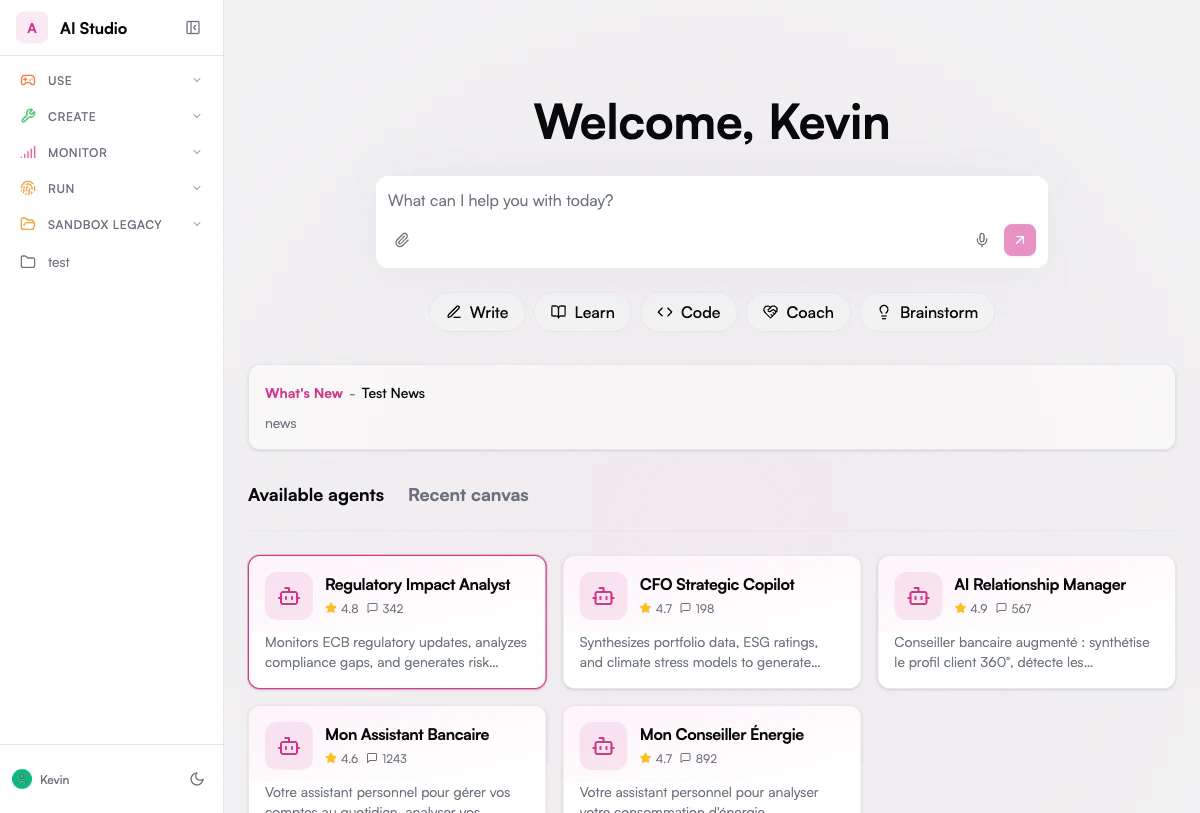
The **Prompt Library** gives every user instant access to a curated set of prompt templates right from the Chat home screen. Instead of writing a prompt from scratch, you can browse categories, preview a prompt, and send it in one click.
 ## How It Works
When you open the **Chat** home screen, category pills appear below the input box. Each pill represents a prompt category. Clicking a category opens a panel with all available prompts in that category.
Click on one of the category pills below the input box (e.g., **Write**, **Learn**, **Code**).
A floating panel opens with the list of prompts available in that category.
Hover over any prompt in the list. The first line of the prompt template is previewed directly in the input box, so you can see what it will send before committing.
Click the prompt you want. The full prompt template is loaded into the input box. You can then:
* **Edit the text** to add your own context or details before sending
* **Press Enter** to send the prompt as-is to the AI agent
## Default Categories
The Prompt Library ships with the following default categories, each containing ready-to-use templates. The list is shared per deployment and can be customized through the [Category Management API](#category-management) below — translate the labels, add a new pill, or remove one you don't want.
Professional writing and communication: executive summaries, client emails, meeting notes, business proposals, release notes.
Knowledge extraction and understanding: explain a concept, summarize a document, compare options, industry briefs, Q\&A generation.
Software development assistance: code review, debugging, API design, SQL query building, test case generation.
Professional guidance and mentoring: constructive feedback, presentation prep, difficult conversations, career strategy, interview preparation.
Ideation and creative problem solving: idea generation, SWOT analysis, user stories, name generation, risk assessment.
The shipped configuration also includes empty categories ready to be populated: **Sales**, **Support**, **Marketing**, **Engineering**, and **General**.
## Prompt Scopes
Prompts can live at three different scopes. Users always see the union of the scopes that apply to them.
| Scope | Visible to | Editable by | Use case |
| ---------------- | ------------------------------------------ | ---------------------------- | ------------------------------------------------------------------------------------------- |
| **Global** | Everyone on the platform | Platform administrators only | Curated, expert-crafted templates shipped with the product |
| **Organization** | All users in that organization | Organization administrators | Org-specific prompts (internal style guides, company processes) |
| **Agent** | Users interacting with that specific agent | Agent owners | Prompts that only make sense for one agent (e.g. an HR-onboarding agent's intake questions) |
When a user opens the chat home, they see **global prompts + their organization's prompts**. When they open a specific agent that has its own prompts, they additionally see that agent's prompts.
Global prompts are read-only — organizations and agent owners cannot modify or delete them, only add their own on top.
## Prompt Template Structure
Each prompt template includes:
| Field | Description |
| --------------- | ------------------------------------------------------------------------ |
| **Name** | Unique slug used to identify the prompt (e.g. `write-executive-summary`) |
| **Title** | Short, descriptive name shown in the category panel |
| **Description** | Brief explanation of what the prompt does |
| **Content** | The full prompt text, crafted with expert instructions for the AI |
| **Arguments** | Placeholders you can fill in (e.g., *topic*, *context*, *code*) |
| **Category** | The category pill it appears under |
| **Tags** | Searchable keywords for discovery |
| **Scope** | Which agents or organization the prompt belongs to |
Some prompts also include **tool guidance** — they can suggest or force the AI to use specific tools (e.g., web search, knowledge base) to produce better answers.
## Initial Setup
The Prompt Library starts empty on a fresh deployment or after a migration. Before users can see the category pills on the Chat home screen, an administrator must seed the library with prompt templates.
### Prerequisites
* Access to the Prompt Library workspace in **Builder** (slug: `prompt-library`)
* A workspace API key for that workspace (or admin access to trigger automations)
### Step 1: Seed the Default Templates
The Prompt Library workspace ships with a built-in automation — **Admin/Seed Prompts** (`seed-prompts`) — that creates 25 ready-to-use prompt templates across five categories: Write, Learn, Code, Coach, and Brainstorm.
**From Builder**
1. Open **Builder** and navigate to the **Prompt Library** workspace
2. Go to **Automations** and find **Admin/Seed Prompts**
3. Click **Run** (or trigger it via the activity panel)
4. Optionally pass an `agent_id` to scope all 25 prompts to a specific agent (see [Step 2](#step-2-scope-to-an-agent) below)
The automation creates 5 prompts per category. Running it again on an already-seeded library will attempt to insert duplicates — it is safe to run once per environment.
**Via API**
You can also trigger the seeding programmatically:
```bash theme={null}
curl -X POST "https://api.{your-env}.prisme.ai/v2/workspaces/slug:prompt-library/webhooks/prompt-library/seed-prompts" \
-H "Authorization: Bearer " \
-H "Content-Type: application/json" \
-d '{}'
```
To scope the seeded prompts to a specific agent, pass `agent_id` in the body:
```bash theme={null}
curl -X POST "https://api.{your-env}.prisme.ai/v2/workspaces/slug:prompt-library/webhooks/prompt-library/seed-prompts" \
-H "Authorization: Bearer " \
-H "Content-Type: application/json" \
-d '{ "agent_id": "" }'
```
Replace `{your-env}` with your deployment domain (e.g. `studio.prisme.ai` for the cloud environment, or your custom domain for on-premise deployments).
### Step 2: Scope to an Agent
By default, seeded prompts are visible to all users on the Chat home screen (organization scope). To show them only when a user is chatting with a specific agent, pass the agent's ID when seeding — or update individual prompts afterwards:
```bash theme={null}
curl -X PATCH "https://api.{your-env}.prisme.ai/v2/workspaces/slug:prompt-library/webhooks/prompt-library/v1/prompts/write-email" \
-H "Authorization: Bearer " \
-H "Content-Type: application/json" \
-d '{ "agent_id": "" }'
```
Setting `agent_id` on a prompt makes it visible **only** when users interact with that agent, and invisible on the general home screen.
### Step 3: Verify
After seeding, open the Chat interface and confirm the category pills appear below the input box. If nothing appears:
* Confirm the workspace API key used belongs to the correct Prompt Library workspace
* Check that at least one prompt has `"enabled": true` in its payload
* Verify the user's organization matches the scope of the seeded prompts
## Example: Using a Prompt Template
Here's a typical workflow using the **Write > Executive Summary** prompt:
1. Click the **Write** category pill
2. Click **Executive Summary** in the panel
3. The input box fills with the prompt template
4. Replace the placeholder with your topic or paste your document content
5. Press Enter to get a professional executive summary
The AI will follow the template's expert instructions — in this case, producing a concise summary focused on key findings, business impact, and recommended next steps, in a tone appropriate for a C-level audience.
## Agents Using Prompts as Tools
Beyond the Chat home screen, agents themselves can call the Prompt Library at runtime. The library exposes a `prompt_library` tool that an agent can use to:
* Search for relevant prompts by keywords or category
* Fetch a specific prompt by name
* Apply the prompt's expert guidance to its own answer
This means even when the user types a free-form question, the agent can decide on its own to consult the library and produce a higher-quality answer following an expert template.
When the agent calls the tool, the search is automatically scoped to:
* The user's organization prompts
* Global prompts
* The current agent's own prompts (if any)
The user does not see the tool call directly — they just get a better answer.
## For Administrators
The Prompt Library is fully manageable through a public REST API. Each operation is authenticated and scoped to the caller's organization.
Paginated listing with filters by category and agent. Returns total count, page, and limit.
Add a new prompt scoped to your organization, optionally pinned to a specific agent.
Edit any field of an organization prompt — title, content, arguments, category, tags, or enabled state.
Remove an organization prompt. Global prompts cannot be deleted via the API.
### Endpoints
| Method | Path | Action |
| -------- | ------------------- | ------------------------------------------------------------------- |
| `GET` | `/v1/prompts` | List prompts (with `page`, `limit`, `category`, `agent_id` filters) |
| `POST` | `/v1/prompts` | Create a new prompt |
| `GET` | `/v1/prompts/:name` | Fetch a single prompt by name |
| `PATCH` | `/v1/prompts/:name` | Update fields on an existing prompt |
| `DELETE` | `/v1/prompts/:name` | Delete a prompt |
All endpoints require authentication. Organization prompts are visible only to members of the same organization; global prompts are visible to everyone but read-only.
### Permissions
| Operation | Global prompts | Organization prompts | Other org's prompts |
| ----------------- | ------------------------------- | -------------------- | ------------------- |
| Read (list / get) | Visible | Visible | Not visible |
| Create | Not allowed (admin-seeded only) | Allowed | Not allowed |
| Update | Not allowed | Allowed | Not allowed |
| Delete | Not allowed | Allowed | Not allowed |
### Use Cases
Create org-wide prompts that enforce your company's tone, formatting, and terminology in every generated email or document.
Pin prompts to a specific support, HR, or sales agent so they only appear when users interact with that agent.
Provide vetted templates for regulated workflows (legal disclosures, customer notifications) that users can run in one click.
Seed a new agent with a curated set of prompts at creation time, scoped to that agent only.
Prompt and category management are entirely driven by the REST API documented on this page. There is no dedicated admin UI today — call the endpoints from your own tooling, scripts, or an HTTP client.
## Category Management
The category pills shown on the chat home screen are read from the deployment's configured category list. Administrators can list them, rename them (for example to translate the default English labels), add new ones, or remove ones they don't want.
Read the current category list with `GET /v1/categories`. Each item is a string used both as the slug stored on prompts and as the label rendered in the UI.
Use `PATCH /v1/categories/:value` to replace a category by its translated label (e.g. rename `write` to `Écrire`).
Use `POST /v1/categories` with `{ "value": "" }` to append a new category to the list.
Use `DELETE /v1/categories/:value` to remove an entry from the list.
### Category Endpoints
| Method | Path | Action |
| -------- | ----------------------- | --------------------------------------------------------------------------------------------------------------------------- |
| `GET` | `/v1/categories` | List configured categories (returns `{ items: string[], total }`) |
| `POST` | `/v1/categories` | Add a new category. Body: `{ "value": "" }`. `409` if already present |
| `GET` | `/v1/categories/:value` | Fetch a single category. `404` if unknown |
| `PATCH` | `/v1/categories/:value` | Rename a category. Body: `{ "value": "" }`. `404` if unknown, `409` if the new value is already taken by another entry |
| `DELETE` | `/v1/categories/:value` | Remove a category. `404` if unknown. `204 No Content` on success |
Renaming a category with `PATCH` updates the configured list only — it does **not** rewrite the `category` field of existing prompts. To fully localize the library, also update each prompt with `PATCH /v1/prompts/:name` so its `category` matches the new value.
### Example: translate the default categories
To switch a deployment from the default English labels to French, do it one category at a time so users never see a half-translated UI:
1. Pick one category (e.g. `write`).
2. `PATCH /v1/prompts/:name` on every prompt that has `category: write` to set the new value (e.g. `Écrire`).
3. `PATCH /v1/categories/write` to rename the pill itself.
4. Move on to the next category.
If you do all the `/v1/prompts` updates first and the `/v1/categories` updates after, there is a window where users click the old pill (`write`) and see nothing because every prompt has already moved to `Écrire`. Doing it per category, or during a low-traffic window, avoids that.
```bash theme={null}
# Base URL convention used in all examples below
export PRISME_API_BASE="https://api.studio.prisme.ai/v2/workspaces/slug:prompt-library/webhooks/prompt-library"
# (use https://api.sandbox.prisme.ai/... on the sandbox environment)
curl -X PATCH "$PRISME_API_BASE/v1/categories/write" \
-H "Authorization: Bearer $WORKSPACE_API_KEY" \
-H "Content-Type: application/json" \
-d '{ "value": "Écrire" }'
```
### Permissions
* `GET` endpoints (list / single) accept any authenticated caller (user session or workspace API key).
* `POST`, `PATCH`, `DELETE` require a **workspace API key** (`Authorization: Bearer `). User sessions are rejected with `403`, even for admin users, because the configured list is shared across the whole deployment and must be managed by a service credential.
* Concurrent mutations are serialized: a second admin call that arrives while another mutation is in flight is rejected with `429`. Retry after a few seconds. In practice this only matters if you script bulk renames in parallel.
The configured list is shared across the whole deployment — every user in every organization sees the same pills.
## Privacy & Security
Prompts are stored in a secured library with strict scoping rules:
* A user only sees prompts that belong to their organization, or globals shared with everyone.
* An organization cannot read or modify prompts of another organization.
* An agent's prompts are only visible when interacting with that agent.
Authentication is required for every prompt operation, both from the chat UI and from the API.
## How It Works
When you open the **Chat** home screen, category pills appear below the input box. Each pill represents a prompt category. Clicking a category opens a panel with all available prompts in that category.
Click on one of the category pills below the input box (e.g., **Write**, **Learn**, **Code**).
A floating panel opens with the list of prompts available in that category.
Hover over any prompt in the list. The first line of the prompt template is previewed directly in the input box, so you can see what it will send before committing.
Click the prompt you want. The full prompt template is loaded into the input box. You can then:
* **Edit the text** to add your own context or details before sending
* **Press Enter** to send the prompt as-is to the AI agent
## Default Categories
The Prompt Library ships with the following default categories, each containing ready-to-use templates. The list is shared per deployment and can be customized through the [Category Management API](#category-management) below — translate the labels, add a new pill, or remove one you don't want.
Professional writing and communication: executive summaries, client emails, meeting notes, business proposals, release notes.
Knowledge extraction and understanding: explain a concept, summarize a document, compare options, industry briefs, Q\&A generation.
Software development assistance: code review, debugging, API design, SQL query building, test case generation.
Professional guidance and mentoring: constructive feedback, presentation prep, difficult conversations, career strategy, interview preparation.
Ideation and creative problem solving: idea generation, SWOT analysis, user stories, name generation, risk assessment.
The shipped configuration also includes empty categories ready to be populated: **Sales**, **Support**, **Marketing**, **Engineering**, and **General**.
## Prompt Scopes
Prompts can live at three different scopes. Users always see the union of the scopes that apply to them.
| Scope | Visible to | Editable by | Use case |
| ---------------- | ------------------------------------------ | ---------------------------- | ------------------------------------------------------------------------------------------- |
| **Global** | Everyone on the platform | Platform administrators only | Curated, expert-crafted templates shipped with the product |
| **Organization** | All users in that organization | Organization administrators | Org-specific prompts (internal style guides, company processes) |
| **Agent** | Users interacting with that specific agent | Agent owners | Prompts that only make sense for one agent (e.g. an HR-onboarding agent's intake questions) |
When a user opens the chat home, they see **global prompts + their organization's prompts**. When they open a specific agent that has its own prompts, they additionally see that agent's prompts.
Global prompts are read-only — organizations and agent owners cannot modify or delete them, only add their own on top.
## Prompt Template Structure
Each prompt template includes:
| Field | Description |
| --------------- | ------------------------------------------------------------------------ |
| **Name** | Unique slug used to identify the prompt (e.g. `write-executive-summary`) |
| **Title** | Short, descriptive name shown in the category panel |
| **Description** | Brief explanation of what the prompt does |
| **Content** | The full prompt text, crafted with expert instructions for the AI |
| **Arguments** | Placeholders you can fill in (e.g., *topic*, *context*, *code*) |
| **Category** | The category pill it appears under |
| **Tags** | Searchable keywords for discovery |
| **Scope** | Which agents or organization the prompt belongs to |
Some prompts also include **tool guidance** — they can suggest or force the AI to use specific tools (e.g., web search, knowledge base) to produce better answers.
## Initial Setup
The Prompt Library starts empty on a fresh deployment or after a migration. Before users can see the category pills on the Chat home screen, an administrator must seed the library with prompt templates.
### Prerequisites
* Access to the Prompt Library workspace in **Builder** (slug: `prompt-library`)
* A workspace API key for that workspace (or admin access to trigger automations)
### Step 1: Seed the Default Templates
The Prompt Library workspace ships with a built-in automation — **Admin/Seed Prompts** (`seed-prompts`) — that creates 25 ready-to-use prompt templates across five categories: Write, Learn, Code, Coach, and Brainstorm.
**From Builder**
1. Open **Builder** and navigate to the **Prompt Library** workspace
2. Go to **Automations** and find **Admin/Seed Prompts**
3. Click **Run** (or trigger it via the activity panel)
4. Optionally pass an `agent_id` to scope all 25 prompts to a specific agent (see [Step 2](#step-2-scope-to-an-agent) below)
The automation creates 5 prompts per category. Running it again on an already-seeded library will attempt to insert duplicates — it is safe to run once per environment.
**Via API**
You can also trigger the seeding programmatically:
```bash theme={null}
curl -X POST "https://api.{your-env}.prisme.ai/v2/workspaces/slug:prompt-library/webhooks/prompt-library/seed-prompts" \
-H "Authorization: Bearer " \
-H "Content-Type: application/json" \
-d '{}'
```
To scope the seeded prompts to a specific agent, pass `agent_id` in the body:
```bash theme={null}
curl -X POST "https://api.{your-env}.prisme.ai/v2/workspaces/slug:prompt-library/webhooks/prompt-library/seed-prompts" \
-H "Authorization: Bearer " \
-H "Content-Type: application/json" \
-d '{ "agent_id": "" }'
```
Replace `{your-env}` with your deployment domain (e.g. `studio.prisme.ai` for the cloud environment, or your custom domain for on-premise deployments).
### Step 2: Scope to an Agent
By default, seeded prompts are visible to all users on the Chat home screen (organization scope). To show them only when a user is chatting with a specific agent, pass the agent's ID when seeding — or update individual prompts afterwards:
```bash theme={null}
curl -X PATCH "https://api.{your-env}.prisme.ai/v2/workspaces/slug:prompt-library/webhooks/prompt-library/v1/prompts/write-email" \
-H "Authorization: Bearer " \
-H "Content-Type: application/json" \
-d '{ "agent_id": "" }'
```
Setting `agent_id` on a prompt makes it visible **only** when users interact with that agent, and invisible on the general home screen.
### Step 3: Verify
After seeding, open the Chat interface and confirm the category pills appear below the input box. If nothing appears:
* Confirm the workspace API key used belongs to the correct Prompt Library workspace
* Check that at least one prompt has `"enabled": true` in its payload
* Verify the user's organization matches the scope of the seeded prompts
## Example: Using a Prompt Template
Here's a typical workflow using the **Write > Executive Summary** prompt:
1. Click the **Write** category pill
2. Click **Executive Summary** in the panel
3. The input box fills with the prompt template
4. Replace the placeholder with your topic or paste your document content
5. Press Enter to get a professional executive summary
The AI will follow the template's expert instructions — in this case, producing a concise summary focused on key findings, business impact, and recommended next steps, in a tone appropriate for a C-level audience.
## Agents Using Prompts as Tools
Beyond the Chat home screen, agents themselves can call the Prompt Library at runtime. The library exposes a `prompt_library` tool that an agent can use to:
* Search for relevant prompts by keywords or category
* Fetch a specific prompt by name
* Apply the prompt's expert guidance to its own answer
This means even when the user types a free-form question, the agent can decide on its own to consult the library and produce a higher-quality answer following an expert template.
When the agent calls the tool, the search is automatically scoped to:
* The user's organization prompts
* Global prompts
* The current agent's own prompts (if any)
The user does not see the tool call directly — they just get a better answer.
## For Administrators
The Prompt Library is fully manageable through a public REST API. Each operation is authenticated and scoped to the caller's organization.
Paginated listing with filters by category and agent. Returns total count, page, and limit.
Add a new prompt scoped to your organization, optionally pinned to a specific agent.
Edit any field of an organization prompt — title, content, arguments, category, tags, or enabled state.
Remove an organization prompt. Global prompts cannot be deleted via the API.
### Endpoints
| Method | Path | Action |
| -------- | ------------------- | ------------------------------------------------------------------- |
| `GET` | `/v1/prompts` | List prompts (with `page`, `limit`, `category`, `agent_id` filters) |
| `POST` | `/v1/prompts` | Create a new prompt |
| `GET` | `/v1/prompts/:name` | Fetch a single prompt by name |
| `PATCH` | `/v1/prompts/:name` | Update fields on an existing prompt |
| `DELETE` | `/v1/prompts/:name` | Delete a prompt |
All endpoints require authentication. Organization prompts are visible only to members of the same organization; global prompts are visible to everyone but read-only.
### Permissions
| Operation | Global prompts | Organization prompts | Other org's prompts |
| ----------------- | ------------------------------- | -------------------- | ------------------- |
| Read (list / get) | Visible | Visible | Not visible |
| Create | Not allowed (admin-seeded only) | Allowed | Not allowed |
| Update | Not allowed | Allowed | Not allowed |
| Delete | Not allowed | Allowed | Not allowed |
### Use Cases
Create org-wide prompts that enforce your company's tone, formatting, and terminology in every generated email or document.
Pin prompts to a specific support, HR, or sales agent so they only appear when users interact with that agent.
Provide vetted templates for regulated workflows (legal disclosures, customer notifications) that users can run in one click.
Seed a new agent with a curated set of prompts at creation time, scoped to that agent only.
Prompt and category management are entirely driven by the REST API documented on this page. There is no dedicated admin UI today — call the endpoints from your own tooling, scripts, or an HTTP client.
## Category Management
The category pills shown on the chat home screen are read from the deployment's configured category list. Administrators can list them, rename them (for example to translate the default English labels), add new ones, or remove ones they don't want.
Read the current category list with `GET /v1/categories`. Each item is a string used both as the slug stored on prompts and as the label rendered in the UI.
Use `PATCH /v1/categories/:value` to replace a category by its translated label (e.g. rename `write` to `Écrire`).
Use `POST /v1/categories` with `{ "value": "" }` to append a new category to the list.
Use `DELETE /v1/categories/:value` to remove an entry from the list.
### Category Endpoints
| Method | Path | Action |
| -------- | ----------------------- | --------------------------------------------------------------------------------------------------------------------------- |
| `GET` | `/v1/categories` | List configured categories (returns `{ items: string[], total }`) |
| `POST` | `/v1/categories` | Add a new category. Body: `{ "value": "" }`. `409` if already present |
| `GET` | `/v1/categories/:value` | Fetch a single category. `404` if unknown |
| `PATCH` | `/v1/categories/:value` | Rename a category. Body: `{ "value": "" }`. `404` if unknown, `409` if the new value is already taken by another entry |
| `DELETE` | `/v1/categories/:value` | Remove a category. `404` if unknown. `204 No Content` on success |
Renaming a category with `PATCH` updates the configured list only — it does **not** rewrite the `category` field of existing prompts. To fully localize the library, also update each prompt with `PATCH /v1/prompts/:name` so its `category` matches the new value.
### Example: translate the default categories
To switch a deployment from the default English labels to French, do it one category at a time so users never see a half-translated UI:
1. Pick one category (e.g. `write`).
2. `PATCH /v1/prompts/:name` on every prompt that has `category: write` to set the new value (e.g. `Écrire`).
3. `PATCH /v1/categories/write` to rename the pill itself.
4. Move on to the next category.
If you do all the `/v1/prompts` updates first and the `/v1/categories` updates after, there is a window where users click the old pill (`write`) and see nothing because every prompt has already moved to `Écrire`. Doing it per category, or during a low-traffic window, avoids that.
```bash theme={null}
# Base URL convention used in all examples below
export PRISME_API_BASE="https://api.studio.prisme.ai/v2/workspaces/slug:prompt-library/webhooks/prompt-library"
# (use https://api.sandbox.prisme.ai/... on the sandbox environment)
curl -X PATCH "$PRISME_API_BASE/v1/categories/write" \
-H "Authorization: Bearer $WORKSPACE_API_KEY" \
-H "Content-Type: application/json" \
-d '{ "value": "Écrire" }'
```
### Permissions
* `GET` endpoints (list / single) accept any authenticated caller (user session or workspace API key).
* `POST`, `PATCH`, `DELETE` require a **workspace API key** (`Authorization: Bearer `). User sessions are rejected with `403`, even for admin users, because the configured list is shared across the whole deployment and must be managed by a service credential.
* Concurrent mutations are serialized: a second admin call that arrives while another mutation is in flight is rejected with `429`. Retry after a few seconds. In practice this only matters if you script bulk renames in parallel.
The configured list is shared across the whole deployment — every user in every organization sees the same pills.
## Privacy & Security
Prompts are stored in a secured library with strict scoping rules:
* A user only sees prompts that belong to their organization, or globals shared with everyone.
* An organization cannot read or modify prompts of another organization.
* An agent's prompts are only visible when interacting with that agent.
Authentication is required for every prompt operation, both from the chat UI and from the API.