> ## Documentation Index
> Fetch the complete documentation index at: https://docs.prisme.ai/llms.txt
> Use this file to discover all available pages before exploring further.
# Multimodal Capabilities
> Learn how to work with images and visual content in Chat
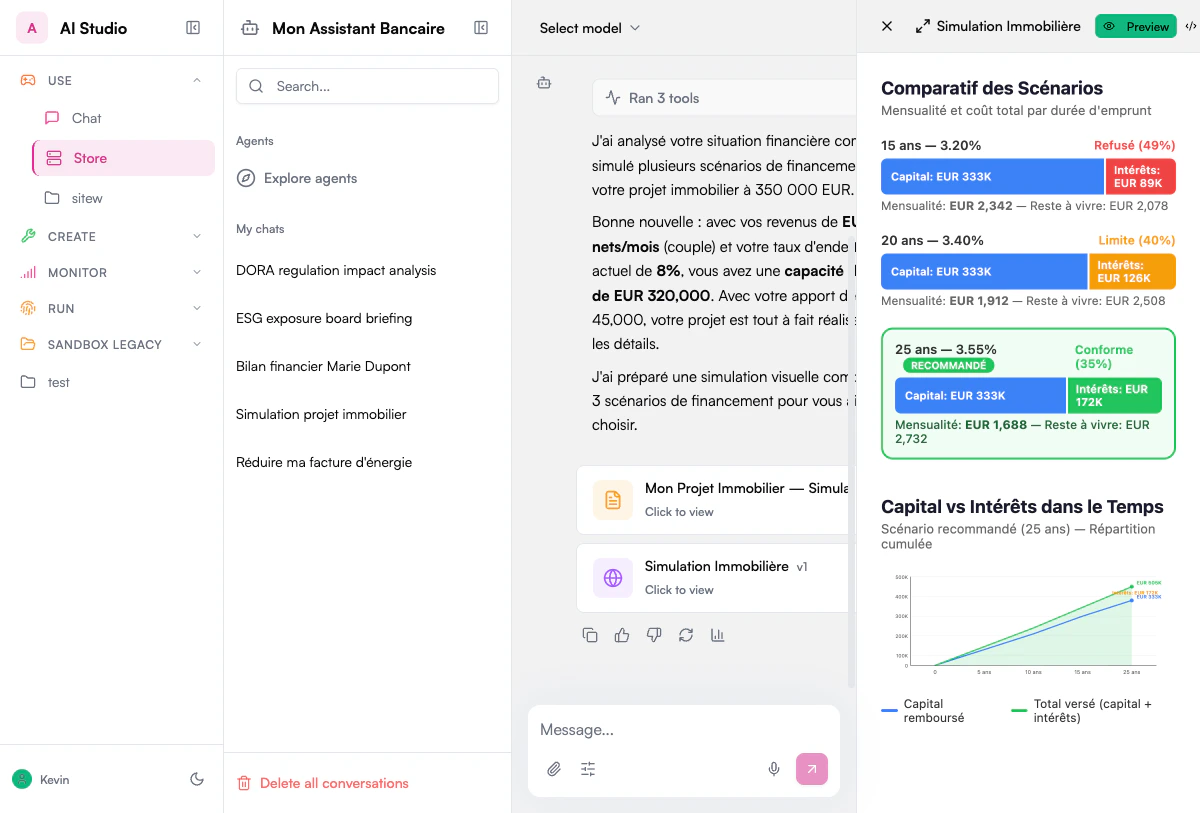 Chat's multimodal capabilities allow you to work with images and visual content alongside text, creating a more comprehensive and powerful AI experience. This guide explores how to leverage these capabilities effectively.
## Understanding Multimodal AI
Multimodal AI can process and understand multiple types of information (modalities), including:
* Text (natural language)
* Images and video
* Audio and speech
* Charts and diagrams
* Structured data
This allows for more comprehensive understanding and analysis across different forms of content.
Chat's multimodal capabilities allow you to work with images and visual content alongside text, creating a more comprehensive and powerful AI experience. This guide explores how to leverage these capabilities effectively.
## Understanding Multimodal AI
Multimodal AI can process and understand multiple types of information (modalities), including:
* Text (natural language)
* Images and video
* Audio and speech
* Charts and diagrams
* Structured data
This allows for more comprehensive understanding and analysis across different forms of content.
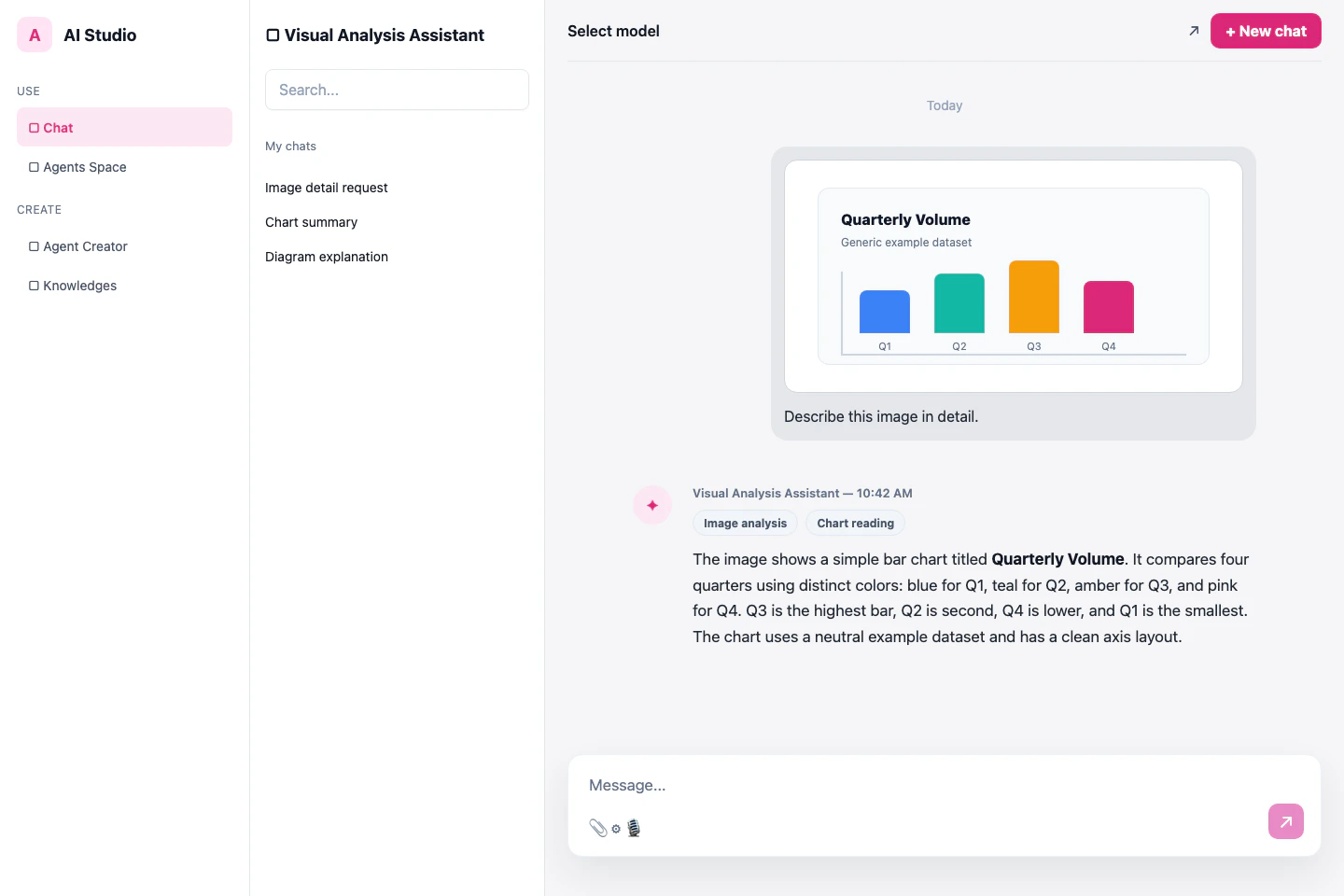 Chat currently supports:
* **Text** - Natural language in multiple languages
* **Images** - Photos, diagrams, screenshots, illustrations
* **Documents** - PDFs, presentations, reports with visual elements
* **Charts and Graphs** - Data visualizations
* **Screenshots** - Software interfaces and digital content
Support for audio and video modalities may be available depending on your organization's configuration and the AI models being used.
Multimodal capabilities require specific AI models:
* Not all language models support multimodal inputs
* Your organization's Prisme.ai configuration determines which models are available
* Models with multimodal support will be indicated in the model selector
* Performance may vary between different multimodal models
Check with your administrator if you're unsure which models in your environment support multimodal features.
## Working with Images
### Uploading Images
Click the paperclip icon at the bottom-left of the message composer and pick an image, or drag and drop an image directly into the chat.
Chat currently supports:
* **Text** - Natural language in multiple languages
* **Images** - Photos, diagrams, screenshots, illustrations
* **Documents** - PDFs, presentations, reports with visual elements
* **Charts and Graphs** - Data visualizations
* **Screenshots** - Software interfaces and digital content
Support for audio and video modalities may be available depending on your organization's configuration and the AI models being used.
Multimodal capabilities require specific AI models:
* Not all language models support multimodal inputs
* Your organization's Prisme.ai configuration determines which models are available
* Models with multimodal support will be indicated in the model selector
* Performance may vary between different multimodal models
Check with your administrator if you're unsure which models in your environment support multimodal features.
## Working with Images
### Uploading Images
Click the paperclip icon at the bottom-left of the message composer and pick an image, or drag and drop an image directly into the chat.
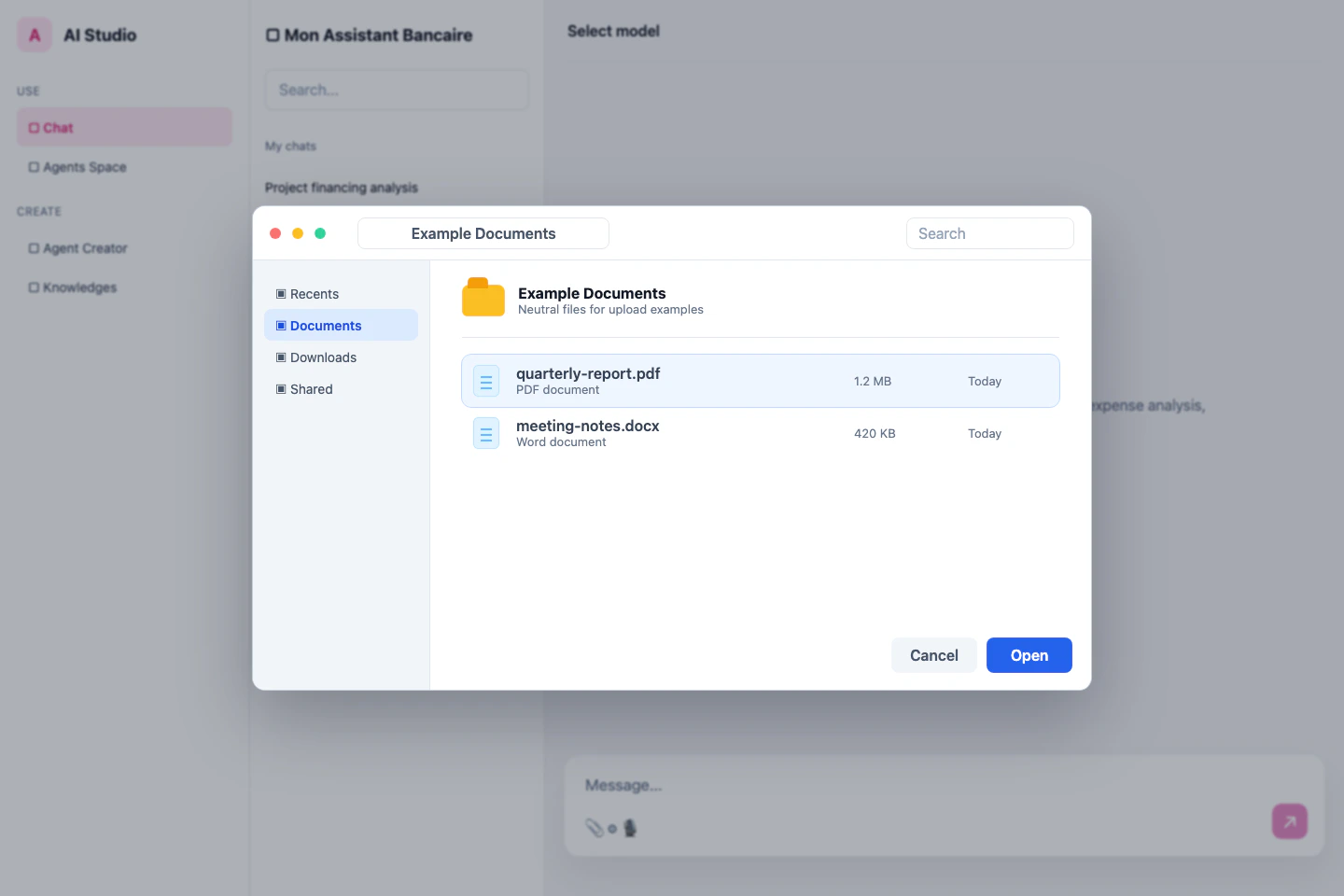 Supported image formats include:
* PNG
* JPEG/JPG
* GIF (static)
* WebP
* BMP
* SVG (as an image; code parsing may be limited)
After uploading an image, you can provide additional context or specific questions about the image.
Providing context can help guide the AI's analysis and generate more relevant responses.
Send your message with the image to have the AI process and analyze it.
The AI will acknowledge the image and provide an initial response based on its content.
### Types of Image Analysis
Get a comprehensive description of what's in an image
Extract and process text visible in images
Interpret data visualizations and extract insights
Understand flowcharts, network diagrams, and technical illustrations
Process documents that contain both text and visual elements
Evaluate screenshots of user interfaces
Identify the type and category of visual content
Identify specific objects and entities within images
### Example Prompts for Image Analysis
Supported image formats include:
* PNG
* JPEG/JPG
* GIF (static)
* WebP
* BMP
* SVG (as an image; code parsing may be limited)
After uploading an image, you can provide additional context or specific questions about the image.
Providing context can help guide the AI's analysis and generate more relevant responses.
Send your message with the image to have the AI process and analyze it.
The AI will acknowledge the image and provide an initial response based on its content.
### Types of Image Analysis
Get a comprehensive description of what's in an image
Extract and process text visible in images
Interpret data visualizations and extract insights
Understand flowcharts, network diagrams, and technical illustrations
Process documents that contain both text and visual elements
Evaluate screenshots of user interfaces
Identify the type and category of visual content
Identify specific objects and entities within images
### Example Prompts for Image Analysis
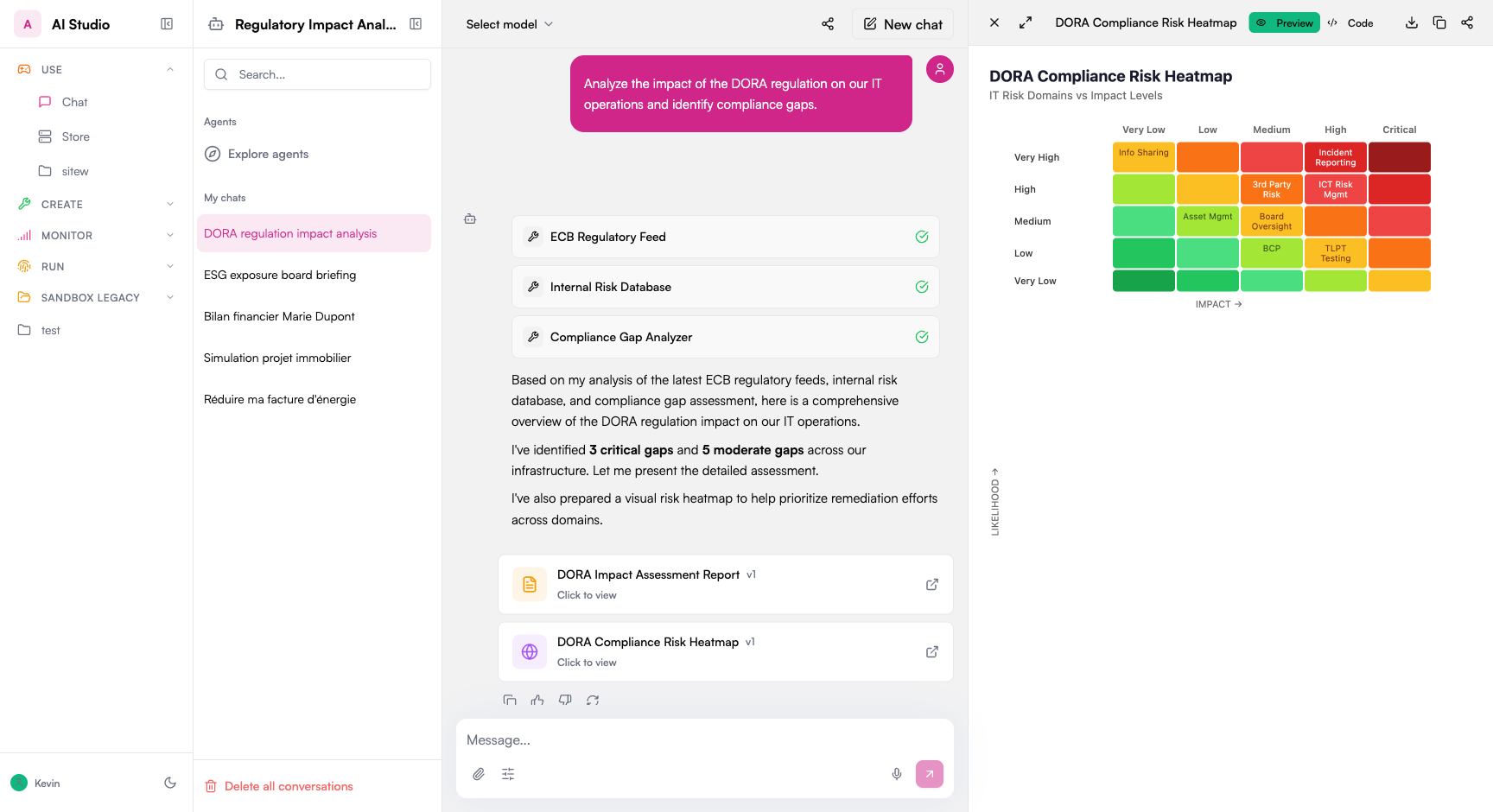 Try these prompts after uploading an image:
Describe what you see in this image in detail.
Extract all the text visible in this image.
What data does this chart show? Summarize the key trends.
Explain this technical diagram and how the components interact.
Identify any problems with this user interface design.
Is there any personal or sensitive information in this image?
Create a table of all the products and prices shown in this image.
What are the key elements of this logo design?
Copy
### Advanced Image Interactions
Direct the AI's attention to particular areas or elements:
Example prompts:
```
What is shown in the upper left corner of the image?
Can you describe the object in the center of the photo?
What does the graph line indicate between points A and B?
What text appears in the red box in this screenshot?
```
For best results, describe the location clearly when referring to specific parts of an image.
Upload several images to analyze similarities, differences, or relationships:
Example prompts:
```
What are the main differences between these two diagrams?
How has the design evolved between the first and second version?
Compare the data shown in these two charts.
Which of these four logo designs best communicates professionalism?
```
You can reference images by their order ("first image," "second image") or by describing their distinctive features.
Build on previous image analysis in a conversation:
Example conversation flow:
```
[Upload image of a chart]
User: What trends does this sales chart show?
AI: [Provides analysis of sales trends]
[Upload image of another chart]
User: How do these results compare to the previous chart?
AI: [Compares both charts, referencing its earlier analysis]
User: What might explain the difference in Q3 results?
AI: [Provides potential explanations based on both images]
```
The AI maintains context from previous images throughout the conversation.
## Specific Use Cases
### Text Extraction (OCR)
Extract and work with text from images:
This can include:
* Scanned documents
* Photos of printed materials
* Screenshots with text
* Whiteboards and handwritten notes (with limitations)
Ask the AI to extract the text with prompts like:
```
Extract all the text from this image.
Transcribe the content of this document.
What text appears on this slide?
Create a digital version of this handwritten note.
```
Once the text is extracted, you can ask the AI to:
* Summarize the content
* Answer questions about the text
* Format or structure the information
* Translate the extracted text
* Find specific information within it
OCR performance varies based on:
* Text clarity and image quality
* Font type and size
* Background contrast
* Image resolution
For best results, use clear, high-resolution images with good lighting and contrast.
### Chart and Graph Analysis
Get insights from data visualizations:
Support for various chart types:
* Bar charts and histograms
* Line graphs
* Pie and donut charts
* Scatter plots
* Area charts
* Combined visualizations
Request insights with prompts like:
```
What trends does this chart show?
Summarize the key findings from this graph.
What's the highest value in this chart and when did it occur?
Compare the performance of different categories in this chart.
Extract the approximate data values from this visualization.
```
Dive deeper with follow-up questions:
```
Why might there be a spike in July?
Is there a correlation between these variables?
What's the growth rate between 2020 and 2022?
Which segment is performing below average?
```
### Technical Diagram Interpretation
Understand complex visual information:
Works with various diagram types:
* Flowcharts and process diagrams
* Network and system architectures
* UML diagrams
* Circuit diagrams
* Engineering schematics
* Entity-relationship diagrams
Get comprehensive interpretations with prompts like:
```
Explain how this system works based on the diagram.
Describe the workflow shown in this flowchart.
What components are in this architecture and how do they interact?
Identify potential bottlenecks in this process diagram.
Translate this technical diagram into a written explanation.
```
Focus on particular elements:
```
What happens in the exception handling path?
How does data flow between the database and the API layer?
What security measures are visible in this network diagram?
What does this specific symbol/notation mean?
```
### UI/UX Analysis
Evaluate and improve user interfaces:
Analyze various UI elements:
* Website pages
* Mobile app screens
* Software interfaces
* Design mockups
* Forms and interactive elements
Get UX insights with prompts like:
```
Evaluate this interface design for usability issues.
What improvements could be made to this form?
Is this design accessible? What could be improved?
Analyze the visual hierarchy of this page.
How could this UI be simplified while maintaining functionality?
```
Target particular design elements:
```
Is the call-to-action button prominent enough?
How could the navigation be improved?
Analyze the color scheme and contrast ratios.
Is the information architecture intuitive?
What mobile optimization issues do you see?
```
## Working with Audio
Chat can also process audio content with compatible multimodal models:
### Uploading Audio
Click the upload button (📎) in the message input area and select an audio file, or drag and drop directly into the chat.
Supported audio formats typically include:
* MP3
* WAV
* M4A
* OGG
* FLAC
Provide additional information about the audio to guide the AI's analysis:
```
This is a recording of our team meeting from yesterday.
This is a customer support call that needs summarizing.
This is a voice memo about project ideas I recorded.
This is an interview for transcription and analysis.
```
Send your message with the audio file to have the AI process it.
The AI will acknowledge the audio and provide a response based on its content.
### Audio Analysis Capabilities
Convert spoken content to written text
Extract key points and action items from recordings
Transcribe and translate audio to different languages
Distinguish between different speakers (with limitations)
Identify topics, themes, and sentiments in spoken content
Answer questions based on information in the audio
### Example Prompts for Audio Analysis
Try these prompts after uploading an audio file:
Transcribe this audio recording.
Summarize the key points from this meeting.
What action items were mentioned in this recording?
Translate this speech to French.
Identify the main topics discussed in this conversation.
Create a timeline of events mentioned in this recording.
What was the sentiment of the speakers in this discussion?
Extract all the numbers and statistics mentioned.
Copy
### Audio Transcription and Processing
Convert speech to text with various options:
* Verbatim transcription (including filler words, pauses)
* Clean transcription (removing stutters, false starts)
* Timestamped transcription
* Speaker-attributed transcription (where possible)
Example prompts:
```
Provide a verbatim transcription of this audio.
Transcribe this recording with timestamps every 30 seconds.
Create a clean transcription removing filler words and stutters.
Transcribe and identify different speakers if possible.
```
Extract structured information from meetings:
* Key discussion points
* Decisions made
* Action items and owners
* Follow-up questions
* Deadlines mentioned
Example prompts:
```
Summarize this meeting recording in bullet points.
Extract all action items and their owners from this meeting.
What decisions were made in this discussion?
Create a structured summary with sections for context, discussion, decisions, and next steps.
```
Analyze the substance and characteristics of audio:
* Topic identification
* Sentiment analysis
* Key information extraction
* Tone and style assessment
* Pattern recognition
Example prompts:
```
What are the main topics covered in this recording?
Analyze the speaker's tone and sentiment throughout.
Extract all numerical data and statistics mentioned.
Identify any technical terms used and provide explanations.
```
### Audio Generation
Some multimodal models may offer limited audio generation capabilities:
Audio generation features:
* Are typically more limited than image generation
* May only be available with specific models
* Often have restrictions on duration and complexity
* May be in experimental phases depending on your organization's Prisme.ai version
Check with your administrator about the availability of audio generation features in your environment.
## Best Practices for Multimodal Work
Provide clear, well-lit images and clean audio recordings for best results.
Clearly describe what aspects of the media you want the AI to focus on.
Use multiple media types together when they complement each other.
Double-check important details extracted from images or audio.
Be mindful of sensitive content in uploaded media, especially with faces or personal information.
Leverage Canvas for more sophisticated editing and organization of multimodal content.
Export or save important outputs, especially for large media files that may be processed again.
Add explanatory text when uploading media to guide the AI's understanding.
## Troubleshooting Multimodal Issues
If the AI doesn't properly analyze your image:
* Check that you're using a multimodal-capable model
* Verify the image format is supported
* Ensure the image isn't too large (try compressing)
* Check that the image uploaded completely
* Try describing what's in the image as context
* For complex images, try focusing on specific parts
If image analysis results are inaccurate or vague:
* Improve image quality (resolution, lighting, focus)
* Try a different multimodal model if available
* Be more specific in your prompts
* For text extraction, ensure text is clear and readable
* For charts, make sure data points and labels are visible
* Try cropping the image to focus on the relevant part
If audio isn't being transcribed correctly:
* Check audio quality and reduce background noise if possible
* Verify the audio format is supported
* Try shorter audio segments for complex recordings
* Provide context about speakers, topic, or terminology
* For non-English audio, specify the language
* Try a model specifically optimized for audio if available
If you can't generate images or results are poor:
* Verify your model supports image generation
* Check if generation features are enabled in your instance
* Be more specific and detailed in your description
* Break complex images into simpler requests
* Try different styles or approaches
* Be aware of content policy restrictions
## Privacy and Security Considerations
When working with multimodal content, be mindful of:
* **Personal Information**: Avoid uploading images or audio with personally identifiable information (PII) unless necessary and permitted by your organization's policies.
* **Confidential Content**: Consider the sensitivity of visual information in screenshots, diagrams, or documents.
* **Consent**: Ensure you have appropriate permissions when uploading media that includes other people, especially for audio recordings of conversations or meetings.
* **Data Retention**: Understand your organization's policies regarding how long uploaded media is retained in the system.
Prisme.ai implements several security measures for multimodal content:
End-to-end encryption for all uploaded media
Configurable content filtering and moderation
Temporary storage with controlled retention periods
Access controls based on user permissions
Audit logging of all multimodal operations
Optional PII detection and redaction
## Next Steps
Now that you understand the multimodal capabilities in Chat, explore these related features:
Work with complex documents containing text and images
Create rich content incorporating visual elements
Organize conversations with multimodal content
Try these prompts after uploading an image:
Describe what you see in this image in detail.
Extract all the text visible in this image.
What data does this chart show? Summarize the key trends.
Explain this technical diagram and how the components interact.
Identify any problems with this user interface design.
Is there any personal or sensitive information in this image?
Create a table of all the products and prices shown in this image.
What are the key elements of this logo design?
Copy
### Advanced Image Interactions
Direct the AI's attention to particular areas or elements:
Example prompts:
```
What is shown in the upper left corner of the image?
Can you describe the object in the center of the photo?
What does the graph line indicate between points A and B?
What text appears in the red box in this screenshot?
```
For best results, describe the location clearly when referring to specific parts of an image.
Upload several images to analyze similarities, differences, or relationships:
Example prompts:
```
What are the main differences between these two diagrams?
How has the design evolved between the first and second version?
Compare the data shown in these two charts.
Which of these four logo designs best communicates professionalism?
```
You can reference images by their order ("first image," "second image") or by describing their distinctive features.
Build on previous image analysis in a conversation:
Example conversation flow:
```
[Upload image of a chart]
User: What trends does this sales chart show?
AI: [Provides analysis of sales trends]
[Upload image of another chart]
User: How do these results compare to the previous chart?
AI: [Compares both charts, referencing its earlier analysis]
User: What might explain the difference in Q3 results?
AI: [Provides potential explanations based on both images]
```
The AI maintains context from previous images throughout the conversation.
## Specific Use Cases
### Text Extraction (OCR)
Extract and work with text from images:
This can include:
* Scanned documents
* Photos of printed materials
* Screenshots with text
* Whiteboards and handwritten notes (with limitations)
Ask the AI to extract the text with prompts like:
```
Extract all the text from this image.
Transcribe the content of this document.
What text appears on this slide?
Create a digital version of this handwritten note.
```
Once the text is extracted, you can ask the AI to:
* Summarize the content
* Answer questions about the text
* Format or structure the information
* Translate the extracted text
* Find specific information within it
OCR performance varies based on:
* Text clarity and image quality
* Font type and size
* Background contrast
* Image resolution
For best results, use clear, high-resolution images with good lighting and contrast.
### Chart and Graph Analysis
Get insights from data visualizations:
Support for various chart types:
* Bar charts and histograms
* Line graphs
* Pie and donut charts
* Scatter plots
* Area charts
* Combined visualizations
Request insights with prompts like:
```
What trends does this chart show?
Summarize the key findings from this graph.
What's the highest value in this chart and when did it occur?
Compare the performance of different categories in this chart.
Extract the approximate data values from this visualization.
```
Dive deeper with follow-up questions:
```
Why might there be a spike in July?
Is there a correlation between these variables?
What's the growth rate between 2020 and 2022?
Which segment is performing below average?
```
### Technical Diagram Interpretation
Understand complex visual information:
Works with various diagram types:
* Flowcharts and process diagrams
* Network and system architectures
* UML diagrams
* Circuit diagrams
* Engineering schematics
* Entity-relationship diagrams
Get comprehensive interpretations with prompts like:
```
Explain how this system works based on the diagram.
Describe the workflow shown in this flowchart.
What components are in this architecture and how do they interact?
Identify potential bottlenecks in this process diagram.
Translate this technical diagram into a written explanation.
```
Focus on particular elements:
```
What happens in the exception handling path?
How does data flow between the database and the API layer?
What security measures are visible in this network diagram?
What does this specific symbol/notation mean?
```
### UI/UX Analysis
Evaluate and improve user interfaces:
Analyze various UI elements:
* Website pages
* Mobile app screens
* Software interfaces
* Design mockups
* Forms and interactive elements
Get UX insights with prompts like:
```
Evaluate this interface design for usability issues.
What improvements could be made to this form?
Is this design accessible? What could be improved?
Analyze the visual hierarchy of this page.
How could this UI be simplified while maintaining functionality?
```
Target particular design elements:
```
Is the call-to-action button prominent enough?
How could the navigation be improved?
Analyze the color scheme and contrast ratios.
Is the information architecture intuitive?
What mobile optimization issues do you see?
```
## Working with Audio
Chat can also process audio content with compatible multimodal models:
### Uploading Audio
Click the upload button (📎) in the message input area and select an audio file, or drag and drop directly into the chat.
Supported audio formats typically include:
* MP3
* WAV
* M4A
* OGG
* FLAC
Provide additional information about the audio to guide the AI's analysis:
```
This is a recording of our team meeting from yesterday.
This is a customer support call that needs summarizing.
This is a voice memo about project ideas I recorded.
This is an interview for transcription and analysis.
```
Send your message with the audio file to have the AI process it.
The AI will acknowledge the audio and provide a response based on its content.
### Audio Analysis Capabilities
Convert spoken content to written text
Extract key points and action items from recordings
Transcribe and translate audio to different languages
Distinguish between different speakers (with limitations)
Identify topics, themes, and sentiments in spoken content
Answer questions based on information in the audio
### Example Prompts for Audio Analysis
Try these prompts after uploading an audio file:
Transcribe this audio recording.
Summarize the key points from this meeting.
What action items were mentioned in this recording?
Translate this speech to French.
Identify the main topics discussed in this conversation.
Create a timeline of events mentioned in this recording.
What was the sentiment of the speakers in this discussion?
Extract all the numbers and statistics mentioned.
Copy
### Audio Transcription and Processing
Convert speech to text with various options:
* Verbatim transcription (including filler words, pauses)
* Clean transcription (removing stutters, false starts)
* Timestamped transcription
* Speaker-attributed transcription (where possible)
Example prompts:
```
Provide a verbatim transcription of this audio.
Transcribe this recording with timestamps every 30 seconds.
Create a clean transcription removing filler words and stutters.
Transcribe and identify different speakers if possible.
```
Extract structured information from meetings:
* Key discussion points
* Decisions made
* Action items and owners
* Follow-up questions
* Deadlines mentioned
Example prompts:
```
Summarize this meeting recording in bullet points.
Extract all action items and their owners from this meeting.
What decisions were made in this discussion?
Create a structured summary with sections for context, discussion, decisions, and next steps.
```
Analyze the substance and characteristics of audio:
* Topic identification
* Sentiment analysis
* Key information extraction
* Tone and style assessment
* Pattern recognition
Example prompts:
```
What are the main topics covered in this recording?
Analyze the speaker's tone and sentiment throughout.
Extract all numerical data and statistics mentioned.
Identify any technical terms used and provide explanations.
```
### Audio Generation
Some multimodal models may offer limited audio generation capabilities:
Audio generation features:
* Are typically more limited than image generation
* May only be available with specific models
* Often have restrictions on duration and complexity
* May be in experimental phases depending on your organization's Prisme.ai version
Check with your administrator about the availability of audio generation features in your environment.
## Best Practices for Multimodal Work
Provide clear, well-lit images and clean audio recordings for best results.
Clearly describe what aspects of the media you want the AI to focus on.
Use multiple media types together when they complement each other.
Double-check important details extracted from images or audio.
Be mindful of sensitive content in uploaded media, especially with faces or personal information.
Leverage Canvas for more sophisticated editing and organization of multimodal content.
Export or save important outputs, especially for large media files that may be processed again.
Add explanatory text when uploading media to guide the AI's understanding.
## Troubleshooting Multimodal Issues
If the AI doesn't properly analyze your image:
* Check that you're using a multimodal-capable model
* Verify the image format is supported
* Ensure the image isn't too large (try compressing)
* Check that the image uploaded completely
* Try describing what's in the image as context
* For complex images, try focusing on specific parts
If image analysis results are inaccurate or vague:
* Improve image quality (resolution, lighting, focus)
* Try a different multimodal model if available
* Be more specific in your prompts
* For text extraction, ensure text is clear and readable
* For charts, make sure data points and labels are visible
* Try cropping the image to focus on the relevant part
If audio isn't being transcribed correctly:
* Check audio quality and reduce background noise if possible
* Verify the audio format is supported
* Try shorter audio segments for complex recordings
* Provide context about speakers, topic, or terminology
* For non-English audio, specify the language
* Try a model specifically optimized for audio if available
If you can't generate images or results are poor:
* Verify your model supports image generation
* Check if generation features are enabled in your instance
* Be more specific and detailed in your description
* Break complex images into simpler requests
* Try different styles or approaches
* Be aware of content policy restrictions
## Privacy and Security Considerations
When working with multimodal content, be mindful of:
* **Personal Information**: Avoid uploading images or audio with personally identifiable information (PII) unless necessary and permitted by your organization's policies.
* **Confidential Content**: Consider the sensitivity of visual information in screenshots, diagrams, or documents.
* **Consent**: Ensure you have appropriate permissions when uploading media that includes other people, especially for audio recordings of conversations or meetings.
* **Data Retention**: Understand your organization's policies regarding how long uploaded media is retained in the system.
Prisme.ai implements several security measures for multimodal content:
End-to-end encryption for all uploaded media
Configurable content filtering and moderation
Temporary storage with controlled retention periods
Access controls based on user permissions
Audit logging of all multimodal operations
Optional PII detection and redaction
## Next Steps
Now that you understand the multimodal capabilities in Chat, explore these related features:
Work with complex documents containing text and images
Create rich content incorporating visual elements
Organize conversations with multimodal content