> ## Documentation Index
> Fetch the complete documentation index at: https://docs.prisme.ai/llms.txt
> Use this file to discover all available pages before exploring further.

# Document Handling

> Learn how to analyze, process, and work with documents in Chat

One of Chat's most powerful features is its ability to process and analyze documents. This guide explains how to effectively work with documents to extract insights, answer questions, and leverage information from your files.

## Supported Document Types

Chat can process a wide range of document formats:

<CardGroup cols={3}>
  <Card title="Text Documents" icon="file-lines">
    PDF, Word (.docx, .doc), Text (.txt)
  </Card>

  <Card title="Spreadsheets" icon="table">
    Excel (.xlsx, .xls), CSV
  </Card>

  <Card title="Presentations" icon="presentation-screen">
    PowerPoint (.pptx, .ppt)
  </Card>

  <Card title="Images" icon="image">
    PNG, JPG, JPEG, GIF, WebP (with text extraction)
  </Card>

  <Card title="Markdown" icon="markdown">
    .md, .markdown files
  </Card>
</CardGroup>

## Uploading Documents

<Steps>
  <Step title="Access the upload function">
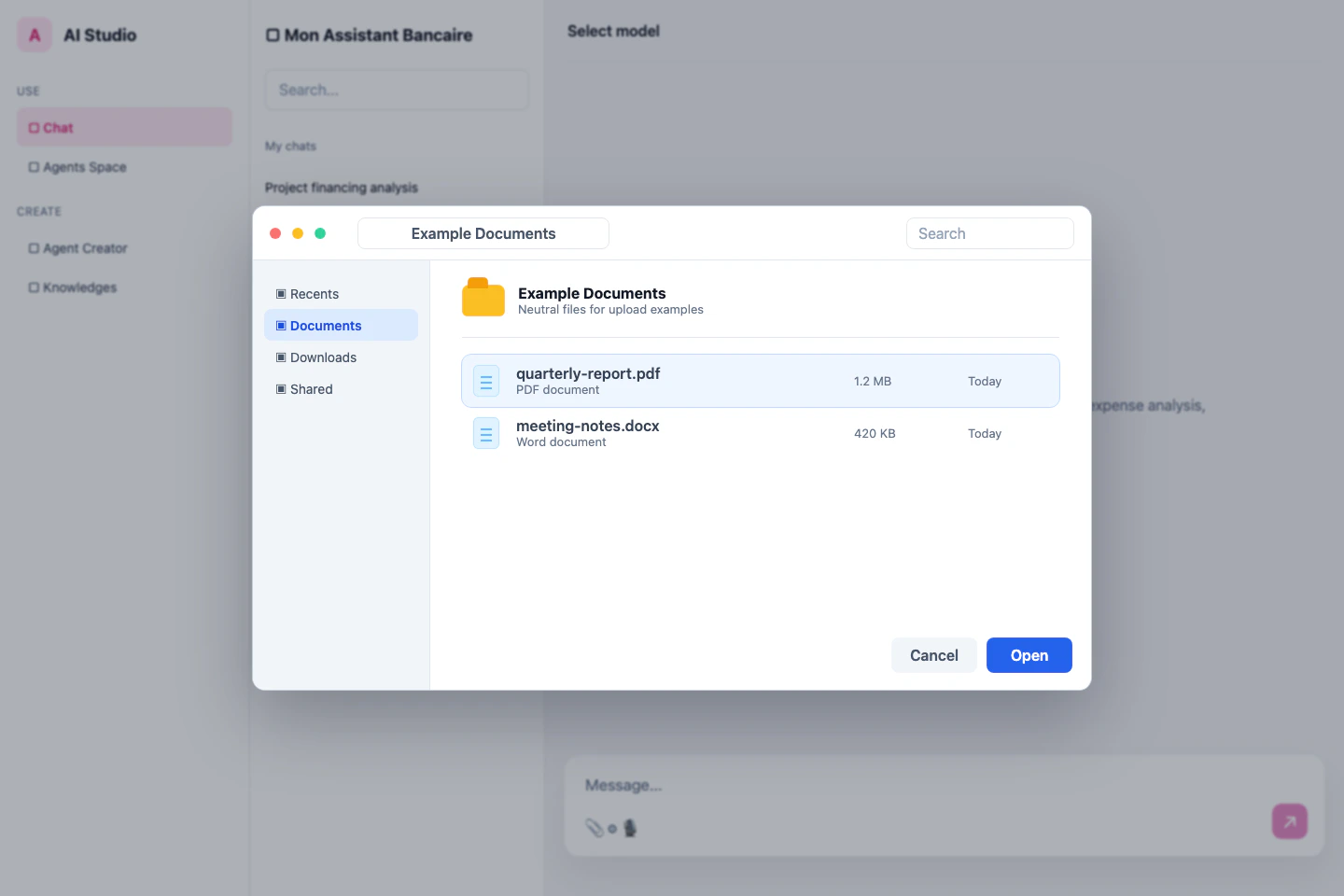
    Click the upload button (📎) in the message input area.

    Alternatively, you can drag and drop files directly into the chat area.

    <Frame>
      <img src="https://mintcdn.com/prismeai/C1y4E8zihxFJ6QR0/images/chat-upload-file-picker.png?fit=max&auto=format&n=C1y4E8zihxFJ6QR0&q=85&s=939cd52b110aeed5a735e326b8f70fca" alt="Chat file picker open over the conversation view" width="1440" height="960" data-path="images/chat-upload-file-picker.png" />
    </Frame>
  </Step>

  <Step title="Select documents">
    Choose one or more files from your computer in the file selection dialog.

    You can select multiple files by holding Ctrl (or Cmd on Mac) while clicking, or select a range with Shift.
  </Step>

  <Step title="Wait for processing">
    The documents will be uploaded and processed. A progress indicator will show status.

    Processing time varies based on:

    * Document size and complexity
    * Number of pages
    * Document format
    * Current system load
  </Step>

  <Step title="Verify successful upload">
    Once processing is complete, you'll see the document(s) displayed in the conversation.

    The AI will typically acknowledge that it can now answer questions about the document.
  </Step>
</Steps>

## Document Size and Quantity Limits

Be aware of the following limitations when working with documents:

<table>
  <thead>
    <tr>
      <th>Limitation</th>
      <th>Default Value</th>
      <th>Notes</th>
    </tr>
  </thead>

  <tbody>
    <tr>
      <td>Maximum file size</td>
      <td>50MB per file</td>
      <td>For optimal performance, keep files under 20MB</td>
    </tr>

    <tr>
      <td>Maximum pages</td>
      <td>300 pages per document</td>
      <td>Longer documents may be truncated</td>
    </tr>

    <tr>
      <td>Files per upload</td>
      <td>10 files simultaneously</td>
      <td>Can upload additional files in subsequent actions</td>
    </tr>

    <tr>
      <td>Files per conversation</td>
      <td>25 files</td>
      <td>Consider starting a new conversation for additional files</td>
    </tr>
  </tbody>
</table>

<Note>
  These limits may vary based on your organization's Prisme.ai configuration. Contact your administrator for specific limitations in your environment.
</Note>

## Analyzing Documents

Once your document is uploaded, you can interact with it in several ways:

### Basic Document Questions

Common question types:
Summarize this document in 3 paragraphs.
What are the key points on page 5?
Extract all the tables from this document.
List all the action items mentioned in the meeting minutes.

### Advanced Document Analysis

More sophisticated requests:
Compare the financial projections in Q1 versus Q3 from this report.
What trends do you notice in the customer feedback data?
Identify potential risks mentioned throughout the document and suggest mitigation strategies.
Extract and organize the technical specifications into a structured format.

### Working with Multiple Documents

When analyzing several documents together:
Compare the approach outlined in document 1 with the methodology in document 2.
Synthesize the findings from all three research papers.
Find contradictions between the policy document and the implementation guide.
Create a timeline of events based on all the uploaded meeting minutes.

## Document Management in Conversations

Manage documents within your conversations for optimal organization:

<Steps>
  <Step title="View document list">
    Click the "Documents" tab in the sidebar to see all documents in the current conversation.

    The list shows document names, types, and upload times.
  </Step>

  <Step title="Focus on specific documents">
    To direct the AI to focus on particular documents, you can use the document selector:

    Select one or more documents to limit the AI's focus to just those documents.
  </Step>
</Steps>

## Advanced Document Processing Features

Chat offers several specialized capabilities for document handling:

### Document OCR (Optical Character Recognition)

Chat automatically extracts text from images and scanned documents using OCR. This works for:

* Scanned PDF documents
* Images containing text
* Screenshots
* Photos of printed materials

For best results with OCR:

* Ensure good image quality
* Use clear, legible text
* Avoid extreme angles in photos of documents
* Provide adequate lighting when photographing documents

### Table Extraction

Chat can identify and extract tables from documents:
Extract all tables from this document.
Convert the table on page 4 to CSV format.
Summarize the data trends in the quarterly revenue table.
Compare the figures between the first and second tables.

### Document Comparison

Compare multiple documents to identify similarities, differences, and relationships:
What are the main differences between these two policy documents?
How has the project plan changed between the first and second version?
Compare the findings in these research papers and highlight contradictions.
Show me what sections were added or removed between these document versions.

### Document Transformation

Request content restructuring and reformatting:
Convert this technical document into a simplified explanation for non-experts.
Transform this data-heavy report into a bulleted executive summary.
Reformat this content as a structured FAQ.
Extract the methodology section and expand it with more detailed steps.

## Working with Document Segments

For more precise analysis, you can direct Chat to focus on specific parts of documents:

<Accordion title="Page-Based References">
  Reference specific pages to focus the analysis:
  Summarize the information on pages 5-8.
  What graphs appear on page 12?
  Compare the methodology on page 4 with the results on page 15.
</Accordion>

<Accordion title="Section-Based References">
  Reference named sections or headings:

  * Summarize the 'Methodology' section.
  * What are the key points in the 'Future Work' section?
  * Compare the findings in the 'Results' section with the claims in the 'Discussion'.
</Accordion>

<Accordion title="Content-Based References">
  Reference specific content types:

  * Extract all bullet points from the document.
  * Summarize all tables in the financial section.
  * List all figures with their captions.
  * What numerical values are mentioned in the third paragraph?
</Accordion>

## Best Practices for Document Analysis

<CardGroup cols={2}>
  <Card title="Prioritize Important Documents" icon="star">
    When working with multiple documents, explicitly mention which documents are most important for the current analysis.
  </Card>

  <Card title="Split Large Documents" icon="scissors">
    For very large documents, consider splitting them into logical sections before uploading for more focused analysis.
  </Card>

  <Card title="Be Specific About Focus Areas" icon="magnifying-glass">
    Direct the AI to specific sections, pages, or content types for more precise answers.
  </Card>

  <Card title="Ask for Citations" icon="quote-left">
    Request page numbers or section references in responses to trace information back to the source.
  </Card>

  <Card title="Verify Sensitive Information" icon="shield-check">
    Always verify extracted sensitive data, especially numerical values and critical facts.
  </Card>

  <Card title="Use Follow-Up Questions" icon="comments">
    Build on initial responses with follow-up questions to drill down into specific details.
  </Card>
</CardGroup>

## Document Privacy and Security

Chat treats your documents with enterprise-grade security:

<CheckList>
  <Check title="End-to-End Encryption">
    Documents are encrypted in transit and at rest to protect sensitive information.
  </Check>

  <Check title="Temporary Processing">
    Documents are only stored temporarily during processing and analysis, following your organization's retention policies.
  </Check>

  <Check title="Access Controls">
    Only you and explicitly shared participants can access your uploaded documents within a conversation.
  </Check>

  <Check title="Audit Logging">
    All document operations are logged for security and compliance purposes.
  </Check>

  <Check title="PII Detection">
    Automatic detection of personally identifiable information (PII) for enhanced protection using Builder & Webhooks.
  </Check>

  <Check title="Compliance">
    Document handling adheres to enterprise compliance requirements configured by your organization.
  </Check>
</CheckList>

<Note>
  While Chat implements robust security measures, always follow your organization's policies regarding document sharing and sensitive information.
</Note>

## Troubleshooting Document Issues

<AccordionGroup>
  <Accordion title="Document fails to upload">
    If your document fails to upload:

    * Check that the file size is within limits
    * Verify the file format is supported
    * Ensure the file isn't corrupted (try opening it in another application)
    * Check your network connection
    * Try converting the document to PDF if it's in a less common format
  </Accordion>

  <Accordion title="Document processing takes too long">
    If processing seems to be taking excessive time:

    * For large documents (>350 pages), some processing time is normal
    * Try refreshing the conversation if it appears to be stuck
    * Consider breaking very large documents into smaller files
    * Close other browser tabs to free up resources
    * Check if the document contains complex elements (large tables, many images)
  </Accordion>

  <Accordion title="Text recognition issues">
    If the AI has trouble recognizing text in documents:

    * For scanned documents, ensure they are clear and high-resolution
    * If using OCR on images, check that text is clearly visible
    * Try rotating images to the correct orientation
    * For handwritten content, be aware that recognition may be limited
    * Consider pre-processing scanned documents with dedicated OCR software using Builder
  </Accordion>

  <Accordion title="AI misinterprets document content">
    If the AI misunderstands or misrepresents document content:

    * Provide more specific questions about the document
    * Ask the AI to cite the specific sections it's referring to
    * For complex documents, guide the AI through the document structure
    * Try asking for a straightforward summary first before detailed analysis
    * For technical content, explicitly ask the AI to focus on specific terminology
  </Accordion>
</AccordionGroup>

## Next Steps

Now that you understand document handling in Chat, explore related features:

<CardGroup cols={3}>
  <Card title="Conversation Management" icon="messages" href="./conversation-management">
    Organize conversations with multiple documents
  </Card>

  <Card title="Canvas" icon="pen-to-square" href="./canvas">
    Create new documents and content based on your uploads
  </Card>

  <Card title="Knowledges" icon="book" href="/products/ai-knowledge/overview">
    Create permanent knowledge bases from your documents
  </Card>
</CardGroup>
