> ## Documentation Index
> Fetch the complete documentation index at: https://docs.prisme.ai/llms.txt
> Use this file to discover all available pages before exploring further.
# Conversation Management
> Learn how to organize, manage, and get the most out of your Chat conversations
Effective conversation management helps you stay organized and get the most value from your interactions with Chat. This guide covers how to create, organize, share, and manage your conversations for maximum productivity.
## Conversation Basics
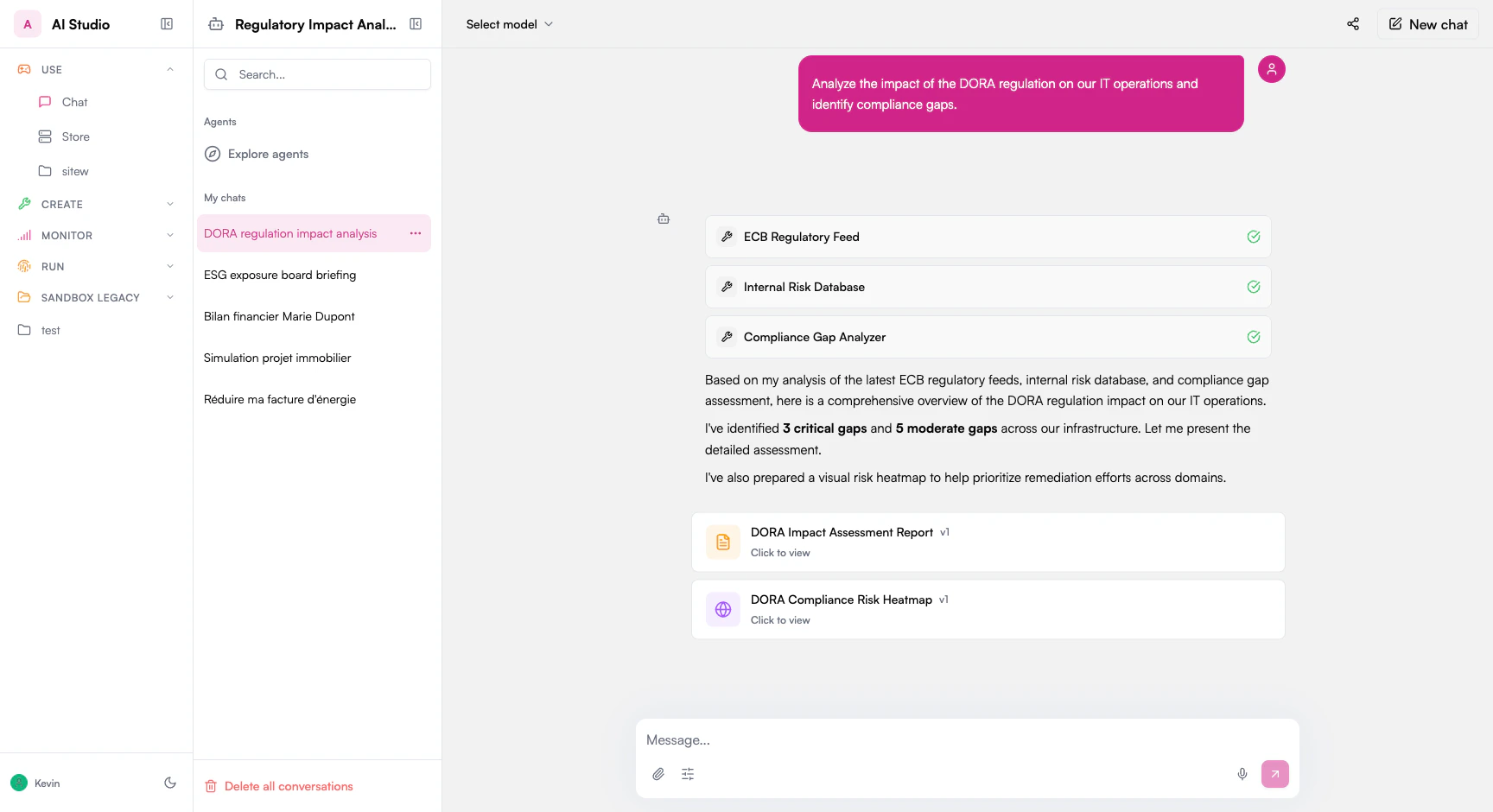 Each Chat conversation consists of:
1. **Conversation Title** - A name to identify the conversation
2. **Messages** - The exchange between you and the AI
3. **Context Window** - The amount of previous conversation the AI can reference
4. **Metadata** - Date created, last modified, sharing status, etc.
5. **Associated Resources** - Documents, links, and other referenced materials
## Creating and Managing Conversations
### Starting New Conversations
Click the "new chat" button in the conversation sidebar.
This starts a fresh conversation with no previous context.
Click on the default "New conversation" title to rename it.
Each Chat conversation consists of:
1. **Conversation Title** - A name to identify the conversation
2. **Messages** - The exchange between you and the AI
3. **Context Window** - The amount of previous conversation the AI can reference
4. **Metadata** - Date created, last modified, sharing status, etc.
5. **Associated Resources** - Documents, links, and other referenced materials
## Creating and Managing Conversations
### Starting New Conversations
Click the "new chat" button in the conversation sidebar.
This starts a fresh conversation with no previous context.
Click on the default "New conversation" title to rename it.
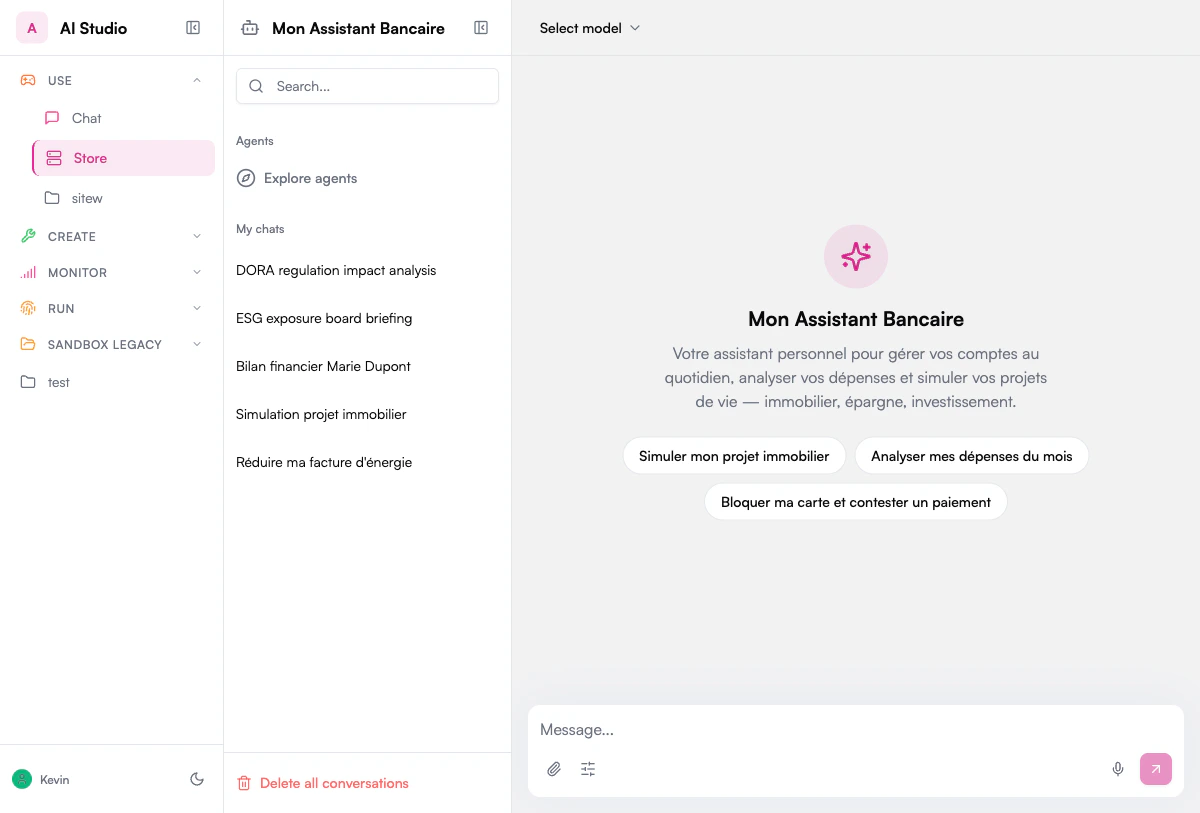 Use descriptive names that clearly indicate the conversation's purpose.
### Switching Between Conversations
Open the conversation sidebar by clicking the sidebar icon.
The sidebar shows a list of your conversations, with the most recent at the top.
Click on any conversation in the list to switch to it.
Your current conversation state is automatically saved when you switch.
Use the ... menu to delete one conversation or the trash icon to delete all conversations.
## Sharing Conversations
Collaborate with colleagues by sharing conversations:
Click the share button in the conversation header.
Use descriptive names that clearly indicate the conversation's purpose.
### Switching Between Conversations
Open the conversation sidebar by clicking the sidebar icon.
The sidebar shows a list of your conversations, with the most recent at the top.
Click on any conversation in the list to switch to it.
Your current conversation state is automatically saved when you switch.
Use the ... menu to delete one conversation or the trash icon to delete all conversations.
## Sharing Conversations
Collaborate with colleagues by sharing conversations:
Click the share button in the conversation header.
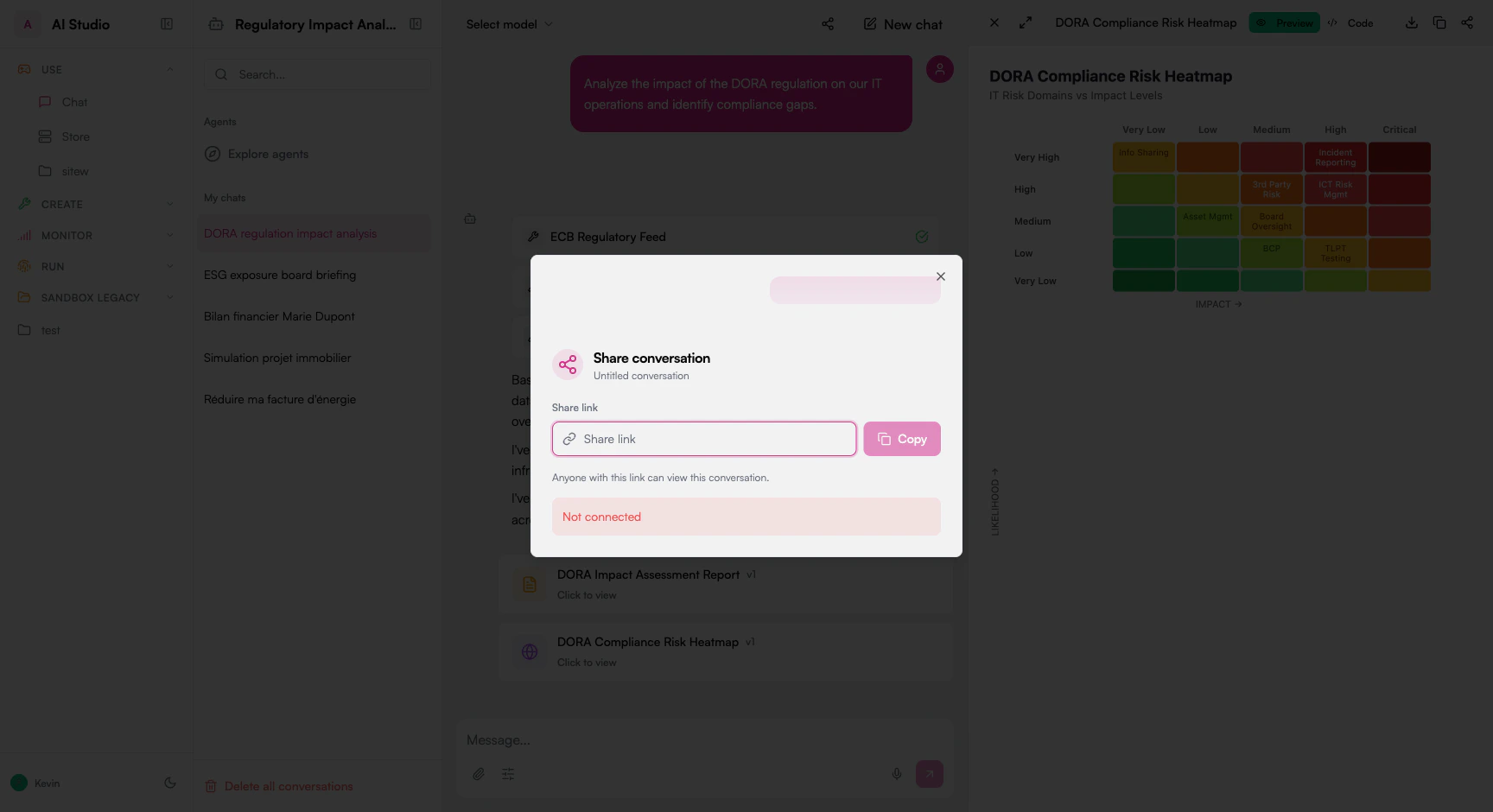 Select how you want to share the conversation:
Options include:
* **View only**: Recipients can see the conversation but not contribute
Click "Share" to apply your settings and share the conversation.
Now, get and share the link with your team.
## Conversation History and Navigation
### Browsing Conversation Content
Scroll up and down to navigate through the conversation.
Chat will load more history as you scroll up.
Use the timeline navigation on the right side to quickly jump to different parts of a long conversation.
The timeline shows:
* Document uploads
* Topic changes
* Canvas
### Message Operations
Manage individual messages within conversations:
Available operations include:
Copy the text of a message to your clipboard
Modify your previous messages to clarify or correct
React to messages with 👍 or 👎
Attach feedback to any message
Regenerate the message using the currently selected LLM
View sources and context used by the LLM to generate a response (if applicable)
Editing or deleting your messages may affect the context available to the AI in subsequent responses.
## Conversation Context Management
Understanding and managing the conversation context is crucial for effective interactions:
The context window represents how much of the previous conversation the AI can access when generating responses.
Key points:
* Each model has a maximum context window size
* Older messages may fall outside the context window in long conversations
* The AI can only reference content within the current context window
* Documents and files also consume context space
Optimize your context use with these techniques:
Best practices:
* Start new conversations for new topics
* Summarize long threads to conserve context
* Use the "Forget earlier messages" option to free up context space
* Be concise in your questions and instructions
* Reference specific messages when continuing a previous thread
Take direct control of your conversation context when needed by forking the conversation or editing your sent message.
## Model Selection
You can change the AI model used in your conversations. Different models have different capabilities, speeds, and costs.
### Changing the Model
1. In any conversation, click the **Select model** dropdown at the top of the chat area
2. Choose from the available models
3. The new model applies to subsequent messages in that conversation
### Model Considerations
| Factor | Description |
| ---------------- | ---------------------------------------------------------------- |
| **Capabilities** | Some models support images, longer context, or specialized tasks |
| **Speed** | Smaller models respond faster |
| **Cost** | Your organization may have usage quotas per model |
| **Availability** | Not all models may be available to all users |
The models available to you are configured by your administrator. If you need access to a specific model, contact your IT team.
### Model and Agent Interaction
When chatting with an agent from the Store:
* The agent may have a **default model** configured by its creator
* You can override this by selecting a different model
* Some agents require specific models for their capabilities to work properly
## Conversation Lifecycle Management
### Renaming and Deletion
Select the conversation menu (⋮) and choose "Delete".
Review the warning and confirm you want to delete.
Permanent deletion cannot be undone. Your organization may have retention policies that govern how long deleted conversations remain recoverable.
Select the conversation menu (⋮) and choose "Rename".
Enter a custom name for your conversation.
Click on save.
The name of a conversation is also used when sharing it with your team.
## Best Practices for Conversation Management
Name conversations clearly based on purpose or topic for easy identification later.
Start new conversations for distinct topics rather than mixing unrelated subjects.
Regularly delete outdated conversations to keep your workspace manageable.
Export or pin significant results and decisions for future reference.
Share conversations with clear instructions on expected contributions from recipients.
## Troubleshooting Common Issues
If you can't find a conversation:
* Ensure you're signed in with the correct account
* Verify the conversation wasn't deleted
* Check if you lost access to a shared conversation
* Contact your administrator if you suspect a technical issue
If you're experiencing issues with conversation sharing:
* Check your organization's sharing policies
* Verify the conversation wasn't deleted
* Contact support if sharing consistently fails
If long conversations become slow or unresponsive:
* Delete older conversations you no longer need active
* Split very long conversations into new ones
* Consider starting fresh if performance issues persist
If the AI seems to forget important information:
* Remember that context windows are limited
* Summarize important points periodically
* Consider starting a new conversation if the context gets too cluttered
* Use explicit references to previous information when necessary
## Next Steps
Now that you understand conversation management in Chat, explore related features:
Master working with documents in conversations
Create content in a collaborative workspace
Work with images and visual content
Select how you want to share the conversation:
Options include:
* **View only**: Recipients can see the conversation but not contribute
Click "Share" to apply your settings and share the conversation.
Now, get and share the link with your team.
## Conversation History and Navigation
### Browsing Conversation Content
Scroll up and down to navigate through the conversation.
Chat will load more history as you scroll up.
Use the timeline navigation on the right side to quickly jump to different parts of a long conversation.
The timeline shows:
* Document uploads
* Topic changes
* Canvas
### Message Operations
Manage individual messages within conversations:
Available operations include:
Copy the text of a message to your clipboard
Modify your previous messages to clarify or correct
React to messages with 👍 or 👎
Attach feedback to any message
Regenerate the message using the currently selected LLM
View sources and context used by the LLM to generate a response (if applicable)
Editing or deleting your messages may affect the context available to the AI in subsequent responses.
## Conversation Context Management
Understanding and managing the conversation context is crucial for effective interactions:
The context window represents how much of the previous conversation the AI can access when generating responses.
Key points:
* Each model has a maximum context window size
* Older messages may fall outside the context window in long conversations
* The AI can only reference content within the current context window
* Documents and files also consume context space
Optimize your context use with these techniques:
Best practices:
* Start new conversations for new topics
* Summarize long threads to conserve context
* Use the "Forget earlier messages" option to free up context space
* Be concise in your questions and instructions
* Reference specific messages when continuing a previous thread
Take direct control of your conversation context when needed by forking the conversation or editing your sent message.
## Model Selection
You can change the AI model used in your conversations. Different models have different capabilities, speeds, and costs.
### Changing the Model
1. In any conversation, click the **Select model** dropdown at the top of the chat area
2. Choose from the available models
3. The new model applies to subsequent messages in that conversation
### Model Considerations
| Factor | Description |
| ---------------- | ---------------------------------------------------------------- |
| **Capabilities** | Some models support images, longer context, or specialized tasks |
| **Speed** | Smaller models respond faster |
| **Cost** | Your organization may have usage quotas per model |
| **Availability** | Not all models may be available to all users |
The models available to you are configured by your administrator. If you need access to a specific model, contact your IT team.
### Model and Agent Interaction
When chatting with an agent from the Store:
* The agent may have a **default model** configured by its creator
* You can override this by selecting a different model
* Some agents require specific models for their capabilities to work properly
## Conversation Lifecycle Management
### Renaming and Deletion
Select the conversation menu (⋮) and choose "Delete".
Review the warning and confirm you want to delete.
Permanent deletion cannot be undone. Your organization may have retention policies that govern how long deleted conversations remain recoverable.
Select the conversation menu (⋮) and choose "Rename".
Enter a custom name for your conversation.
Click on save.
The name of a conversation is also used when sharing it with your team.
## Best Practices for Conversation Management
Name conversations clearly based on purpose or topic for easy identification later.
Start new conversations for distinct topics rather than mixing unrelated subjects.
Regularly delete outdated conversations to keep your workspace manageable.
Export or pin significant results and decisions for future reference.
Share conversations with clear instructions on expected contributions from recipients.
## Troubleshooting Common Issues
If you can't find a conversation:
* Ensure you're signed in with the correct account
* Verify the conversation wasn't deleted
* Check if you lost access to a shared conversation
* Contact your administrator if you suspect a technical issue
If you're experiencing issues with conversation sharing:
* Check your organization's sharing policies
* Verify the conversation wasn't deleted
* Contact support if sharing consistently fails
If long conversations become slow or unresponsive:
* Delete older conversations you no longer need active
* Split very long conversations into new ones
* Consider starting fresh if performance issues persist
If the AI seems to forget important information:
* Remember that context windows are limited
* Summarize important points periodically
* Consider starting a new conversation if the context gets too cluttered
* Use explicit references to previous information when necessary
## Next Steps
Now that you understand conversation management in Chat, explore related features:
Master working with documents in conversations
Create content in a collaborative workspace
Work with images and visual content