> ## Documentation Index
> Fetch the complete documentation index at: https://docs.prisme.ai/llms.txt
> Use this file to discover all available pages before exploring further.
# Canvas
> Master the collaborative content creation workspace in Chat
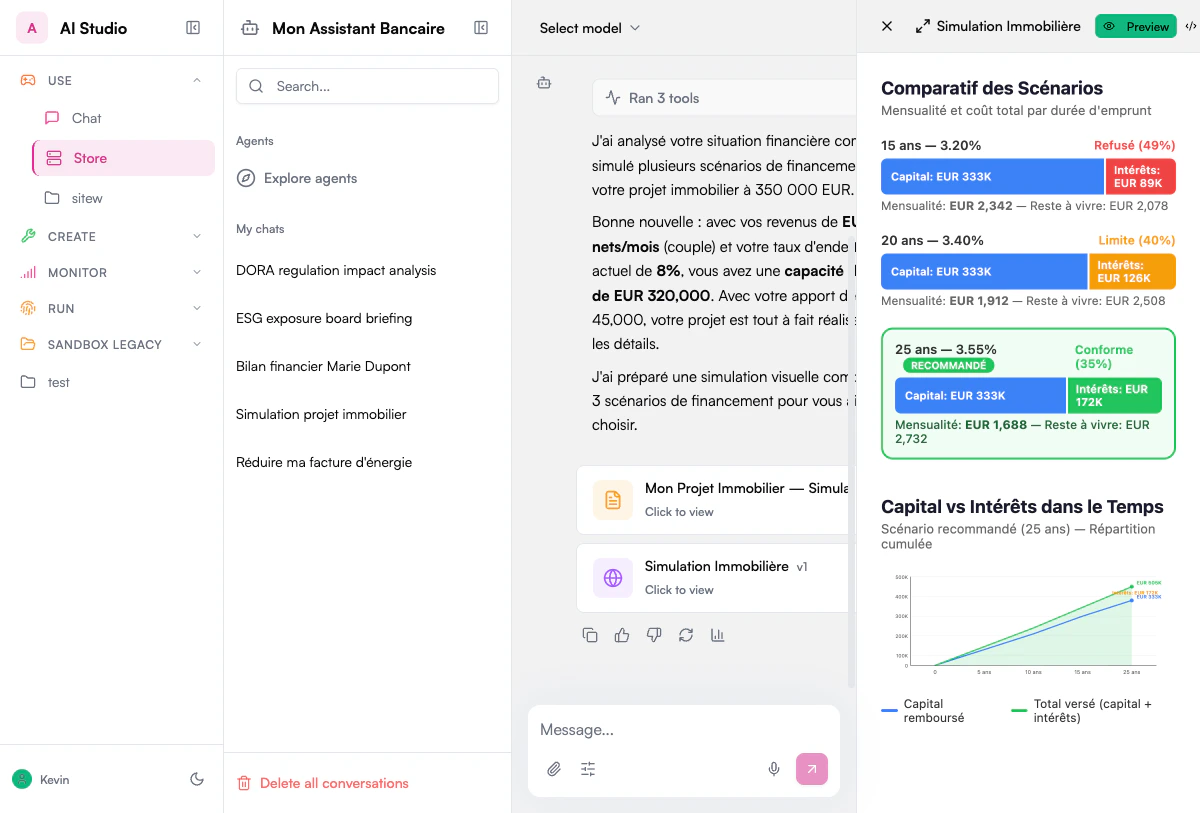 Prisme.ai Canvas is Chat’s powerful collaborative workspace for content creation—keeping all data securely within your infrastructure. It provides a rich environment for drafting, editing, and refining content with AI assistance, whether you're creating written documents, code, or visual presentations.
## Overview
Canvas transforms AI Agents from a conversational interface into a full-featured workspace where you can:
* Create polished documents and content
* Develop and test code
* Collaborate with colleagues
* Get AI assistance throughout the creative process
## Key Features
Create formatted text with advanced styling options
Get contextual suggestions and assistance as you work
Develop, test, and visualize code with syntax highlighting
Work together with colleagues in real-time
Save your work in various formats
Track changes and revert when needed
Start from pre-designed formats for common content types
Switch between conversation and Canvas modes
## Accessing Canvas
Click the Canvas button in the message input area of any AI agent conversation.
AI detects the type of Canvas workspace you want to open depending on your request.
Options include:
* **Document** - For text-focused content
* **Code** - For programming and development
* **Visual** - For design-oriented content (where available)
## Canvas for Non-Technical Users
Canvas provides a rich environment for creating and editing text documents:
Prisme.ai Canvas is Chat’s powerful collaborative workspace for content creation—keeping all data securely within your infrastructure. It provides a rich environment for drafting, editing, and refining content with AI assistance, whether you're creating written documents, code, or visual presentations.
## Overview
Canvas transforms AI Agents from a conversational interface into a full-featured workspace where you can:
* Create polished documents and content
* Develop and test code
* Collaborate with colleagues
* Get AI assistance throughout the creative process
## Key Features
Create formatted text with advanced styling options
Get contextual suggestions and assistance as you work
Develop, test, and visualize code with syntax highlighting
Work together with colleagues in real-time
Save your work in various formats
Track changes and revert when needed
Start from pre-designed formats for common content types
Switch between conversation and Canvas modes
## Accessing Canvas
Click the Canvas button in the message input area of any AI agent conversation.
AI detects the type of Canvas workspace you want to open depending on your request.
Options include:
* **Document** - For text-focused content
* **Code** - For programming and development
* **Visual** - For design-oriented content (where available)
## Canvas for Non-Technical Users
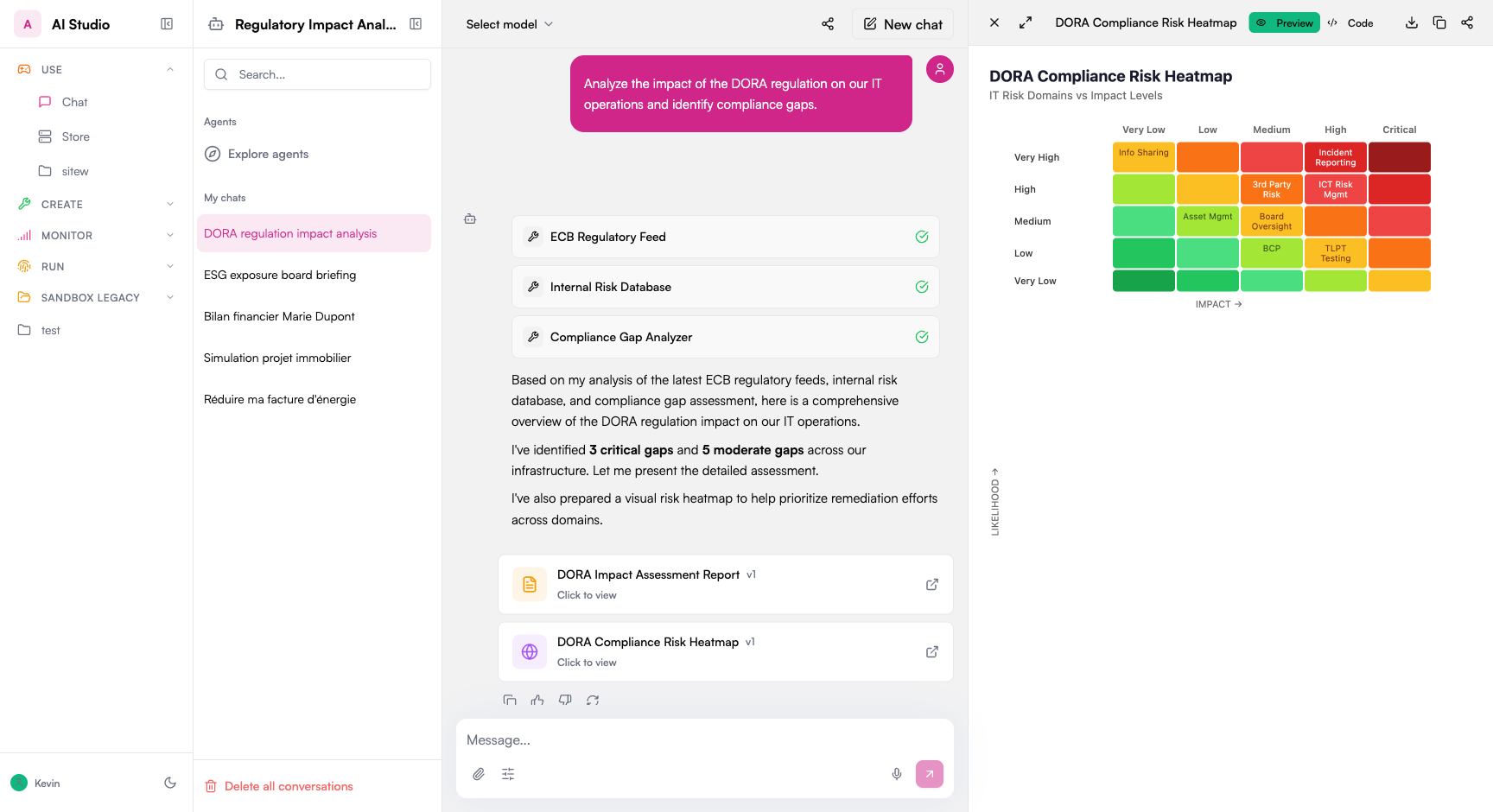
Canvas provides a rich environment for creating and editing text documents:
 ### Document Creation Features
Canvas offers comprehensive text formatting options:
* Headings and subheadings
* Bold, italic, underline, strikethrough
* Bullet and numbered lists
* Block quotes and code blocks
* Tables and dividers
* Text alignment and indentation
* Font selection and sizing
* Text and background colors
Control the structure and appearance of your documents:
* Multiple columns
* Page breaks
* Headers and footers
* Margins and spacing
* Embedded content blocks
* Collapsible sections
* Sidebars and callouts
Enhance your documents with various elements:
* Images and illustrations
* Charts and graphs
* Dividers and spacers
* Embedding links and references
* Call-out boxes and sidebars
* File attachments
* Footnotes and endnotes
Organize complex documents effectively:
* Automatic table of contents
* Section navigation
* Document outline view
* Heading hierarchy
* Page numbering
* Cross-references
### AI Assistance for Content Creation
Access AI capabilities through the context menu (right-click or use the ⋮ button):
Ask the AI to create new content based on your instructions:
Example prompts:
```
Write an introduction about renewable energy trends
Create a professional bio based on these key points
Generate three different conclusions for this report
Draft email announcing the new product launch
```
The AI will generate content directly in your document where you can further edit and refine it.
Get AI help to enhance your existing content:
Editing options include:
* **Rewrite** - Completely rework the selected text
* **Improve** - Enhance clarity and quality while preserving meaning
* **Summarize** - Create a shorter version of the selected content
* **Expand** - Add more detail and depth to brief content
* **Fix grammar & spelling** - Correct errors while preserving style
Adjust the voice and style of your content:
You can modify content to be:
* More formal or casual
* Technical or simplified
* Persuasive or informative
* Concise or detailed
* Enthusiastic or reserved
You can also specify target audiences like "executives," "technical audience," or "general public."
Convert your content to different languages:
Features include:
* Translation to major world languages
* Preservation of formatting during translation
* Ability to specify formality level
* Culturally appropriate adaptations (optional)
### Intelligent Context Menu
The context menu provides intelligent suggestions based on your selected canvas:
For example:
* When selecting a canvas, you might see options for rewriting or improving
* When selecting a canvas, you might see options for generating content beneath it
* When selecting an canvas, you might see options for completing it
* When selecting a canvas, you might see options for polish it for a final version
## Canvas for Technical Users
The Code workspace in Canvas is optimized for software development and technical content:
### Code Development Features
The code editor includes:
* Syntax highlighting for multiple languages
* Line numbering and code folding
* Automatic indentation
* Bracket matching
* Error and warning indicators
* Code completion suggestions
* Multi-cursor editing
* Find and replace functionality
Test your code within Canvas:
* Interactive REPL for supported languages
* Output console for viewing results
* Execution environment for JavaScript/TypeScript
* Variable inspection
* Performance timing information
For web development:
* Real-time HTML/CSS/JavaScript preview
* Responsive design simulation
* Interactive elements testing
* DOM inspection
* Console output
Visualize data and concepts:
* Chart and graph rendering
* Data visualization tools
* Diagram generation (UML, ERD, etc.)
* Color pickers and design aids
### AI Assistance for Code Development
The specialized context menu for code offers:
Create new code based on your specifications:
Example prompts:
```
Write a function to calculate the Fibonacci sequence
Create a React component for a responsive navigation bar
Implement a sorting algorithm that handles duplicates efficiently
Build an API endpoint for user authentication
```
The AI will generate functional code that you can directly test in the execution environment.
Enhance existing code quality and functionality:
Improvement options include:
* **Optimize** - Make code more efficient
* **Refactor** - Restructure for better readability and maintainability
* **Debug** - Find and fix errors
* **Complete** - Finish partial implementations
* **Add Error Handling** - Implement robust error checking
Generate documentation for your code:
Documentation features:
* Generate comments for functions and classes
* Create JSDoc/Docstring style documentation
* Write README files
* Explain complex algorithms
* Generate usage examples
Create tests for your code:
Testing capabilities:
* Generate unit tests
* Create test cases for edge conditions
* Build integration tests
* Implement mocks and fixtures
* Write test documentation
Transform code between languages and frameworks:
Conversion options:
* Port code to different programming languages
* Convert between frameworks (e.g., React to Vue)
* Update code to newer language versions
* Transform between paradigms (e.g., imperative to functional)
### Specialized Code Tools
Compare different versions of your code:
* Side-by-side diff view
* Highlighted changes
* Change history tracking
* Conflict resolution assistance
Manage project dependencies:
* Suggest appropriate packages
* Update dependency versions
* Check for security vulnerabilities
* Generate package configuration files
Get help with code troubleshooting:
* Explanation of error messages
* Runtime issue analysis
* Step-by-step debugging guidance
* Fix suggestions for common problems
## Multimodal Capabilities in Canvas
When using Canvas with compatible LLM models, you can work with images and visual content:
### Working with Images
Add images to your Canvas workspace using the import button or by pasting directly.
Supported image formats include PNG, JPG, JPEG, GIF, and SVG.
Get AI assistance understanding and working with images:
Image analysis capabilities:
* Detailed descriptions of image content
* Text extraction from images (OCR)
* Chart and graph data extraction
* Object and entity recognition
* Visual concept explanation
Modify images or generate new visual content:
Basic image operations supported:
* Cropping and resizing
* Simple adjustments (brightness, contrast)
* Text addition to images
* Image generation from textual descriptions (with compatible models)
* Basic diagram creation
## Collaboration Features
Work together with colleagues in the Canvas workspace:
### Real-Time Collaboration (available soon)
Invite others to collaborate on your Canvas workspace:
Sharing options:
* View-only access
* Comment access
* Edit access
* Time-limited collaboration
Work simultaneously with colleagues:
Collaboration features:
* See others' cursors and selections
* View changes as they happen
* User presence indicators
* Collision prevention
Add comments and feedback directly in the document:
Comment capabilities:
* Add comments to any part of the content
* Tag specific collaborators
* Reply to existing comments
* Resolve comment threads
* Comment notifications
### Version Control
Keep a history of all modifications to your Canvas content:
Version history features:
* Automatic saving at regular intervals
* Named versions for significant milestones
* Complete change history
* Author tracking for each change
* Timestamp information
Revert to earlier versions when needed:
Restoration options:
* Restore the entire document to a previous state
* Selectively restore specific sections or elements
* Create a new branch from an older version
* Merge changes from different versions
## Exporting Canvas Content
Save your work in various formats for use outside of Chat:
### Document Export Formats
Editable Microsoft Word document
Text-based markup for maximum compatibility
Web page format for online sharing
Simple text format without formatting
### Presentation Export Formats
When an agent with the **Deck Designer** capability builds a slide deck, the canvas renders a live preview and exports it client-side:
Editable native shapes and text — open in PowerPoint, Google Slides, or Keynote
Pixel-perfect, landscape 16:9, one page per slide
See [Slides & Deck Designer](/products/agent-factory/slides) for how to add deck building to any agent and customize themes.
### Code Export Formats
Raw source code files (.js, .py, etc.)
Share code snippets via GitHub
Interactive web code environments
Code with documentation in markdown format
Runnable scripts with appropriate shebangs
## Best Practices for Canvas
Begin with an outline or template to organize your content effectively.
Leverage AI assistance at different stages, not just for initial generation.
Use multiple rounds of feedback and improvement rather than expecting perfection immediately.
Provide creative direction and critical thinking while letting AI handle repetitive tasks.
Create named versions at significant points to track progress and enable rollback if needed.
Use the execution environment to verify that generated code works as expected.
Adapt AI-generated content to match your organization's voice and style.
Save your work in different formats for various use cases and platforms.
## Canvas vs. Chat Mode: When to Use Each
Creating longer, structured content like reports or articles
Developing code that requires testing and iteration
Collaborating with others on a document or project
Working on content that requires precise formatting
Building something that will be exported for external use
Creating templates for repeated use
Working on multi-stage creative projects
Needing to preserve version history
Asking quick questions or getting brief information
Having a flowing conversation about a topic
Brainstorming initial ideas
Getting help troubleshooting a problem
Processing documents for information extraction
Needing rapid back-and-forth interaction
Working across multiple unrelated topics
Conducting research or exploration
## Troubleshooting Common Canvas Issues
If Canvas becomes slow or unresponsive:
* Reduce the amount of content in a single Canvas (break into smaller documents)
* Close other browser tabs and applications
* Disable real-time preview for large code projects
* Limit the number of embedded images and complex elements
* Consider saving your work and starting a fresh Canvas
If you experience issues with formatting:
* Try selecting the problematic content and applying formatting again
* Use the "Clear formatting" option and reapply styles
* Check for conflicting style settings
* For persistent issues, copy the content to a new Canvas
* Use simpler formatting for better compatibility
When code fails to execute properly:
* Check the console for specific error messages
* Verify syntax for the specific language you're using
* Ensure all dependencies are properly imported
* Try running smaller code segments to isolate the issue
* Use the AI to help debug by selecting the error and asking for assistance
If multiple users experience editing conflicts:
* Establish clear sections for different collaborators
* Use the comments feature instead of simultaneous editing in the same area
* Take turns editing sensitive parts of the document
* Save versions frequently during collaborative sessions
* Consider using Canvas sharing with view/comment permissions for larger groups
## Next Steps
Now that you understand Canvas in Chat, explore related features:
Work with uploaded documents and files
Organize and manage your chat interactions
Explore image processing capabilities
Build on-brand decks with editable PPTX/PDF export
### Document Creation Features
Canvas offers comprehensive text formatting options:
* Headings and subheadings
* Bold, italic, underline, strikethrough
* Bullet and numbered lists
* Block quotes and code blocks
* Tables and dividers
* Text alignment and indentation
* Font selection and sizing
* Text and background colors
Control the structure and appearance of your documents:
* Multiple columns
* Page breaks
* Headers and footers
* Margins and spacing
* Embedded content blocks
* Collapsible sections
* Sidebars and callouts
Enhance your documents with various elements:
* Images and illustrations
* Charts and graphs
* Dividers and spacers
* Embedding links and references
* Call-out boxes and sidebars
* File attachments
* Footnotes and endnotes
Organize complex documents effectively:
* Automatic table of contents
* Section navigation
* Document outline view
* Heading hierarchy
* Page numbering
* Cross-references
### AI Assistance for Content Creation
Access AI capabilities through the context menu (right-click or use the ⋮ button):
Ask the AI to create new content based on your instructions:
Example prompts:
```
Write an introduction about renewable energy trends
Create a professional bio based on these key points
Generate three different conclusions for this report
Draft email announcing the new product launch
```
The AI will generate content directly in your document where you can further edit and refine it.
Get AI help to enhance your existing content:
Editing options include:
* **Rewrite** - Completely rework the selected text
* **Improve** - Enhance clarity and quality while preserving meaning
* **Summarize** - Create a shorter version of the selected content
* **Expand** - Add more detail and depth to brief content
* **Fix grammar & spelling** - Correct errors while preserving style
Adjust the voice and style of your content:
You can modify content to be:
* More formal or casual
* Technical or simplified
* Persuasive or informative
* Concise or detailed
* Enthusiastic or reserved
You can also specify target audiences like "executives," "technical audience," or "general public."
Convert your content to different languages:
Features include:
* Translation to major world languages
* Preservation of formatting during translation
* Ability to specify formality level
* Culturally appropriate adaptations (optional)
### Intelligent Context Menu
The context menu provides intelligent suggestions based on your selected canvas:
For example:
* When selecting a canvas, you might see options for rewriting or improving
* When selecting a canvas, you might see options for generating content beneath it
* When selecting an canvas, you might see options for completing it
* When selecting a canvas, you might see options for polish it for a final version
## Canvas for Technical Users
The Code workspace in Canvas is optimized for software development and technical content:
### Code Development Features
The code editor includes:
* Syntax highlighting for multiple languages
* Line numbering and code folding
* Automatic indentation
* Bracket matching
* Error and warning indicators
* Code completion suggestions
* Multi-cursor editing
* Find and replace functionality
Test your code within Canvas:
* Interactive REPL for supported languages
* Output console for viewing results
* Execution environment for JavaScript/TypeScript
* Variable inspection
* Performance timing information
For web development:
* Real-time HTML/CSS/JavaScript preview
* Responsive design simulation
* Interactive elements testing
* DOM inspection
* Console output
Visualize data and concepts:
* Chart and graph rendering
* Data visualization tools
* Diagram generation (UML, ERD, etc.)
* Color pickers and design aids
### AI Assistance for Code Development
The specialized context menu for code offers:
Create new code based on your specifications:
Example prompts:
```
Write a function to calculate the Fibonacci sequence
Create a React component for a responsive navigation bar
Implement a sorting algorithm that handles duplicates efficiently
Build an API endpoint for user authentication
```
The AI will generate functional code that you can directly test in the execution environment.
Enhance existing code quality and functionality:
Improvement options include:
* **Optimize** - Make code more efficient
* **Refactor** - Restructure for better readability and maintainability
* **Debug** - Find and fix errors
* **Complete** - Finish partial implementations
* **Add Error Handling** - Implement robust error checking
Generate documentation for your code:
Documentation features:
* Generate comments for functions and classes
* Create JSDoc/Docstring style documentation
* Write README files
* Explain complex algorithms
* Generate usage examples
Create tests for your code:
Testing capabilities:
* Generate unit tests
* Create test cases for edge conditions
* Build integration tests
* Implement mocks and fixtures
* Write test documentation
Transform code between languages and frameworks:
Conversion options:
* Port code to different programming languages
* Convert between frameworks (e.g., React to Vue)
* Update code to newer language versions
* Transform between paradigms (e.g., imperative to functional)
### Specialized Code Tools
Compare different versions of your code:
* Side-by-side diff view
* Highlighted changes
* Change history tracking
* Conflict resolution assistance
Manage project dependencies:
* Suggest appropriate packages
* Update dependency versions
* Check for security vulnerabilities
* Generate package configuration files
Get help with code troubleshooting:
* Explanation of error messages
* Runtime issue analysis
* Step-by-step debugging guidance
* Fix suggestions for common problems
## Multimodal Capabilities in Canvas
When using Canvas with compatible LLM models, you can work with images and visual content:
### Working with Images
Add images to your Canvas workspace using the import button or by pasting directly.
Supported image formats include PNG, JPG, JPEG, GIF, and SVG.
Get AI assistance understanding and working with images:
Image analysis capabilities:
* Detailed descriptions of image content
* Text extraction from images (OCR)
* Chart and graph data extraction
* Object and entity recognition
* Visual concept explanation
Modify images or generate new visual content:
Basic image operations supported:
* Cropping and resizing
* Simple adjustments (brightness, contrast)
* Text addition to images
* Image generation from textual descriptions (with compatible models)
* Basic diagram creation
## Collaboration Features
Work together with colleagues in the Canvas workspace:
### Real-Time Collaboration (available soon)
Invite others to collaborate on your Canvas workspace:
Sharing options:
* View-only access
* Comment access
* Edit access
* Time-limited collaboration
Work simultaneously with colleagues:
Collaboration features:
* See others' cursors and selections
* View changes as they happen
* User presence indicators
* Collision prevention
Add comments and feedback directly in the document:
Comment capabilities:
* Add comments to any part of the content
* Tag specific collaborators
* Reply to existing comments
* Resolve comment threads
* Comment notifications
### Version Control
Keep a history of all modifications to your Canvas content:
Version history features:
* Automatic saving at regular intervals
* Named versions for significant milestones
* Complete change history
* Author tracking for each change
* Timestamp information
Revert to earlier versions when needed:
Restoration options:
* Restore the entire document to a previous state
* Selectively restore specific sections or elements
* Create a new branch from an older version
* Merge changes from different versions
## Exporting Canvas Content
Save your work in various formats for use outside of Chat:
### Document Export Formats
Editable Microsoft Word document
Text-based markup for maximum compatibility
Web page format for online sharing
Simple text format without formatting
### Presentation Export Formats
When an agent with the **Deck Designer** capability builds a slide deck, the canvas renders a live preview and exports it client-side:
Editable native shapes and text — open in PowerPoint, Google Slides, or Keynote
Pixel-perfect, landscape 16:9, one page per slide
See [Slides & Deck Designer](/products/agent-factory/slides) for how to add deck building to any agent and customize themes.
### Code Export Formats
Raw source code files (.js, .py, etc.)
Share code snippets via GitHub
Interactive web code environments
Code with documentation in markdown format
Runnable scripts with appropriate shebangs
## Best Practices for Canvas
Begin with an outline or template to organize your content effectively.
Leverage AI assistance at different stages, not just for initial generation.
Use multiple rounds of feedback and improvement rather than expecting perfection immediately.
Provide creative direction and critical thinking while letting AI handle repetitive tasks.
Create named versions at significant points to track progress and enable rollback if needed.
Use the execution environment to verify that generated code works as expected.
Adapt AI-generated content to match your organization's voice and style.
Save your work in different formats for various use cases and platforms.
## Canvas vs. Chat Mode: When to Use Each
Creating longer, structured content like reports or articles
Developing code that requires testing and iteration
Collaborating with others on a document or project
Working on content that requires precise formatting
Building something that will be exported for external use
Creating templates for repeated use
Working on multi-stage creative projects
Needing to preserve version history
Asking quick questions or getting brief information
Having a flowing conversation about a topic
Brainstorming initial ideas
Getting help troubleshooting a problem
Processing documents for information extraction
Needing rapid back-and-forth interaction
Working across multiple unrelated topics
Conducting research or exploration
## Troubleshooting Common Canvas Issues
If Canvas becomes slow or unresponsive:
* Reduce the amount of content in a single Canvas (break into smaller documents)
* Close other browser tabs and applications
* Disable real-time preview for large code projects
* Limit the number of embedded images and complex elements
* Consider saving your work and starting a fresh Canvas
If you experience issues with formatting:
* Try selecting the problematic content and applying formatting again
* Use the "Clear formatting" option and reapply styles
* Check for conflicting style settings
* For persistent issues, copy the content to a new Canvas
* Use simpler formatting for better compatibility
When code fails to execute properly:
* Check the console for specific error messages
* Verify syntax for the specific language you're using
* Ensure all dependencies are properly imported
* Try running smaller code segments to isolate the issue
* Use the AI to help debug by selecting the error and asking for assistance
If multiple users experience editing conflicts:
* Establish clear sections for different collaborators
* Use the comments feature instead of simultaneous editing in the same area
* Take turns editing sensitive parts of the document
* Save versions frequently during collaborative sessions
* Consider using Canvas sharing with view/comment permissions for larger groups
## Next Steps
Now that you understand Canvas in Chat, explore related features:
Work with uploaded documents and files
Organize and manage your chat interactions
Explore image processing capabilities
Build on-brand decks with editable PPTX/PDF export