> ## Documentation Index
> Fetch the complete documentation index at: https://docs.prisme.ai/llms.txt
> Use this file to discover all available pages before exploring further.
# Knowledge Bases
> Create and manage document stores for AI search
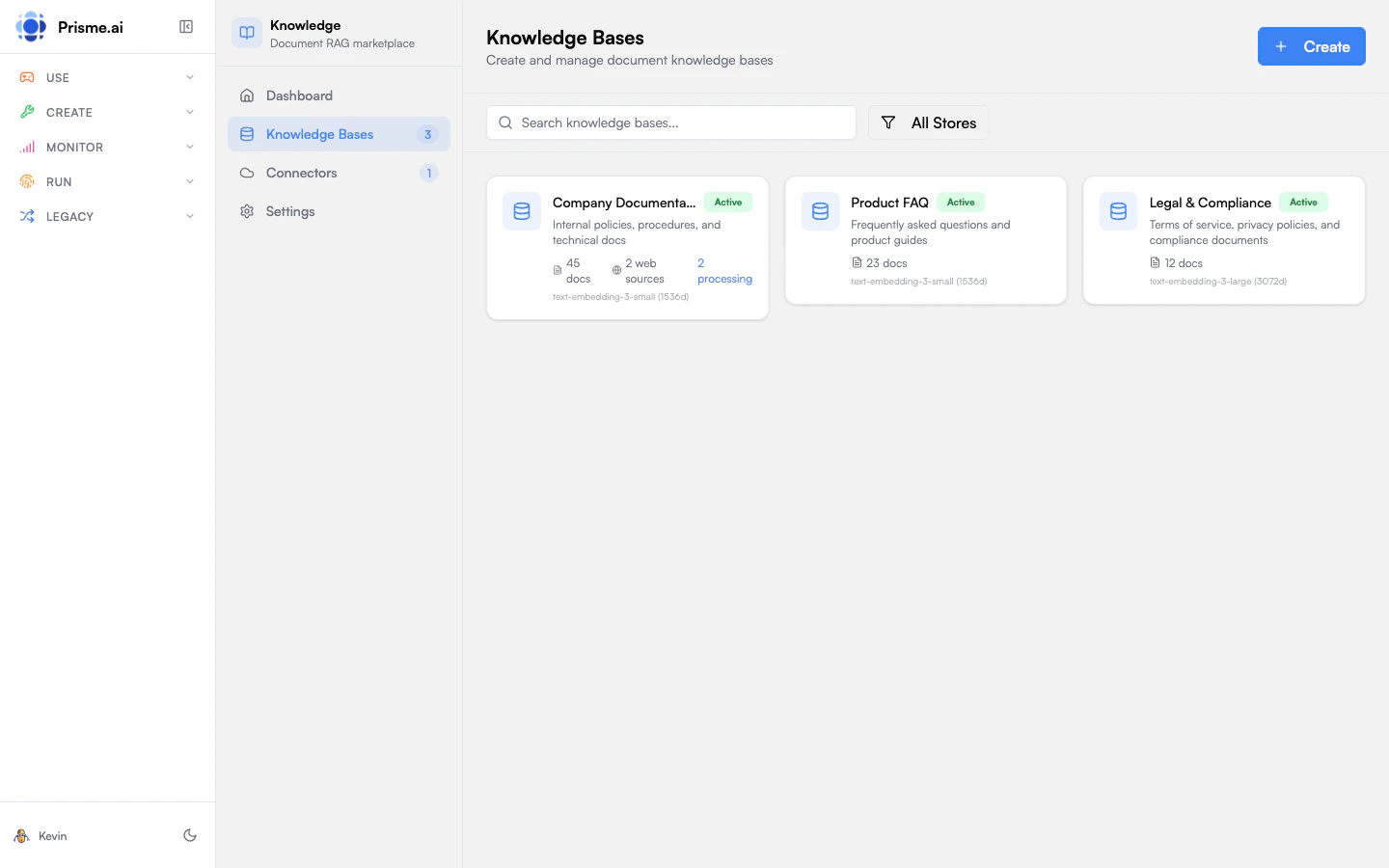 A knowledge base is a searchable collection of documents. Create knowledge bases for different topics, departments, or projects - then connect them to agents that need that information.
## Viewing Knowledge Bases
Open Knowledges and go to **Knowledge Bases** to see all stores you have access to.
Each card shows:
* **Name and description**
* **Document count** - How many files are indexed
* **Status** - Ready, processing, or error
* **Created date**
Use the scope filter to see:
* **All** - Everything you can access
* **My Knowledge Bases** - Stores you created
* **Shared with Me** - Stores others have shared
## Creating a Knowledge Base
1. Click **Create Knowledge Base**
2. Enter a name and description
3. Select an embedding model
4. Click **Create**
### Choosing an Embedding Model
The embedding model determines how documents are converted to vectors for search. Options depend on your organization's configuration.
| Factor | Consideration |
| --------------- | ------------------------------------------------------- |
| **Language** | Some models work better for specific languages |
| **Domain** | Specialized models exist for code, legal, medical, etc. |
| **Performance** | Larger models are more accurate but slower |
| **Dimensions** | Some models offer multiple dimension options |
When a model supports multiple dimensions, higher dimensions capture more nuance but use more storage. The default is usually a good balance.
Start with the default model. The choice is **permanent for this knowledge base** — the embedding model and its dimensions are frozen at creation and cannot be changed afterwards (Reindex reapplies chunking/parsing only, never the embedding). To move to a different model later, see [Changing the embedding model](/products/agent-factory/knowledge-architecture#changing-the-embedding-model-the-a-b-pattern).
## Adding Documents
Once created, add content to your knowledge base:
### File Upload
1. Click **Upload** or drag files into the drop zone
2. Select one or more files
3. Wait for processing to complete
Supported formats: PDF, DOCX, TXT, PPTX, XLSX, CSV, HTML, Markdown
### URL Import
Add individual web pages:
1. Click **Add URL**
2. Enter the page URL
3. Click **Add**
The page content is fetched and indexed.
### Web Crawling
Automatically discover and index pages from a website:
1. Click **Add Web Source**
2. Enter the root URL
3. Configure crawl settings:
* **Path filter** - Limit discovery to one section
* **Blacklisted patterns** - Skip low-value URL patterns
* **Sitemap only** - Crawl URLs from the sitemap
* **XPath filter** - Extract only useful page content
4. Click **Start Crawling**
The crawler runs in the background. Check status in the knowledge base view.
For the full workflow, see [Crawl a Website](./crawl-website).
## Managing Documents
### Viewing Files
The Documents tab shows all content in your knowledge base:
* **Filename** - Original file name or URL
* **Type** - File type (PDF, URL, etc.)
* **Status** - Indexed, processing, or error
* **Size** - File size
* **Chunks** - Number of text chunks created
* **Date** - When added
### Filtering
Filter documents by source type:
* **All** - Everything
* **Files** - Uploaded documents
* **URLs** - Individual web pages
* **Web Crawl** - Crawler-discovered pages
### Document Actions
For each document:
| Action | Description |
| --------------- | ------------------------------ |
| **View Chunks** | See how the document was split |
| **Reindex** | Reprocess the document |
| **Download** | Get the original file |
| **Delete** | Remove from knowledge base |
### Viewing Chunks
Click **View Chunks** to see how a document was split:
* Each chunk is a segment of text
* Chunks include metadata (page number, section, etc.)
* Preview how the agent will see the content
This helps diagnose retrieval issues - if important information is split across chunks, consider adjusting chunk settings.
## Knowledge Base Settings
Click a knowledge base to open its detail view, then go to **Settings**.
### Basic Settings
* **Name** - Display name
* **Description** - What this knowledge base contains
* **Tags** - Keywords for organization
### RAG Configuration
Control how documents are processed and retrieved:
| Setting | Description |
| ----------------- | ------------------------------------------ |
| **Chunk Size** | Target tokens per chunk (default: 512) |
| **Chunk Overlap** | Tokens shared between chunks (default: 50) |
| **Top K** | Default number of chunks to retrieve |
### Sharing
Control who can access this knowledge base. See [Sharing & Access Control](./sharing) for full details.
In brief:
* **Reader**: Can search and view documents
* **Editor**: Can upload and modify documents
* **Admin**: Can manage who has access
* **Owner**: Full control including deletion
Share with individual users, groups, or your entire organization.
### Reindexing
If you change chunking, parsing, or other RAG settings, you may need to reindex:
1. Go to Settings
2. Click **Reindex All Documents**
3. Wait for processing to complete
Reindex reapplies **chunking and parsing settings** to existing documents — it does **not** change the embedding model or vector dimensions. Those are fixed at creation. To migrate to a different embedding model, see [Changing the embedding model](/products/agent-factory/knowledge-architecture#changing-the-embedding-model-the-a-b-pattern). For large knowledge bases, reindexing takes time and consumes resources.
## Deleting a Knowledge Base
To remove a knowledge base:
1. Open the knowledge base
2. Go to Settings
3. Scroll to Danger Zone
4. Click **Delete Knowledge Base**
5. Type the name to confirm
Deletion is permanent. All documents, chunks, and embeddings are removed. Agents using this knowledge base will lose access.
## Best Practices
Create separate knowledge bases for different domains rather than one giant collection. This improves retrieval accuracy and makes management easier.
Regularly update documents. Set up connectors for automatic syncing, or schedule manual reviews.
Good descriptions help others understand what each knowledge base contains and when to use it.
Test retrieval regularly. If agents aren't finding relevant content, check chunk settings or add more specific documents.
## Next Steps
Learn more about uploading and organizing documents
Discover and index pages from a website
Attach knowledge bases to your agents
A knowledge base is a searchable collection of documents. Create knowledge bases for different topics, departments, or projects - then connect them to agents that need that information.
## Viewing Knowledge Bases
Open Knowledges and go to **Knowledge Bases** to see all stores you have access to.
Each card shows:
* **Name and description**
* **Document count** - How many files are indexed
* **Status** - Ready, processing, or error
* **Created date**
Use the scope filter to see:
* **All** - Everything you can access
* **My Knowledge Bases** - Stores you created
* **Shared with Me** - Stores others have shared
## Creating a Knowledge Base
1. Click **Create Knowledge Base**
2. Enter a name and description
3. Select an embedding model
4. Click **Create**
### Choosing an Embedding Model
The embedding model determines how documents are converted to vectors for search. Options depend on your organization's configuration.
| Factor | Consideration |
| --------------- | ------------------------------------------------------- |
| **Language** | Some models work better for specific languages |
| **Domain** | Specialized models exist for code, legal, medical, etc. |
| **Performance** | Larger models are more accurate but slower |
| **Dimensions** | Some models offer multiple dimension options |
When a model supports multiple dimensions, higher dimensions capture more nuance but use more storage. The default is usually a good balance.
Start with the default model. The choice is **permanent for this knowledge base** — the embedding model and its dimensions are frozen at creation and cannot be changed afterwards (Reindex reapplies chunking/parsing only, never the embedding). To move to a different model later, see [Changing the embedding model](/products/agent-factory/knowledge-architecture#changing-the-embedding-model-the-a-b-pattern).
## Adding Documents
Once created, add content to your knowledge base:
### File Upload
1. Click **Upload** or drag files into the drop zone
2. Select one or more files
3. Wait for processing to complete
Supported formats: PDF, DOCX, TXT, PPTX, XLSX, CSV, HTML, Markdown
### URL Import
Add individual web pages:
1. Click **Add URL**
2. Enter the page URL
3. Click **Add**
The page content is fetched and indexed.
### Web Crawling
Automatically discover and index pages from a website:
1. Click **Add Web Source**
2. Enter the root URL
3. Configure crawl settings:
* **Path filter** - Limit discovery to one section
* **Blacklisted patterns** - Skip low-value URL patterns
* **Sitemap only** - Crawl URLs from the sitemap
* **XPath filter** - Extract only useful page content
4. Click **Start Crawling**
The crawler runs in the background. Check status in the knowledge base view.
For the full workflow, see [Crawl a Website](./crawl-website).
## Managing Documents
### Viewing Files
The Documents tab shows all content in your knowledge base:
* **Filename** - Original file name or URL
* **Type** - File type (PDF, URL, etc.)
* **Status** - Indexed, processing, or error
* **Size** - File size
* **Chunks** - Number of text chunks created
* **Date** - When added
### Filtering
Filter documents by source type:
* **All** - Everything
* **Files** - Uploaded documents
* **URLs** - Individual web pages
* **Web Crawl** - Crawler-discovered pages
### Document Actions
For each document:
| Action | Description |
| --------------- | ------------------------------ |
| **View Chunks** | See how the document was split |
| **Reindex** | Reprocess the document |
| **Download** | Get the original file |
| **Delete** | Remove from knowledge base |
### Viewing Chunks
Click **View Chunks** to see how a document was split:
* Each chunk is a segment of text
* Chunks include metadata (page number, section, etc.)
* Preview how the agent will see the content
This helps diagnose retrieval issues - if important information is split across chunks, consider adjusting chunk settings.
## Knowledge Base Settings
Click a knowledge base to open its detail view, then go to **Settings**.
### Basic Settings
* **Name** - Display name
* **Description** - What this knowledge base contains
* **Tags** - Keywords for organization
### RAG Configuration
Control how documents are processed and retrieved:
| Setting | Description |
| ----------------- | ------------------------------------------ |
| **Chunk Size** | Target tokens per chunk (default: 512) |
| **Chunk Overlap** | Tokens shared between chunks (default: 50) |
| **Top K** | Default number of chunks to retrieve |
### Sharing
Control who can access this knowledge base. See [Sharing & Access Control](./sharing) for full details.
In brief:
* **Reader**: Can search and view documents
* **Editor**: Can upload and modify documents
* **Admin**: Can manage who has access
* **Owner**: Full control including deletion
Share with individual users, groups, or your entire organization.
### Reindexing
If you change chunking, parsing, or other RAG settings, you may need to reindex:
1. Go to Settings
2. Click **Reindex All Documents**
3. Wait for processing to complete
Reindex reapplies **chunking and parsing settings** to existing documents — it does **not** change the embedding model or vector dimensions. Those are fixed at creation. To migrate to a different embedding model, see [Changing the embedding model](/products/agent-factory/knowledge-architecture#changing-the-embedding-model-the-a-b-pattern). For large knowledge bases, reindexing takes time and consumes resources.
## Deleting a Knowledge Base
To remove a knowledge base:
1. Open the knowledge base
2. Go to Settings
3. Scroll to Danger Zone
4. Click **Delete Knowledge Base**
5. Type the name to confirm
Deletion is permanent. All documents, chunks, and embeddings are removed. Agents using this knowledge base will lose access.
## Best Practices
Create separate knowledge bases for different domains rather than one giant collection. This improves retrieval accuracy and makes management easier.
Regularly update documents. Set up connectors for automatic syncing, or schedule manual reviews.
Good descriptions help others understand what each knowledge base contains and when to use it.
Test retrieval regularly. If agents aren't finding relevant content, check chunk settings or add more specific documents.
## Next Steps
Learn more about uploading and organizing documents
Discover and index pages from a website
Attach knowledge bases to your agents