> ## Documentation Index
> Fetch the complete documentation index at: https://docs.prisme.ai/llms.txt
> Use this file to discover all available pages before exploring further.
# Connectors
> Sync documents from SharePoint, Google Drive, and other external sources
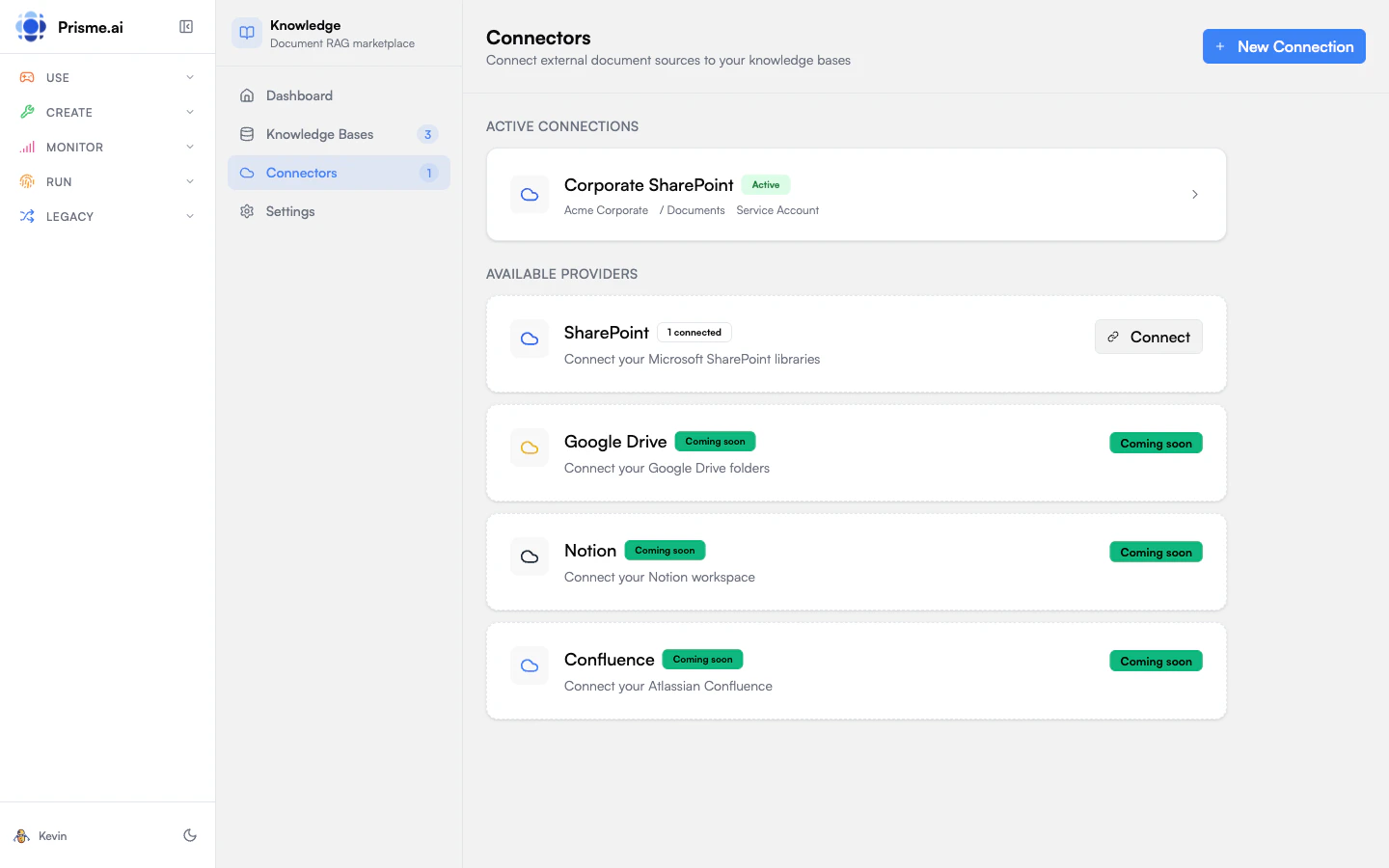 Connectors let you automatically sync documents from external platforms. Instead of manually uploading files, connect to the source and let Knowledges keep your knowledge base up to date.
## Available Connectors
| Connector | Description |
| ---------------- | ------------------------------------------ |
| **SharePoint** | Microsoft 365 document libraries and sites |
| **Google Drive** | Files and folders from Google Workspace |
| **Confluence** | Atlassian wiki pages and spaces |
| **Notion** | Notion pages and databases |
| **OneDrive** | Personal and business OneDrive storage |
Available connectors depend on your organization's configuration. Contact your admin to enable additional connectors.
## The Connectors Page
Open Knowledges and go to **Connectors** to see:
* **Active connections** - Currently configured syncs
* **Available connectors** - Connectors you can set up
* **Sync status** - When each connection last synced
## Setting Up a Connector
### 1. Choose a Connector
1. Go to **Connectors**
2. Click **Add Connection**
3. Select the connector type
### 2. Authenticate
Most connectors require authentication. Depending on your organization's setup, you'll see one of two modes:
| Mode | Description |
| ------------------- | ------------------------------------------------------------- |
| **Your account** | Sign in with your credentials; syncs content you can access |
| **Service account** | Uses admin-configured credentials; syncs organization content |
For personal authentication:
1. Click **Connect**
2. Sign in to the external service
3. Grant permissions when prompted
4. Return to Knowledges
Use an account with read access to the content you want to sync. Connectors only read documents - they never modify external content.
### 3. Select Content
Choose what to sync:
1. Browse available sites, folders, or spaces
2. Select the content you want
3. Choose or create a knowledge base as the destination
### 4. Configure Sync Settings
| Setting | Description |
| ---------------------- | ------------------------------------------------------ |
| **Sync Frequency** | How often to check for updates (hourly, daily, weekly) |
| **File Types** | Which file types to include |
| **Include Subfolders** | Whether to sync nested folders |
### 5. Start Sync
Click **Start Sync** to begin the initial synchronization. This may take time depending on how much content you're syncing.
## Managing Connections
### Viewing Status
Each connection shows:
* **Status** - Connected, syncing, error, or disconnected
* **Last Sync** - When it last ran
* **Documents** - How many files are synced
* **Errors** - Any files that failed to sync
During a sync, you'll see real-time progress:
| Metric | Description |
| ------------- | --------------------------- |
| **Total** | Files discovered to process |
| **Processed** | Files completed |
| **Indexed** | Successfully added/updated |
| **Unchanged** | Skipped (no changes) |
| **Failed** | Errors encountered |
Recent sync runs are stored in history so you can review past syncs and identify patterns.
### Triggering Manual Sync
To sync immediately instead of waiting for the schedule:
1. Find the connection
2. Click **Sync Now**
3. Wait for completion
### Updating Configuration
To change what's synced:
1. Click the connection
2. Modify the selection or settings
3. Save changes
4. Run a sync to apply changes
### Disconnecting
To remove a connection:
1. Click the connection
2. Click **Disconnect**
3. Confirm
Disconnecting removes the connection but keeps synced documents in your knowledge base. To remove the documents too, delete them from the knowledge base.
## SharePoint Connector
The SharePoint connector supports:
* **Sites** - Team sites and communication sites
* **Document Libraries** - Files stored in SharePoint
* **Lists** - List attachments (if enabled)
* **Pages** - SharePoint pages (as HTML)
### Permissions Required
The connector needs:
* `Sites.Read.All` - Read site content
* `Files.Read.All` - Read file content
Your admin may need to approve these permissions in Microsoft Entra.
### Configuring SharePoint
1. Connect with your Microsoft account
2. Browse available sites
3. Select document libraries to sync
4. Configure filters:
* **File Types** - Include/exclude by extension
* **Modified Since** - Only sync recent files
* **Path Patterns** - Include/exclude by folder path
### Handling Large Libraries
For large SharePoint libraries:
* Use filters to sync only relevant content
* Consider multiple connections for different topics
* Start with a subset and expand gradually
## Google Drive Connector
The Google Drive connector supports:
* **Folders** - Any folder in Drive
* **Shared Drives** - Team drives (Google Workspace)
* **Files** - Individual files (Google Docs, Sheets, etc.)
### Permissions Required
* `drive.readonly` - Read access to Drive files
### Configuring Google Drive
1. Connect with your Google account
2. Browse My Drive, Shared Drives, or Shared with Me
3. Select folders to sync
4. Configure options
### Google Docs/Sheets/Slides
Native Google formats are automatically converted:
* **Google Docs** - Exported as text/HTML
* **Google Sheets** - Exported as CSV
* **Google Slides** - Exported as text
## Sync Behavior
### Incremental Sync
After the initial sync, connectors only process changed files:
* New files are added
* Modified files are updated
* Deleted files are removed (optional)
This makes scheduled syncs fast.
### Handling Deletions
By default, when a file is deleted from the source:
* It's removed from the knowledge base too
* This keeps content current
You can disable deletion sync if you want to preserve content even after it's removed from the source.
### Conflict Resolution
If the same file is synced from multiple sources:
* The most recently modified version is used
* Consider using separate knowledge bases to avoid conflicts
## Troubleshooting
### Connection Errors
| Issue | Solution |
| ------------------------- | --------------------------------------------- |
| **Authentication failed** | Re-authenticate the connection |
| **Access denied** | Check your permissions in the external system |
| **Service unavailable** | The external service may be down - try later |
### Sync Errors
| Issue | Solution |
| ---------------------- | -------------------------------------- |
| **File not found** | File may have been deleted or moved |
| **Permission denied** | Your account lost access to this file |
| **Unsupported format** | File type isn't supported for indexing |
| **File too large** | File exceeds size limits |
Click **View Errors** on a connection to see details about failed files.
### Stuck Syncs
If a sync seems stuck:
1. Check the connection status
2. Click **Cancel Sync** if available
3. Try **Sync Now** to restart
For persistent issues, disconnect and reconnect.
## Best Practices
Don't sync everything. Focus on high-value content that's relevant to your use case.
Create separate knowledge bases for different departments or topics, with dedicated connections for each.
Check connections regularly. Address errors before they accumulate.
More frequent syncs keep content current but use more resources. Match frequency to how often content changes.
## Next Steps
Optimize retrieval for your synced content
Use your synced knowledge in AI agents
Connectors let you automatically sync documents from external platforms. Instead of manually uploading files, connect to the source and let Knowledges keep your knowledge base up to date.
## Available Connectors
| Connector | Description |
| ---------------- | ------------------------------------------ |
| **SharePoint** | Microsoft 365 document libraries and sites |
| **Google Drive** | Files and folders from Google Workspace |
| **Confluence** | Atlassian wiki pages and spaces |
| **Notion** | Notion pages and databases |
| **OneDrive** | Personal and business OneDrive storage |
Available connectors depend on your organization's configuration. Contact your admin to enable additional connectors.
## The Connectors Page
Open Knowledges and go to **Connectors** to see:
* **Active connections** - Currently configured syncs
* **Available connectors** - Connectors you can set up
* **Sync status** - When each connection last synced
## Setting Up a Connector
### 1. Choose a Connector
1. Go to **Connectors**
2. Click **Add Connection**
3. Select the connector type
### 2. Authenticate
Most connectors require authentication. Depending on your organization's setup, you'll see one of two modes:
| Mode | Description |
| ------------------- | ------------------------------------------------------------- |
| **Your account** | Sign in with your credentials; syncs content you can access |
| **Service account** | Uses admin-configured credentials; syncs organization content |
For personal authentication:
1. Click **Connect**
2. Sign in to the external service
3. Grant permissions when prompted
4. Return to Knowledges
Use an account with read access to the content you want to sync. Connectors only read documents - they never modify external content.
### 3. Select Content
Choose what to sync:
1. Browse available sites, folders, or spaces
2. Select the content you want
3. Choose or create a knowledge base as the destination
### 4. Configure Sync Settings
| Setting | Description |
| ---------------------- | ------------------------------------------------------ |
| **Sync Frequency** | How often to check for updates (hourly, daily, weekly) |
| **File Types** | Which file types to include |
| **Include Subfolders** | Whether to sync nested folders |
### 5. Start Sync
Click **Start Sync** to begin the initial synchronization. This may take time depending on how much content you're syncing.
## Managing Connections
### Viewing Status
Each connection shows:
* **Status** - Connected, syncing, error, or disconnected
* **Last Sync** - When it last ran
* **Documents** - How many files are synced
* **Errors** - Any files that failed to sync
During a sync, you'll see real-time progress:
| Metric | Description |
| ------------- | --------------------------- |
| **Total** | Files discovered to process |
| **Processed** | Files completed |
| **Indexed** | Successfully added/updated |
| **Unchanged** | Skipped (no changes) |
| **Failed** | Errors encountered |
Recent sync runs are stored in history so you can review past syncs and identify patterns.
### Triggering Manual Sync
To sync immediately instead of waiting for the schedule:
1. Find the connection
2. Click **Sync Now**
3. Wait for completion
### Updating Configuration
To change what's synced:
1. Click the connection
2. Modify the selection or settings
3. Save changes
4. Run a sync to apply changes
### Disconnecting
To remove a connection:
1. Click the connection
2. Click **Disconnect**
3. Confirm
Disconnecting removes the connection but keeps synced documents in your knowledge base. To remove the documents too, delete them from the knowledge base.
## SharePoint Connector
The SharePoint connector supports:
* **Sites** - Team sites and communication sites
* **Document Libraries** - Files stored in SharePoint
* **Lists** - List attachments (if enabled)
* **Pages** - SharePoint pages (as HTML)
### Permissions Required
The connector needs:
* `Sites.Read.All` - Read site content
* `Files.Read.All` - Read file content
Your admin may need to approve these permissions in Microsoft Entra.
### Configuring SharePoint
1. Connect with your Microsoft account
2. Browse available sites
3. Select document libraries to sync
4. Configure filters:
* **File Types** - Include/exclude by extension
* **Modified Since** - Only sync recent files
* **Path Patterns** - Include/exclude by folder path
### Handling Large Libraries
For large SharePoint libraries:
* Use filters to sync only relevant content
* Consider multiple connections for different topics
* Start with a subset and expand gradually
## Google Drive Connector
The Google Drive connector supports:
* **Folders** - Any folder in Drive
* **Shared Drives** - Team drives (Google Workspace)
* **Files** - Individual files (Google Docs, Sheets, etc.)
### Permissions Required
* `drive.readonly` - Read access to Drive files
### Configuring Google Drive
1. Connect with your Google account
2. Browse My Drive, Shared Drives, or Shared with Me
3. Select folders to sync
4. Configure options
### Google Docs/Sheets/Slides
Native Google formats are automatically converted:
* **Google Docs** - Exported as text/HTML
* **Google Sheets** - Exported as CSV
* **Google Slides** - Exported as text
## Sync Behavior
### Incremental Sync
After the initial sync, connectors only process changed files:
* New files are added
* Modified files are updated
* Deleted files are removed (optional)
This makes scheduled syncs fast.
### Handling Deletions
By default, when a file is deleted from the source:
* It's removed from the knowledge base too
* This keeps content current
You can disable deletion sync if you want to preserve content even after it's removed from the source.
### Conflict Resolution
If the same file is synced from multiple sources:
* The most recently modified version is used
* Consider using separate knowledge bases to avoid conflicts
## Troubleshooting
### Connection Errors
| Issue | Solution |
| ------------------------- | --------------------------------------------- |
| **Authentication failed** | Re-authenticate the connection |
| **Access denied** | Check your permissions in the external system |
| **Service unavailable** | The external service may be down - try later |
### Sync Errors
| Issue | Solution |
| ---------------------- | -------------------------------------- |
| **File not found** | File may have been deleted or moved |
| **Permission denied** | Your account lost access to this file |
| **Unsupported format** | File type isn't supported for indexing |
| **File too large** | File exceeds size limits |
Click **View Errors** on a connection to see details about failed files.
### Stuck Syncs
If a sync seems stuck:
1. Check the connection status
2. Click **Cancel Sync** if available
3. Try **Sync Now** to restart
For persistent issues, disconnect and reconnect.
## Best Practices
Don't sync everything. Focus on high-value content that's relevant to your use case.
Create separate knowledge bases for different departments or topics, with dedicated connections for each.
Check connections regularly. Address errors before they accumulate.
More frequent syncs keep content current but use more resources. Match frequency to how often content changes.
## Next Steps
Optimize retrieval for your synced content
Use your synced knowledge in AI agents