> ## Documentation Index
> Fetch the complete documentation index at: https://docs.prisme.ai/llms.txt
> Use this file to discover all available pages before exploring further.
# Topics
> Memories grouped by subject, with trend direction, keyword extraction, and per-type breakdown.
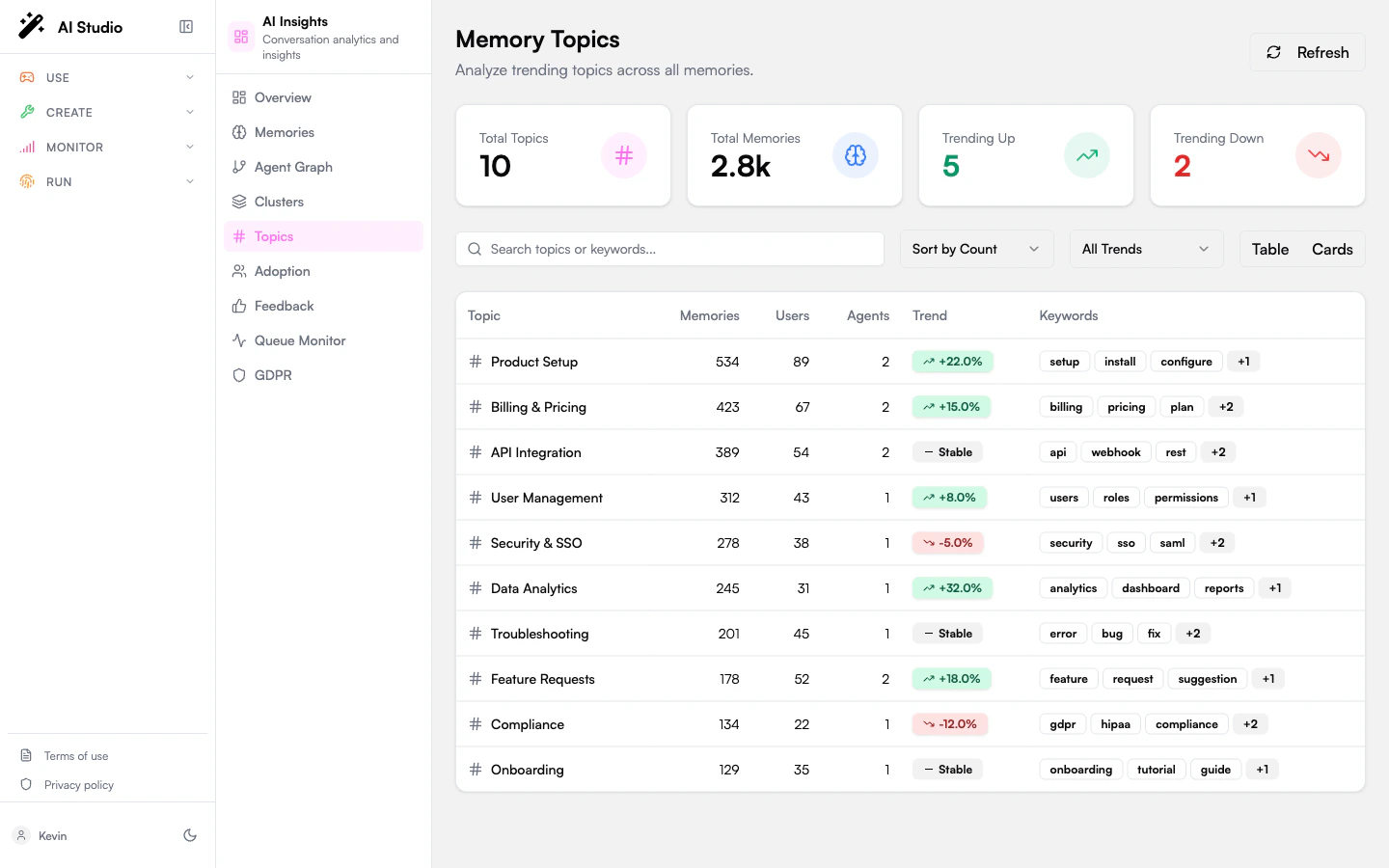
Topics groups every memory the agents have captured by subject and surfaces what's trending up, trending down, or stable.
 ## Stats cards
The four KPI cards at the top:
| Card | Meaning |
| ------------------ | --------------------------------------------------------------- |
| **Total Topics** | Distinct topics found across all memories. |
| **Total Memories** | All memories belonging to those topics. |
| **Trending Up** | Topics whose memory count increased materially over the period. |
| **Trending Down** | Topics whose memory count decreased. |
## Filtering and sorting
The header row above the table has:
* A search input that matches against topic names and extracted keywords.
* A **Sort by** selector — Count or Trend.
* A **Trend** filter — All, Trending Up, Trending Down, Stable.
* A **Table / Cards** view toggle.
## Table view
The default. Each row shows:
* The topic name.
* **Memories** — total memory count for the topic.
* **Users** — distinct users mentioning it.
* **Agents** — agents that captured at least one memory under it.
* A trend badge (`+X%`, `−Y%`, or "Stable").
* Up to three extracted keywords, with a "+N more" pill if there are more.
Pagination is at the bottom: **Showing X–Y of Z topics**, with Previous / Next buttons.
## Card view
Click **Cards** in the view toggle. Each card shows:
* The topic name and trend badge.
* Memories / Users / Agents counts.
* The full keyword list.
* A **type breakdown** mini-bar (Facts / Preferences / Instructions) showing what kinds of memory dominate the topic.
* Up to three example memory snippets.
## Stats cards
The four KPI cards at the top:
| Card | Meaning |
| ------------------ | --------------------------------------------------------------- |
| **Total Topics** | Distinct topics found across all memories. |
| **Total Memories** | All memories belonging to those topics. |
| **Trending Up** | Topics whose memory count increased materially over the period. |
| **Trending Down** | Topics whose memory count decreased. |
## Filtering and sorting
The header row above the table has:
* A search input that matches against topic names and extracted keywords.
* A **Sort by** selector — Count or Trend.
* A **Trend** filter — All, Trending Up, Trending Down, Stable.
* A **Table / Cards** view toggle.
## Table view
The default. Each row shows:
* The topic name.
* **Memories** — total memory count for the topic.
* **Users** — distinct users mentioning it.
* **Agents** — agents that captured at least one memory under it.
* A trend badge (`+X%`, `−Y%`, or "Stable").
* Up to three extracted keywords, with a "+N more" pill if there are more.
Pagination is at the bottom: **Showing X–Y of Z topics**, with Previous / Next buttons.
## Card view
Click **Cards** in the view toggle. Each card shows:
* The topic name and trend badge.
* Memories / Users / Agents counts.
* The full keyword list.
* A **type breakdown** mini-bar (Facts / Preferences / Instructions) showing what kinds of memory dominate the topic.
* Up to three example memory snippets.
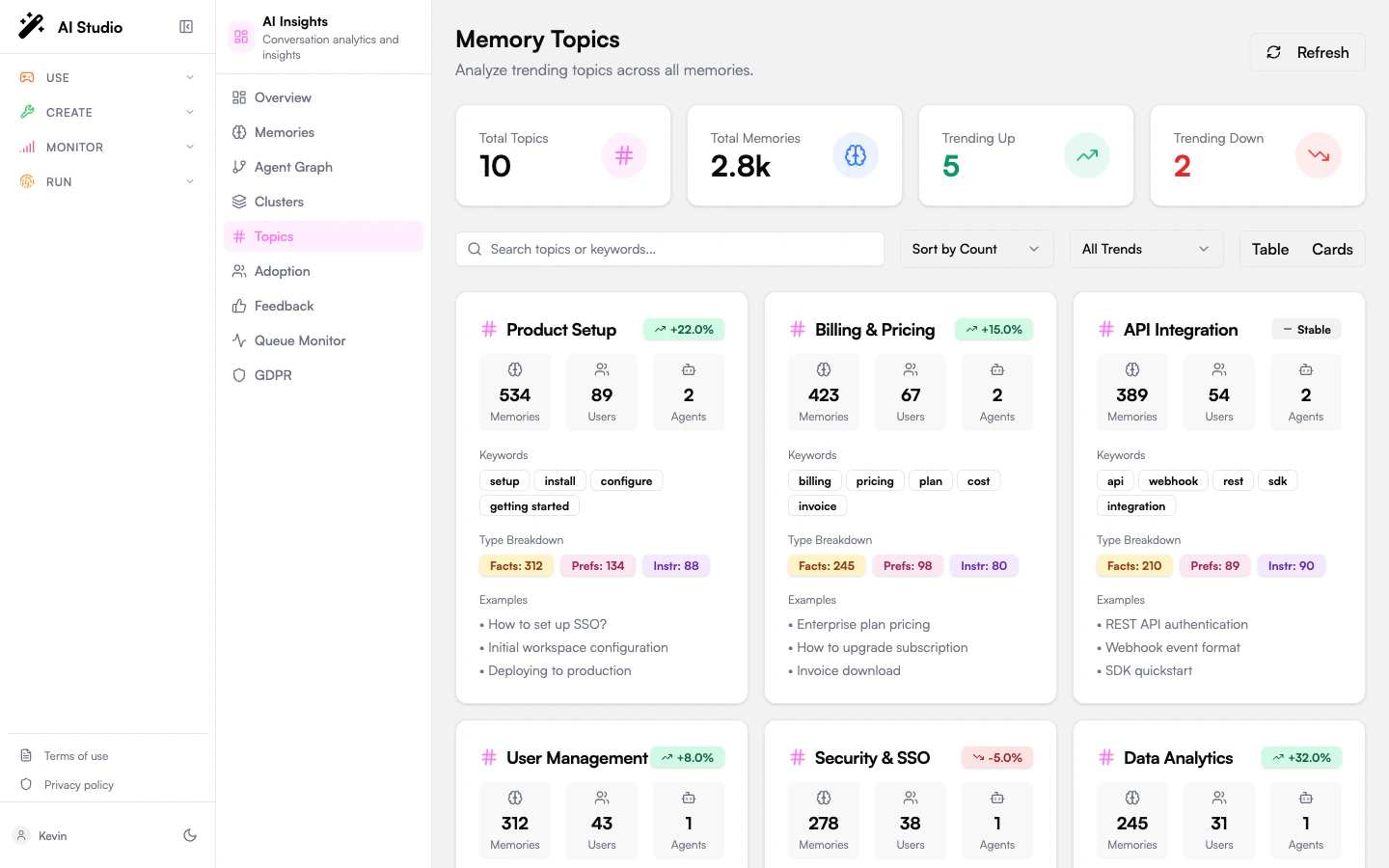 Card view is most useful when you're exploring a small handful of topics in depth. For bulk scanning, use the Table view.
## How topics are derived
The Topics rollup is built from the same memory store the [Memories](/products/ai-insights/memories) page reads from. Each topic is a cluster of related memories the analytics pipeline found cohesive enough to treat as a single subject. Keywords are pulled from the underlying memory texts.
## What to do with this page
* **Spot priorities for documentation.** A trending-up topic with high user count is a candidate for a knowledge base article or an explicit agent instruction.
* **Detect drift.** A trending-down topic that used to be popular often signals the agent stopped handling it well, or that users moved to a different agent for it.
* **Find taxonomy gaps.** If a key business topic isn't in the list, your agents may not be retaining the right kind of memory — check the type distribution on [Memories](/products/ai-insights/memories).
## Where to go next
Volume, type breakdown, and knowledge gaps.
Common usage patterns and personalization depth.
Card view is most useful when you're exploring a small handful of topics in depth. For bulk scanning, use the Table view.
## How topics are derived
The Topics rollup is built from the same memory store the [Memories](/products/ai-insights/memories) page reads from. Each topic is a cluster of related memories the analytics pipeline found cohesive enough to treat as a single subject. Keywords are pulled from the underlying memory texts.
## What to do with this page
* **Spot priorities for documentation.** A trending-up topic with high user count is a candidate for a knowledge base article or an explicit agent instruction.
* **Detect drift.** A trending-down topic that used to be popular often signals the agent stopped handling it well, or that users moved to a different agent for it.
* **Find taxonomy gaps.** If a key business topic isn't in the list, your agents may not be retaining the right kind of memory — check the type distribution on [Memories](/products/ai-insights/memories).
## Where to go next
Volume, type breakdown, and knowledge gaps.
Common usage patterns and personalization depth.