> ## Documentation Index
> Fetch the complete documentation index at: https://docs.prisme.ai/llms.txt
> Use this file to discover all available pages before exploring further.
# Insights (analyzed conversations)
> Read the per-conversation analysis result: score, sentiment progression, key moments, custom evaluations, and token usage.
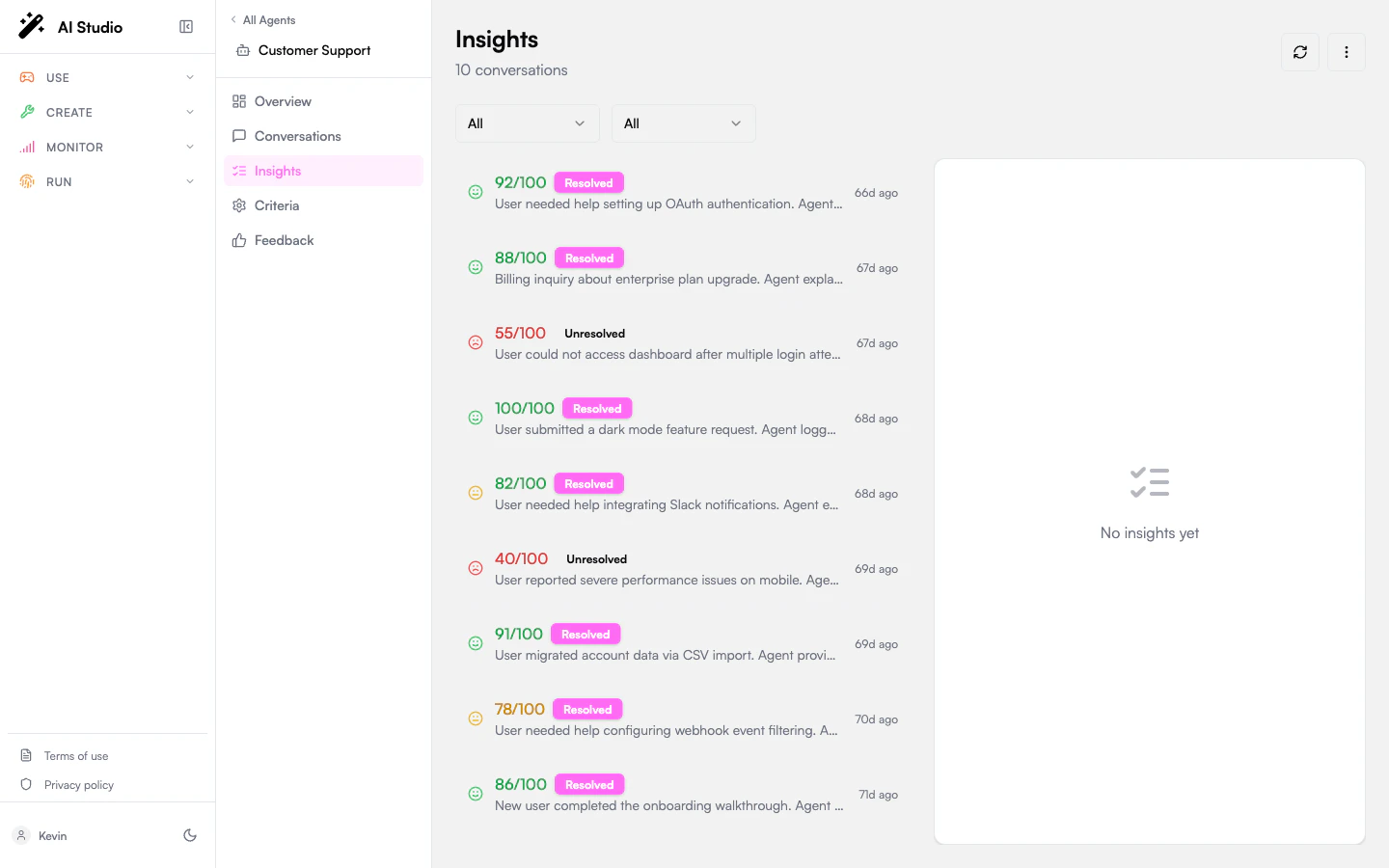
The **Insights** entry in the agent sidebar lists every analyzed conversation for the agent and lets you read the full evaluation result.
 ## Layout
The page is a two-pane split:
* **Left** — A filterable list of insights, one card per conversation.
* **Right** — The detail panel for the selected insight.
A three-dot menu in the top-right exposes **Export CSV** of the currently filtered list.
## Filters
Two dropdowns at the top of the list:
| Filter | Options |
| ------------- | -------------------------------- |
| **Sentiment** | All, Positive, Neutral, Negative |
| **Status** | All, Resolved, Unresolved |
The page paginates with a **Load more** button at the bottom of the list.
## What each card shows
| Element | Meaning |
| --------------------- | -------------------------------------------------------------------------------------------------- |
| Sentiment icon | The overall sentiment classification. |
| Score badge | The evaluation score 0–100. Green ≥80, yellow ≥60, red \<60. |
| Resolved / Unresolved | Whether the LLM judged the user's issue as resolved (driven by the `resolution` Yes/No criterion). |
| Summary or topics | A one-line summary of the conversation, or its top topics if no summary is set. |
| Time-ago | When the analysis ran. |
Click a card to load its full detail on the right.
## The detail panel
The 0–100 score that drove the card badge. This number is the weighted aggregate of all criterion answers — see [Evaluation criteria](/products/ai-insights/criteria) for how weights compose the total.
A green ✓ Resolved or red ✗ Unresolved badge. Driven by the `resolution` Yes/No criterion (default or your override).
A short paragraph generated by the analysis pass that captures what the conversation was about and how it ended.
The overall sentiment classification, a confidence percentage, and an arrow showing how sentiment **progressed** turn-by-turn. A negative→positive arrow is a recovery, the opposite is a deterioration.
The topics extracted from the conversation, with confidence percentages where available. These topics also feed the [Topics](/products/ai-insights/topics) cross-agent rollup.
The criterion-by-criterion answers. For each criterion you'll see:
* The criterion ID.
* The LLM's answer — **✓ Yes** / **✗ No** for boolean, `X/5` (or your range) for score, the chosen option for category.
* The LLM's reasoning string explaining the answer.
This is where you'll spot LLM mistakes and tune criteria wording.
Specific turns the LLM flagged as notable: a refusal, an escalation, a successful retrieval, a contradiction, etc. Each entry has a turn number, a type, and a description.
Use Key Moments to find the small number of conversations worth a manual review without reading every transcript.
Input tokens, output tokens, and the model used by the analysis pass. This is the cost of running the **analysis** itself, not the cost of the original conversation.
The conversation ID (a click-target into [Conversations](/products/ai-insights/conversations) when integrated), the Analyzed At timestamp, and the model used.
## Export
The three-dot menu in the top-right has **Export CSV**. The exported file contains one row per insight currently loaded in the list (after your filters apply): conversation ID, score, resolved flag, sentiment, topics, summary, analyzed-at timestamp, and model.
Pagination is your responsibility — the export captures whatever's been loaded. Click **Load more** to pull additional rows into the list before exporting. See [Exporting data](/products/ai-insights/export) for the full schema and limitations.
## Re-evaluating an insight
Insights aren't edited in place. To regenerate one against newer criteria or a different model:
Navigate to **Conversations** and find the matching row (the conversation ID is shared).
From the detail panel, **Re-analyze** runs the pipeline again. The new insight overwrites the old one.
## Where to go next
If the LLM's answers feel off, the question wording is the lever.
Trigger analysis or re-analysis from the conversation side.
See sentiment percentages aggregated across all insights for the agent.
## Layout
The page is a two-pane split:
* **Left** — A filterable list of insights, one card per conversation.
* **Right** — The detail panel for the selected insight.
A three-dot menu in the top-right exposes **Export CSV** of the currently filtered list.
## Filters
Two dropdowns at the top of the list:
| Filter | Options |
| ------------- | -------------------------------- |
| **Sentiment** | All, Positive, Neutral, Negative |
| **Status** | All, Resolved, Unresolved |
The page paginates with a **Load more** button at the bottom of the list.
## What each card shows
| Element | Meaning |
| --------------------- | -------------------------------------------------------------------------------------------------- |
| Sentiment icon | The overall sentiment classification. |
| Score badge | The evaluation score 0–100. Green ≥80, yellow ≥60, red \<60. |
| Resolved / Unresolved | Whether the LLM judged the user's issue as resolved (driven by the `resolution` Yes/No criterion). |
| Summary or topics | A one-line summary of the conversation, or its top topics if no summary is set. |
| Time-ago | When the analysis ran. |
Click a card to load its full detail on the right.
## The detail panel
The 0–100 score that drove the card badge. This number is the weighted aggregate of all criterion answers — see [Evaluation criteria](/products/ai-insights/criteria) for how weights compose the total.
A green ✓ Resolved or red ✗ Unresolved badge. Driven by the `resolution` Yes/No criterion (default or your override).
A short paragraph generated by the analysis pass that captures what the conversation was about and how it ended.
The overall sentiment classification, a confidence percentage, and an arrow showing how sentiment **progressed** turn-by-turn. A negative→positive arrow is a recovery, the opposite is a deterioration.
The topics extracted from the conversation, with confidence percentages where available. These topics also feed the [Topics](/products/ai-insights/topics) cross-agent rollup.
The criterion-by-criterion answers. For each criterion you'll see:
* The criterion ID.
* The LLM's answer — **✓ Yes** / **✗ No** for boolean, `X/5` (or your range) for score, the chosen option for category.
* The LLM's reasoning string explaining the answer.
This is where you'll spot LLM mistakes and tune criteria wording.
Specific turns the LLM flagged as notable: a refusal, an escalation, a successful retrieval, a contradiction, etc. Each entry has a turn number, a type, and a description.
Use Key Moments to find the small number of conversations worth a manual review without reading every transcript.
Input tokens, output tokens, and the model used by the analysis pass. This is the cost of running the **analysis** itself, not the cost of the original conversation.
The conversation ID (a click-target into [Conversations](/products/ai-insights/conversations) when integrated), the Analyzed At timestamp, and the model used.
## Export
The three-dot menu in the top-right has **Export CSV**. The exported file contains one row per insight currently loaded in the list (after your filters apply): conversation ID, score, resolved flag, sentiment, topics, summary, analyzed-at timestamp, and model.
Pagination is your responsibility — the export captures whatever's been loaded. Click **Load more** to pull additional rows into the list before exporting. See [Exporting data](/products/ai-insights/export) for the full schema and limitations.
## Re-evaluating an insight
Insights aren't edited in place. To regenerate one against newer criteria or a different model:
Navigate to **Conversations** and find the matching row (the conversation ID is shared).
From the detail panel, **Re-analyze** runs the pipeline again. The new insight overwrites the old one.
## Where to go next
If the LLM's answers feel off, the question wording is the lever.
Trigger analysis or re-analysis from the conversation side.
See sentiment percentages aggregated across all insights for the agent.