> ## Documentation Index
> Fetch the complete documentation index at: https://docs.prisme.ai/llms.txt
> Use this file to discover all available pages before exploring further.
# Getting started
> Open Insights for the first time, explore with demo data, then evaluate your own agents.
Insights becomes useful as soon as your organization has at least one published agent in Agent Creator. If you don't have any yet, build one there first — this page assumes you do, or that you want to explore the product with mock data.
## Prerequisites
* An organization on Prisme.ai (cloud or self-hosted).
* At least one **published** agent in Agent Creator. Insights only sees agents with `status: published`.
* Permission on Insights. The product is governed by the platform RBAC; your org admin can grant access through Governe.
## Open Insights
From the product launcher, pick **Insights**. The first time you open it, the sidebar lands on **Overview** at the organization level.
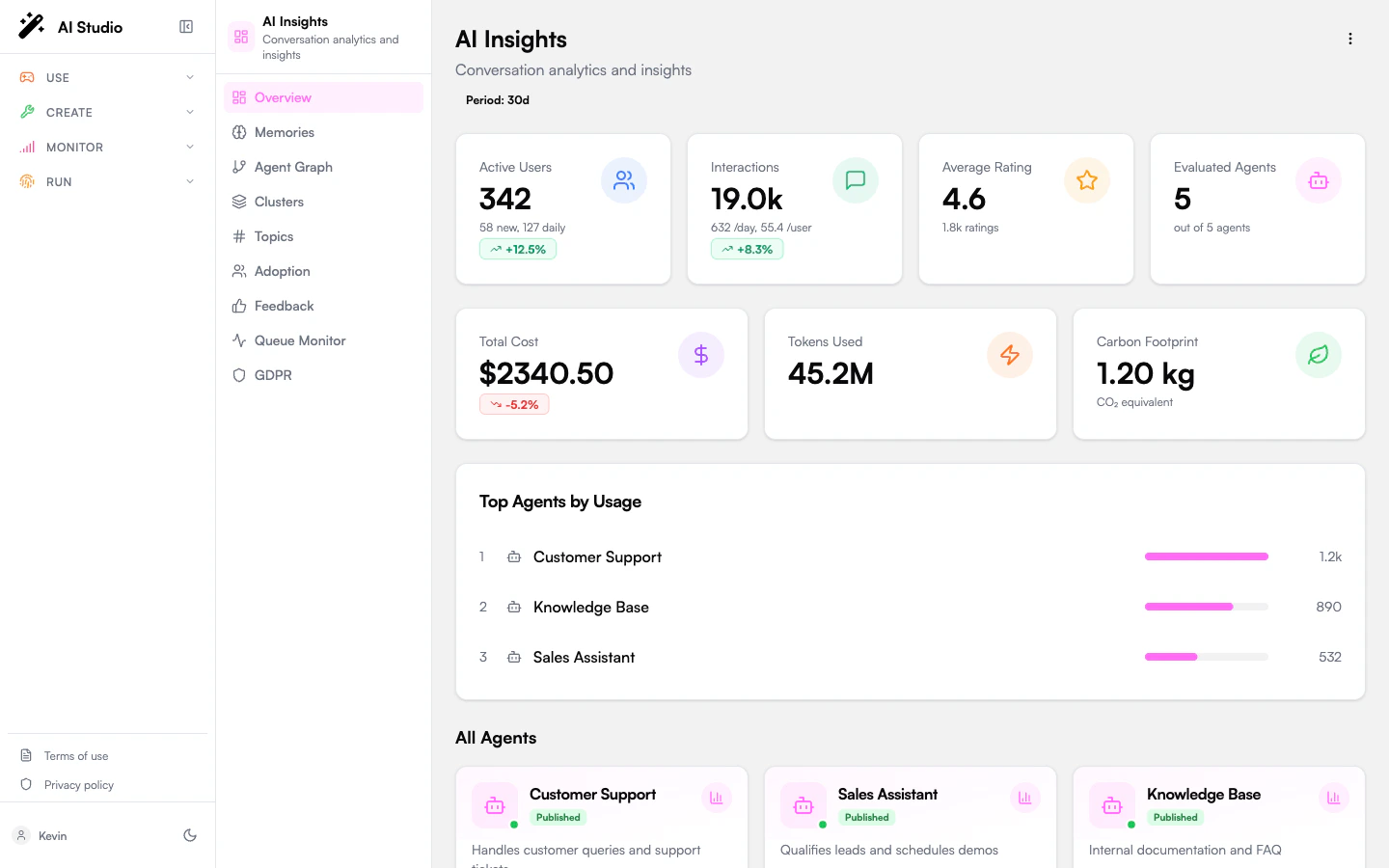 If the dashboard is empty, two things may be happening:
* You have no published agents yet — the Overview shows a "no agents" empty state pointing to Agent Creator.
* Agents exist but have not yet had any conversation analyzed — you'll see your agent cards but no KPIs. See [Conversations](/products/ai-insights/conversations) to trigger analysis.
## A five-minute walkthrough
KPIs at the top, top agents in the middle, the full agent grid below. The three-dot menu in the top-right has a **Recalculate metrics** action — use it after a bulk analysis run to refresh the rollups immediately.
Click any agent card. The sidebar swaps to the agent context: **Overview**, **Conversations**, **Insights**, **Criteria**, **Feedback**.
Open **Criteria**. The four default criteria (`resolution`, `clarity`, `accuracy`, `sentiment`) apply automatically until you customize them. Click **Add** to create your own — see [Evaluation criteria](/products/ai-insights/criteria).
Open **Conversations**, pick a row in the **None** or **Failed** filter, and click **Analyze** in the detail panel. To process several at once, tick the checkboxes and click **Analyze Selected**.
Open **Insights**. Click an analyzed conversation to expand its detail panel: evaluation score, resolution status, summary, sentiment progression, topics, custom criterion answers, key moments, and token usage.
Click **← All Agents** at the top of the sidebar to return to the organization view. From there, explore **Memories**, **Topics**, **Agent Graph**, **Adoption** for cross-agent insights.
## What's in scope vs. what's not
Insights ingests conversations from agents managed in Agent Creator (and the products that delegate to them, like Chat). Both human-to-agent and agent-to-agent conversations are surfaced.
There is no import path today for external CSVs, recorded call transcripts, or messaging platform exports. If you need this, plan to ingest those into a Prisme.ai agent first (for example via a custom Builder workflow that replays them through an agent).
Insights enforces a daily analysis budget, a retention window, and rate limits on the analyze / insights / analytics APIs. These are configured at the workspace level.
## Next steps
Read the org-wide KPIs and learn what each one measures.
Tell the LLM exactly what to evaluate.
Drill into one agent's evaluation, sentiment, and recent insights.
See what end users think of your agents.
If the dashboard is empty, two things may be happening:
* You have no published agents yet — the Overview shows a "no agents" empty state pointing to Agent Creator.
* Agents exist but have not yet had any conversation analyzed — you'll see your agent cards but no KPIs. See [Conversations](/products/ai-insights/conversations) to trigger analysis.
## A five-minute walkthrough
KPIs at the top, top agents in the middle, the full agent grid below. The three-dot menu in the top-right has a **Recalculate metrics** action — use it after a bulk analysis run to refresh the rollups immediately.
Click any agent card. The sidebar swaps to the agent context: **Overview**, **Conversations**, **Insights**, **Criteria**, **Feedback**.
Open **Criteria**. The four default criteria (`resolution`, `clarity`, `accuracy`, `sentiment`) apply automatically until you customize them. Click **Add** to create your own — see [Evaluation criteria](/products/ai-insights/criteria).
Open **Conversations**, pick a row in the **None** or **Failed** filter, and click **Analyze** in the detail panel. To process several at once, tick the checkboxes and click **Analyze Selected**.
Open **Insights**. Click an analyzed conversation to expand its detail panel: evaluation score, resolution status, summary, sentiment progression, topics, custom criterion answers, key moments, and token usage.
Click **← All Agents** at the top of the sidebar to return to the organization view. From there, explore **Memories**, **Topics**, **Agent Graph**, **Adoption** for cross-agent insights.
## What's in scope vs. what's not
Insights ingests conversations from agents managed in Agent Creator (and the products that delegate to them, like Chat). Both human-to-agent and agent-to-agent conversations are surfaced.
There is no import path today for external CSVs, recorded call transcripts, or messaging platform exports. If you need this, plan to ingest those into a Prisme.ai agent first (for example via a custom Builder workflow that replays them through an agent).
Insights enforces a daily analysis budget, a retention window, and rate limits on the analyze / insights / analytics APIs. These are configured at the workspace level.
## Next steps
Read the org-wide KPIs and learn what each one measures.
Tell the LLM exactly what to evaluate.
Drill into one agent's evaluation, sentiment, and recent insights.
See what end users think of your agents.