> ## Documentation Index
> Fetch the complete documentation index at: https://docs.prisme.ai/llms.txt
> Use this file to discover all available pages before exploring further.
# Conversations
> Browse every conversation an agent has handled, inspect the message thread, and trigger analysis on demand.
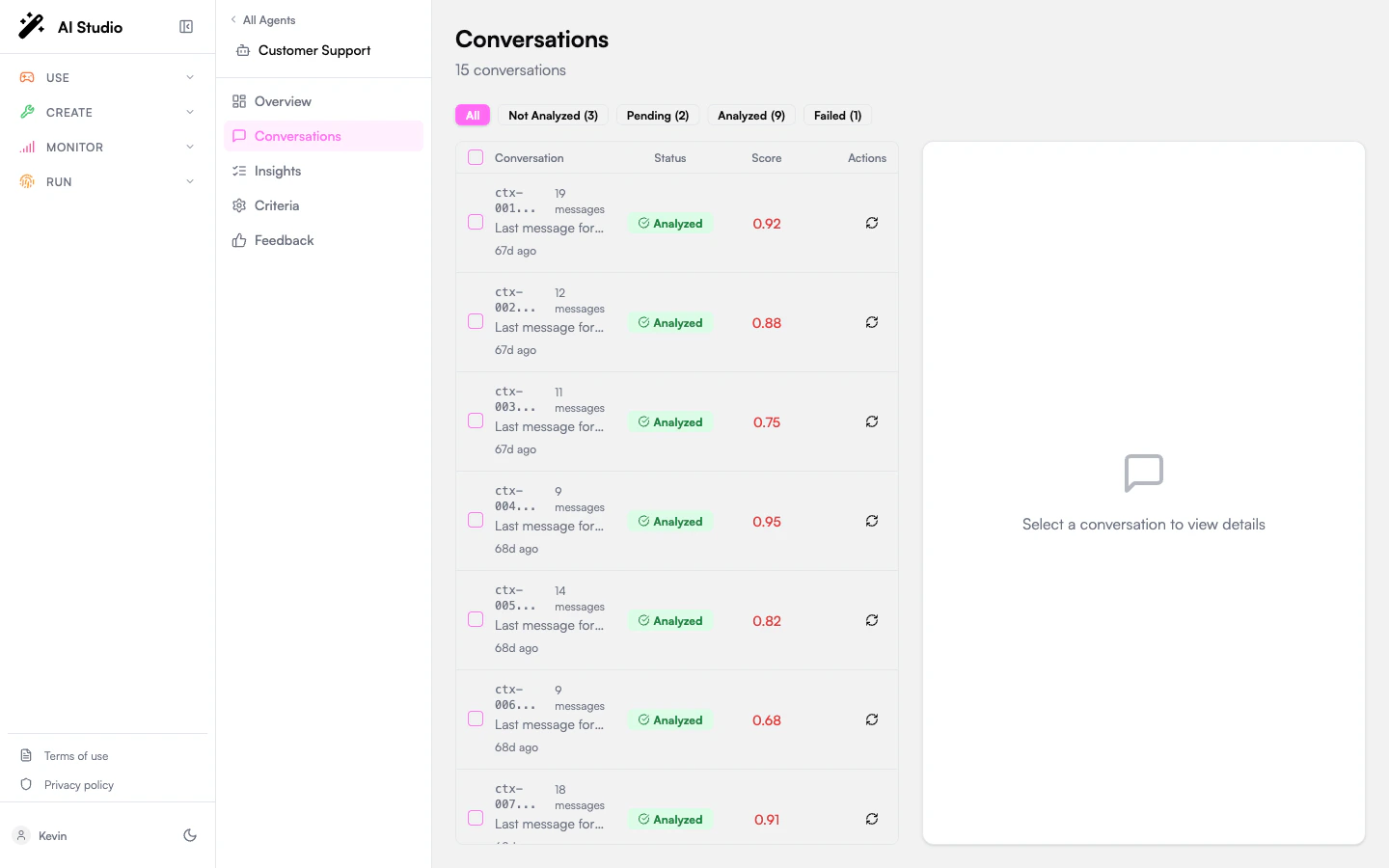
The **Conversations** page is the per-agent inventory of every conversation Insights knows about, with an analysis-status filter, message-level inspection, and on-demand analyze controls.
 ## Layout
The page is a two-pane split:
* **Left** — A status filter strip and the conversations table.
* **Right** — A detail panel for the selected row, with metadata, the full message thread, and the analyze button.
## Analysis statuses
Every conversation is in one of five states:
| Status | What it means |
| ---------------- | ------------------------------------------------------------------------------------------------------------------- |
| **Not analyzed** | Not yet picked up by the analysis pipeline. Either too new for the batch pass, or never queued. |
| **Pending** | Analysis is queued and will be processed soon. |
| **Processing** | Analysis is currently in progress. |
| **Analyzed** | Analysis complete. Click the row to read the result on this page or use [Insights](/products/ai-insights/insights). |
| **Failed** | The analysis pass errored. The detail panel shows the error message. Click **Re-analyze** to retry. |
The filter strip at the top of the table lets you scope the table to **All**, **Not Analyzed**, **Pending**, **Processing**, **Analyzed**, or **Failed**, with counts per status.
## Per-row controls
Each row in the table shows:
* A short conversation ID and message count.
* A preview of the last message.
* A status badge.
* An action button — **▶ Analyze** for new conversations, **↻ Re-analyze** for those already analyzed.
Click the row to load the conversation in the detail panel on the right.
## The detail panel
Open a conversation and the right pane shows:
* The conversation ID and current status.
* A metadata grid: **Messages** count, **Created**, **Score** (when analyzed, /100, color-coded), **Analyzed At**.
* The message thread with sender avatars (user / bot / system), timestamps, and per-message token counts where present.
* A **Load earlier messages** button if the thread is long.
* An **Analyze** / **Re-analyze** button at the bottom.
If a previous analysis attempt failed, an error block appears above the analyze button with the failure reason returned by the pipeline.
## Batch analysis
To analyze multiple conversations in one pass:
Use the per-row checkboxes, or the header checkbox to select all visible rows.
The button appears at the top of the table once at least one row is selected. The label includes the count.
Each conversation transitions through Pending → Processing → Analyzed (or Failed). The analyze button shows **Analyzing…** during the run.
## Layout
The page is a two-pane split:
* **Left** — A status filter strip and the conversations table.
* **Right** — A detail panel for the selected row, with metadata, the full message thread, and the analyze button.
## Analysis statuses
Every conversation is in one of five states:
| Status | What it means |
| ---------------- | ------------------------------------------------------------------------------------------------------------------- |
| **Not analyzed** | Not yet picked up by the analysis pipeline. Either too new for the batch pass, or never queued. |
| **Pending** | Analysis is queued and will be processed soon. |
| **Processing** | Analysis is currently in progress. |
| **Analyzed** | Analysis complete. Click the row to read the result on this page or use [Insights](/products/ai-insights/insights). |
| **Failed** | The analysis pass errored. The detail panel shows the error message. Click **Re-analyze** to retry. |
The filter strip at the top of the table lets you scope the table to **All**, **Not Analyzed**, **Pending**, **Processing**, **Analyzed**, or **Failed**, with counts per status.
## Per-row controls
Each row in the table shows:
* A short conversation ID and message count.
* A preview of the last message.
* A status badge.
* An action button — **▶ Analyze** for new conversations, **↻ Re-analyze** for those already analyzed.
Click the row to load the conversation in the detail panel on the right.
## The detail panel
Open a conversation and the right pane shows:
* The conversation ID and current status.
* A metadata grid: **Messages** count, **Created**, **Score** (when analyzed, /100, color-coded), **Analyzed At**.
* The message thread with sender avatars (user / bot / system), timestamps, and per-message token counts where present.
* A **Load earlier messages** button if the thread is long.
* An **Analyze** / **Re-analyze** button at the bottom.
If a previous analysis attempt failed, an error block appears above the analyze button with the failure reason returned by the pipeline.
## Batch analysis
To analyze multiple conversations in one pass:
Use the per-row checkboxes, or the header checkbox to select all visible rows.
The button appears at the top of the table once at least one row is selected. The label includes the count.
Each conversation transitions through Pending → Processing → Analyzed (or Failed). The analyze button shows **Analyzing…** during the run.
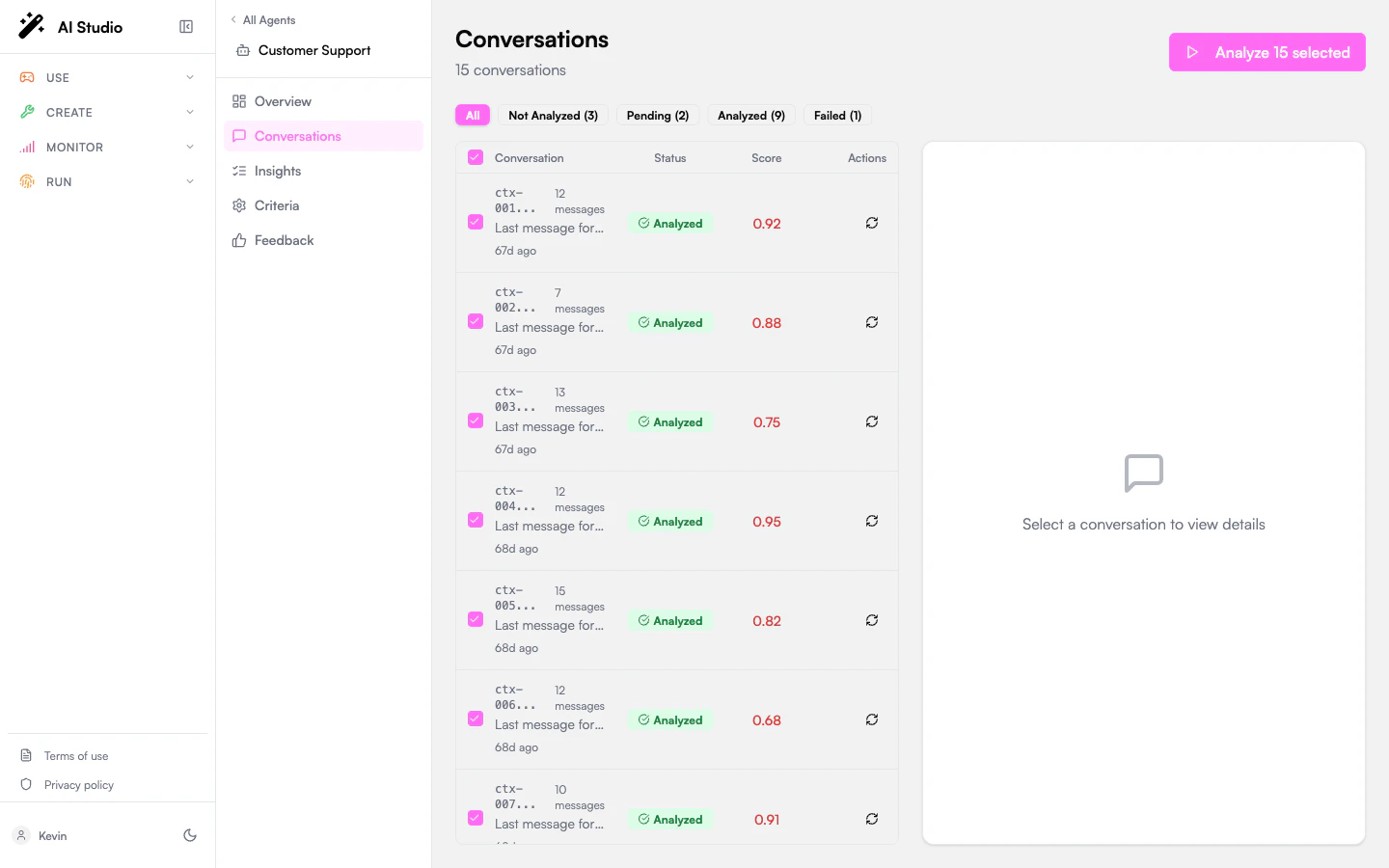 The maximum batch size is set per workspace — the default is **100 conversations per batch**.
## How automatic analysis works
You don't have to click anything for the bulk of analysis to happen. Insights runs a recurring pass that picks up conversations matching all of the following:
* The conversation has been **inactive for at least 2 hours** (no new messages).
* It contains **at least 2 messages**.
* It has not been analyzed yet, or has grown by 5+ messages since the last analysis (re-analysis trigger).
The agent's **default daily analysis budget** is 1,000 conversations — past that, conversations queue up and continue the next day. See [Queue](/products/ai-insights/queue) for monitoring.
Whether real-time analysis (triggered as soon as a conversation goes inactive) runs in addition to batch is a workspace-level setting. By default, analysis runs in batch only.
## When you'd analyze on demand
* **Recently changed criteria.** Re-evaluate a slice of conversations against your new criteria without waiting for the batch pass.
* **Failed conversations.** Click **Re-analyze** after fixing a configuration issue.
* **Spot-check.** Pull one specific conversation forward to validate that your criteria produce sensible answers.
## Where to go next
See the criterion answers, summary, key moments, and token usage.
Add or refine the questions the analysis pass answers.
Watch backlog and throughput, especially after a bulk reanalyze.
The maximum batch size is set per workspace — the default is **100 conversations per batch**.
## How automatic analysis works
You don't have to click anything for the bulk of analysis to happen. Insights runs a recurring pass that picks up conversations matching all of the following:
* The conversation has been **inactive for at least 2 hours** (no new messages).
* It contains **at least 2 messages**.
* It has not been analyzed yet, or has grown by 5+ messages since the last analysis (re-analysis trigger).
The agent's **default daily analysis budget** is 1,000 conversations — past that, conversations queue up and continue the next day. See [Queue](/products/ai-insights/queue) for monitoring.
Whether real-time analysis (triggered as soon as a conversation goes inactive) runs in addition to batch is a workspace-level setting. By default, analysis runs in batch only.
## When you'd analyze on demand
* **Recently changed criteria.** Re-evaluate a slice of conversations against your new criteria without waiting for the batch pass.
* **Failed conversations.** Click **Re-analyze** after fixing a configuration issue.
* **Spot-check.** Pull one specific conversation forward to validate that your criteria produce sensible answers.
## Where to go next
See the criterion answers, summary, key moments, and token usage.
Add or refine the questions the analysis pass answers.
Watch backlog and throughput, especially after a bulk reanalyze.