> ## Documentation Index
> Fetch the complete documentation index at: https://docs.prisme.ai/llms.txt
> Use this file to discover all available pages before exploring further.
# Overview
> Discover Builder, the workspace for building apps, automations, and integrations on Prisme.ai
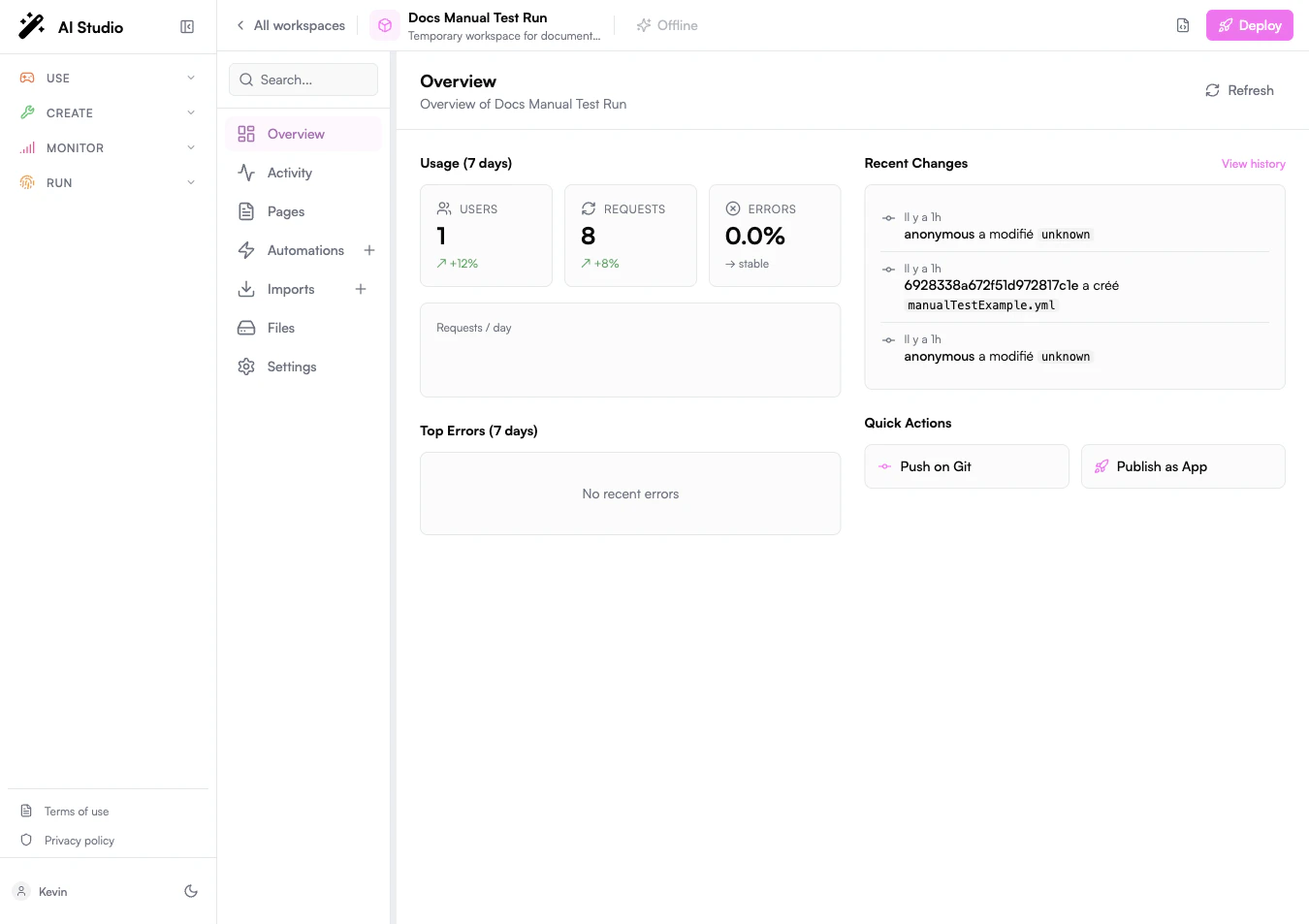 Builder is the creation workspace of Prisme.ai. Use it to build custom apps, orchestrate automations, connect enterprise systems, and inspect runtime activity from the same workspace.
Builder is now organized around source-based pages, backend automations, imports, files, activity traces, and workspace settings.
## What You Build
Build React interfaces that run as workspace pages and connect to Prisme.ai runtime context.
Create event-driven workflows, webhook endpoints, scheduled jobs, and backend orchestration.
Install apps, configure imports, call external APIs, and connect enterprise systems.
Follow every request, event, and automation run through Activity and correlation IDs.
## Main Workspace Areas
The workspace dashboard summarizes recent usage, recent changes, top errors, and quick actions such as publishing.
Activity is the runtime trace explorer. Use it to filter events, inspect correlation IDs, and debug a full page-to-automation flow.
Pages are source-based React applications. Builder provides a file tree, source editor, native preview, desktop/tablet/mobile preview controls, and read-only deployed bundle previews.
Automations contain backend logic. They can run from events, schedules, endpoints, or manual tests from the editor.
Imports manage installed apps and extension packages, including app configuration and custom code.
Files contains uploaded workspace assets. It is separate from the page source tree used in Pages.
Settings contains workspace configuration, sharing, secrets, RBAC, versioning, and publishing options.
## Typical Workflow
Start from Builder and choose a workspace. The workspace is the container for pages, automations, imports, files, secrets, activity, and deployment settings.
Open **Pages**, initialize the React template if needed, edit the source in **Code**, and verify behavior in **Preview**.
Open **Automations** to create endpoints, event handlers, scheduled workflows, or internal orchestration steps.
From the page, call automation endpoints through HTTP or emit/listen to workspace events through the injected SDK.
Use **Activity** to follow the resulting trace. Correlation IDs connect page actions, events, automation instructions, errors, and outputs.
Publish the workspace when the page and automations are ready. Deployed page bundles can be inspected as read-only previews from **Pages**.
## Development Modes
Use the Builder UI to create workspaces, automations, imports, files, secrets, and deployment settings without leaving the product.
Use React, TypeScript, Tailwind CSS, and the Prisme.ai SDK for frontend pages. Use automation instructions and custom code for backend logic.
Use Activity tables, timelines, graphs, and distribution views to understand exactly what happened at runtime.
## Builder in the Platform
Builder is usually paired with the newer Prisme.ai products:
Build and test agent behavior, then connect agents to Builder workflows.
Use knowledge bases from custom pages and automations.
Apply platform roles, product access, model policy, and organizational controls.
Use analytics feedback to improve agents, prompts, and workflows.
Route model usage through governed providers and model policies.
Store files, app state, and workspace data used by Builder experiences.
## Next Steps
Build source-based React interfaces in Builder.
Create backend logic and workflows.
Trace runtime behavior with Activity and correlation IDs.
Understand the Builder architecture.
Builder is the creation workspace of Prisme.ai. Use it to build custom apps, orchestrate automations, connect enterprise systems, and inspect runtime activity from the same workspace.
Builder is now organized around source-based pages, backend automations, imports, files, activity traces, and workspace settings.
## What You Build
Build React interfaces that run as workspace pages and connect to Prisme.ai runtime context.
Create event-driven workflows, webhook endpoints, scheduled jobs, and backend orchestration.
Install apps, configure imports, call external APIs, and connect enterprise systems.
Follow every request, event, and automation run through Activity and correlation IDs.
## Main Workspace Areas
The workspace dashboard summarizes recent usage, recent changes, top errors, and quick actions such as publishing.
Activity is the runtime trace explorer. Use it to filter events, inspect correlation IDs, and debug a full page-to-automation flow.
Pages are source-based React applications. Builder provides a file tree, source editor, native preview, desktop/tablet/mobile preview controls, and read-only deployed bundle previews.
Automations contain backend logic. They can run from events, schedules, endpoints, or manual tests from the editor.
Imports manage installed apps and extension packages, including app configuration and custom code.
Files contains uploaded workspace assets. It is separate from the page source tree used in Pages.
Settings contains workspace configuration, sharing, secrets, RBAC, versioning, and publishing options.
## Typical Workflow
Start from Builder and choose a workspace. The workspace is the container for pages, automations, imports, files, secrets, activity, and deployment settings.
Open **Pages**, initialize the React template if needed, edit the source in **Code**, and verify behavior in **Preview**.
Open **Automations** to create endpoints, event handlers, scheduled workflows, or internal orchestration steps.
From the page, call automation endpoints through HTTP or emit/listen to workspace events through the injected SDK.
Use **Activity** to follow the resulting trace. Correlation IDs connect page actions, events, automation instructions, errors, and outputs.
Publish the workspace when the page and automations are ready. Deployed page bundles can be inspected as read-only previews from **Pages**.
## Development Modes
Use the Builder UI to create workspaces, automations, imports, files, secrets, and deployment settings without leaving the product.
Use React, TypeScript, Tailwind CSS, and the Prisme.ai SDK for frontend pages. Use automation instructions and custom code for backend logic.
Use Activity tables, timelines, graphs, and distribution views to understand exactly what happened at runtime.
## Builder in the Platform
Builder is usually paired with the newer Prisme.ai products:
Build and test agent behavior, then connect agents to Builder workflows.
Use knowledge bases from custom pages and automations.
Apply platform roles, product access, model policy, and organizational controls.
Use analytics feedback to improve agents, prompts, and workflows.
Route model usage through governed providers and model policies.
Store files, app state, and workspace data used by Builder experiences.
## Next Steps
Build source-based React interfaces in Builder.
Create backend logic and workflows.
Trace runtime behavior with Activity and correlation IDs.
Understand the Builder architecture.