> ## Documentation Index
> Fetch the complete documentation index at: https://docs.prisme.ai/llms.txt
> Use this file to discover all available pages before exploring further.
# Custom Code
> Run JavaScript or Python inside your automations through the Custom Code app
The **Custom Code** app lets you embed JavaScript (Node.js) or Python functions inside any [automation](./automations). Reach for it when YAML instructions get awkward — complex transforms, regex parsing, signature computation, anything that's faster to write as a few lines of code.
This page is the practical "how do I add it to my workspace" guide. For the in-depth reference (limits, libraries, advanced examples) see [Custom Code in the Apps Marketplace](/apps-store/marketplace/custom-code).
## When to use it
| Use Custom Code for | Stick with native instructions for |
| ----------------------------------------------------------------- | -------------------------------------------------------------------------------------- |
| Multi-step data transforms (parsing, normalising, aggregating) | Simple `set` / `fetch` / `condition` flows |
| Regex, hashing, signature verification | Calling another automation or app instruction |
| Computing dynamic values (HMAC, JWT, dates) | Reading from Collections or Secrets — use the dedicated modules |
| Wrapping a third-party library that's whitelisted in your runtime | One-line transforms (use [expressions](./automations#condition-and-expression-syntax)) |
Custom Code runs inside Prisme.ai's runtime sandbox with CPU/memory/time limits and a curated allowlist of libraries. It's not a place to spin up long-running processes or shell commands.
## Step 1 — Install the Custom Code app in your workspace
1. Open your workspace in **Builder**.
2. Go to **Imports** in the left navigation.
3. Click **Install an App**.
4. Search for **Custom Code** and install it.
Once installed, the app exposes a `Custom Code.run` instruction you can use anywhere in your automations, plus a configuration panel where you declare your functions.
 ## Step 2 — Declare a function
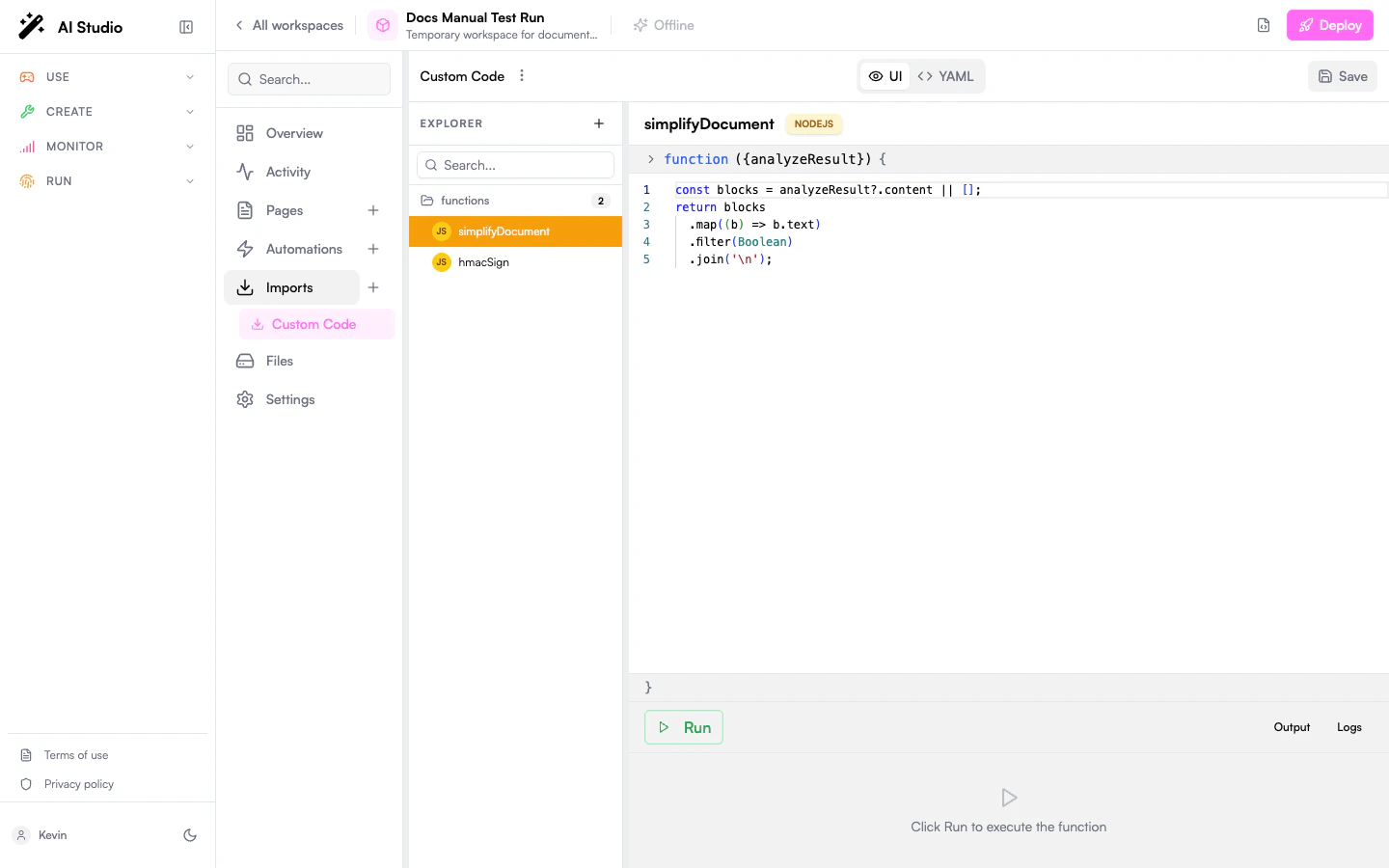
Open the Custom Code app's **Configure** panel. You'll see a `functions` map. Each entry is one named function with three pieces:
| Field | Description |
| ----------------- | ---------------------------------------------------------------------------------------------------------------------- |
| **Function name** | The slug you'll call from automations (e.g. `simplifyDocument`). |
| **Language** | `nodejs` (default) or `python`. |
| **Parameters** | A JSON-Schema-like object describing the inputs — used to generate the form fields when calling the function. |
| **Code** | The function body. Parameters are available as named variables; return the value you want to expose to the automation. |
Equivalent YAML (what you'd see if you edit the import directly):
```yaml theme={null}
appSlug: Custom Code
config:
functions:
simplifyDocument:
language: nodejs
parameters:
analyzeResult:
type: object
description: Raw response from the OCR analysis
code: |
// analyzeResult is automatically available as a variable
const blocks = analyzeResult?.content || [];
return blocks
.map((b) => b.text)
.filter(Boolean)
.join('\n');
hmacSign:
language: nodejs
parameters:
payload:
type: string
secret:
type: string
code: |
const crypto = require('crypto');
return crypto
.createHmac('sha256', secret)
.update(payload)
.digest('hex');
```
Python equivalent (only the body changes):
```yaml theme={null}
sumByCategory:
language: python
parameters:
items:
type: array
code: |
result = {}
for item in items:
c = item.get('category', 'other')
result[c] = result.get(c, 0) + item.get('amount', 0)
return result
```
## Step 2 — Declare a function
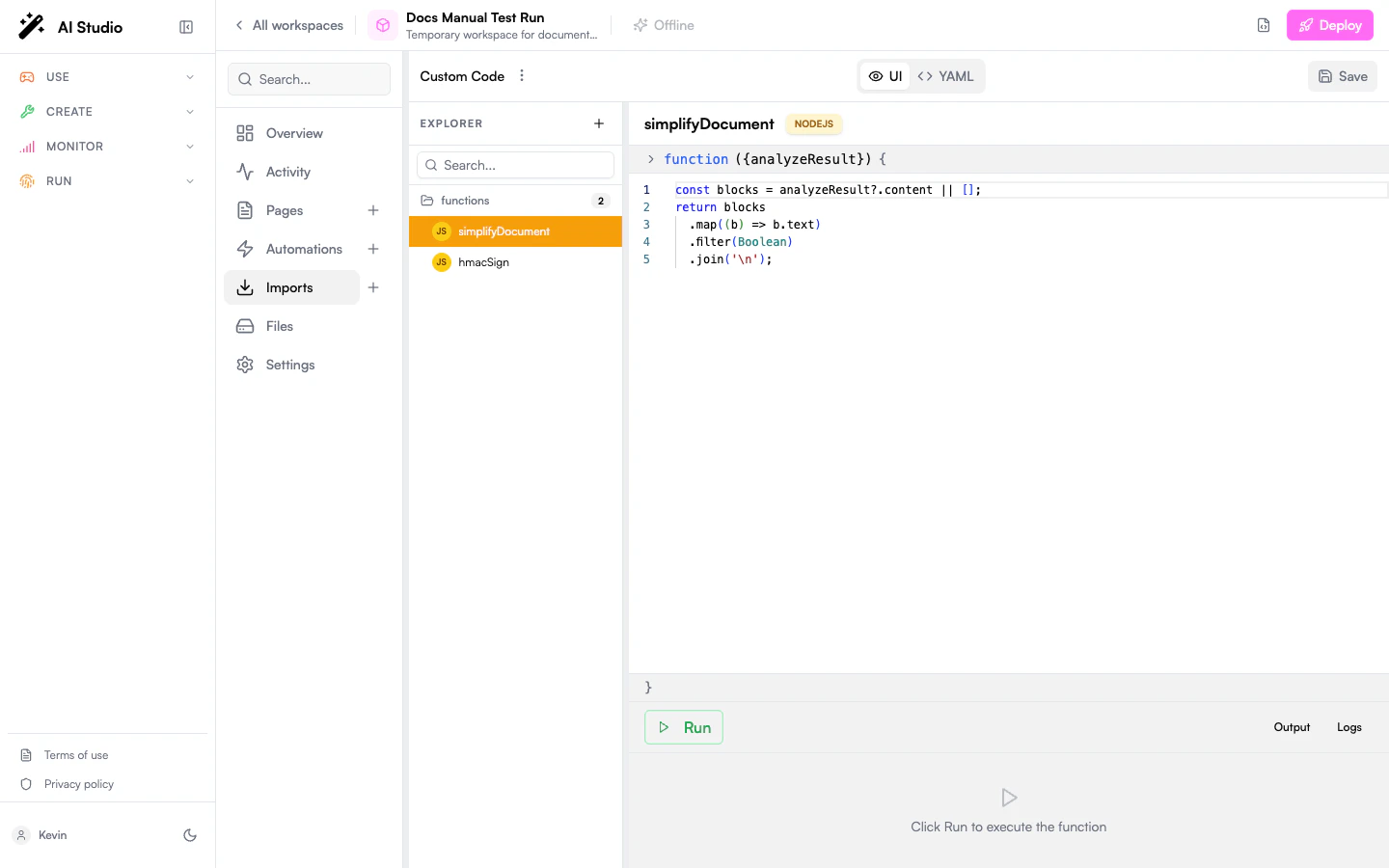
Open the Custom Code app's **Configure** panel. You'll see a `functions` map. Each entry is one named function with three pieces:
| Field | Description |
| ----------------- | ---------------------------------------------------------------------------------------------------------------------- |
| **Function name** | The slug you'll call from automations (e.g. `simplifyDocument`). |
| **Language** | `nodejs` (default) or `python`. |
| **Parameters** | A JSON-Schema-like object describing the inputs — used to generate the form fields when calling the function. |
| **Code** | The function body. Parameters are available as named variables; return the value you want to expose to the automation. |
Equivalent YAML (what you'd see if you edit the import directly):
```yaml theme={null}
appSlug: Custom Code
config:
functions:
simplifyDocument:
language: nodejs
parameters:
analyzeResult:
type: object
description: Raw response from the OCR analysis
code: |
// analyzeResult is automatically available as a variable
const blocks = analyzeResult?.content || [];
return blocks
.map((b) => b.text)
.filter(Boolean)
.join('\n');
hmacSign:
language: nodejs
parameters:
payload:
type: string
secret:
type: string
code: |
const crypto = require('crypto');
return crypto
.createHmac('sha256', secret)
.update(payload)
.digest('hex');
```
Python equivalent (only the body changes):
```yaml theme={null}
sumByCategory:
language: python
parameters:
items:
type: array
code: |
result = {}
for item in items:
c = item.get('category', 'other')
result[c] = result.get(c, 0) + item.get('amount', 0)
return result
```
 **Use the right module for the right job.** If your code is "store a value" or "fetch a secret", use the [Collections](/products/ai-builder/module-collections) or [Secrets](/products/ai-builder/module-secrets) modules instead — they're faster and audited.
## Step 3 — Call the function from an automation
Use the `Custom Code.run` instruction. Pass the function name, the parameters object, and capture the return value via `output`:
```yaml theme={null}
slug: process-document
when:
endpoint: true
arguments:
document:
type: object
do:
- Custom Code.run:
function: simplifyDocument
parameters:
analyzeResult: '{{document}}'
output: text
- emit:
event: document.simplified
payload:
text: '{{text}}'
output:
text: '{{text}}'
```
The instruction's `parameters` object must match the schema you declared in step 2. Anything you `return` from the function becomes the value of the `output` variable.
### Inline Python (no app config required)
The `Custom Code.run` instruction also accepts an inline `code` field for Python only — handy for one-shot logic you don't want to register globally:
```yaml theme={null}
- Custom Code.run:
language: python
code: |
return sum(payload['items'])
parameters:
items: '{{numbers}}'
output: total
```
## Step 4 — Handle errors
Custom Code raises just like any other instruction. Use `onError` to control the failure path:
```yaml theme={null}
- Custom Code.run:
function: hmacSign
parameters:
payload: '{{body}}'
secret: '{{secrets.WEBHOOK_SECRET}}'
output: signature
onError: continue # values: break (default) | emit | continue
```
| `onError` | Behaviour |
| ---------- | ------------------------------------------------------ |
| `break` | Stops the automation and surfaces the error (default) |
| `emit` | Emits an error event but the automation continues |
| `continue` | Returns the error object as the `output` and continues |
Wrap defensive logic in a `try/catch` block at the YAML level if you need to recover gracefully:
```yaml theme={null}
- try:
do:
- Custom Code.run:
function: parseRiskyInput
parameters: { raw: '{{payload}}' }
output: parsed
catch:
- set:
name: parsed
value: { error: true }
```
## Step 5 — Debug
When something misbehaves:
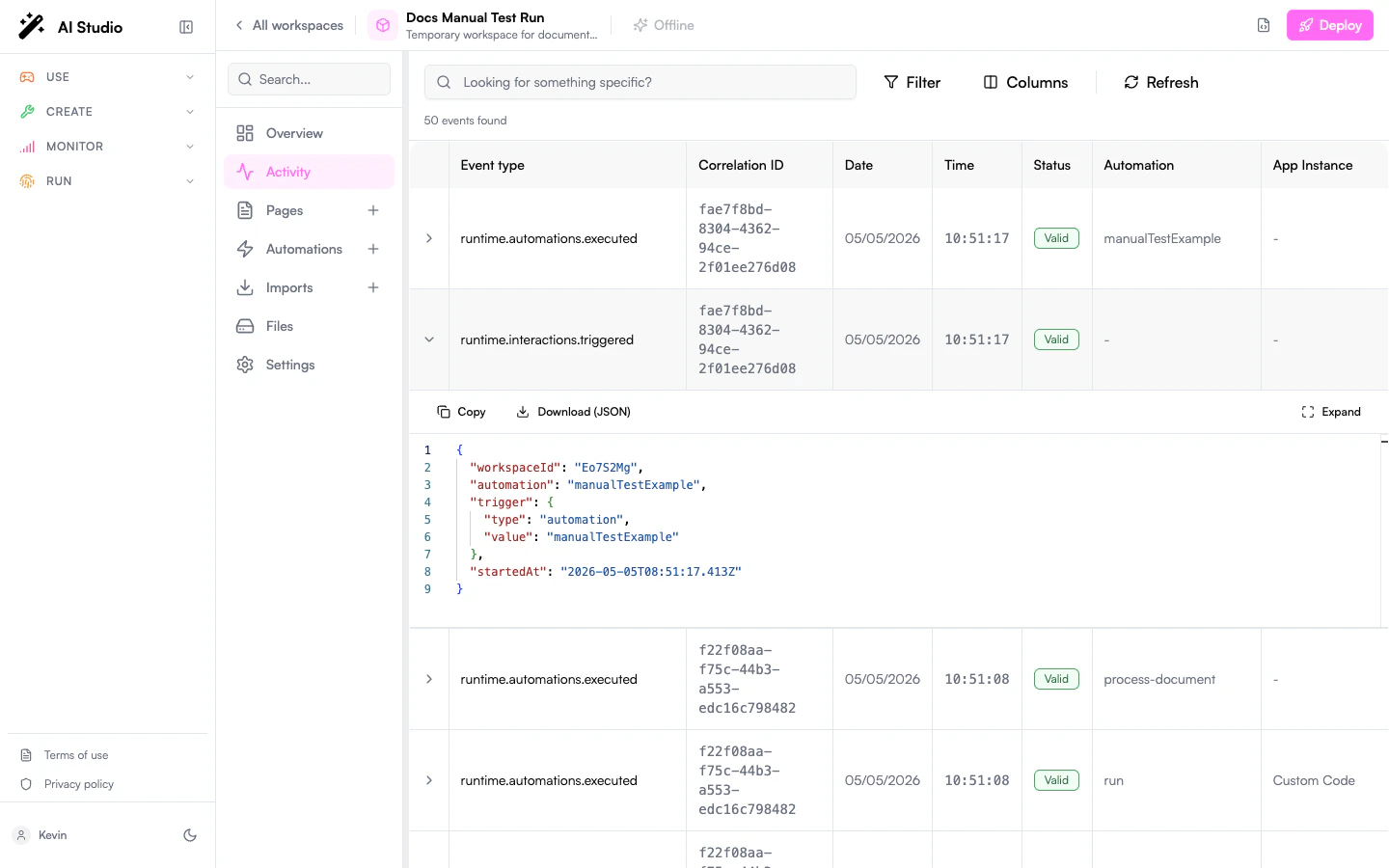
1. Open **Activity** for the automation — every `Custom Code.run` call is logged with its inputs and the returned value (or error stack).
2. Add `console.log(...)` (Node.js) or `print(...)` (Python) inside the function. Output is captured in the activity log.
3. If a library you expected isn't available, check with your platform admin — the allowed list is configured per organization.
**Use the right module for the right job.** If your code is "store a value" or "fetch a secret", use the [Collections](/products/ai-builder/module-collections) or [Secrets](/products/ai-builder/module-secrets) modules instead — they're faster and audited.
## Step 3 — Call the function from an automation
Use the `Custom Code.run` instruction. Pass the function name, the parameters object, and capture the return value via `output`:
```yaml theme={null}
slug: process-document
when:
endpoint: true
arguments:
document:
type: object
do:
- Custom Code.run:
function: simplifyDocument
parameters:
analyzeResult: '{{document}}'
output: text
- emit:
event: document.simplified
payload:
text: '{{text}}'
output:
text: '{{text}}'
```
The instruction's `parameters` object must match the schema you declared in step 2. Anything you `return` from the function becomes the value of the `output` variable.
### Inline Python (no app config required)
The `Custom Code.run` instruction also accepts an inline `code` field for Python only — handy for one-shot logic you don't want to register globally:
```yaml theme={null}
- Custom Code.run:
language: python
code: |
return sum(payload['items'])
parameters:
items: '{{numbers}}'
output: total
```
## Step 4 — Handle errors
Custom Code raises just like any other instruction. Use `onError` to control the failure path:
```yaml theme={null}
- Custom Code.run:
function: hmacSign
parameters:
payload: '{{body}}'
secret: '{{secrets.WEBHOOK_SECRET}}'
output: signature
onError: continue # values: break (default) | emit | continue
```
| `onError` | Behaviour |
| ---------- | ------------------------------------------------------ |
| `break` | Stops the automation and surfaces the error (default) |
| `emit` | Emits an error event but the automation continues |
| `continue` | Returns the error object as the `output` and continues |
Wrap defensive logic in a `try/catch` block at the YAML level if you need to recover gracefully:
```yaml theme={null}
- try:
do:
- Custom Code.run:
function: parseRiskyInput
parameters: { raw: '{{payload}}' }
output: parsed
catch:
- set:
name: parsed
value: { error: true }
```
## Step 5 — Debug
When something misbehaves:
1. Open **Activity** for the automation — every `Custom Code.run` call is logged with its inputs and the returned value (or error stack).
2. Add `console.log(...)` (Node.js) or `print(...)` (Python) inside the function. Output is captured in the activity log.
3. If a library you expected isn't available, check with your platform admin — the allowed list is configured per organization.
 ## Common patterns
```javascript theme={null}
const moment = require('moment');
return moment(deadline).diff(moment(startedAt), 'hours');
```
```javascript theme={null}
const crypto = require('crypto');
const expected = crypto
.createHmac('sha256', secret)
.update(JSON.stringify(payload))
.digest('hex');
return { valid: expected === signature };
```
```javascript theme={null}
return items.map(item => ({
id: item.uuid,
name: item.attributes.display_name,
tags: (item.relationships?.tags?.data || []).map(t => t.id),
}));
```
```python theme={null}
import statistics
return {
'count': len(values),
'mean': statistics.mean(values) if values else 0,
'stdev': statistics.stdev(values) if len(values) > 1 else 0,
}
```
## Limits and constraints
* **Execution time** — capped per call; long-running jobs should be broken into automations or moved to a dedicated worker.
* **Memory & CPU** — bounded; don't try to process gigabytes of data inline.
* **Network** — outbound HTTP follows the platform's network policy. Prefer the `fetch` instruction at the YAML level for clarity and observability.
* **Filesystem** — sandboxed; no persistent local files. Use [Collections](/products/ai-builder/module-collections) or the Files API for storage.
* **Libraries** — only the libraries explicitly allowed by your organization are available. Check the [Custom Code reference](/apps-store/marketplace/custom-code) for the default list.
## Next steps
Full reference: libraries, deeper examples, security considerations.
The instruction set Custom Code plugs into.
Wrap your automation as a tool an agent can call.
Inject API keys and tokens without hard-coding them.
## Common patterns
```javascript theme={null}
const moment = require('moment');
return moment(deadline).diff(moment(startedAt), 'hours');
```
```javascript theme={null}
const crypto = require('crypto');
const expected = crypto
.createHmac('sha256', secret)
.update(JSON.stringify(payload))
.digest('hex');
return { valid: expected === signature };
```
```javascript theme={null}
return items.map(item => ({
id: item.uuid,
name: item.attributes.display_name,
tags: (item.relationships?.tags?.data || []).map(t => t.id),
}));
```
```python theme={null}
import statistics
return {
'count': len(values),
'mean': statistics.mean(values) if values else 0,
'stdev': statistics.stdev(values) if len(values) > 1 else 0,
}
```
## Limits and constraints
* **Execution time** — capped per call; long-running jobs should be broken into automations or moved to a dedicated worker.
* **Memory & CPU** — bounded; don't try to process gigabytes of data inline.
* **Network** — outbound HTTP follows the platform's network policy. Prefer the `fetch` instruction at the YAML level for clarity and observability.
* **Filesystem** — sandboxed; no persistent local files. Use [Collections](/products/ai-builder/module-collections) or the Files API for storage.
* **Libraries** — only the libraries explicitly allowed by your organization are available. Check the [Custom Code reference](/apps-store/marketplace/custom-code) for the default list.
## Next steps
Full reference: libraries, deeper examples, security considerations.
The instruction set Custom Code plugs into.
Wrap your automation as a tool an agent can call.
Inject API keys and tokens without hard-coding them.