> ## Documentation Index
> Fetch the complete documentation index at: https://docs.prisme.ai/llms.txt
> Use this file to discover all available pages before exploring further.
# Agent Creator
> Create, configure, and deploy AI agents without code
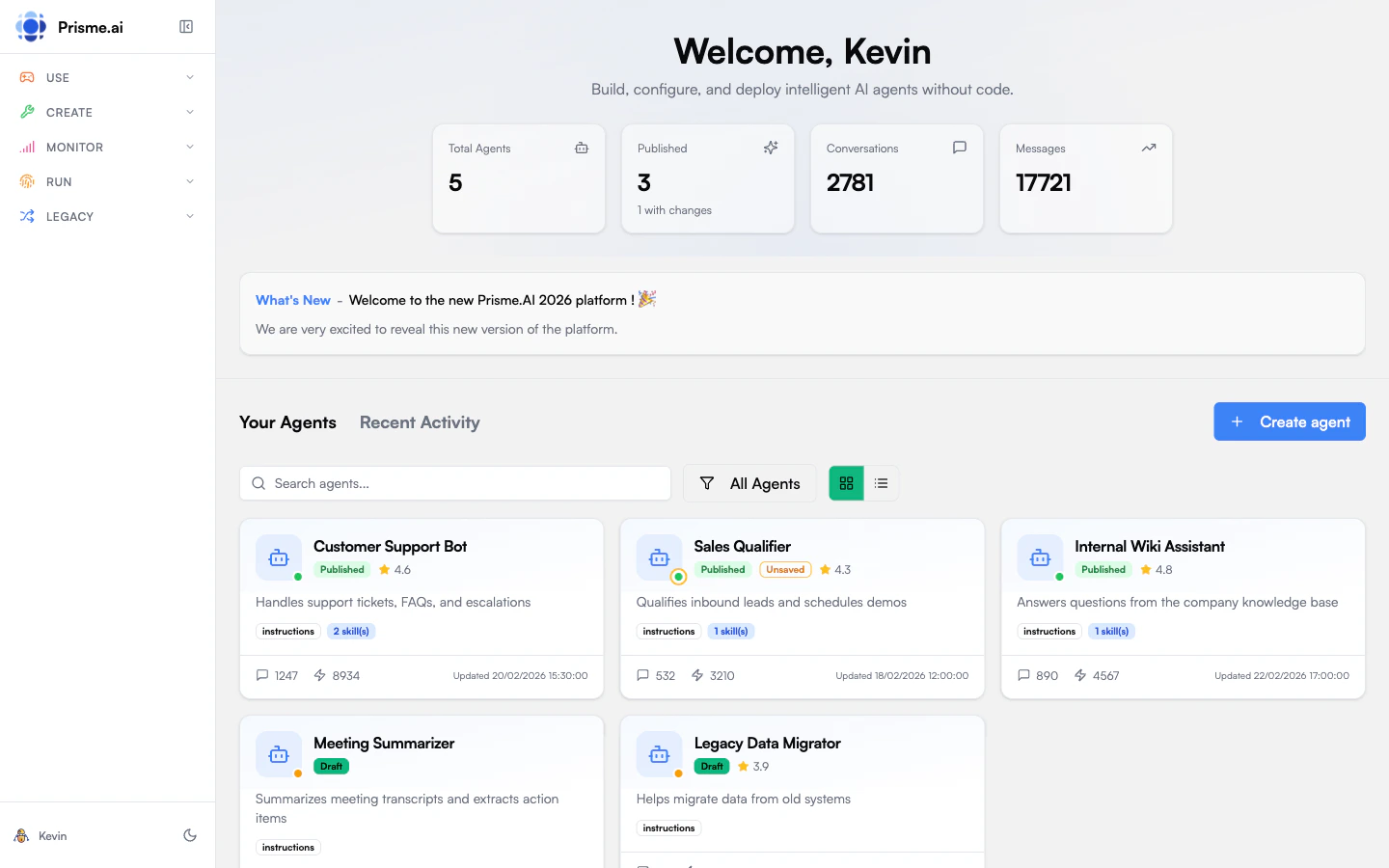 Agent Creator is your workspace for building AI agents. Whether you need a simple Q\&A assistant or a sophisticated agent with tools and knowledge bases, Agent Creator provides everything in one place.
## What You Can Do
Browse available agents, find ones shared with you, and start conversations
Build new agents from scratch or import existing configurations
Connect tools, knowledge bases, and integrations to extend what your agent can do
Chat with your agent in the playground and run evaluations to measure quality
## The Agent Workspace
When you open Agent Creator, you'll see:
* **Agent Gallery** - All agents you have access to, with filters for "My Agents", "Shared with Me", and "All"
* **Quick Stats** - Total agents, published count, conversations, and messages
* **Recent Activity** - Track what's happening across your agents
Click any agent to open its workspace, where you can:
1. **Overview** - See agent status, profile, and key metrics at a glance
2. **Instructions** - Define how your agent behaves through system prompts
3. **Capabilities** - Add tools (APIs, integrations) and knowledge (document stores)
4. **Playground** - Test conversations with your agent in real-time
5. **Evaluate** - Create test cases and run quality evaluations
6. **Analytics** - View usage metrics, performance, and user feedback
7. **Settings** - Configure retention, sharing, memory, and safety guardrails
## Agent Profiles
Agents are created with a **profile** that determines their capabilities. Profiles are graduated levels of complexity:
| Profile | Level | Agentic Loop | Planning | Reflection | Memory | Tools | Max Turns | Token Budget |
| -------------- | ----- | ------------ | -------- | ---------- | --------------------- | ------------------------------------------ | --------- | ------------ |
| `simple` | 1 | No | No | No | Working | Knowledge only | 1 | 4K |
| `workflow` | 2 | No | No | No | Working + Session | Knowledge + Custom | 1 | 8K |
| `agent_light` | 3 | Yes | No | No | Working + Session | System (todo, budget) + Knowledge + Custom | 10 | 20K |
| `agent_full` | 4 | Yes | Yes | Yes | All (incl. long-term) | All system + Knowledge + Custom | 30 | 100K |
| `orchestrator` | 5 | Yes | Yes | Yes | All | All + Delegation | 50 | 200K |
Direct LLM call with optional RAG. No tool use, no multi-turn reasoning. Best for FAQ bots, document summarization, simple Q\&A with a knowledge base.
Orchestrated prompt chains with predefined logic. Supports custom tools but no autonomous decision-making. Best for multi-step form processing, document validation pipelines, content generation with review.
Basic ReAct loop — the agent can reason and use tools iteratively, but without planning or reflection. Best for research assistants, data lookup, interactive troubleshooting.
Full agentic capabilities: planning before execution, reflection after each step, long-term memory across conversations, action approval guardrails. Cost budget: \$1/conversation. Best for complex report generation, autonomous research, tasks requiring human approval.
Extends `agent_full` with multi-agent delegation. Can discover and delegate to other agents, with a maximum delegation depth of 3. Cost budget: \$5/conversation. Best for multi-domain analysis, hierarchical task decomposition.
## Video Tour: Orchestrate Agents
This video is currently available in French.
Start with a simpler profile. You can always upgrade later as your needs grow.
## Publishing & Sharing
Agents have two states:
* **Draft** - Work in progress, only visible to you
* **Published** - Live version that others can use
When you publish, you choose visibility:
* **Public** — The agent appears in the agent store and is accessible to all users in the organization. Anyone can start a conversation.
* **Restricted** — The agent description appears in the agent store but is only accessible to users or groups that have been explicitly granted access.
Changes to a published agent are saved as drafts until you publish again, so users always see a stable version.
### Access Control
An agent owner can share their agent with specific users or groups. Each share creates a **binding** that grants access. Bindings can target:
* A **single user** — by user ID
* A **group** — by group ID, granting access to all members
When a group is deleted, all bindings referencing it are automatically cleaned up.
### Access Requests
Users who discover a restricted agent can **request access**:
1. The user submits an access request on the agent
2. The agent owner sees the pending request
3. The admin approves or rejects the request
4. On approval, a binding is created and the user gains access immediately
### Embedding for Anonymous Visitors
You can expose a **public** agent on any website with the `embed.js` script so visitors can chat without signing in. The embed mints a short-lived anonymous session scoped to your organization and applies the role configured for anonymous access.\
You can preview and retrieve the full embed.js script at `$PLATFORM_URL/test-embed-chat.html`, e.g. [https://studio.prisme.ai/test-embed-chat.html](https://studio.prisme.ai/test-embed-chat.html) for Prismeai SaaS.
Three prerequisites:
1. **Enable anonymous access on the organization** in **AI Governance → Authentication → Anonymous access**. Owners/Admins toggle it on and pick the role to apply (default: `org:anonymous`, read-only on agents). Optionally restrict allowed source domains so only your own sites can mint tokens — leave empty to accept any Origin.
2. **Publish the agent as Public.** Restricted agents reject anonymous sessions even with the right org scope. Set visibility to **Public** in the publish dialog so the agent is reachable to anyone in the org, including anonymous visitors.
3. Your source domain must be **CORS whitelisted** with prismeai-api-gateway `CORS_ADDITIONAL_ALLOWED_ORIGINS` environment variable :
```
- name: CORS_ADDITIONAL_ALLOWED_ORIGINS
value: https://www.w3schools.com
```
## Next Steps
Browse what's already available in your organization.
[Explore agents →](./discovering-agents)
Build a simple assistant to learn the basics.
[Create an agent →](./creating-agents)
Connect knowledge bases and tools to make it useful.
[Add capabilities →](./capabilities)
Agent Creator is your workspace for building AI agents. Whether you need a simple Q\&A assistant or a sophisticated agent with tools and knowledge bases, Agent Creator provides everything in one place.
## What You Can Do
Browse available agents, find ones shared with you, and start conversations
Build new agents from scratch or import existing configurations
Connect tools, knowledge bases, and integrations to extend what your agent can do
Chat with your agent in the playground and run evaluations to measure quality
## The Agent Workspace
When you open Agent Creator, you'll see:
* **Agent Gallery** - All agents you have access to, with filters for "My Agents", "Shared with Me", and "All"
* **Quick Stats** - Total agents, published count, conversations, and messages
* **Recent Activity** - Track what's happening across your agents
Click any agent to open its workspace, where you can:
1. **Overview** - See agent status, profile, and key metrics at a glance
2. **Instructions** - Define how your agent behaves through system prompts
3. **Capabilities** - Add tools (APIs, integrations) and knowledge (document stores)
4. **Playground** - Test conversations with your agent in real-time
5. **Evaluate** - Create test cases and run quality evaluations
6. **Analytics** - View usage metrics, performance, and user feedback
7. **Settings** - Configure retention, sharing, memory, and safety guardrails
## Agent Profiles
Agents are created with a **profile** that determines their capabilities. Profiles are graduated levels of complexity:
| Profile | Level | Agentic Loop | Planning | Reflection | Memory | Tools | Max Turns | Token Budget |
| -------------- | ----- | ------------ | -------- | ---------- | --------------------- | ------------------------------------------ | --------- | ------------ |
| `simple` | 1 | No | No | No | Working | Knowledge only | 1 | 4K |
| `workflow` | 2 | No | No | No | Working + Session | Knowledge + Custom | 1 | 8K |
| `agent_light` | 3 | Yes | No | No | Working + Session | System (todo, budget) + Knowledge + Custom | 10 | 20K |
| `agent_full` | 4 | Yes | Yes | Yes | All (incl. long-term) | All system + Knowledge + Custom | 30 | 100K |
| `orchestrator` | 5 | Yes | Yes | Yes | All | All + Delegation | 50 | 200K |
Direct LLM call with optional RAG. No tool use, no multi-turn reasoning. Best for FAQ bots, document summarization, simple Q\&A with a knowledge base.
Orchestrated prompt chains with predefined logic. Supports custom tools but no autonomous decision-making. Best for multi-step form processing, document validation pipelines, content generation with review.
Basic ReAct loop — the agent can reason and use tools iteratively, but without planning or reflection. Best for research assistants, data lookup, interactive troubleshooting.
Full agentic capabilities: planning before execution, reflection after each step, long-term memory across conversations, action approval guardrails. Cost budget: \$1/conversation. Best for complex report generation, autonomous research, tasks requiring human approval.
Extends `agent_full` with multi-agent delegation. Can discover and delegate to other agents, with a maximum delegation depth of 3. Cost budget: \$5/conversation. Best for multi-domain analysis, hierarchical task decomposition.
## Video Tour: Orchestrate Agents
This video is currently available in French.
Start with a simpler profile. You can always upgrade later as your needs grow.
## Publishing & Sharing
Agents have two states:
* **Draft** - Work in progress, only visible to you
* **Published** - Live version that others can use
When you publish, you choose visibility:
* **Public** — The agent appears in the agent store and is accessible to all users in the organization. Anyone can start a conversation.
* **Restricted** — The agent description appears in the agent store but is only accessible to users or groups that have been explicitly granted access.
Changes to a published agent are saved as drafts until you publish again, so users always see a stable version.
### Access Control
An agent owner can share their agent with specific users or groups. Each share creates a **binding** that grants access. Bindings can target:
* A **single user** — by user ID
* A **group** — by group ID, granting access to all members
When a group is deleted, all bindings referencing it are automatically cleaned up.
### Access Requests
Users who discover a restricted agent can **request access**:
1. The user submits an access request on the agent
2. The agent owner sees the pending request
3. The admin approves or rejects the request
4. On approval, a binding is created and the user gains access immediately
### Embedding for Anonymous Visitors
You can expose a **public** agent on any website with the `embed.js` script so visitors can chat without signing in. The embed mints a short-lived anonymous session scoped to your organization and applies the role configured for anonymous access.\
You can preview and retrieve the full embed.js script at `$PLATFORM_URL/test-embed-chat.html`, e.g. [https://studio.prisme.ai/test-embed-chat.html](https://studio.prisme.ai/test-embed-chat.html) for Prismeai SaaS.
Three prerequisites:
1. **Enable anonymous access on the organization** in **AI Governance → Authentication → Anonymous access**. Owners/Admins toggle it on and pick the role to apply (default: `org:anonymous`, read-only on agents). Optionally restrict allowed source domains so only your own sites can mint tokens — leave empty to accept any Origin.
2. **Publish the agent as Public.** Restricted agents reject anonymous sessions even with the right org scope. Set visibility to **Public** in the publish dialog so the agent is reachable to anyone in the org, including anonymous visitors.
3. Your source domain must be **CORS whitelisted** with prismeai-api-gateway `CORS_ADDITIONAL_ALLOWED_ORIGINS` environment variable :
```
- name: CORS_ADDITIONAL_ALLOWED_ORIGINS
value: https://www.w3schools.com
```
## Next Steps
Browse what's already available in your organization.
[Explore agents →](./discovering-agents)
Build a simple assistant to learn the basics.
[Create an agent →](./creating-agents)
Connect knowledge bases and tools to make it useful.
[Add capabilities →](./capabilities)