> ## Documentation Index
> Fetch the complete documentation index at: https://docs.prisme.ai/llms.txt
> Use this file to discover all available pages before exploring further.
# Platform Navigation
> Learn how to navigate the Prisme.ai interface and find what you need
The Prisme.ai platform offers a comprehensive set of features and products, organized in an intuitive interface. This guide will help you understand how to navigate the platform effectively and find what you need.
## Home Screen
When you log in to Prisme.ai, you'll land on the home screen, which serves as your central hub for Chat, agents, recent canvas, and product access.
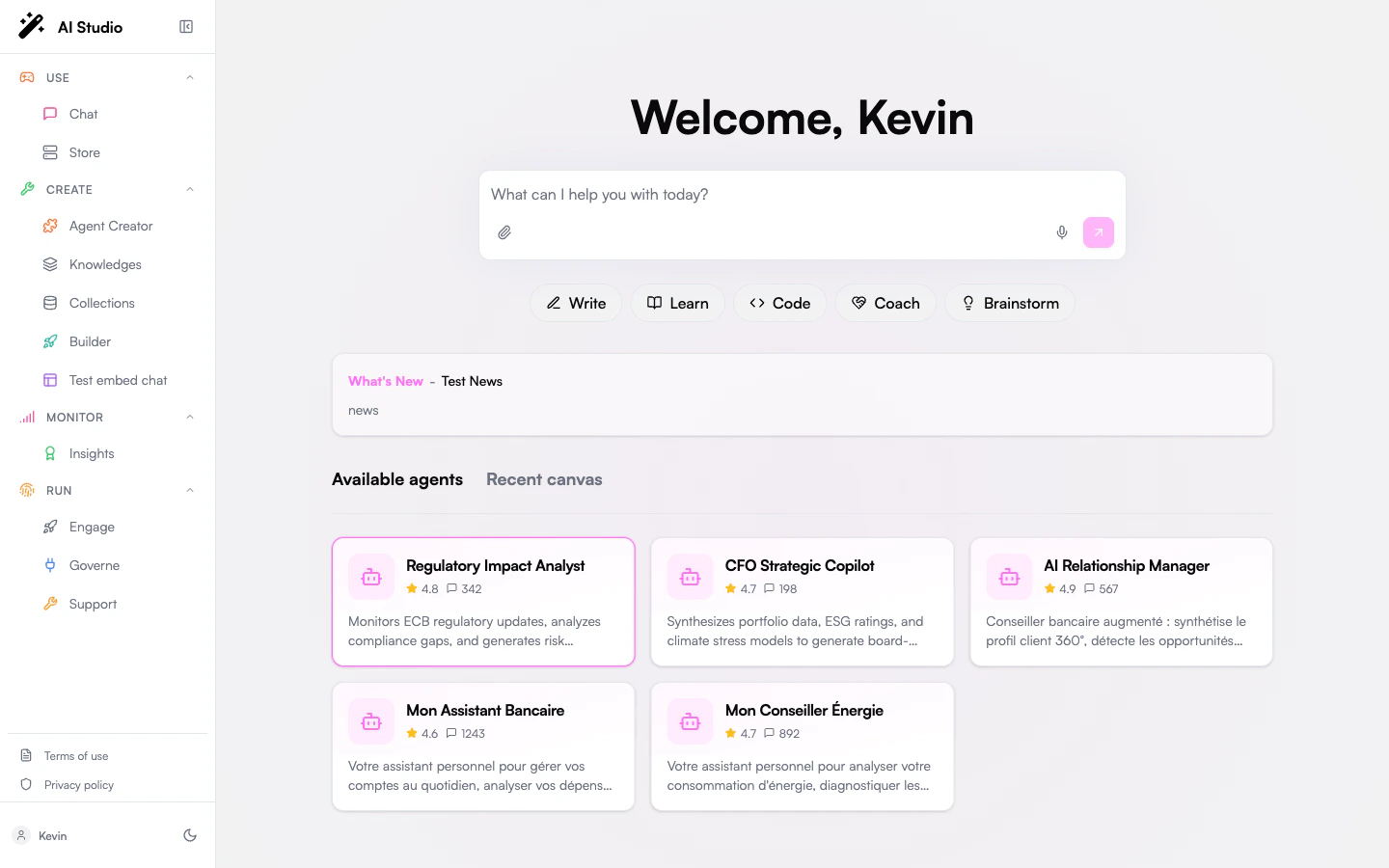 The home screen includes:
* **Prompt Composer** - Start a Chat request directly from the home screen
* **Product Navigation** - Access products depending on your role
* **Available Agents** - Open agents your organization has made available
* **Recent Canvas** - Return to recent canvas work
* **What's New** - See highlighted platform updates
## Navigation Structure
Prisme.ai's navigation is organized into several key areas:
### Side Navigation Menu
The home screen includes:
* **Prompt Composer** - Start a Chat request directly from the home screen
* **Product Navigation** - Access products depending on your role
* **Available Agents** - Open agents your organization has made available
* **Recent Canvas** - Return to recent canvas work
* **What's New** - See highlighted platform updates
## Navigation Structure
Prisme.ai's navigation is organized into several key areas:
### Side Navigation Menu
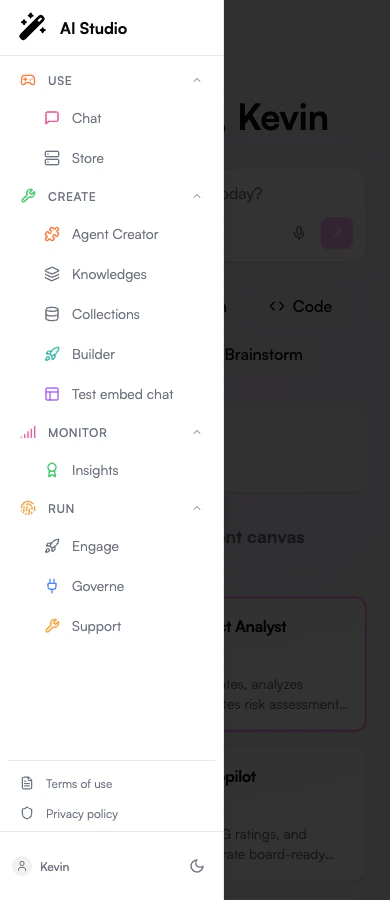
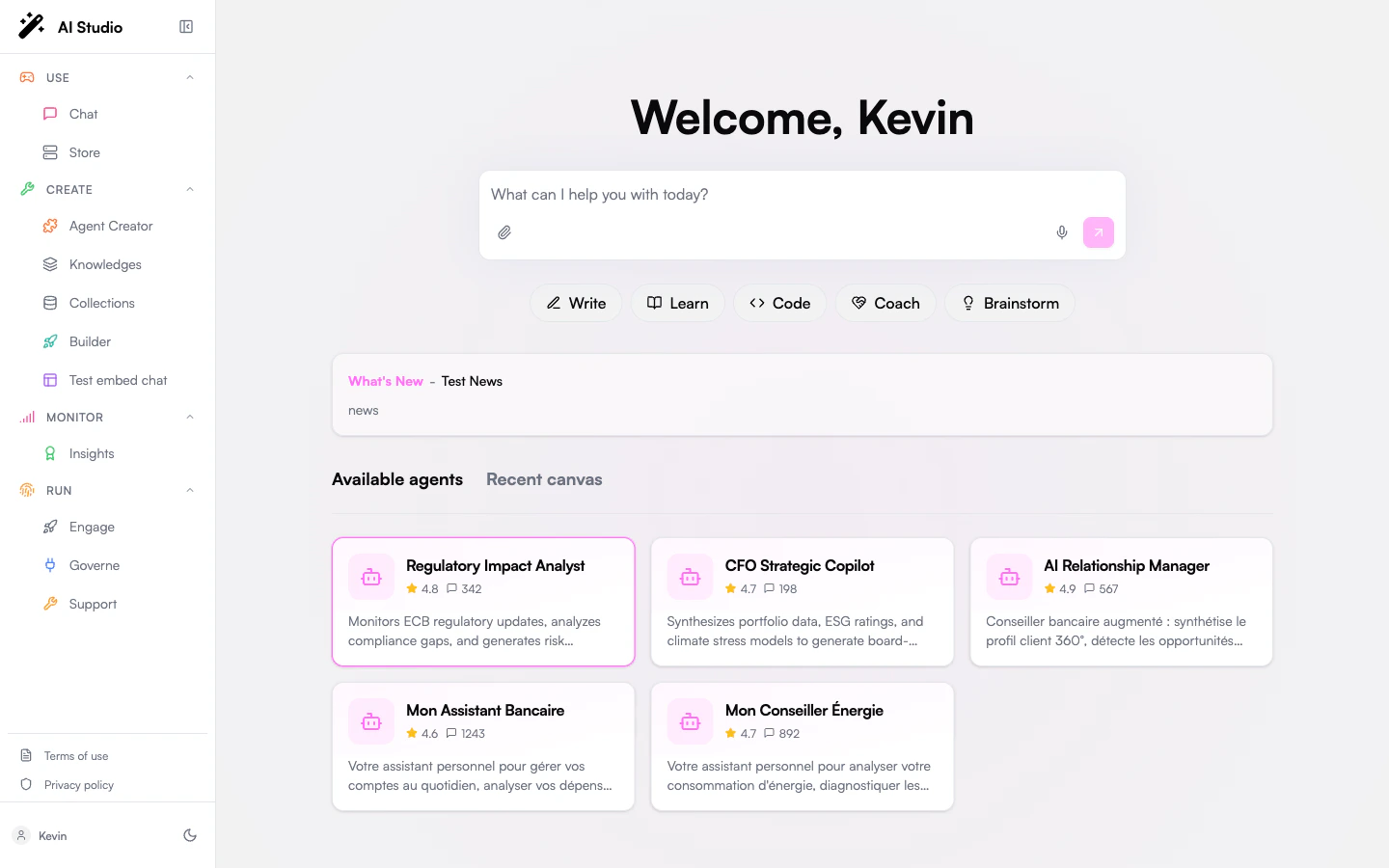 The side navigation menu includes:
* **Logo** - Click to return to the home screen
* **Use** - Chat and Store experiences
* **Create** - Agent Creator, Knowledges, Collections, Builder, and other creation tools
* **Monitor** - Insights and analytics products
* **Run** - Operational products such as Engage, Governe, and Support
* **User area** - Access your profile, terms, privacy policy, and display mode
## Product Navigation
Each Prisme.ai product has its own dedicated navigation and interface. Here's a quick overview of how to navigate each product:
The side navigation menu includes:
* **Logo** - Click to return to the home screen
* **Use** - Chat and Store experiences
* **Create** - Agent Creator, Knowledges, Collections, Builder, and other creation tools
* **Monitor** - Insights and analytics products
* **Run** - Operational products such as Engage, Governe, and Support
* **User area** - Access your profile, terms, privacy policy, and display mode
## Product Navigation
Each Prisme.ai product has its own dedicated navigation and interface. Here's a quick overview of how to navigate each product:
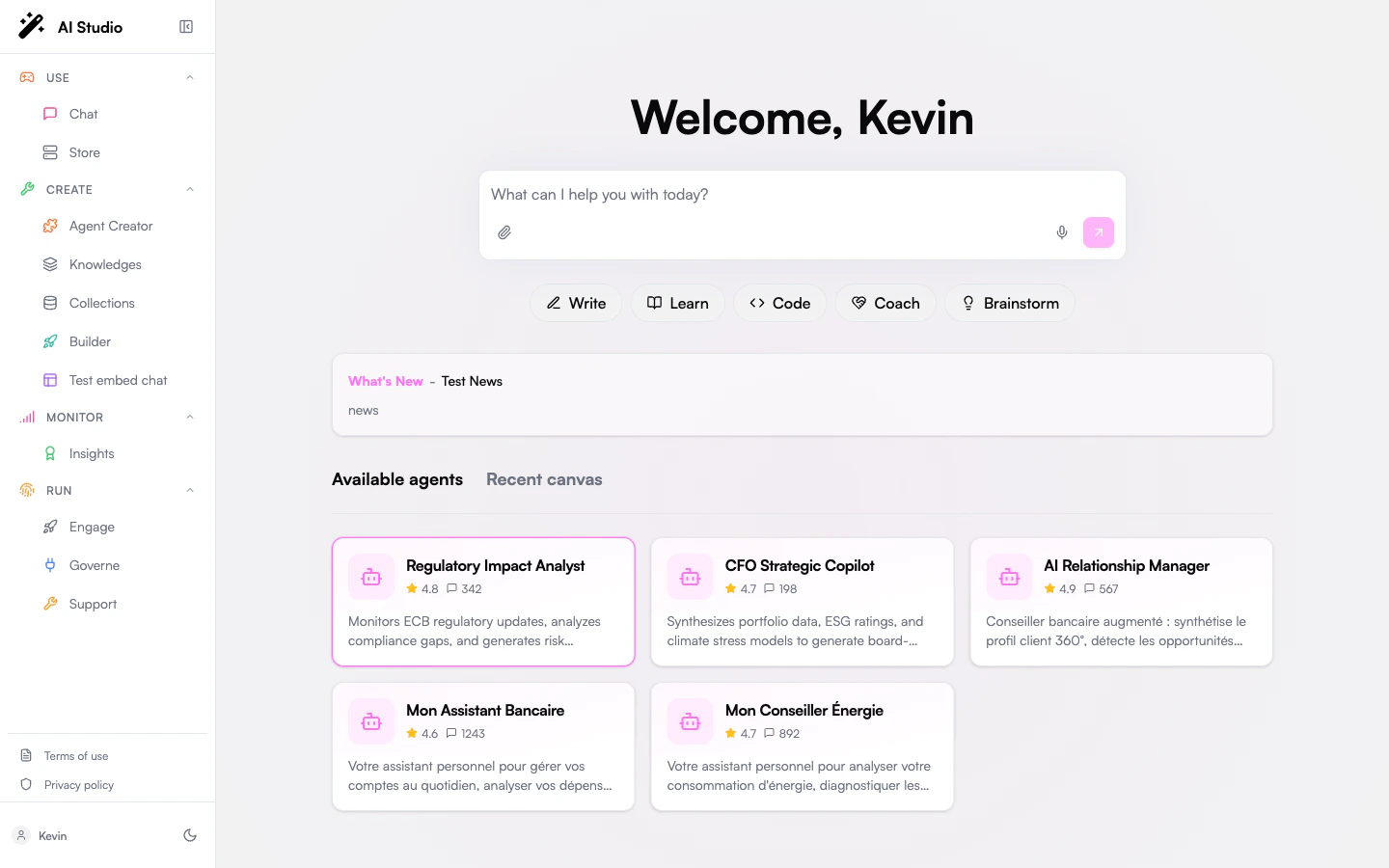 Key areas include:
* **Chat Interface** - Main area for conversations
* **Conversation History** - Access previous chats
* **Settings** - Configure chat behavior
* **Document Upload** - Add documents to your conversation
Key areas include:
* **Chat Interface** - Main area for conversations
* **Conversation History** - Access previous chats
* **Settings** - Configure chat behavior
* **Document Upload** - Add documents to your conversation
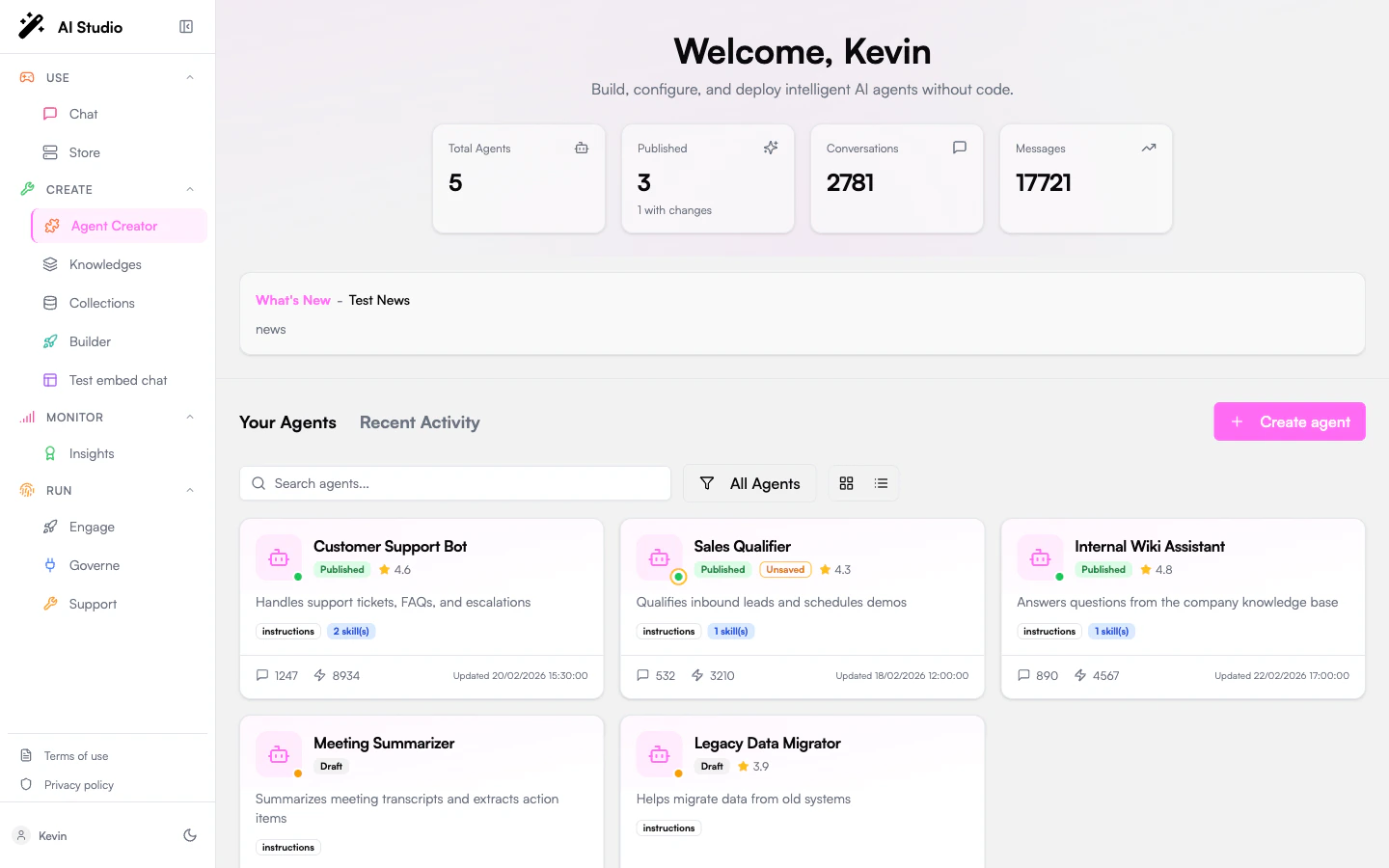 Key areas include:
* **Agent Hub** - Browse available agents
* **Create Agent** - Build a new agent
* **Instructions** - Define agent behavior
* **Capabilities** - Connect knowledge bases, tools, and integrations
* **Playground** - Test the agent before sharing it
Key areas include:
* **Agent Hub** - Browse available agents
* **Create Agent** - Build a new agent
* **Instructions** - Define agent behavior
* **Capabilities** - Connect knowledge bases, tools, and integrations
* **Playground** - Test the agent before sharing it
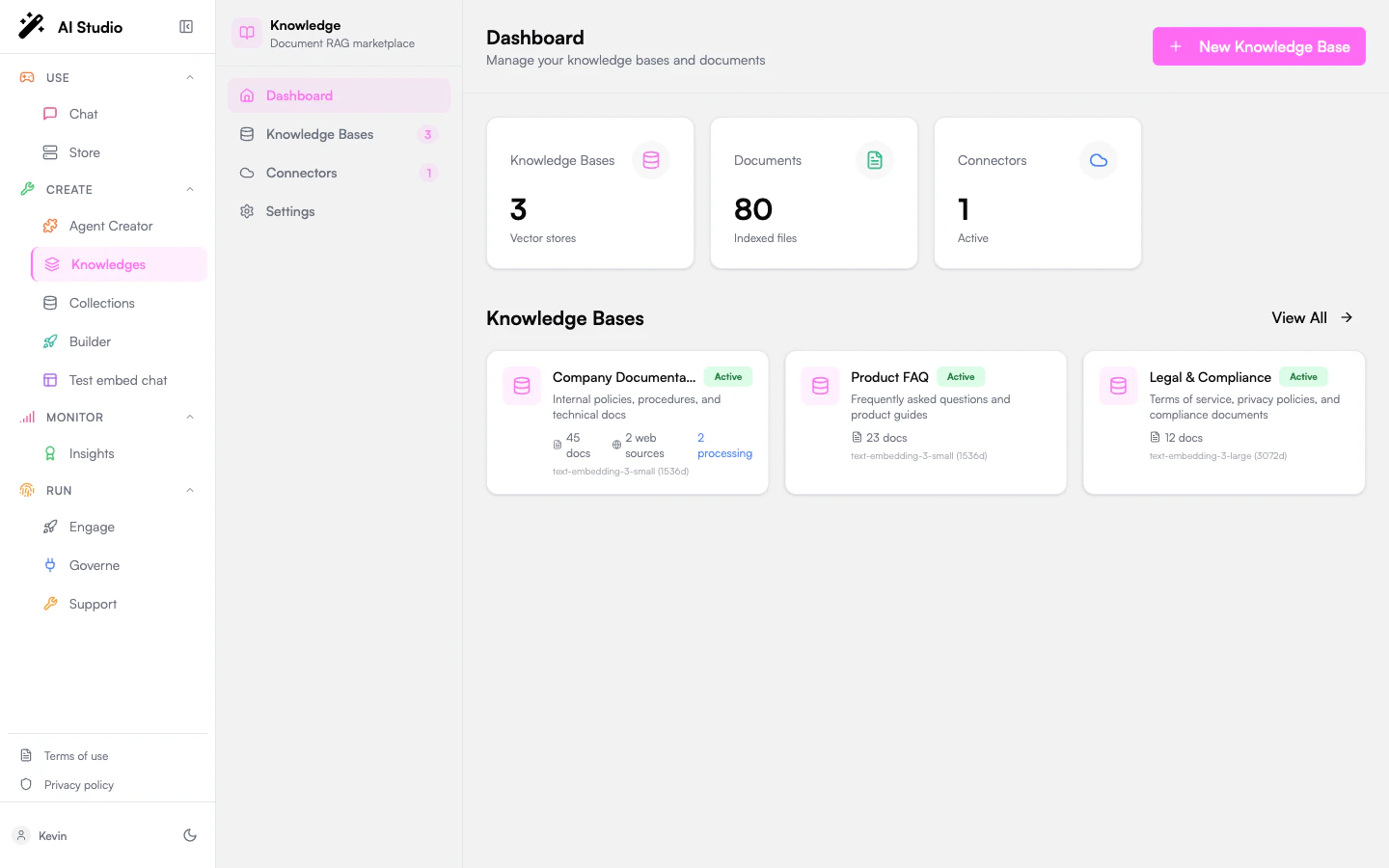 Key areas include:
* **Knowledge Bases** - Manage your knowledge bases
* **Documents** - Upload and manage documents
* **Agent Integration** - Connect knowledge bases to agents
* **Testing** - Test knowledge retrieval
Key areas include:
* **Knowledge Bases** - Manage your knowledge bases
* **Documents** - Upload and manage documents
* **Agent Integration** - Connect knowledge bases to agents
* **Testing** - Test knowledge retrieval
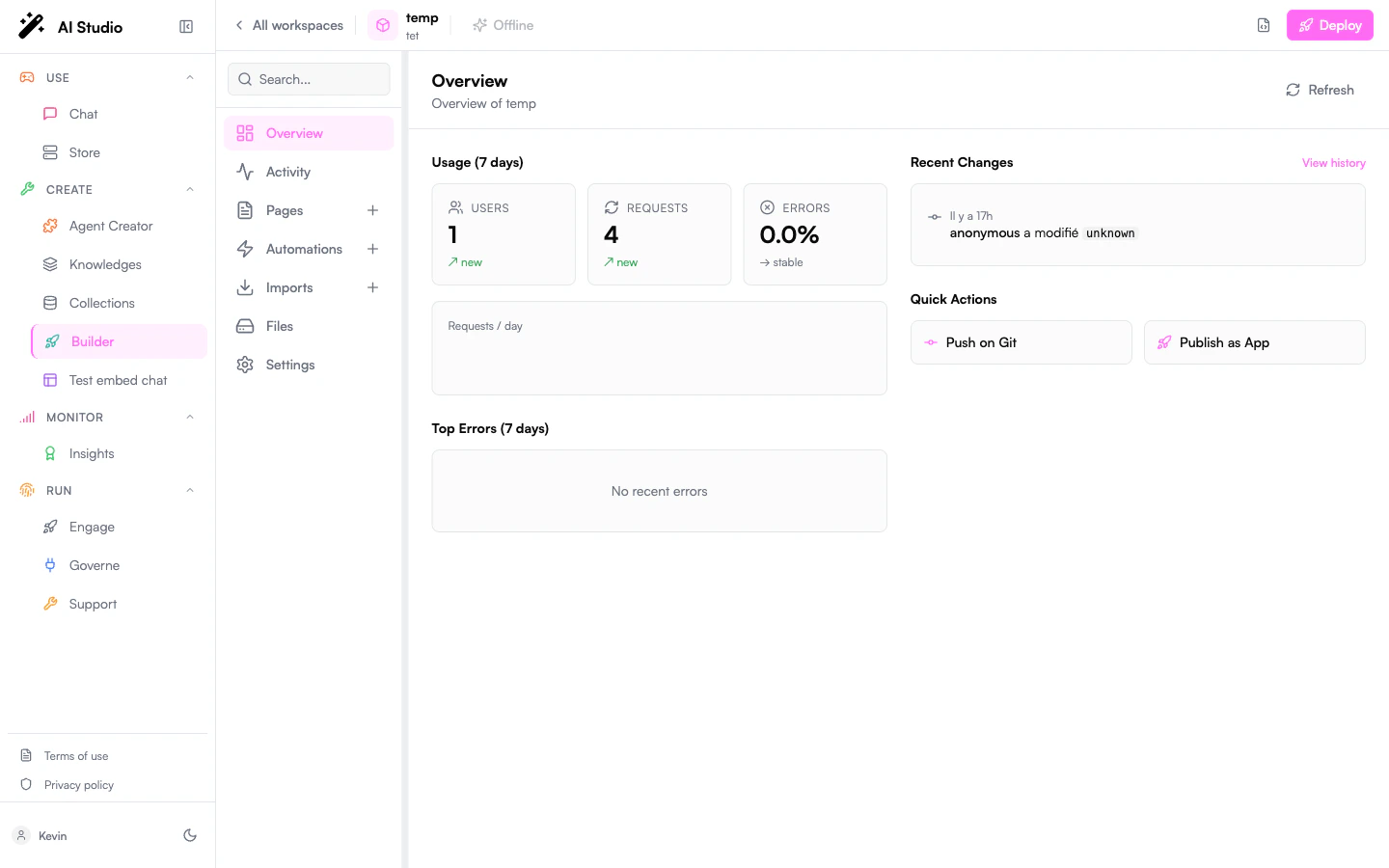 Key areas include:
* **Overview** - Review usage, errors, recent changes, and quick actions
* **Activity** - Inspect workspace traces and correlation IDs
* **Pages** - Build React user interfaces
* **Automations** - Configure backend workflows
* **Imports** - Install and configure apps or custom code
* **Files** - Manage uploaded workspace assets
* **Settings** - Access workspace settings
Key areas include:
* **Overview** - Review usage, errors, recent changes, and quick actions
* **Activity** - Inspect workspace traces and correlation IDs
* **Pages** - Build React user interfaces
* **Automations** - Configure backend workflows
* **Imports** - Install and configure apps or custom code
* **Files** - Manage uploaded workspace assets
* **Settings** - Access workspace settings
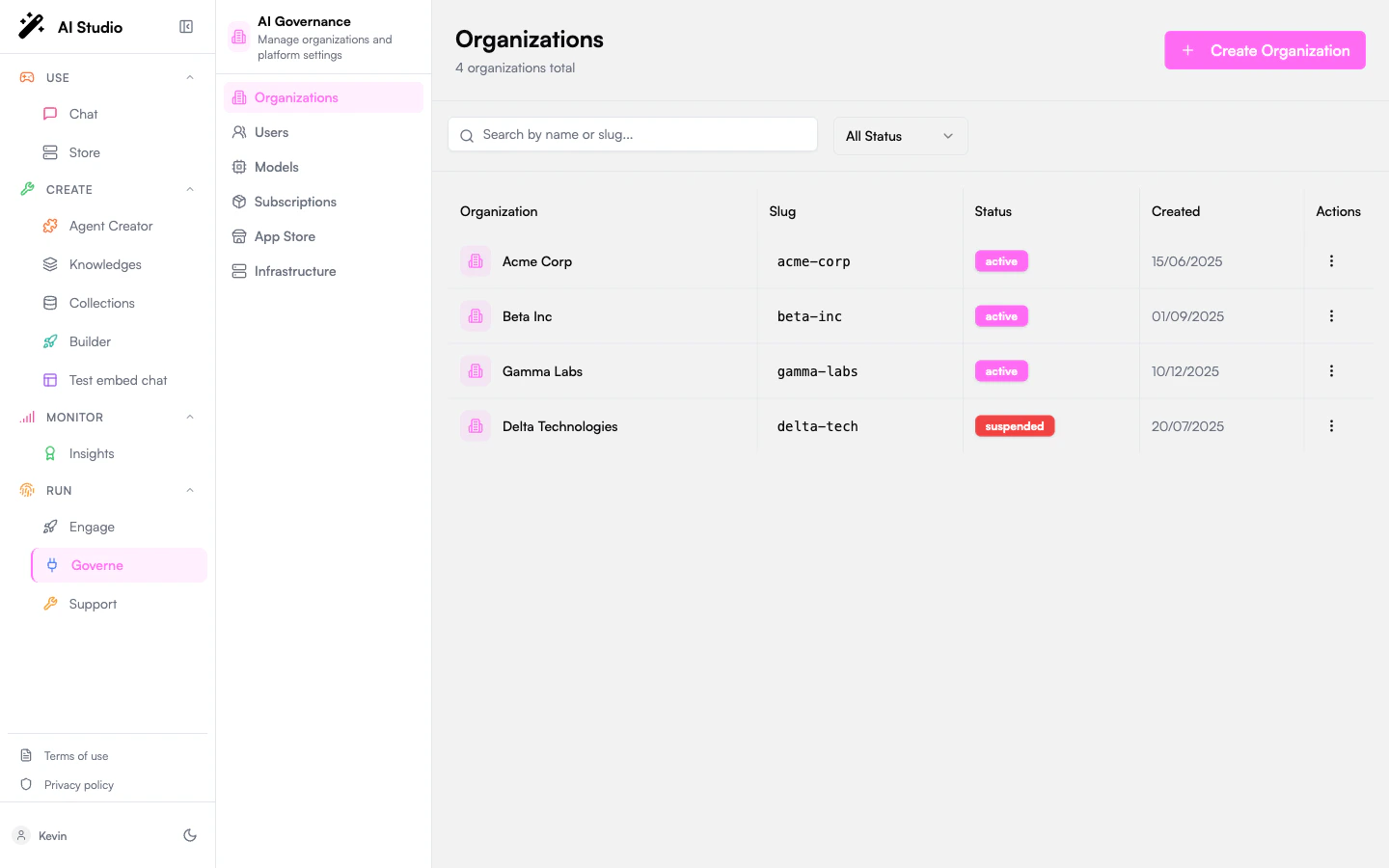 Key areas include:
* **Organizations** - Manage tenants and members
* **Roles** - Configure product access and permissions
* **Models** - Govern model providers and routing
* **Observability** - Monitor platform activity and costs
* **Appearance** - Customize platform navigation and branding
Key areas include:
* **Organizations** - Manage tenants and members
* **Roles** - Configure product access and permissions
* **Models** - Govern model providers and routing
* **Observability** - Monitor platform activity and costs
* **Appearance** - Customize platform navigation and branding
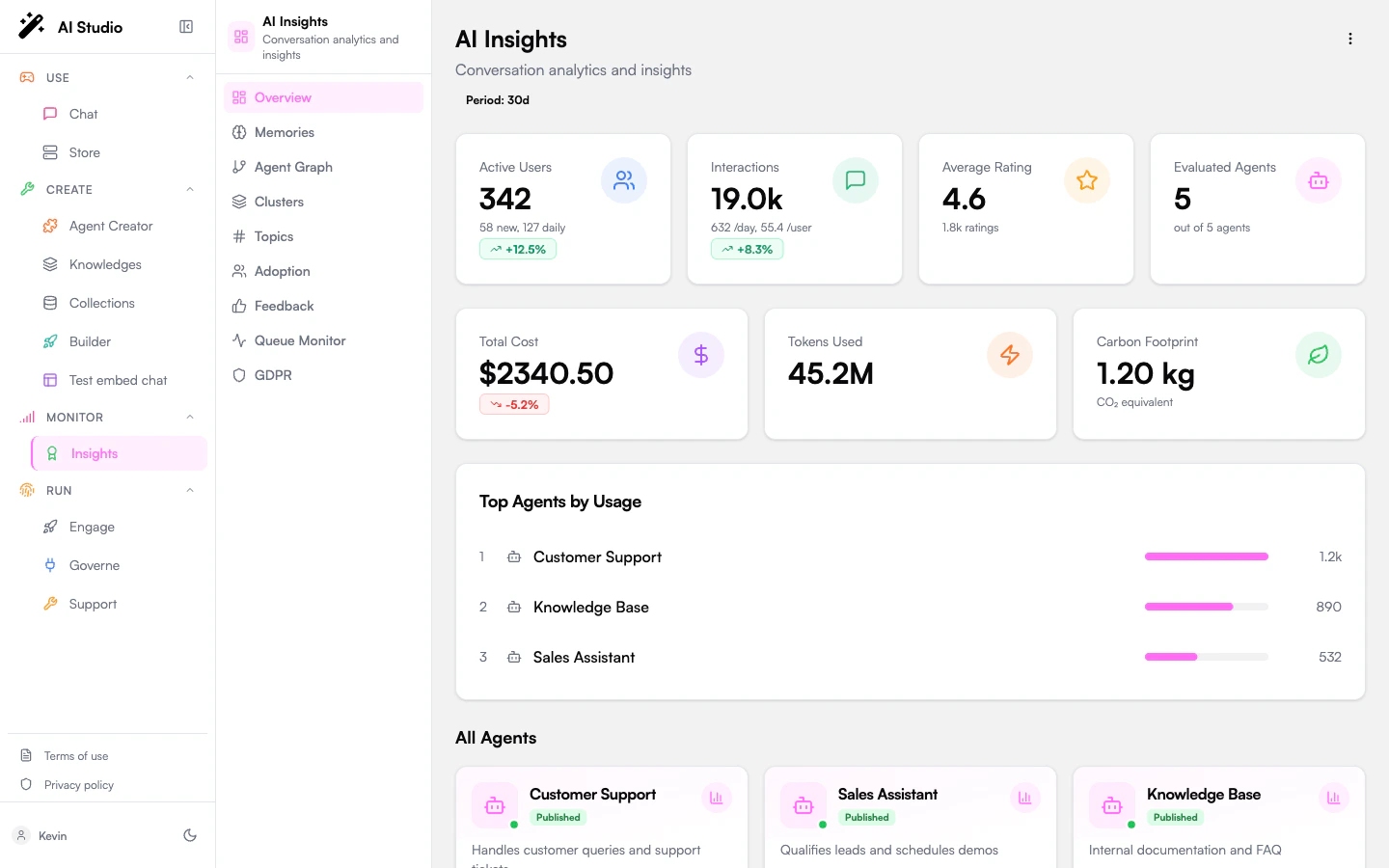 Key areas include:
* **Overview** - Review adoption and quality trends
* **Conversations** - Inspect conversations and analysis status
* **Evaluations** - Define criteria for conversation quality
* **Topics** - Understand common themes and clusters
* **Exports** - Extract data for reporting
## Mobile Navigation
On smaller screens, the navigation adapts to a more compact format:
Key areas include:
* **Overview** - Review adoption and quality trends
* **Conversations** - Inspect conversations and analysis status
* **Evaluations** - Define criteria for conversation quality
* **Topics** - Understand common themes and clusters
* **Exports** - Extract data for reporting
## Mobile Navigation
On smaller screens, the navigation adapts to a more compact format:
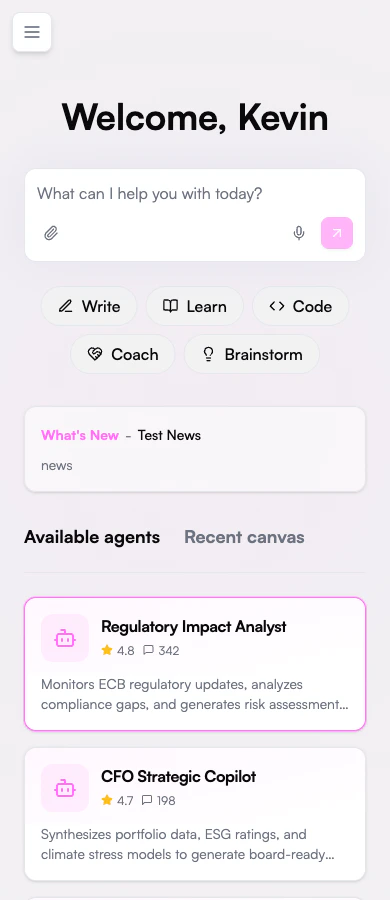 Key differences in mobile navigation:
* Main menu collapses into a hamburger menu
* Product navigation appears at the bottom of the screen
* Some advanced features may be reorganized for better mobile access
Key differences in mobile navigation:
* Main menu collapses into a hamburger menu
* Product navigation appears at the bottom of the screen
* Some advanced features may be reorganized for better mobile access
 ## Next Steps
Now that you understand how to navigate the Prisme.ai platform, you're ready to explore its capabilities:
Explore the Prisme.ai product suite in detail
## Next Steps
Now that you understand how to navigate the Prisme.ai platform, you're ready to explore its capabilities:
Explore the Prisme.ai product suite in detail